
1. Product Overview
The Skylight Calendar 2 is a 15-inch Full HD touchscreen digital calendar designed to help families organize schedules, tasks, and routines. It features a vibrant display, Wi-Fi connectivity, and integration with various calendar services.
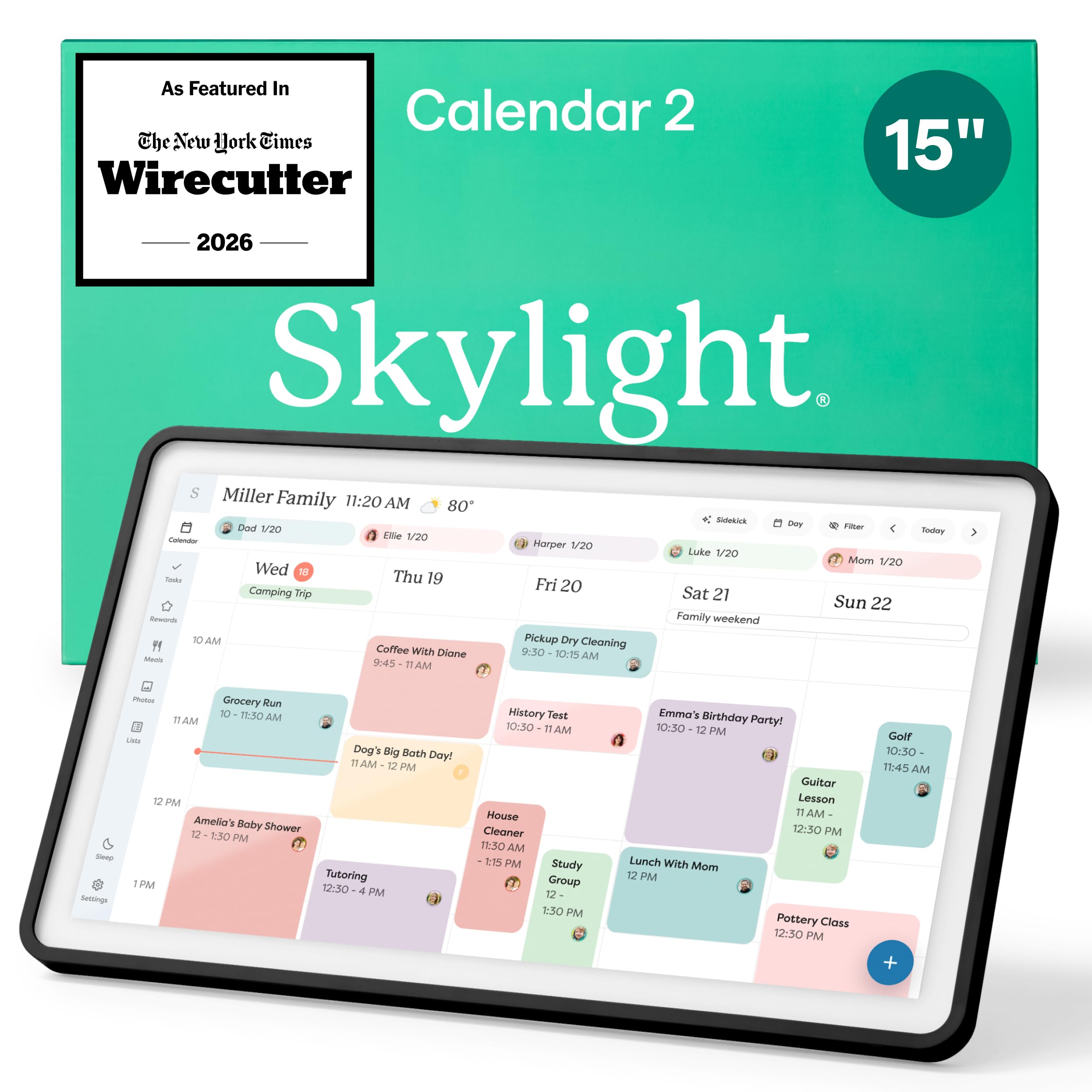
Image: The Skylight Calendar 2 displaying a detailed family schedule with color-coded events.
2. Package Contents
Verify that all items are present in the package:
- Skylight Calendar 2 (15-inch device)
- Power Adapter
- Removable Magnetic Snap Frame
- Adjustable Stand
- Wall Mount Kit (with built-in level)
- Quick Start Guide
3. Setup Guide
- Unpack the Device: Carefully remove the Skylight Calendar 2 and all accessories from its packaging.
- Power On: Connect the power adapter to the device and plug it into a wall outlet. The device will automatically power on.
- Connect to Wi-Fi: Follow the on-screen prompts to connect your Skylight Calendar 2 to your home Wi-Fi network. A stable internet connection is required for full functionality.
- Sync Calendars: Download the Skylight Calendar app on your smartphone or visit the Skylight website to create an account and sync your existing digital calendars (e.g., Google Calendar, Outlook, Apple Calendar).
- Placement Options:
- Tabletop/Countertop: Attach the adjustable stand to position the calendar on a flat surface. The stand allows for a 180° adjustment.
- Wall Mount: Use the included wall mount kit to secure the calendar to a wall. The built-in level assists with proper alignment.

Image: The Skylight Calendar 2 shown with its adjustable stand, demonstrating flexible placement options.
4. Operating Instructions
4.1. Navigating the Interface
The Skylight Calendar 2 features a responsive Full HD touchscreen. Swipe left or right to navigate through days or weeks, and tap on events or tasks for more details. The left-hand menu provides quick access to different features.
4.2. Calendar Syncing
The device seamlessly syncs with popular digital calendars. Once connected via the app, all your events will appear on the 15-inch display. Events can be color-coded for different family members or categories for easy identification.

Image: The Skylight Calendar 2 displaying a week's schedule with events synced from multiple sources like Google Calendar, Outlook, and Apple Calendar.
4.3. Task and Chore Management
Create and assign tasks or chores to family members. The interactive chore chart allows users to mark tasks as complete directly on the screen. With the optional Plus Plan, you can assign rewards for completed tasks.
4.4. Lists and Meal Planning
Utilize the Lists feature for groceries, packing, or any custom lists. The optional Plus Plan includes meal planning features, allowing you to plan meals for the week and add recipes.

Image: The Skylight Calendar 2 showing various lists, including a grocery list and a packing list, alongside a calendar view.
4.5. Photo Screensaver
When not actively in use, the Skylight Calendar 2 can function as a digital photo frame, displaying a rotating selection of your uploaded photos. This feature is available with the optional Plus Plan.

Image: The Skylight Calendar 2 showcasing family photos in screensaver mode.
4.6. Free Skylight App
Manage your calendar, tasks, and lists from anywhere using the free Skylight app on your smartphone. All changes sync in real-time to your Calendar 2 device.

Image: A smartphone displaying the Skylight Calendar app interface, showing synced events.
5. Maintenance
- Cleaning: Use a soft, dry, lint-free cloth to clean the screen and frame. Do not use liquid cleaners or sprays directly on the device.
- Software Updates: The Skylight Calendar 2 receives automatic software updates to introduce new features and improvements. Ensure your device is connected to Wi-Fi for these updates.
- Frame Customization: The magnetic Snap Frame can be easily swapped to change the aesthetic of your calendar. Ensure the new frame is securely attached.

Image: A close-up of the Skylight Calendar 2 demonstrating the swappable magnetic frames.
6. Troubleshooting
- Device Not Powering On: Ensure the power adapter is securely connected to both the device and a working electrical outlet.
- No Wi-Fi Connection: Check your router and ensure your Wi-Fi network is active. Re-enter your Wi-Fi password on the device if necessary. Move the device closer to your Wi-Fi router if signal is weak.
- Calendar Not Syncing: Verify that your external calendars are correctly linked through the Skylight app or website. Ensure the device has a stable internet connection.
- Touchscreen Unresponsive: Restart the device by unplugging it for 10 seconds and plugging it back in. If the issue persists, contact customer support.
- Display Issues: If the screen is dim or colors appear incorrect, check the display settings on the device. The auto-brightness feature adjusts to ambient light.
7. Specifications
| Feature | Detail |
|---|---|
| Model Number | 152EA |
| Screen Size | 15-inch |
| Display Type | Full HD Touchscreen |
| Storage | 16GB |
| RAM | 4GB |
| Connectivity | Wi-Fi |
| Mounting Options | Tabletop (adjustable stand), Wall Mount |
| UPC | 850067427438 |
8. Warranty Information
For detailed warranty information, please refer to the warranty card included in your product packaging or visit the official Skylight website. Keep your proof of purchase for warranty claims.
9. Customer Support
If you encounter any issues or have questions not covered in this manual, please contact Skylight customer support:
- Website: www.skylightframe.com/support
- Email: support@skylightframe.com