
1. Product Overview
The Eyoyo Mini EY-015P is a compact and versatile 2D/1D barcode scanner designed for various applications. It supports multiple connection methods and is compatible with a wide range of devices.

Image: Two Eyoyo Mini EY-015P barcode scanners on a wooden surface, highlighting their compact design.
Key Features:
- Compact Design: Ultra-compact at 3.5 × 1.18 × 0.78 inches and only 1.5 oz for portability.
- Multiple Connection Options: Supports 2.4GHz wireless, Bluetooth wireless, and USB wired modes.
- Advanced 2D Scanning: Capable of scanning both 1D and 2D barcodes from printed surfaces and electronic screens, including QR, PDF417, DataMatrix, Aztec, and more.
- Long Battery Life: 450mAh rechargeable battery provides up to 8 hours of continuous operation and 180 days standby time.
- Dual Data Transfer Modes: Instant upload and offline storage mode (up to 150,000 barcodes).
2. Package Contents
Verify that all items are present in the package:
- 1x Eyoyo 2D Barcode Scanner (or 2x for 2-pack)
- 1x 2.4G USB Dongle
- 1x USB Cable
- 1x User Manual
3. Setup
3.1 Charging the Scanner
Before initial use, fully charge the scanner. Connect the provided USB cable to the scanner and a power source (e.g., computer USB port or USB wall adapter). A full charge takes approximately 4 hours.
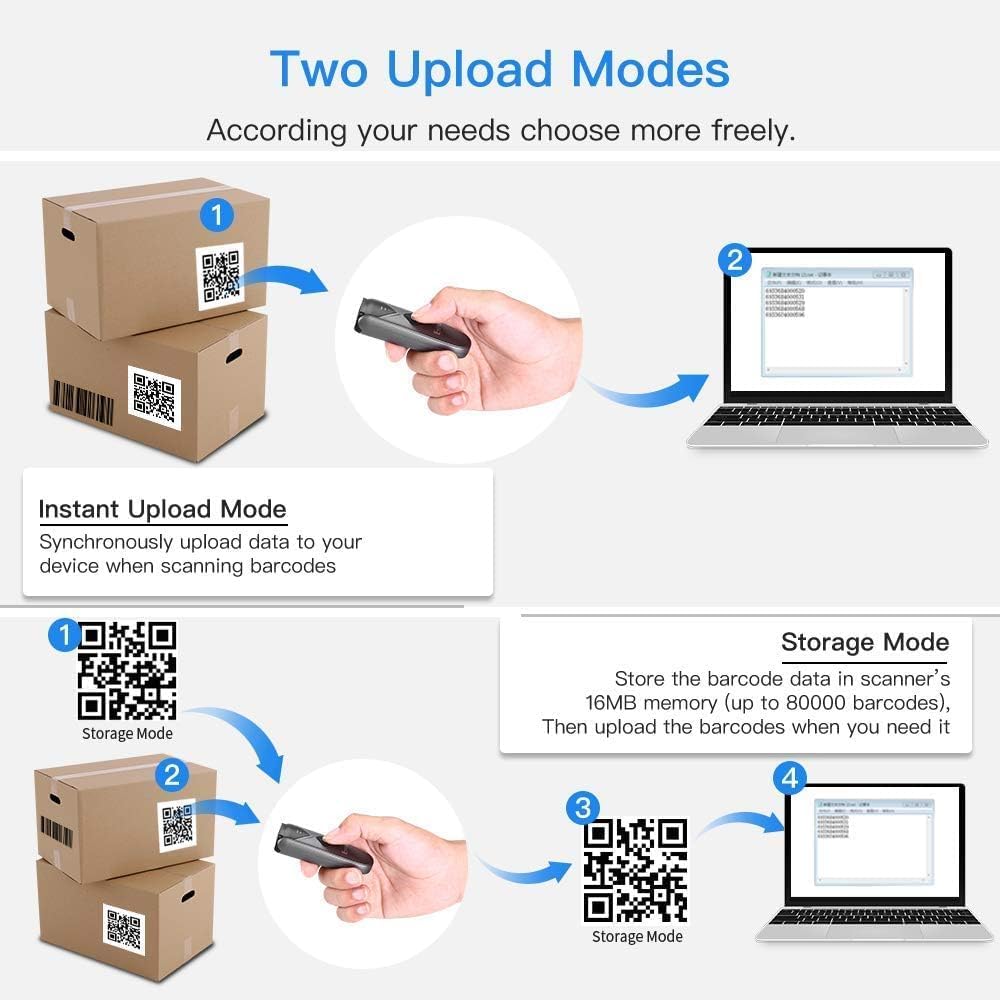
Image: Diagram showing the scanner's battery life, indicating 4 hours to charge, 8 hours of continuous scanning, and 720 hours of standby time.
3.2 Connection Methods
The scanner offers three connection options:
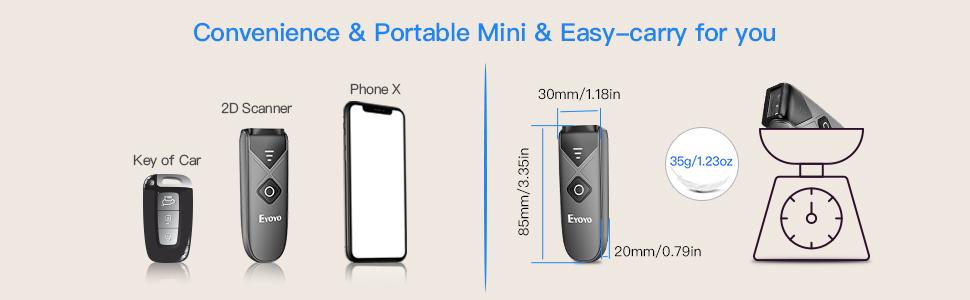
Image: Illustration of the three connection methods: Bluetooth, 2.4G Wireless (with dongle), and USB Wired.
3.2.1 Bluetooth Wireless Connection
To connect via Bluetooth:
- Turn on the scanner.
- Enable Bluetooth on your device (laptop, tablet, smartphone).
- Search for available Bluetooth devices and select "Eyoyo-015" or a similar name.
- The scanner will pair with your device.
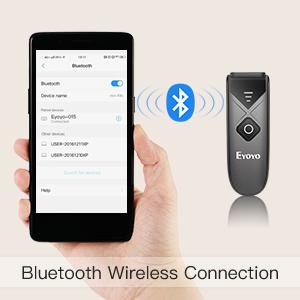
Image: A hand holding a smartphone with Bluetooth settings open, showing the scanner connecting via Bluetooth.
3.2.2 2.4G Wireless Connection
To connect using the 2.4G wireless dongle:
- Plug the 2.4G USB dongle into an available USB port on your computer.
- Turn on the scanner. It should automatically connect to the dongle.
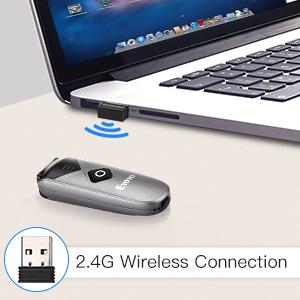
Image: The scanner and a 2.4G USB dongle plugged into a laptop, illustrating the wireless connection.
3.2.3 USB Wired Connection
To connect via USB cable:
- Connect the scanner to your computer using the provided USB cable.
- The scanner will function as a wired device and also charge simultaneously.
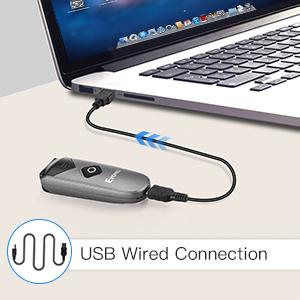
Image: The scanner connected to a laptop via a USB cable, demonstrating the wired connection mode.
3.3 Compatibility
The scanner is compatible with:
- Windows XP, Win7, Win8, Win10 operating systems
- Mac OS
- Linux
- Android devices
- iOS devices (for Bluetooth connection)
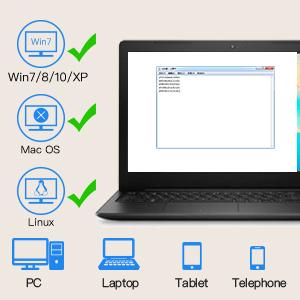
Image: Icons representing Windows, Mac OS, and Linux, indicating compatibility with various operating systems and devices like PCs, laptops, tablets, and phones.
4. Operating Instructions
4.1 Scanning Barcodes
To scan a barcode, point the scanner's window at the barcode and press the scan button. The scanner will emit a light and a sound (if enabled) upon successful scan.

Image: The scanner pointed at various 1D and 2D barcodes, demonstrating its scanning capability.
The scanner can read various 1D and 2D barcode types, including:
- 1D Barcodes: Codabar, Code11, Code93, MSI, Code 128, UCC/EAN-128, Code 39, EAN-8, EAN-13, UPCA, ISBN, Industrial25, Interleaved 25, Standard 25, 2/5 Matrix.
- 2D Barcodes: QR, PDF417, MicroPDF417, DataMatrix, Aztec, Maxicode.
4.2 Data Transfer Modes
The scanner supports two data transfer modes:
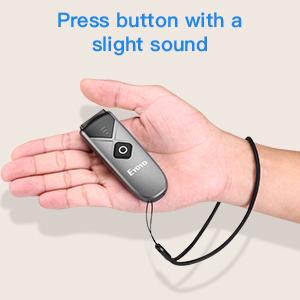
Image: Diagram illustrating Instant Upload Mode (data sent immediately to a laptop) and Storage Mode (data stored internally and uploaded later).
4.2.1 Instant Upload Mode
In this mode, scanned barcode data is immediately transmitted to your connected device. This is the default mode.
4.2.2 Storage Mode
In offline storage mode, the scanner saves scanned data internally in its 16MB memory (up to 150,000 barcodes). You can upload the stored information to your device later when needed. To switch to storage mode or upload data, refer to the detailed instructions in the included manual or scan specific configuration barcodes.
4.3 Power-Saving Features
The scanner automatically enters shutdown mode after 5 minutes of inactivity to conserve battery. This timer can be customized or disabled by scanning specific configuration barcodes found in the full user manual.
4.4 Sound and Vibration Settings
The sound and vibration feedback upon scanning can be turned off or adjusted. Refer to the full user manual for the specific configuration barcodes to modify these settings.
5. Maintenance
5.1 Battery Care
- Avoid fully discharging the battery frequently.
- Charge the scanner regularly, even if not in constant use, to maintain battery health.
- Store the scanner in a cool, dry place when not in use for extended periods.
5.2 Cleaning
Use a soft, dry cloth to clean the scanner's exterior. For the scanning window, use a lint-free cloth and a mild cleaning solution if necessary. Avoid abrasive materials or harsh chemicals that could damage the device.
6. Troubleshooting
6.1 Scanner Not Connecting
- Check Power: Ensure the scanner is turned on and has sufficient battery charge.
- Verify Mode: Confirm the scanner is in the correct connection mode (Bluetooth, 2.4G, or USB) for your setup.
- Re-pair Bluetooth: If using Bluetooth, try unpairing and re-pairing the scanner with your device.
- Dongle Connection: For 2.4G wireless, ensure the USB dongle is securely plugged into your computer.
- USB Cable: If using wired mode, check that the USB cable is properly connected to both the scanner and the computer.
6.2 Scanning Issues
- Barcode Condition: Ensure the barcode is clear, not damaged, smudged, or excessively reflective.
- Distance and Angle: Adjust the distance and angle between the scanner and the barcode.
- Lighting: Ensure adequate lighting, but avoid direct glare on the barcode.
- Supported Symbology: Verify that the barcode type is supported by the scanner.
6.3 Data Not Transmitting
- Connection Status: Confirm the scanner is successfully connected to your device.
- Application Focus: Ensure the target application (e.g., text editor, POS software) on your device is active and ready to receive input.
- Data Mode: If in storage mode, remember to upload the data manually.
7. Specifications
| Feature | Specification |
|---|---|
| Model | EY-015P |
| Dimensions (L x W x H) | 3.5" x 1.18" x 0.78" (85mm x 30mm x 20mm) |
| Weight | 1.5 oz (32g) |
| Connectivity | 2.4G Wireless, Bluetooth, USB Wired |
| Wireless Transmission Distance (Barrier-free) | 2.4G: 30m/98ft; Bluetooth: 50m/164ft |
| Wireless Transmission Distance (Obstacles) | 2.4G: 15m/49ft; Bluetooth: 20m/66ft |
| Battery Capacity | 450mAh rechargeable |
| Continuous Working Time | Up to 8 hours |
| Standby Time | Up to 180 days (720 hours) |
| Charging Time | Approximately 4 hours |
| Storage Capacity | 16MB (up to 150,000 barcodes) |
| Supported Symbologies | 1D: Codabar, Code11, Code93, MSI, Code 128, UCC/EAN-128, Code 39, EAN-8, EAN-13, UPCA, ISBN, Industrial25, Interleaved 25, Standard 25, 2/5 Matrix; 2D: QR, PDF417, MicroPDF417, DataMatrix, Aztec, Maxicode |
| Compatible Devices | Desktop, Laptop, POS, Smartphone, Tablet |
| Operating Voltage | 5 Volts |
| Certifications | CE, FCC, RoHS |

Image: Diagram illustrating the wireless transmission distances for 2.4G and Bluetooth modes, both in barrier-free and obstacle environments.
8. Warranty and Support
8.1 Warranty Information
This product comes with a 1 Year Manufacturer Warranty. Please retain your proof of purchase for warranty claims.
8.2 Customer Support
For technical assistance, troubleshooting, or warranty inquiries, please contact Eyoyo customer support through the retailer's platform or the official Eyoyo website. Refer to the contact information provided with your purchase or on the product packaging.


