
1. Product Overview
The HiSpyCam USB Charger Camera is a discreet, high-definition 1080P wireless security camera designed to blend seamlessly into any environment. Functioning as a standard USB wall charger, it provides continuous surveillance with advanced features such as motion detection, remote live viewing, and flexible storage options. This device is ideal for monitoring homes, offices, or as a nanny cam, offering peace of mind without drawing attention.
Key Features
- Dual Storage Modes: Supports local microSD cards up to 256GB (sold separately) and optional secure cloud backup for flexible data management.
- Instant Smart Motion Alerts: High-precision motion sensing sends immediate notifications to your smartphone upon activity detection.
- Stable Wi-Fi & Remote Live View: Equipped with an upgraded Wi-Fi chip for a consistent, lag-free connection, enabling smooth, high-definition video streaming from anywhere.
- Compact Design with 140° Wide-Angle: Ultra-compact, low-profile design with a premium wide-angle lens captures a broader field of view.
- Simple Plug-and-Play Setup: No complex wiring required; simply plug in and connect via the intuitive app.

Image: The HiSpyCam USB Charger Camera demonstrating remote access and live video viewing through its dedicated mobile application.

Image: The HiSpyCam USB Charger Camera providing ultra-sharp 1080P HD video quality, suitable for monitoring family activities.
2. Product Components
The package includes the following components:
- HiSpyCam USB Charger Camera Body (Model S103)
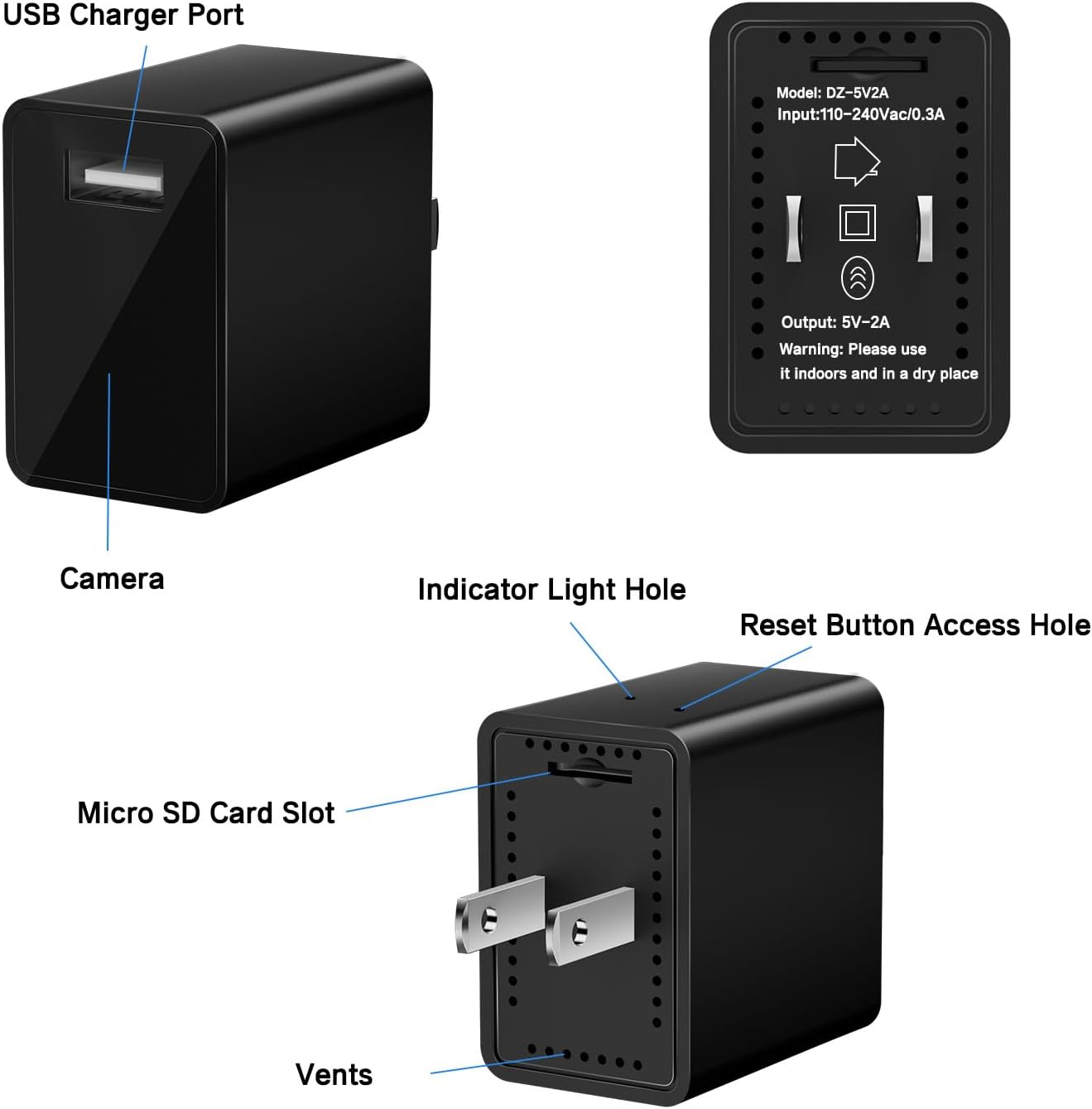
Image: Detailed diagram illustrating the various components of the HiSpyCam USB Charger Camera, including the USB charger port, camera lens, indicator light hole, reset button access hole, Micro SD card slot, and ventilation points.
3. Setup Guide
Initial Setup
- Power On: Plug the HiSpyCam USB Charger Camera into a standard wall outlet. Ensure the outlet is functioning correctly.
- Download App: Download the dedicated mobile application for the HiSpyCam camera from your smartphone's app store (iOS or Android). Refer to the packaging or included quick start guide for the specific app name or QR code.
- Connect to Wi-Fi: Open the app and follow the on-screen instructions to connect the camera to your home or office Wi-Fi network. This typically involves scanning a QR code on the device or entering your Wi-Fi credentials.
- Insert MicroSD Card (Optional): If you plan to use local storage, gently insert a microSD card (up to 256GB, sold separately) into the designated slot on the camera. Ensure it is inserted in the correct orientation.
- Customize Settings: Once connected, use the app to customize settings such as motion detection sensitivity, recording schedules, and storage preferences.

Image: The HiSpyCam USB Charger Camera demonstrating its 1080P HD video capability with intelligent motion tracking, sending instant alerts to a smartphone.
4. Operating Instructions
Remote Live View
Once the camera is connected to your Wi-Fi network and configured through the app, you can access a live video feed from your smartphone anywhere with an internet connection. Open the app and select your camera to view the real-time stream.
Motion Detection Alerts
The camera is equipped with high-precision motion sensing. When motion is detected, the camera will automatically begin recording and send an instant notification to your smartphone. You can adjust the sensitivity of motion detection within the app settings to minimize false alarms.
Storage Options
- MicroSD Card: Recordings can be saved directly to a microSD card inserted into the camera. The camera supports cards up to 256GB. Footage can be reviewed directly from the app or by removing the card and accessing it on a computer.
- Cloud Storage: An optional cloud storage service is available for secure off-site backup of your recordings. This ensures your footage is safe even if the camera is tampered with or lost. Details on subscribing to cloud storage can be found within the app.
Recording Modes
- Continuous Recording: The camera can be set to record continuously, overwriting the oldest footage when the storage is full.
- Motion-Activated Recording: Records only when motion is detected, conserving storage space.
- Scheduled Recording: Set specific times for the camera to record.

Image: Various applications of the HiSpyCam USB Charger Camera, including monitoring in nursing homes, for nannies, general home surveillance, and office security.
5. Maintenance
- Cleaning: Use a soft, dry cloth to clean the camera lens and exterior. Do not use liquid cleaners or abrasive materials.
- Environmental Conditions: Ensure the camera is used indoors and in a dry place, away from direct sunlight, extreme temperatures, and high humidity.
- Firmware Updates: Periodically check the mobile app for available firmware updates to ensure optimal performance and security.
- MicroSD Card Management: If using a microSD card, it is recommended to format it periodically through the app to maintain performance and prevent data corruption.
6. Troubleshooting
- Camera Not Connecting to Wi-Fi:
- Ensure your Wi-Fi network is 2.4GHz (5GHz networks are generally not supported).
- Check that the Wi-Fi password is entered correctly in the app.
- Move the camera closer to your Wi-Fi router to improve signal strength.
- Restart your router and the camera.
- No Live Video Feed:
- Verify your smartphone has a stable internet connection.
- Check the camera's power supply and Wi-Fi connection status.
- Ensure the app is updated to the latest version.
- Motion Alerts Not Received:
- Confirm that motion detection is enabled in the app settings.
- Check your smartphone's notification settings to ensure the app has permission to send alerts.
- Adjust motion detection sensitivity if alerts are too frequent or too few.
- MicroSD Card Not Recording:
- Ensure the microSD card is inserted correctly and fully.
- Format the microSD card through the app.
- Check if the card is full; if so, enable loop recording or replace the card.
- Verify the card is a supported type and capacity (up to 256GB).
- Camera is Warm to the Touch:
- It is normal for the device to generate some heat during operation. If it becomes excessively hot or emits smoke/odor, unplug it immediately and contact support.
7. Technical Specifications
| Brand | HiSpyCam |
| Model Name | USB Charger Camera (S103) |
| Connectivity Technology | Wireless (Wi-Fi) |
| Video Capture Resolution | 1080p Full HD |
| Frame Rate | 15-20 frames per second |
| Viewing Angle | 140 Degrees |
| Focus Type | Auto Focus |
| Storage | MicroSD Card (up to 256GB, not included), Cloud Storage (optional) |
| Motion Detection | Yes, with instant smartphone alerts |
| Indoor/Outdoor Usage | Indoor Use Only |
| Power Source | Plugged into standard AC outlet |
| Compatible Devices | Smartphone (iOS, Android) |
| Item Dimensions | 1 x 1 x 1 inches (approximate) |
| UPC | 786296651774 |
8. Safety Information
- This device is designed for indoor use only. Do not expose to rain, moisture, or extreme temperatures.
- Do not attempt to disassemble or modify the device. This will void the warranty and may cause damage or injury.
- Keep out of reach of children and pets.
- Ensure the power outlet is easily accessible for quick disconnection if needed.
- Avoid placing the camera near strong electromagnetic fields or heat sources.
- The camera does not record audio.