
Introduction
This manual provides detailed instructions for the installation, operation, and maintenance of your Soundstream VRCA1-72W 6.7-inch Wireless Car Stereo. Please read this manual thoroughly before using the product to ensure proper function and safety. Keep this manual for future reference.
Package Contents
Verify that all items are present in the package before beginning installation.
- VRCA1-72W Stereo Head Unit
- Power Harness
- Installation Accessories (Mounting Kit)
- User Manual

Image: The product box for the Soundstream VRCA1-72W car stereo.

Image: Included wiring harness, mounting kit, and GPS antenna for the VRCA1-72W stereo.
Setup and Installation
The VRCA1-72W is designed for universal single DIN dash openings. Professional installation is recommended, but if you choose to install it yourself, follow these guidelines carefully.
1. Safety Precautions
- Disconnect the vehicle's negative battery terminal before installation to prevent electrical shorts.
- Ensure proper insulation for all wiring connections.
- Do not block air vents or safety features during installation.
2. Wiring Connections
Refer to the wiring diagram provided with your unit and the image below for correct connections. Improper wiring can damage the unit or your vehicle's electrical system.

Image: Rear view of the VRCA1-72W stereo showing various input/output ports including RCA, camera, and power harness connector.
- Power Harness: Connect the yellow wire to constant 12V, red to accessory 12V, and black to ground.
- Speaker Wires: Connect to your vehicle's speakers, ensuring correct polarity.
- Backup Camera Input: Connect the camera's video output to the 'R CAM' RCA input. Connect the camera's power to the reverse light circuit.
- Steering Wheel Control (SWC): Connect SWC wires to your vehicle's steering wheel control interface (if applicable).
3. Mounting the Unit
Slide the head unit into the single DIN dash opening until it clicks into place. Secure it using the provided mounting brackets and screws.

Image: The VRCA1-72W car stereo seamlessly integrated into a vehicle's dashboard, displaying the Apple CarPlay interface.
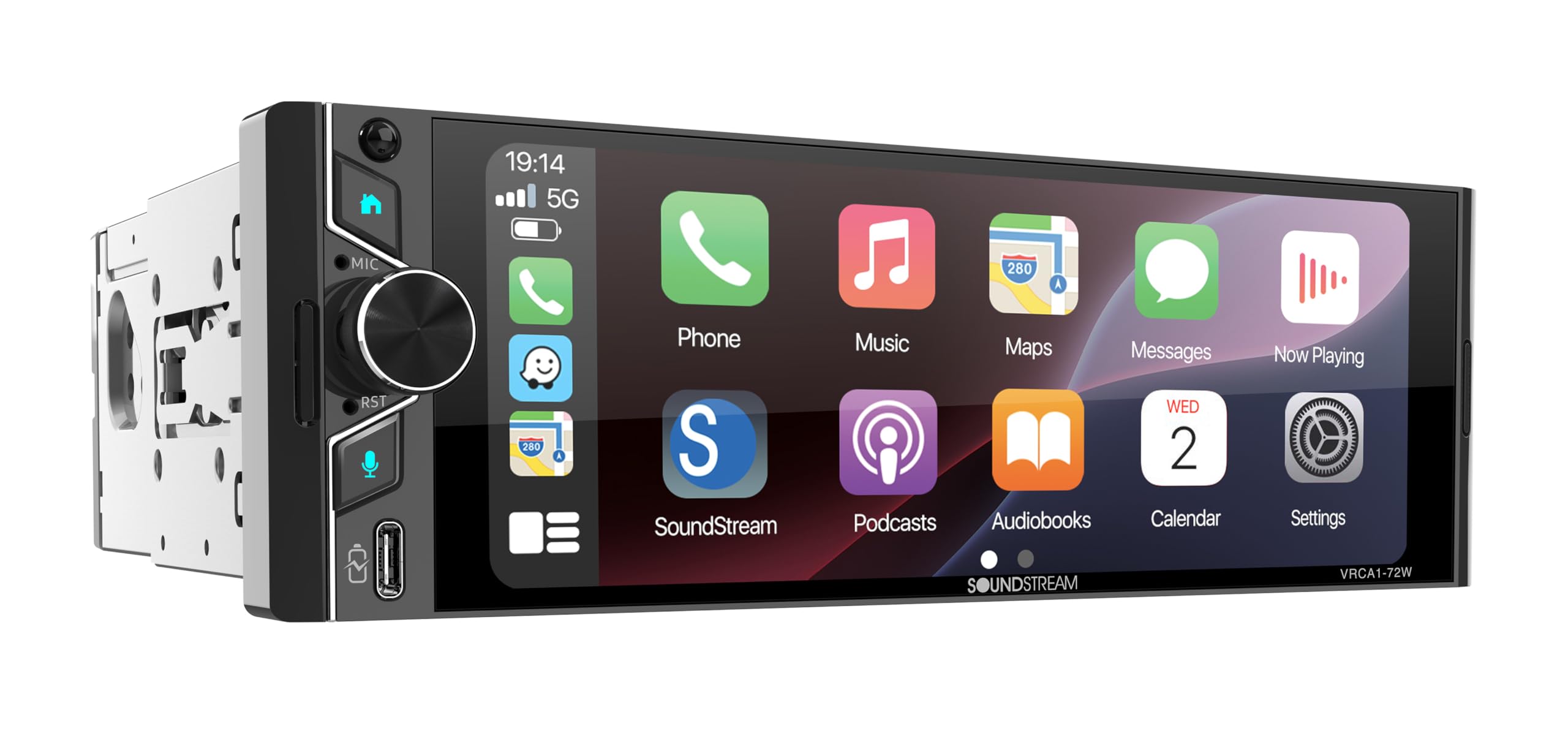
Image: The VRCA1-72W car stereo installed in a classic car's dashboard, showing the Apple CarPlay interface.
Operating Instructions
The VRCA1-72W features a capacitive touchscreen for intuitive control. Most functions are accessed via the main menu icons.
1. Power On/Off and Volume
- Press the power button (usually on the left side) to turn the unit on or off.
- Rotate the volume knob or use the on-screen controls to adjust audio levels.
2. Home Screen Navigation
The home screen provides access to all primary functions. Tap an icon to open the corresponding application or feature.

Image: The VRCA1-72W home screen displaying icons for Bluetooth Music, Apple CarPlay, USB, Android Auto, Radio, Settings, Front Camera, and Rear Camera.
3. Wireless Apple CarPlay and Android Auto
Connect your compatible smartphone wirelessly for seamless integration of navigation, music, calls, and messages.
- Ensure Bluetooth and Wi-Fi are enabled on your smartphone.
- On the stereo, select the 'Apple CarPlay' or 'Android Auto' icon.
- Follow the on-screen prompts to pair your device.
- Once connected, your phone's interface will appear on the stereo display.

Image: The VRCA1-72W stereo displaying the Apple CarPlay interface with various app icons like Phone, Music, Maps, Messages, and Now Playing.
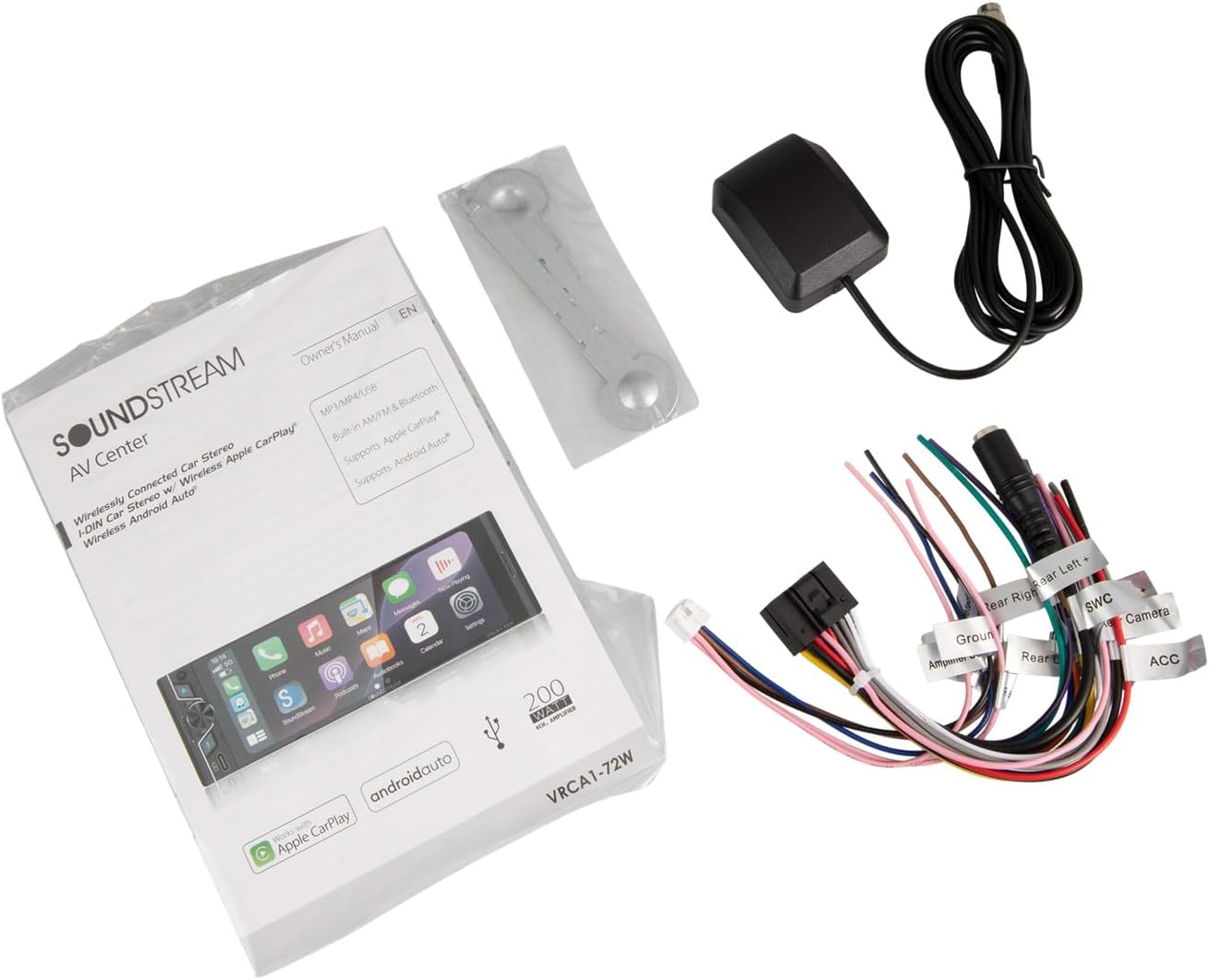
Image: The VRCA1-72W stereo displaying the Android Auto interface with app icons such as Google Maps, Spotify Music, Phone, and YouTube Music.
4. Bluetooth 5.0
For audio streaming and hands-free calling without CarPlay/Android Auto.
- Go to the 'Bluetooth' menu on the stereo.
- Enable Bluetooth on your phone and search for available devices.
- Select 'VRCA1-72W' from the list and confirm pairing.
- You can now stream audio or make/receive calls through the stereo.
5. USB Input
Connect a USB drive for media playback or a smartphone for wired CarPlay/Android Auto (if wireless connection is not preferred).
- Insert the USB device into the USB port.
- Select the 'USB' icon on the home screen to access media files.
6. FM Radio
- Select the 'Radio' icon from the home screen.
- Use the on-screen controls to scan for stations or manually tune.
- Save your favorite stations as presets.
7. Mirror Link
Mirror your smartphone screen directly onto the stereo display.
- Select the 'Mirror Link' option (if available on your unit's firmware).
- Follow the specific instructions for your phone's operating system (iOS/Android) to establish the connection.
8. Backup Camera Input
The stereo automatically displays the rear camera feed when the vehicle is shifted into reverse, provided the camera is correctly wired.
9. Voice Control
Activate voice control through Apple CarPlay or Android Auto by pressing the voice assistant button on the stereo or steering wheel (if connected) or by saying the wake word (e.g., "Hey Siri" or "Ok Google").
Maintenance
- Cleaning: Use a soft, dry cloth to clean the touchscreen and unit exterior. Avoid abrasive cleaners or solvents.
- Software Updates: Periodically check the manufacturer's website for firmware updates to ensure optimal performance and compatibility.
- Fuse Replacement: If the unit loses power, check the fuse located on the rear of the unit or in the power harness. Replace with a fuse of the same rating.
Troubleshooting
If you encounter issues, refer to the following common problems and solutions:
| Problem | Possible Cause | Solution |
|---|---|---|
| No power | Blown fuse, incorrect wiring, loose connection | Check fuse, verify power and ground connections, ensure harness is securely plugged in. |
| No sound | Muted, incorrect speaker wiring, amplifier issue | Check volume and mute settings, verify speaker connections, ensure external amplifier (if used) is powered. |
| Bluetooth disconnects frequently | Interference, outdated firmware, phone compatibility | Ensure no other devices are interfering. Try updating stereo firmware. Test with a different phone. Re-pair the device. |
| CarPlay/Android Auto not connecting | Incorrect phone settings, cable issue (for wired), Wi-Fi/Bluetooth issue (for wireless) | Ensure phone is compatible and settings are correct (e.g., Wi-Fi/Bluetooth on). Try a different USB cable if using wired. Restart both phone and stereo. |
| Touchscreen unresponsive | System freeze, dirt on screen | Restart the unit. Clean the screen. If issue persists, contact support. |
Specifications
| Feature | Specification |
|---|---|
| Model Number | VRCA1-72W |
| Display Size | 6.7 inches |
| Display Type | Capacitive Touchscreen |
| Connectivity | Wireless Apple CarPlay, Wireless Android Auto, Bluetooth 5.0, USB |
| Audio Output Mode | Stereo |
| Output Power | 300 Watts (Peak) |
| Compatible Devices | Smartphone (iOS, Android) |
| Special Features | Backup Camera Input, Mirror Link, Voice Control, FM Radio |
| Product Dimensions (D x W x H) | 4"D x 6"W x 2.4"H |
| Item Weight | 2.6 Pounds |
Warranty and Support
Warranty Information
This Soundstream VRCA1-72W car stereo comes with a 1 Year Manufacturer Warranty. Please retain your proof of purchase for warranty claims. The warranty covers defects in materials and workmanship under normal use.
Customer Support
For technical assistance, troubleshooting beyond this manual, or warranty inquiries, please contact Soundstream customer support. Refer to the official Soundstream website for the most current contact information.


