
Introduction
This manual provides detailed instructions for the Celly Trainermate Smartwatch. It covers setup, operation, maintenance, and troubleshooting to ensure optimal use of your device. The Celly Trainermate features a 1.96-inch AMOLED display, Bluetooth calling, and comprehensive health and fitness monitoring capabilities. It includes two interchangeable straps for versatile styling.
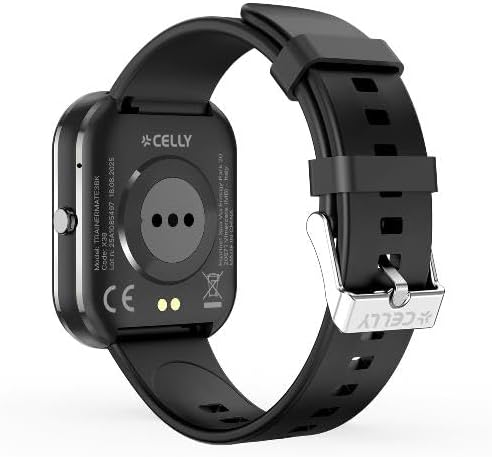
Image: Front view of the Celly Trainermate Smartwatch with a black silicone strap, displaying a digital watch face.
1. Setup
1.1 Unboxing
Carefully unpack your Celly Trainermate Smartwatch. The package should contain:
- Celly Trainermate Smartwatch
- Charging Cable
- Two Straps (one silicone, one fabric)
- User Manual (this document)
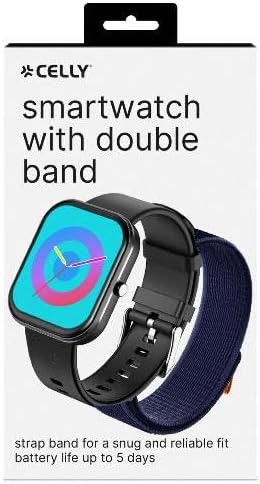
Image: The retail packaging for the Celly Smartwatch, showing the watch and an additional strap.
1.2 Charging the Smartwatch
Before initial use, fully charge your smartwatch. Connect the provided charging cable to the charging port on the back of the watch and to a USB power source.

Image: Rear view of the Celly Trainermate Smartwatch, highlighting the optical sensors and magnetic charging pins.
1.3 App Installation
To unlock full functionality, download and install the companion app on your smartphone. Search for "Celly Smartwatch" or refer to the QR code in the quick start guide (if provided separately) in your device's app store (iOS or Android).
1.4 Pairing with Your Smartphone
- Ensure Bluetooth is enabled on your smartphone.
- Open the Celly Smartwatch app and follow the on-screen instructions to add a new device.
- Select "Trainermate" from the list of available devices.
- Confirm the pairing request on both your smartwatch and smartphone.
1.5 Attaching/Changing Straps
The Celly Trainermate comes with two interchangeable straps. To attach or change a strap:
- Locate the quick-release pins on the back of the strap where it connects to the watch body.
- Slide the pin inwards to detach the current strap.
- Align the new strap with the watch body and slide the pin inwards to secure one side.
- Release the pin to lock the strap into place. Repeat for the other side.
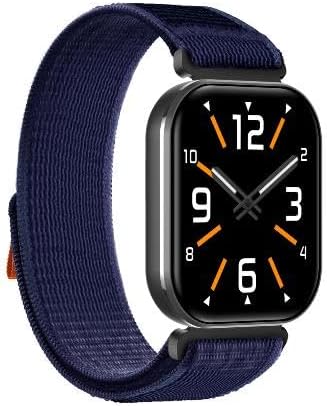
Image: Front view of the Celly Trainermate Smartwatch fitted with a blue fabric strap, displaying an analog watch face.
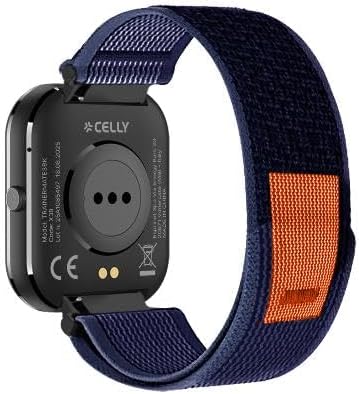
Image: Rear view of the Celly Trainermate Smartwatch with a blue fabric strap, showing the sensors and strap attachment mechanism.
2. Operating the Smartwatch
2.1 Basic Navigation
The Trainermate Smartwatch features a responsive touchscreen and a side button for navigation.
- Touchscreen: Swipe up, down, left, or right to navigate through menus and notifications. Tap to select items.
- Side Button: Press to wake the screen, return to the home screen, or access the app menu. Long press for power options.

Image: Front view of the Celly Trainermate Smartwatch with a vibrant red display showing time and heart icon.

Image: Front view of the Celly Trainermate Smartwatch with a green display showing time and a kiwi fruit graphic.
2.2 Making and Receiving Calls
With Bluetooth calling enabled, you can manage calls directly from your wrist.
- Making a Call: Access the dialer or contact list through the smartwatch menu. Tap to initiate a call.
- Receiving a Call: When a call comes in, the smartwatch will display the caller ID. Tap the green icon to answer or the red icon to reject.
2.3 Health Monitoring
The Trainermate Smartwatch monitors various health parameters:
- Heart Rate: Continuous or on-demand heart rate tracking. View your current heart rate and historical data in the app.
- Blood Pressure: Provides estimated blood pressure readings. Consult a medical professional for accurate measurements.
- Sleep Tracking: Monitors sleep patterns, including deep sleep, light sleep, and wake times.
2.4 Activity Tracking
Track your daily activities and workouts:
- Steps, Distance, Calories: Automatically records your daily steps, distance covered, and calories burned.
- Multi-Sport Modes: Select from various sport modes (e.g., walking, running, cycling) to track specific workout data.
2.5 Customization
Personalize your smartwatch experience:
- Watch Faces: Change watch faces directly on the device or through the companion app.
- Notifications: Manage which app notifications appear on your smartwatch via the companion app settings.
3. Maintenance
3.1 Cleaning
Regularly clean your smartwatch and straps to prevent skin irritation and maintain performance.
- Wipe the screen and watch body with a soft, damp, lint-free cloth.
- For silicone straps, wash with mild soap and water, then rinse thoroughly and dry.
- For fabric straps, gently clean with a damp cloth and allow to air dry completely.
- Avoid using harsh chemicals or abrasive materials.
3.2 Water Resistance
Important: The Celly Trainermate Smartwatch is NOT water-resistant.
Avoid exposing the device to water, including rain, showers, swimming, or any other liquid. Water damage is not covered under warranty.
3.3 Battery Care
The smartwatch uses a Lithium Polymer battery. To maximize battery life:
- Charge the device regularly, but avoid letting it fully discharge frequently.
- Do not expose the device to extreme temperatures.
- Use only the provided charging cable.
4. Troubleshooting
If you encounter issues with your Celly Trainermate Smartwatch, try the following solutions:
4.1 Connectivity Issues
- Smartwatch not connecting to phone: Ensure Bluetooth is on for both devices. Restart both the smartwatch and your phone. Try unpairing and re-pairing the device in the app.
- Call quality issues: Ensure your smartwatch is within Bluetooth range of your phone. Check your phone's network signal.
4.2 Display Issues
- Screen unresponsive: Restart the smartwatch by long-pressing the side button.
- Screen not turning on: Ensure the device is charged. Connect it to the charger for at least 30 minutes.
4.3 Charging Issues
- Smartwatch not charging: Check if the charging cable is securely connected to both the watch and the power source. Ensure the charging pins are clean and free of debris. Try a different USB power adapter.
4.4 Inaccurate Health Data
For health monitoring features, ensure the smartwatch is worn snugly on your wrist, about one finger's width above the wrist bone. Avoid excessive movement during measurements. Remember, these are for reference and not medical devices.
5. Specifications
| Feature | Detail |
|---|---|
| Model Name | Trainermate |
| Model Number | B0G59XYKCC |
| Display | 1.96-inch AMOLED |
| Connectivity | Bluetooth |
| Special Features | Health and Fitness Monitoring, Bluetooth Calls |
| Battery Type | Lithium Polymer |
| GPS | No GPS |
| Water Resistance Level | Not water-resistant |
| Compatible Devices | Smartphones, Laptops, Tablets (iOS and Android compatible) |
| User Interface Interaction | Microphone, Touchscreen |
| Strap Material | Silicone (and fabric included) |
6. Warranty Information
The Celly Trainermate Smartwatch comes with a 2-year manufacturer's warranty from the date of purchase. This warranty covers defects in materials and workmanship under normal use. It does not cover damage caused by misuse, accidents, unauthorized modifications, or failure to follow the instructions in this manual (e.g., water damage due to non-water resistance).
Please retain your proof of purchase for warranty claims.
7. Support
For further assistance, technical support, or warranty claims, please contact Celly customer service. You can find more information and contact details on the official Celly website or through their Amazon Brand Store:


