
Introduction
The Vexilar W15 Robot Vacuum and Mop is designed to provide efficient and hands-free cleaning for your home. Featuring a powerful 10000Pa suction, intelligent LiDAR navigation, and a 4L self-emptying base, it simultaneously vacuums and mops, adapting to various floor types and carpet detection. Enjoy up to 180 minutes of runtime and smart control via app, voice, or remote.
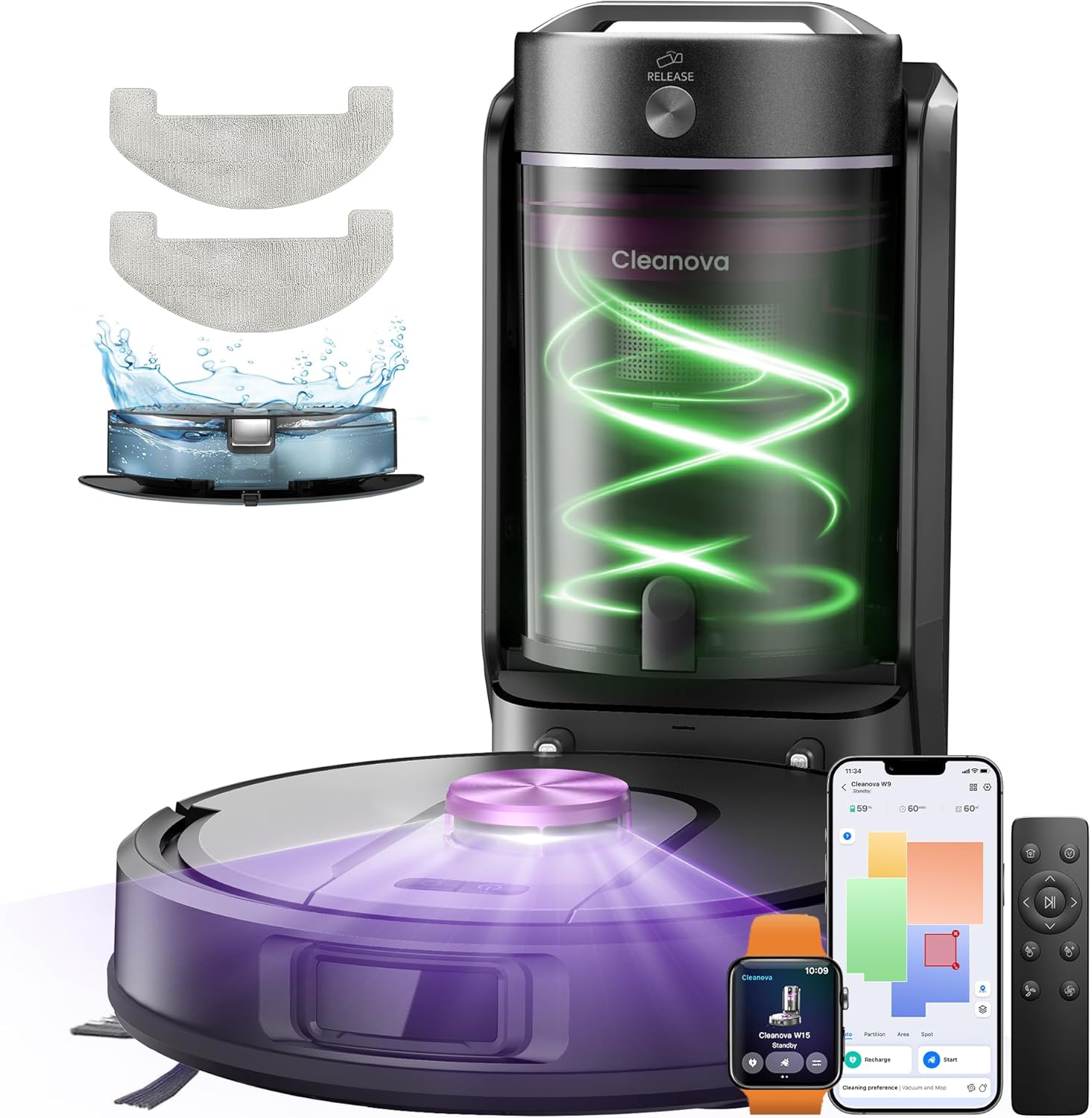
Image: The Vexilar W15 Robot Vacuum and Mop with its self-emptying station.
Package Contents
Before setup, ensure all components are present:
- Vexilar W15 Robot Vacuum
- Self-Emptying Base (W15 GreenBin)
- HEPA Filter (x2)
- Cleaning Cloth (x2)
- Mop Holder (x1)
- 2-in-1 Water Tank and Dustbin (x1)
- Cleaning Tool (x1)
- Side Brushes (x2)
- Remote Control
- Power Adapter
- User Manual
- Quick Start Guide

Image: A visual representation of all items included in the Vexilar W15 product box.
Setup
- Unpack Components: Carefully remove all items from the packaging.
- Position the Self-Emptying Base: Place the base against a wall in an open area, ensuring there are no obstacles within 1 meter (3 feet) to the front and 0.5 meters (1.5 feet) to the sides. Ensure it is within range of your 2.4GHz Wi-Fi network.
- Install Side Brushes: Snap the side brushes onto their designated posts on the underside of the robot.
- Charge the Robot: Place the robot onto the charging contacts of the self-emptying base. The robot will automatically begin charging. Ensure it is fully charged before first use.
- Download the App: Search for the 'Vexilar' app in your smartphone's app store. Follow the in-app instructions to connect your robot to your home Wi-Fi network (2.4GHz only).
- Initial Mapping: Once connected, initiate an initial cleaning cycle through the app. The robot will map your home, which is crucial for advanced features like zone cleaning and virtual walls.
Operating Instructions
Cleaning Modes
The Vexilar W15 offers three specialized cleaning modes:
- Vacuum & Mop: Simultaneously vacuums and mops for comprehensive cleaning.
- Vacuum Only: Ideal for carpets or when mopping is not required. Features automatic carpet detection to boost suction.
- Mop Only: For hard floors that require only mopping.

Image: Illustration of the three cleaning modes: Vacuum & Mop, Vacuum Only, and Mop Only.
LiDAR Navigation and Smart Mapping
The robot uses LiDAR technology for precise navigation and real-time mapping of your home. This allows it to plan optimal cleaning routes, avoid obstacles, and ensure thorough coverage.
- Obstacle Avoidance: 3D obstacle avoidance helps the robot navigate around furniture and other items.
- Multi-Floor Mapping: The robot can store up to 5 different maps, making it suitable for multi-story homes.

Image: Visual representation of the robot using LiDAR navigation to detect and avoid obstacles.
Control Options
Control your Vexilar W15 using various methods:
- Smartphone App: Access full features including scheduling, setting virtual walls and restricted zones, customizing cleaning order, and monitoring cleaning progress.
- Voice Control: Compatible with Siri, Google Assistant, and Alexa for hands-free commands.
- Remote Control: A physical remote control is included for basic functions like starting/pausing, directional control, and adjusting suction/water flow.
- Apple Watch Control: Manage cleaning tasks directly from your Apple Watch.

Image: Depicts various control methods including voice command, smartphone app, Apple Watch, and remote control.
Advanced Features
- Scheduled Cleaning: Program cleaning times and specific zones via the app.
- No-Go Zones & Virtual Walls: Define areas the robot should avoid using the app.
- Automatic Carpet Boost: The robot automatically increases suction power when it detects carpets.
- Automatic Recharging & Resume: The robot returns to its base when battery is low and resumes cleaning from where it left off once charged.

Image: An illustration showing how to set up virtual walls or no-go zones within the app to restrict the robot's cleaning area.
Maintenance
Regular maintenance ensures optimal performance of your Vexilar W15.
Self-Emptying Base
The 4L bagless self-emptying base automatically transfers dust and debris from the robot's internal dustbin. The base's dustbin is washable and designed for easy maintenance without consumables.

Image: The Vexilar W15 robot docked at its self-emptying station, illustrating the automatic dust transfer.
Robot Components
- Dustbin and Filter: The robot's internal dustbin and HEPA filter should be emptied and cleaned regularly. The filter is washable; ensure it is completely dry before reinstallation.
- Side Brushes: Check for tangled hair or debris and clean as needed. Replace if worn.
- Main Brush: Remove the main brush cover and clean any tangled hair or debris from the brush.
- Mop Pad: Remove and wash the mop pad after each mopping cycle.
- Sensors: Wipe all sensors (cliff sensors, wall sensors, charging contacts) with a dry cloth to ensure proper function.

Image: A person demonstrating how to remove and rinse the robot's filter under running water.
Troubleshooting
If you encounter issues with your Vexilar W15, refer to the following common solutions:
| Problem | Possible Cause | Solution |
|---|---|---|
| Robot does not turn on or charge. | Battery depleted; charging contacts dirty; power adapter not connected. | Ensure robot is correctly placed on the charging base. Clean charging contacts on both robot and base. Check power adapter connection. |
| Robot cannot connect to Wi-Fi. | Incorrect Wi-Fi password; 5GHz Wi-Fi network; weak signal. | Ensure you are connecting to a 2.4GHz Wi-Fi network. Verify password. Move robot closer to router. Reset Wi-Fi on robot and try again. |
| Robot gets stuck frequently. | Obstacles in path; tangled brushes; cliff sensors dirty. | Clear cables, small objects, and loose rugs. Clean main brush and side brushes. Wipe cliff sensors. Use virtual walls in the app for problem areas. |
| Poor cleaning performance. | Full dustbin/water tank; clogged filter; worn brushes. | Empty dustbin and refill water tank. Clean or replace filter. Clean or replace brushes. Ensure suction power is set appropriately in the app. |
| Self-emptying function not working. | Dustbin in base is full; suction port blocked; robot not aligned correctly. | Empty the 4L dustbin in the self-emptying base. Check for blockages in the robot's and base's suction ports. Ensure the robot is properly docked. |
For further assistance, please refer to the contact information in the Warranty & Support section.
Specifications
| Feature | Detail |
|---|---|
| Brand | Vexilar |
| Model Name | Cleanova (W15) |
| Suction Power | 10000Pa |
| Battery Life | Up to 180 minutes |
| Robot Dustbin Capacity | 300ml |
| Robot Water Tank Capacity | 200ml |
| Self-Emptying Base Capacity | 4 Liters (bagless) |
| Navigation Type | LiDAR |
| Control Type | App, Voice (Alexa, Google Assistant, Siri), Remote Control |
| Noise Level | 60 Decibels |
| Product Dimensions (L x W x H) | 30.6 x 30.6 x 9.8 cm |
| Item Weight | 5.4 Kilograms |
| Filter Type | Cyclone, HEPA |
| Recommended Surfaces | Hard floors, low-pile carpets, pet hair |
| Special Features | Automatic emptying, LiDAR navigation, 3-in-1 vacuum/mop, fast mapping, 15 forbidden zones, 3D obstacle avoidance, automatic charging and resume. |
Warranty and Support
Vexilar is committed to providing excellent customer service.
- Customer Service: Professional 24-hour customer service (Monday-Friday).
- After-Sales Service: 2 years of after-sales service.
- Contact: For any questions or support, please contact us at service-es@vactidy.com.


