
Introduction
The Celly Trainerwide Smartwatch is designed to enhance your daily life with its 2.01-inch curved display, call management capabilities, and comprehensive health and fitness tracking features. This manual provides essential information for setting up, operating, and maintaining your device.
What's in the Box
- Celly Trainerwide Smartwatch
- Charging Cable
- Strap
- User Manual
Setup
1. Charging the Smartwatch
Before initial use, fully charge your Celly Trainerwide Smartwatch. Connect the provided charging cable to the charging port on the back of the smartwatch and to a USB power source (e.g., computer, wall adapter). The display will indicate charging status.

Image: Back view of the Celly Trainerwide Smartwatch, highlighting the charging contacts and health sensors.
2. Powering On/Off
- To Power On: Press and hold the side button until the Celly logo appears.
- To Power Off: Press and hold the side button, then select 'Power Off' on the screen.
3. Pairing with Your Smartphone
- Download the official Celly smartwatch application from your smartphone's app store (iOS App Store or Google Play Store).
- Ensure Bluetooth is enabled on your smartphone.
- Open the Celly app and follow the on-screen instructions to create an account or log in.
- In the app, select 'Add Device' or 'Pair New Device' and choose 'Celly Trainerwide' from the list of available devices.
- Confirm the pairing request on both your smartphone and the smartwatch.

Image: Angled view of the Celly Trainerwide Smartwatch, showcasing its curved display and Milanese mesh strap.
Operating Instructions
Basic Navigation
- Touchscreen: Swipe left/right, up/down to navigate through menus and widgets. Tap to select items.
- Side Button (Crown): Press to return to the home screen or wake the display. Rotate to scroll through lists or adjust settings (functionality may vary by software version).
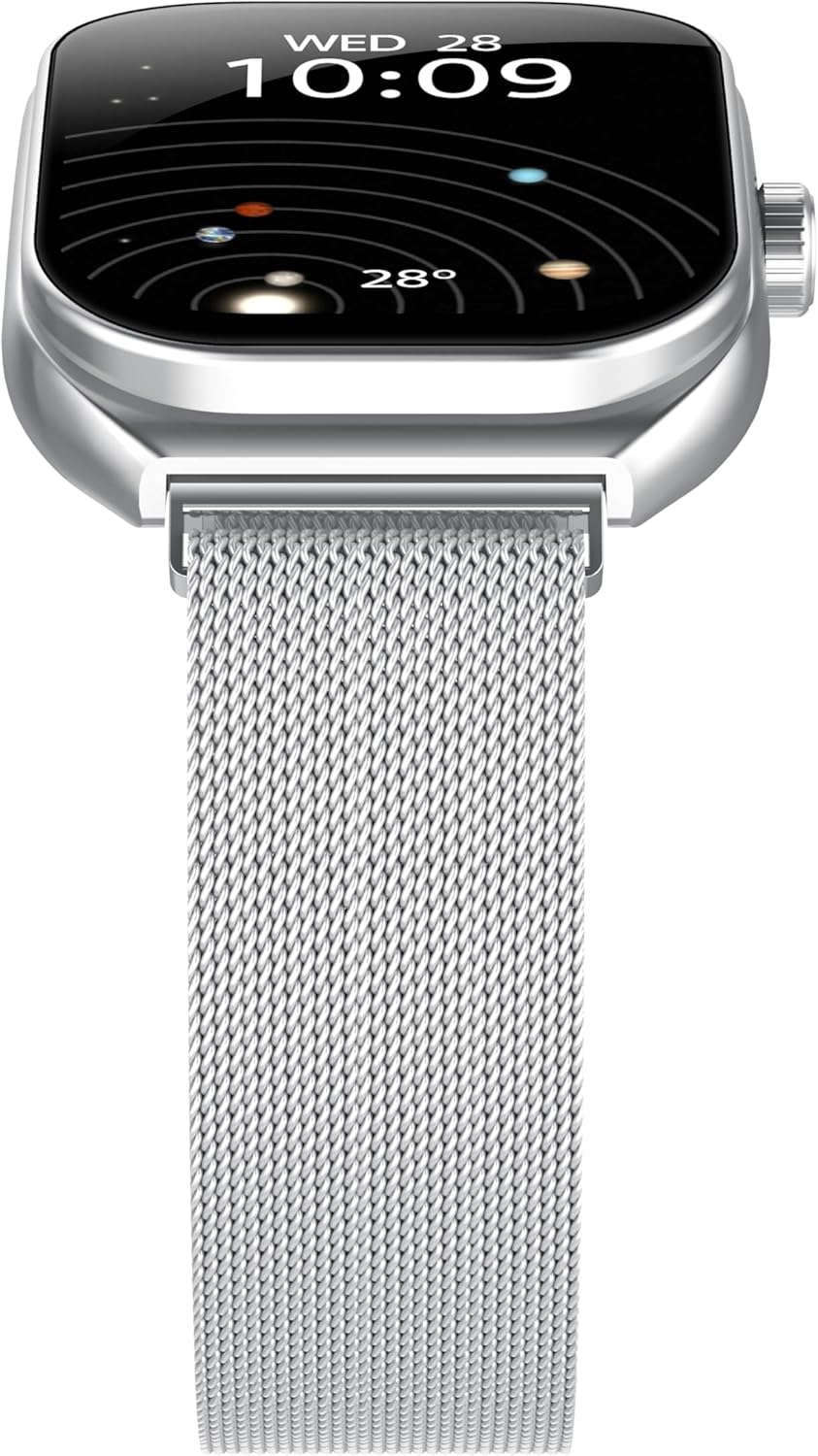
Image: Front view of the Celly Trainerwide Smartwatch, displaying the time and date on its curved screen.
Making and Receiving Calls
Once paired with your smartphone, the Trainerwide Smartwatch allows you to manage calls directly from your wrist:
- Receiving Calls: When a call comes in, the smartwatch will display the caller ID. Tap the green icon to answer or the red icon to reject.
- Making Calls: Access the dialer or contact list through the smartwatch menu. Select a contact or dial a number to initiate a call.
Sports Modes and Wellness Monitoring
The smartwatch offers over 100 sports modes and continuous wellness monitoring:
- Sports Modes: Navigate to the 'Workout' or 'Sports' section. Choose your desired activity (e.g., running, cycling, swimming) to track duration, calories burned, and other relevant metrics.
- Heart Rate Monitoring: The smartwatch continuously monitors your heart rate. View your current heart rate and historical data in the 'Heart Rate' section or the companion app.
- Other Wellness Features: Depending on the model and software, features like sleep tracking, step counting, and blood oxygen monitoring may be available. Access these through dedicated apps on the smartwatch or the companion smartphone app.
Notifications
Receive notifications from your smartphone directly on your smartwatch. Ensure notification permissions are granted in the Celly app on your phone.
Battery Life
The Celly Trainerwide Smartwatch provides up to 15 days of standby battery life. Actual battery life may vary based on usage, features enabled (e.g., continuous heart rate monitoring, calls), and environmental factors.
Maintenance
Cleaning Your Smartwatch
- Wipe the screen and body with a soft, lint-free cloth.
- For stubborn dirt, slightly dampen the cloth with water. Avoid using harsh chemicals or abrasive materials.
- Ensure the charging contacts on the back are clean and dry before charging.
Strap Care
The Milanese mesh strap can be cleaned with a soft, damp cloth. Allow it to air dry completely before wearing. Avoid prolonged exposure to direct sunlight or extreme temperatures.
Charging Precautions
- Use only the provided charging cable.
- Do not charge the device in wet conditions.
- Avoid exposing the charging port to liquids or debris.
Troubleshooting
Device Not Powering On
- Ensure the device is fully charged. Connect it to the charger for at least 30 minutes.
- Try pressing and holding the side button for an extended period (10-15 seconds) to force a restart.
Cannot Pair with Smartphone
- Ensure Bluetooth is enabled on your smartphone and the smartwatch is discoverable.
- Make sure the Celly app is installed and updated to the latest version.
- Restart both your smartphone and the smartwatch.
- If previously paired, try unpairing the device from your phone's Bluetooth settings and then re-pairing through the app.
Inaccurate Health Data
- Ensure the smartwatch is worn snugly on your wrist, but not too tight.
- Clean the sensors on the back of the watch.
- Environmental factors and skin conditions can affect sensor accuracy.
Display Not Responding
- Restart the smartwatch.
- Ensure the screen is clean and dry.
- If the issue persists, contact Celly customer support.
Specifications
| Feature | Detail |
|---|---|
| Brand | Celly |
| Model | B0G57FHJZR (Trainerwide) |
| Screen Size | 2.01 Inches |
| Display Technology | AMOLED |
| Display Resolution | 201 x 201 |
| Connectivity Technology | Bluetooth |
| Compatible Devices | Smartphone, Laptop, Tablet |
| Battery Life (Average) | 15 Days (standby) |
| Battery Type | Lithium Polymer (Rechargeable) |
| Human Interface Input | Touchscreen |
| Special Feature | Curved Display |
| GPS | No GPS |
| Item Weight | 100 g |
Warranty and Support
For warranty information and customer support, please refer to the warranty card included with your product or visit the official Celly website. You can typically find support resources, FAQs, and contact information there.
Official Celly Website: www.celly.com

