
GeekShare GC1201A
GeekShare Hall Effect Switch Controller (GC1201A) User Manual
Model: GC1201A
1. Introduction
The GeekShare Hall Effect Switch Controller is a versatile gaming controller designed for multi-platform compatibility, including Nintendo Switch (OLED/NS2/1/Lite), PC (Steam, Windows), and mobile devices (Android, iOS). It features dual-mode connectivity (Bluetooth and 2.4G wireless), a 1000mAh battery, 6-axis gyroscope, dual vibration motors, and customizable RGB lighting for an immersive gaming experience.
Package Contents
- 1 x GeekShare Hall Effect Wireless Controller
- 1 x USB-C Charging Cable
- 1 x 2.4G Wireless Receiver
- 1 x User Manual
2. Key Features
- Hall Effect Joysticks: Provides precise control and prevents stick drift.
- Dual Connectivity Modes: Seamlessly switch between Bluetooth 5.0 for mobile and consoles, and 2.4G wireless with the included dongle for PC.
- Multi-Platform Compatibility: Supports Nintendo Switch (OLED/NS2/1/Lite), PC (Steam, Windows), Android, and iOS devices.
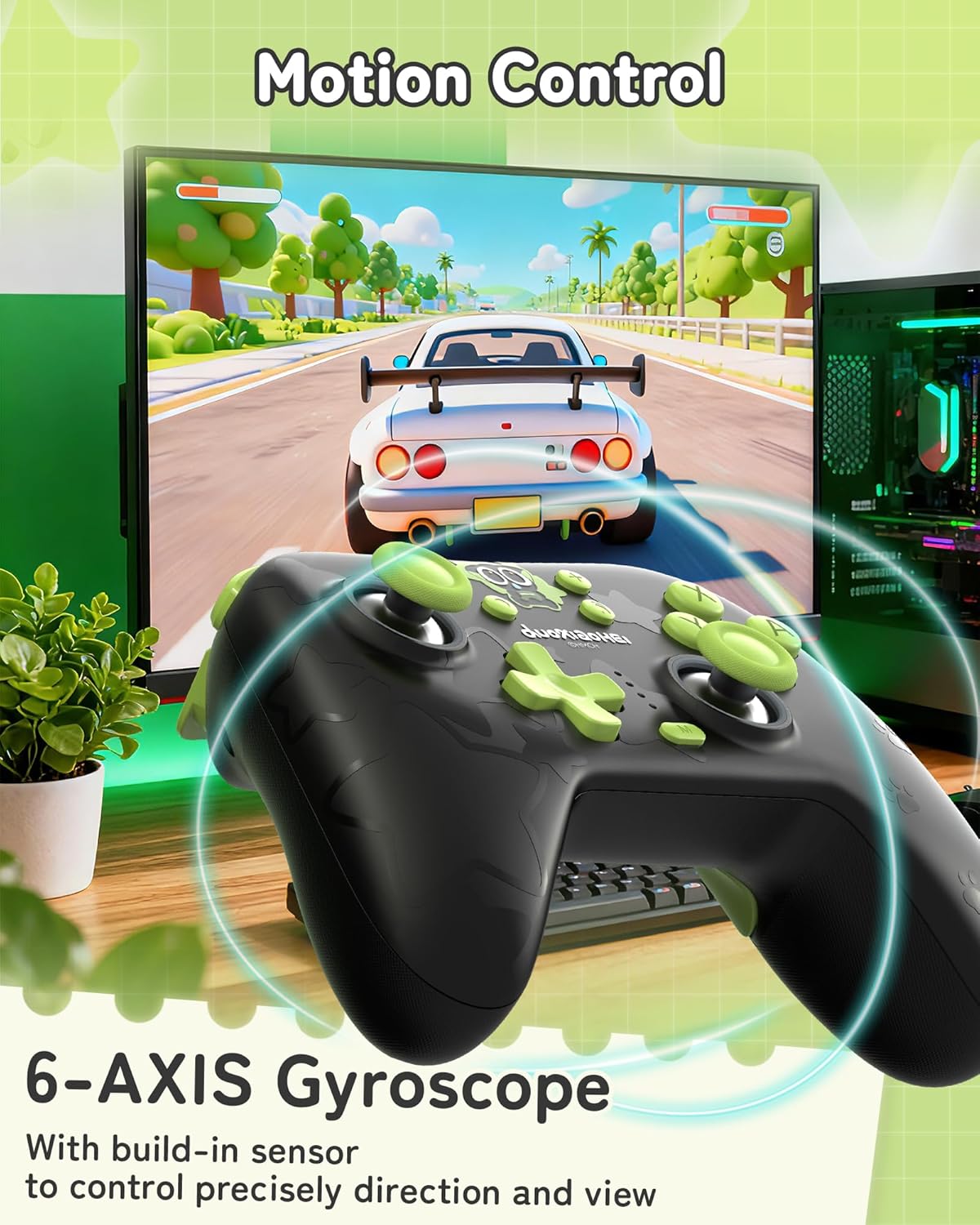
- Immersive Feedback: Features a 6-axis gyroscope for motion control and dual vibration motors with 5-level adjustment for realistic haptic feedback.
- Long-Lasting Battery: Integrated 1000mAh rechargeable battery offers up to 15 hours of continuous gameplay.
- Customizable RGB Lighting: Enhance your gaming setup with personalized RGB light effects.
- Programmable Buttons: Two back buttons (M1, M2) can be mapped to complex commands for quick execution.
- Turbo Function: Auto and manual turbo settings for rapid-fire actions.
Connectivity Options
The controller supports three connection methods: Bluetooth, 2.4G wireless (with dongle), and wired USB-C.

Programmable Buttons
The M1 and M2 buttons on the back can be programmed to perform specific actions, allowing for quick execution of complex in-game commands.

Vibration Feedback
Equipped with dual motors, the controller provides adjustable vibration feedback to enhance immersion. There are 5 levels of vibration intensity.

Battery Life
The built-in 1000mAh battery provides extended gameplay. A full charge takes approximately 2.5 hours and offers up to 20 hours of continuous use.

Turbo Function
The controller supports both automatic and manual turbo functions, allowing for rapid, repeated input of a button press. This is typically activated by pressing the 'M' button along with a desired action key.

Motion Control
A built-in 6-axis gyroscope enables precise motion control, allowing for intuitive direction and view adjustments in compatible games.
3. Setup and Connection
3.1 Charging the Controller
Before first use, fully charge the controller. Connect the included USB-C cable to the controller's charging port and the other end to a USB power source (e.g., console, PC, or USB wall adapter). The indicator lights will show charging status and turn off when fully charged.
3.2 Connecting to Nintendo Switch (Bluetooth)
- On your Nintendo Switch, go to the HOME Menu.
- Select "Controllers" > "Change Grip/Order".
- Press and hold the Pairing button on the top of the GeekShare controller until the indicator lights begin to flash rapidly.
- The Switch will detect the controller. Once paired, the indicator light(s) on the controller will remain solid.
- Note: This controller may not support waking up the Switch console from sleep mode. You may need to manually wake the console before connecting.
3.3 Connecting to PC (2.4G Wireless)
- Insert the 2.4G wireless receiver into an available USB port on your PC.
- Turn on the GeekShare controller.
- The controller should automatically connect to the receiver. The indicator light(s) on the controller will remain solid once connected.
- If connection fails, press the pairing button on the controller and the button on the 2.4G receiver simultaneously to initiate pairing.
3.4 Connecting to Mobile Devices (Bluetooth)
- Ensure Bluetooth is enabled on your Android or iOS device.
- On your device, go to Bluetooth settings and scan for new devices.
- Press and hold the Pairing button on the top of the GeekShare controller until the indicator lights begin to flash rapidly.
- Select "GeekShare Controller" (or similar name) from the list of available devices.
- Once paired, the indicator light(s) on the controller will remain solid.
3.5 Wired Connection
Connect the controller directly to your device (Switch dock, PC) using the USB-C cable. The controller will function as a wired controller and will also charge simultaneously.
4. Operating Instructions
4.1 Basic Controls
The controller features standard button layouts including A/B/X/Y buttons, D-pad, Left/Right joysticks, L/R/ZL/ZR shoulder buttons, and Home/Capture/Plus/Minus buttons. Refer to in-game prompts for specific button functions.
4.2 Programming M1/M2 Buttons
The M1 and M2 buttons on the back can be assigned to replicate other button presses or sequences. Consult the full user manual (included in the box) for detailed programming instructions, as the process may vary based on desired complexity.
4.3 Turbo Function Activation
To activate the Turbo function for a specific button:
- Press and hold the 'M' button.
- While holding 'M', press the desired action button (e.g., A, B, X, Y, L, R, ZL, ZR).
- Release both buttons. The selected button will now have the Turbo function enabled.
To adjust between manual and auto turbo, or to clear the turbo setting, refer to the detailed instructions in the included user manual.
4.4 Adjusting Vibration Intensity
The controller offers 5 levels of vibration intensity. Specific button combinations (e.g., 'M' button + D-pad Up/Down) are typically used to cycle through these levels. Refer to the included user manual for the exact key combinations.
4.5 RGB Lighting Control
The RGB lighting can be customized. This usually involves pressing a dedicated button or a combination of buttons to change colors, patterns, or turn the lighting on/off. Consult the included user manual for specific instructions.
5. Maintenance and Care
- Keep the controller dry and away from extreme temperatures.
- Clean the controller with a soft, dry cloth. Do not use harsh chemicals or abrasive materials.
- Avoid dropping the controller or subjecting it to strong impacts.
- Store the controller in a clean, dust-free environment when not in use.
- Charge the controller regularly, even if not used frequently, to maintain battery health.
6. Troubleshooting
6.1 Controller Not Connecting
- Ensure the controller is sufficiently charged.
- Verify that the correct connection mode (Bluetooth, 2.4G, Wired) is selected or attempted for your device.
- For Bluetooth, ensure your device's Bluetooth is on and the controller is in pairing mode (flashing lights).
- For 2.4G, ensure the receiver is properly inserted into the PC and try re-pairing if necessary.
- Try restarting both the controller and the device you are trying to connect to.
- If connecting to Switch, ensure you are in the "Change Grip/Order" menu.
6.2 Input Lag or Disconnections
- Ensure there are no strong electromagnetic interferences nearby.
- Move closer to the connected device (for wireless connections).
- For PC, ensure the 2.4G receiver is in a clear line of sight and not obstructed.
- Try a wired connection to rule out wireless interference.
6.3 Buttons or Joysticks Unresponsive
- Check if the controller is properly connected and powered on.
- Restart the controller and the gaming device.
- Ensure no debris is lodged around the buttons or joysticks.
- If the issue persists, a factory reset (if available, consult the included manual) might be necessary.
6.4 Controller Not Charging
- Ensure the USB-C cable is securely connected to both the controller and the power source.
- Try a different USB-C cable or power source.
- Verify the power source is active and providing sufficient power.
7. Specifications
| Model Number | GC1201A |
| Connectivity | Bluetooth 5.0, 2.4G Wireless (with receiver), USB-C Wired |
| Compatibility | Nintendo Switch (OLED/NS2/1/Lite), PC (Windows), Android, iOS |
| Battery Capacity | 1000mAh |
| Playtime | Up to 15-20 hours (approx.) |
| Charging Time | Approx. 2.5 hours |
| Motion Sensor | 6-axis Gyroscope |
| Vibration | Dual Motors with 5-level adjustment |
| Special Features | Hall Effect Joysticks, Programmable M1/M2 buttons, Turbo function, RGB Lighting |
8. Warranty and Support
For warranty information and technical support, please refer to the official GeekShare website or contact their customer service directly. Details can typically be found on the product packaging or the included user manual.
GeekShare Official Website: Visit GeekShare Store on Amazon
Ask a question about this manual
Ask about setup, troubleshooting, compatibility, parts, safety, or missing instructions. Manuals+ will review the question and use this page’s manual context to help answer it.