
1. Introduction
Thank you for choosing the Audio Array AI-13 4-Channel Hybrid USB Audio Mixer. This compact mixer is designed for a variety of audio applications, including podcasting, streaming, live sessions, and home studio setups. It features 4 analog and 2 digital channels, supporting microphones, instruments, and playback devices in a streamlined interface. This manual provides detailed instructions for setup, operation, maintenance, and troubleshooting to ensure optimal performance of your device.

Image 1.1: User operating the AI-13 mixer in a studio environment.
2. Product Features
The Audio Array AI-13 mixer offers a range of features for versatile audio control:
- Hybrid 4-Channel Control: Combines 4 analog and 2 digital channels for flexible input management.
- Studio-Ready Inputs: Dual XLR mic inputs with switchable +48V phantom power for condenser microphones, plus Hi-Z support for guitars and instruments.
- Built-in 2-Band EQ: Each channel includes a 2-band equalizer for precise sound shaping.
- Low Noise Performance: Features a signal-to-noise ratio of ≥90dB for clean audio with minimal interference.
- USB Recording & Monitoring: Integrated USB return, RCA REC output, and headphone monitoring for recording and playback.
- Portable USB-C Power: Lightweight design powered via USB-C, suitable for mobile and desktop setups.
- High-Quality Preamps: Mic and line preamps deliver a 20Hz–20kHz frequency response and up to 100dB dynamic range.
- Powerful Headphone Output: 200mW headphone output for clear and accurate monitoring.

Image 2.1: Overview of the AI-13 mixer's multi-functionality.

Image 2.2: Key features of the AI-13 mixer.
3. Setup
Follow these steps to set up your Audio Array AI-13 mixer:
- Power Connection: Connect the mixer to a power source using the provided USB-C cable. Ensure the power source provides stable 5V power.
- Microphone/Instrument Connection:
- For microphones, connect XLR cables to the CH1 or CH2 inputs. Activate +48V phantom power if using condenser microphones.
- For instruments (e.g., guitar), connect to the Hi-Z inputs.
- Output Connection: Connect your headphones to the PHONES jack for monitoring. Connect main outputs to your amplifier or recording device as needed.
- USB Connection: For computer recording or playback, connect the mixer to your computer via the USB port.
4. Controls and Routing
Understanding the controls is essential for effective use of your mixer.

Image 4.1: Routing functionality overview of the AI-13 mixer.

Image 4.2: Detailed routing and control labels.
4.1 Input Section
- HI-Z Switch: Engages high impedance input for instruments like guitars.
- +48V Phantom Power: Activates phantom power for condenser microphones on XLR inputs.
- GAIN Knob: Adjusts the input level for each channel.
- HIGH/LOW EQ: 2-band equalizer to adjust treble and bass frequencies for each channel.
- EFF (Effect Send): Controls the amount of signal sent to the built-in effects processor.
- LEVEL Knob: Adjusts the output volume for individual channels.
4.2 Output & Monitoring Section
- MAIN Volume Knob: Controls the overall output volume of the mixer.
- PHONES Volume Knob: Adjusts the volume for the headphone output.
- REC Output (RCA): Provides an output for recording devices.
- USB Return: Allows audio playback from a connected computer.
4.3 USB/MP3 Player Controls

Image 4.3: USB/MP3 player controls.
- MODE Button: Short press to switch mode (USB/Bluetooth). Long press for recording.
- PLAY/PAUSE Button: Short press to play or pause. Long press for cycle conversion.
- PREVIOUS/VOL- Button: Short press for previous song. Long press for volume down.
- NEXT/VOL+ Button: Short press for next song. Long press for volume up.

Image 4.4: TAPE OUT and USB PC connection controls.
- TAPE OUT Jacks: Used for connecting to recording applications.
- USB PC Interface: When pressed, the device connects to MP3. Otherwise, it connects to a PC for playing computer songs and recordings.
5. Connectivity Options
The AI-13 mixer offers diverse connectivity for various audio sources and destinations.

Image 5.1: Overview of connectivity options.

Image 5.2: Detailed view of input and output connections.
- Inputs: XLR (for microphones), TRS (for stereo line-in), Hi-Z (for instruments), USB (for digital audio from PC/pendrive).
- Outputs: Main TRS Out, RCA REC Out, Headphone Out (TRS), Amp Out.
- Digital: USB-C for power and data, USB 2.0 for pendrive.
6. DSP Effects
The AI-13 includes built-in Digital Signal Processing (DSP) effects to enhance your audio.

Image 6.1: Built-in DSP effects section.
- Reverb: Adds spatial depth to your sound.
- Delay: Creates echo effects.
- Use the dedicated knobs to adjust the repeat and delay parameters of the effects.
7. Power Requirements
The AI-13 mixer is designed for efficient power consumption and is powered via USB-C.
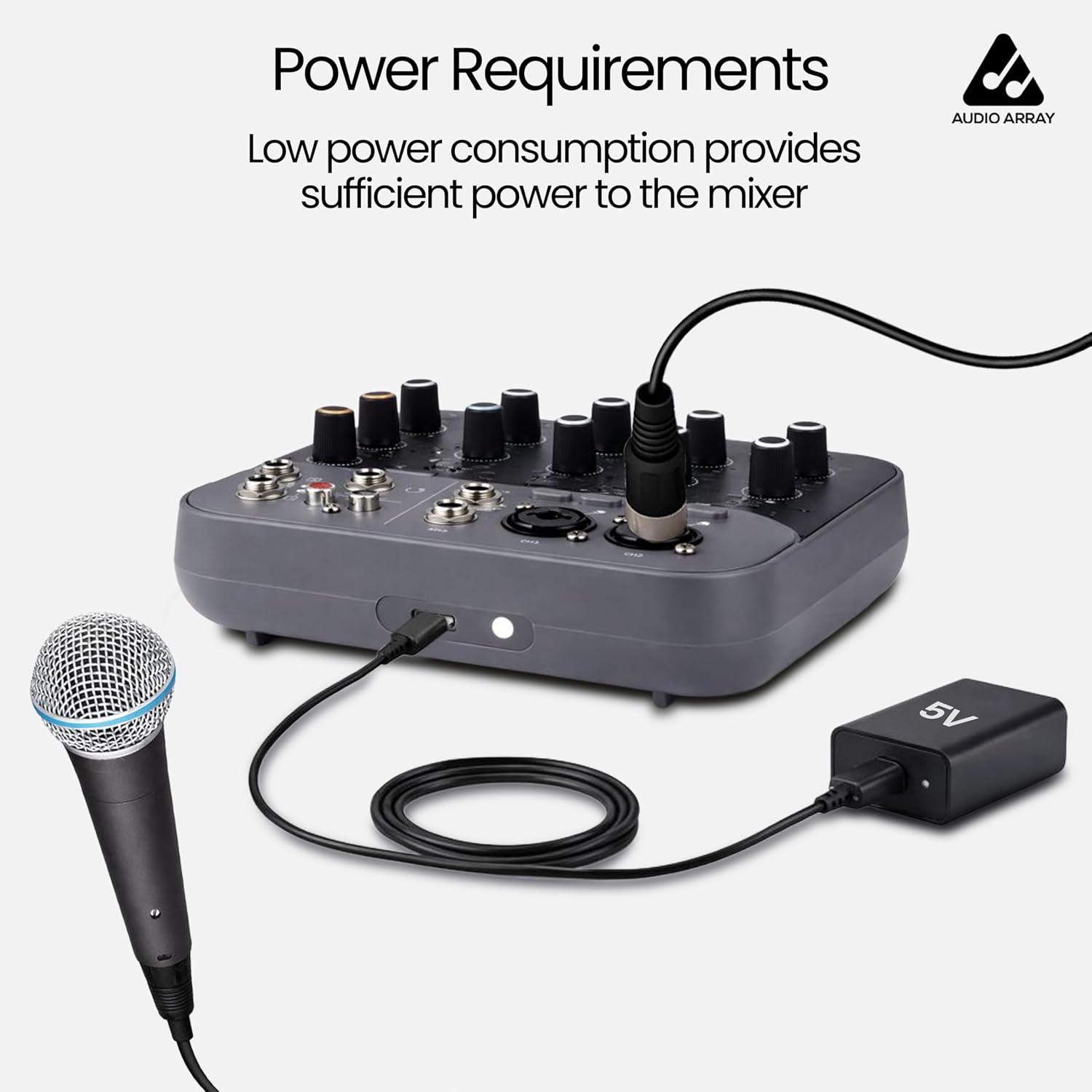
Image 7.1: Power connection via USB-C.
- Power Source: USB Type-C (5V).
- Ensure you use a compatible 5V USB power adapter or a power bank for stable operation.
8. Compatible Devices
The AI-13 mixer is compatible with a wide range of audio and computing devices.

Image 8.1: Compatible devices overview.

Image 8.2: Expanded view of compatible devices in a studio setting.
- Microphones: Dynamic and Condenser (with +48V phantom power).
- Instruments: Guitars, keyboards, etc.
- Playback Devices: MP3 players, USB pendrives, smartphones (via Bluetooth or USB).
- Output Devices: Amplifiers, powered speakers, headphones, recording interfaces.
- Computers: Laptops, desktops for USB audio interface functionality.
9. Real-time Monitoring
The AI-13 allows for real-time monitoring of your audio output.

Image 9.1: Real-time monitoring setup.
Connect your headphones to the PHONES jack to monitor your mix in real-time. This allows you to hear the sound feedback and make adjustments as needed during recording or live sessions.
10. Operating Instructions
General guidelines for operating your mixer:
- Power On: Connect the USB-C power cable. The mixer will power on automatically.
- Adjust Input Gain: For each connected microphone or instrument, slowly increase the GAIN knob until the signal is strong but does not clip (indicated by the CLIP LED).
- Apply EQ: Use the HIGH and LOW EQ knobs to shape the tone of each channel.
- Add Effects: Turn the EFF knob on a channel to send signal to the built-in effects. Adjust the REPEAT and DELAY knobs in the master section to control the effect parameters.
- Set Channel Levels: Use the LEVEL knobs for each channel to balance the mix.
- Master Volume: Adjust the MAIN volume knob for the overall output level.
- Monitor with Headphones: Use the PHONES volume knob to set your monitoring level.
- USB/Bluetooth Playback: Use the MP3 player controls to play audio from a USB drive or a Bluetooth-connected device.
11. Maintenance
Proper maintenance ensures the longevity and performance of your mixer:
- Cleaning: Use a soft, dry cloth to clean the exterior of the mixer. Avoid liquid cleaners or abrasive materials.
- Storage: Store the mixer in a cool, dry place away from direct sunlight and extreme temperatures.
- Cable Care: Handle cables carefully. Avoid bending or twisting them excessively, which can damage internal wiring.
- Ventilation: Ensure proper ventilation around the mixer to prevent overheating.
12. Troubleshooting
If you encounter issues with your AI-13 mixer, refer to the following common problems and solutions:
| Problem | Possible Cause | Solution |
|---|---|---|
| No power | Faulty USB-C cable or power adapter; loose connection. | Check USB-C cable and power adapter. Try a different 5V USB-C power source. Ensure connections are secure. |
| No sound output | Volume knobs too low; incorrect input/output connections; muted channels. | Increase MAIN and PHONES volume. Verify all cables are correctly connected. Check channel LEVEL knobs. |
| Microphone not working | Phantom power off (for condenser mics); incorrect gain; faulty mic/cable. | Activate +48V phantom power if using a condenser microphone. Increase GAIN knob. Test with a different microphone or cable. |
| Distorted audio | Input gain too high; output volume too high. | Reduce input GAIN. Lower channel LEVEL and MAIN volume. |
| USB recording not working | Incorrect USB PC mode; driver issues; software settings. | Ensure the USB PC button is correctly set. Check computer's sound settings and recording software. |
13. Specifications
Detailed technical specifications for the Audio Array AI-13 mixer:

Image 13.1: General specifications.

Image 13.2: Detailed audio specifications.
| Feature | Detail |
|---|---|
| Brand | Audio Array |
| Model Number | AI-13 |
| Number of Channels | 4 |
| Product Dimensions (D x W x H) | 16D x 14W x 4H Centimeters |
| Item Weight | 680 Grams |
| Connectivity Technology | XLR / TRS In, TRS / TS In, RCA REC Out, Main TRS Out, Headphones, USB 2.0 Pendrive, Wired Headphone, USB Type C |
| Power Source Type | USB TYPE C |
| Frequency Response | 20 Hz - 20 KHz |
| Output Connector Type | 1 x Main Output, 2 x TRS, 1 x Phone (TRS), REC, RCA |
| Audio Input | 2 x XLR, 4 x TRS |
| Noise Level | 90 Decibels |
| Country of Origin | China |
14. Warranty
The Audio Array AI-13 mixer comes with a manufacturer's warranty.
- Warranty Period: 1 Year Manufacturer Warranty.
- For warranty claims or service, please contact Audio Array customer support.
15. Support
For any assistance, feedback, or technical support, please contact Audio Array using the details below:

Image 15.1: Service details and contact information.

Image 15.2: Customer Support contact details.
- Phone: +91 79961 35111
- WhatsApp: +91 72082 64674
- Email: support@audioarray.in
- Address: Cambium Retail Private Limited, 109, Hubtown Solaris, Professor NS Phadke Rd, Andheri East, Mumbai, Maharashtra 400069, India.
You can also scan the QR codes in Image 15.1 for direct access to support channels.

