
1. Introduction and Overview
Welcome to the NIMO 17.3 AI-Laptop Copilot+ PC user manual. This guide provides essential information for setting up, operating, maintaining, and troubleshooting your new laptop. Designed for high performance and productivity, your NIMO laptop is equipped with advanced features to enhance your daily tasks, creative work, and entertainment.
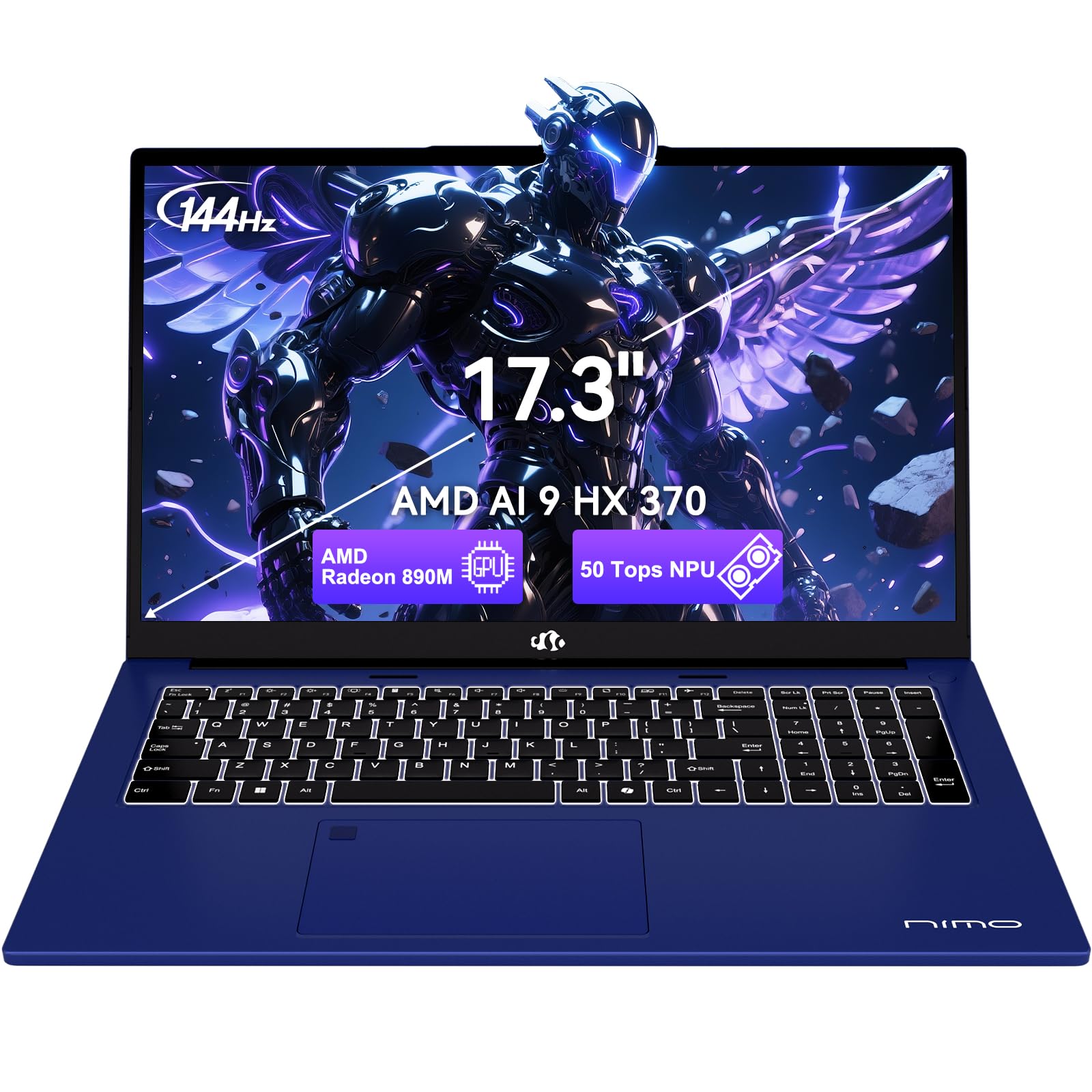
Figure 1.1: NIMO 17.3 AI-Laptop Copilot+ PC
Key Features:
- AI Ryzen Performance: Powered by AMD Ryzen AI 9 HX 370 with Radeon 890M graphics for AI-accelerated performance.
- Spacious 17.3-Inch Display: Offers ample workspace with a 144Hz refresh rate for smooth visuals.
- Long-Lasting Battery Life: Equipped with a 75Wh high-capacity battery for extended use.
- 100W GaN Fast Charging: Quick and efficient recharging via USB-C PD.
- Advanced USB-C 4.0 Connectivity: Supports 40Gbps data transfer, 8K external displays, and eGPU docking.
- Comfortable Backlit Keyboard: Ensures accurate typing in various lighting conditions.
- Fast Fingerprint Unlock: Secure and instant access to your system.
- Full Numeric Keypad: Ideal for data entry and productivity tasks.

Figure 1.2: AMD Ryzen AI 9 HX 370 Processor Capabilities

Figure 1.3: AI Power for Real Life with 50 TOPS NPU

Figure 1.4: Radeon 890M Integrated Graphics Performance
Product Overview Video:
Video 1.1: NIMO 17.3 AI370 Laptop Overview. This video provides a quick visual introduction to the NIMO AI-Laptop's design and key features.
2. Setup
2.1 Unboxing and Initial Inspection
Carefully remove all items from the packaging. The box should contain:
- 1 x NIMO 17.3" AI Laptop
- 1 x Type-C 100W PD Fast Charger
- 1 x User Manual (this document)
- Windows 11 Home pre-installed
Inspect the laptop and accessories for any signs of damage. If any items are missing or damaged, please contact NIMO customer support immediately.
2.2 Powering On and Initial Charge
- Connect the Type-C 100W PD Fast Charger to the USB-C 4.0 port on your laptop and to a power outlet.
- Allow the laptop to charge for at least 30 minutes before the first use, or until the battery indicator shows sufficient charge.
- Open the laptop lid. The system should power on automatically. If not, press the power button located on the top right of the keyboard.
- Follow the on-screen instructions to complete the Windows 11 Home setup process. This includes selecting your region, language, connecting to a Wi-Fi network, and creating a user account.

Figure 2.1: Connecting the 100W PD Fast Charger

Figure 2.2: Fast Charging Capability
3. Operating Your NIMO AI-Laptop
3.1 Keyboard and Touchpad
The NIMO AI-Laptop features a full-size backlit keyboard with a dedicated numeric keypad for enhanced productivity. The multi-touch precision touchpad allows for intuitive navigation and gestures.
- Backlit Keyboard: Press Fn + F10 (or the key with the keyboard backlight icon) to cycle through backlight brightness levels.
- Numeric Keypad: Use the dedicated numeric keypad for quick data entry. Ensure Num Lock is enabled.
- Precision Touchpad: Supports multi-finger gestures for scrolling, zooming, and switching applications. Refer to Windows settings for customization.
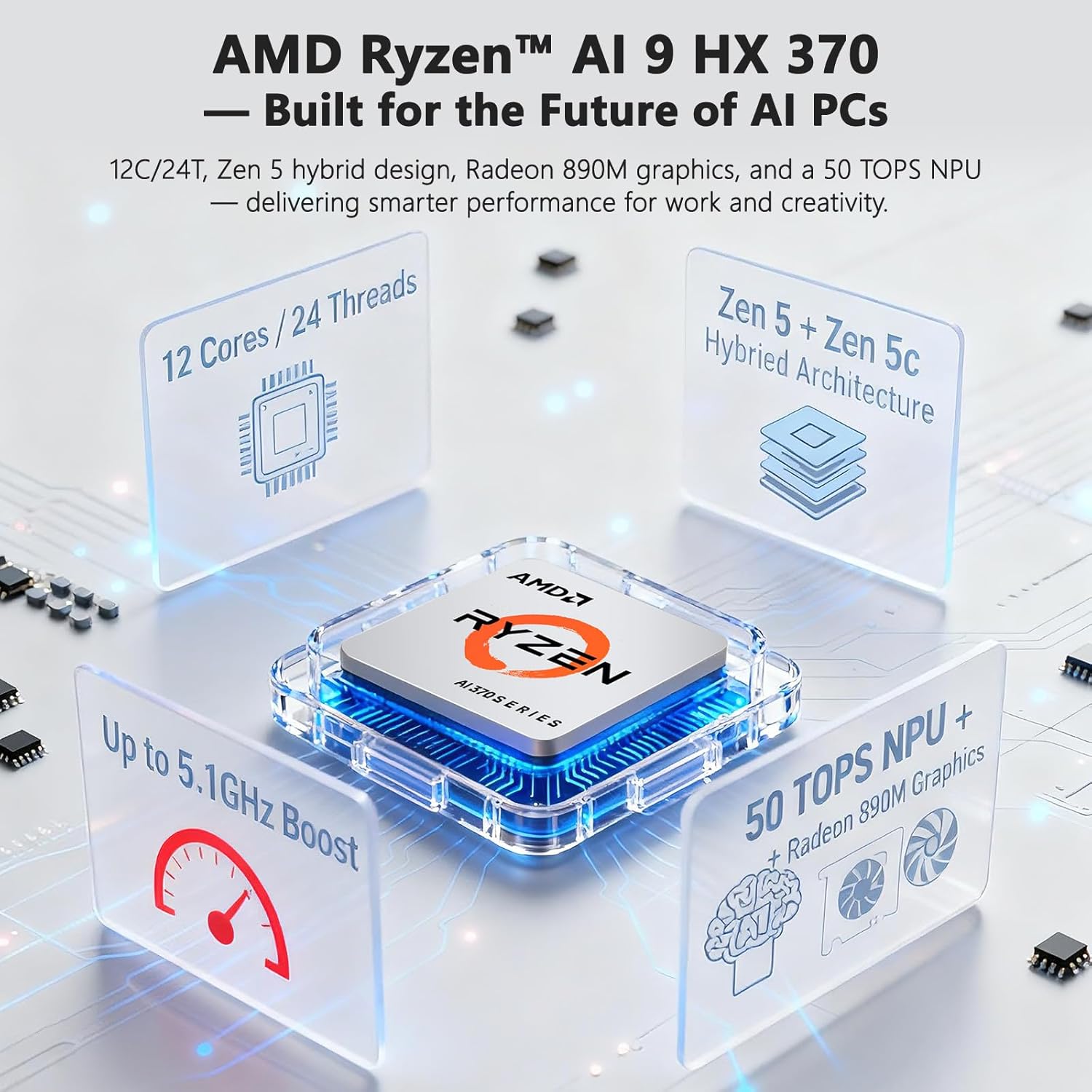
Figure 3.1: Backlit Keyboard and Touchpad

Figure 3.2: Fingerprint Unlock and Backlit Keyboard
3.2 Display Features
Your NIMO AI-Laptop features a 17.3-inch Full HD (1920x1080) display with a 144Hz refresh rate, providing a smooth and immersive visual experience.
- High Refresh Rate: The 144Hz refresh rate reduces motion blur and provides a more fluid experience, especially beneficial for gaming and fast-paced content.
- Screen Size: The large 17.3-inch display offers ample screen real estate for multitasking, creative applications, and immersive viewing.

Figure 3.3: 17.3-inch Display for Work and Creation

Figure 3.4: 144Hz Refresh Rate Visual Difference
3.3 AI Features with Copilot+
Your NIMO AI-Laptop is a Copilot+ PC, leveraging the AMD Ryzen AI 9 HX 370's Neural Processing Unit (NPU) for enhanced AI capabilities directly on your device. This enables features such as:
- Real-Time Notes & Translation: Copilot+ can record, summarize, and translate content as you work.
- AI-Powered Creation: Accelerate creative processes with intelligent image, video, and text tools.
- Smart Recall: Instantly find any file, webpage, or chat you've seen before.
- Enhanced Video Calls: Features like background blur, auto framing, and noise reduction for clearer communication.
Video 3.1: NIMO 17.3" AI Laptop AI Features. This video demonstrates the AI capabilities of the laptop, including Copilot+ functionalities.
3.4 Ports and Connectivity
The NIMO AI-Laptop offers comprehensive connectivity options:
- USB-C 4.0: Supports 40Gbps data transfer, 100W Power Delivery, and 8K external displays.
- HDMI: For connecting to external monitors or projectors.
- USB 3.2 & USB 2.0: For connecting various peripherals.
- SD Card Slot: For easy transfer of photos and files.
- Headphone Combo Jack: For audio input/output.
- Kensington Lock Slot: For physical security.
- Wireless Connectivity: Wi-Fi 6E and Bluetooth for network and device connections.

Figure 3.5: Side View with Ports

Figure 3.6: Comprehensive Multi-Port Design
3.5 Privacy Features
The laptop includes a built-in privacy camera switch, allowing you to physically disable the 2.0MP webcam when not in use, ensuring your privacy.

Figure 3.7: Privacy-Focused Camera Convenience
4. Maintenance
4.1 Battery Care
- Do not expose the battery to excessive heat or fire.
- Avoid completely draining the battery regularly. It is recommended to keep the charge between 20% and 80% for optimal battery longevity.
- Use only the provided 100W USB-C PD GaN charger or a compatible charger to prevent damage.
4.2 Cleaning Your Laptop
- Use a soft, lint-free cloth dampened with water or a screen cleaner to clean the display.
- For the keyboard and chassis, use a soft, dry cloth. A can of compressed air can be used to remove dust from between keys.
- Avoid using harsh chemicals, abrasives, or solvents.
4.3 Software Updates
Regularly check for and install Windows updates and driver updates to ensure optimal performance, security, and compatibility. You can typically find driver updates on the NIMO official support website.
5. Troubleshooting
This section covers common issues you might encounter with your NIMO AI-Laptop. For more detailed troubleshooting or issues not listed here, please refer to the NIMO support website or contact customer service.
| Problem | Possible Solution |
|---|---|
| Laptop does not power on. | Ensure the charger is properly connected and the power outlet is working. Try holding the power button for 15-20 seconds to perform a hard reset. |
| Battery not charging. | Verify charger connection. Try a different power outlet. Ensure the charger is the original NIMO 100W PD charger. |
| Wi-Fi connection issues. | Restart your router and laptop. Check Wi-Fi drivers in Device Manager. Ensure Wi-Fi is enabled in Windows settings. |
| Slow performance. | Close unnecessary applications. Check for background processes. Ensure Windows and drivers are up to date. Run a disk cleanup. |
| Keyboard backlight not working. | Press Fn + F10 (or the key with the keyboard backlight icon) to adjust brightness. |
6. Specifications
Detailed technical specifications for your NIMO 17.3 AI-Laptop Copilot+ PC:
| Feature | Detail |
|---|---|
| Brand | NIMO |
| Model Name | 16GB DDR5 RAM|1TB SSD |
| Screen Size | 17.3 Inches |
| Color | Celestial Blue |
| Hard Disk Size | 1024 GB |
| CPU Model | Ryzen 9 (AMD Ryzen AI 9 HX 370) |
| RAM Memory Installed Size | 16 GB DDR5 |
| Operating System | Windows 11 Home |
| Graphics Coprocessor | AMD Radeon 890M |
| Hard Disk Description | SSD (PCIe 4.0) |
| Item Weight | 4.6 Pounds |
| Battery Life (Average) | 12 Hours |
| Battery Energy Content | 75 Watt Hours |
| Display Resolution | 1920 x 1080 pixels (Full HD) |
| Refresh Rate | 144 Hz |
| Wireless Connectivity | Wi-Fi 6E, Bluetooth |
| Total USB Ports | 5 (including USB-C 4.0) |
| HDMI Ports | 1 |
| Webcam | 2 MP Front Camera |
7. Warranty and Support
7.1 Warranty Information
Your NIMO AI-Laptop comes with a 2-Year Warranty from NIMO Direct Inc. This warranty covers manufacturing defects and ensures peace of mind for your purchase.
Additionally, NIMO offers a 90-Day Free Return policy from the date of purchase. Please refer to the terms and conditions on the NIMO official website for full details.

Figure 7.1: NIMO 2-Year Support
7.2 Customer Support
For any product-related questions, technical assistance, or warranty claims, please contact NIMO customer support:
- Official Website: Visit the NIMO official website for FAQs, driver downloads, and support resources.
- Email Support: service@nimopc.com
- Phone Support: Contact details may be available on the official website or product packaging.
NIMO is committed to providing professional and high-quality customer service to ensure your satisfaction.

Figure 7.2: Professional Customer Assistance
