
1. Introduction
This manual provides essential information for setting up, operating, and maintaining your NIMO 17.3" AI-Ready-Laptop. This device features an AMD Ryzen 7 8745HS processor, AMD Radeon 780M Graphics, 16GB RAM, and a 512GB SSD, designed for efficient performance in various tasks.
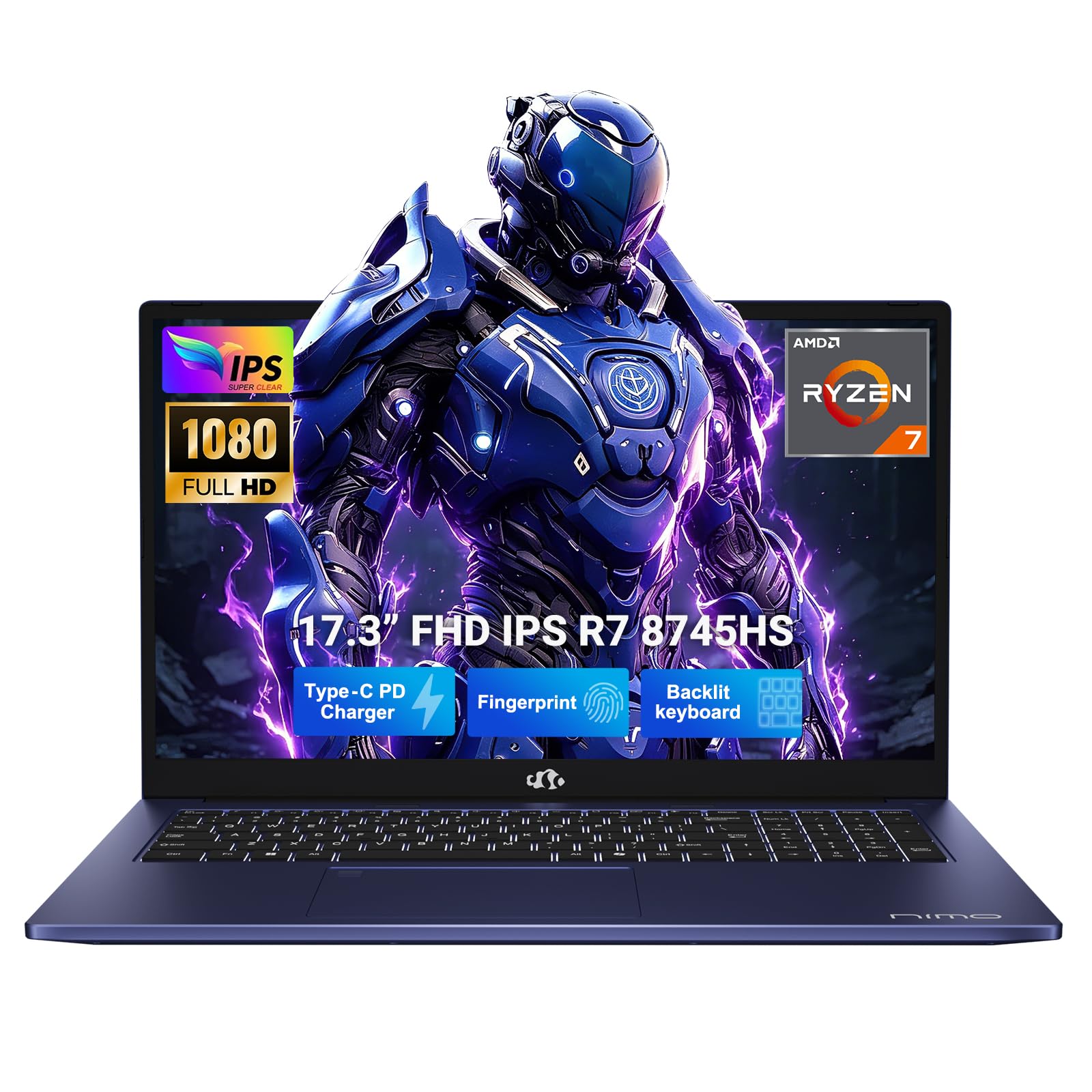
Figure 1.1: NIMO 17.3" AI-Ready-Laptop
2. What's in the Box
Verify that all items are present upon unboxing:
- 1 x NIMO N177 Laptop
- 1 x Type-C 100W PD Fast Charger
- 1 x User Manual
- Windows 11 Home (Pre-installed)
- Warranty Information (2 Years Warranty, 90 Days Return)
3. Initial Setup
3.1 Powering On and Charging
- Connect the provided 100W Type-C PD Fast Charger to the laptop's USB-C port and a power outlet.
- Open the laptop lid. The laptop may power on automatically, or you may need to press the power button located on the top-right of the keyboard.
- Allow the battery to charge fully before initial use.
3.2 Operating System Setup
Follow the on-screen instructions to complete the Windows 11 Home setup. This typically includes:
- Selecting your region and keyboard layout.
- Connecting to a Wi-Fi network.
- Signing in with a Microsoft account or creating a local account.
- Setting up a PIN and fingerprint recognition (optional).
Video 3.1: General NIMO Laptop Overview. This video provides a general overview of NIMO laptops and may not feature the exact N177 model.
4. Hardware Overview
4.1 Display
The NIMO N177 features a 17.3-inch Full HD (1920x1080) IPS anti-glare display, providing clear visuals and wide viewing angles.

Figure 4.1: NIMO Laptop Display in use for video conferencing.
4.2 Keyboard and Trackpad
The laptop is equipped with a backlit keyboard for typing in low-light conditions and includes a numeric keypad for data entry. The trackpad supports multi-touch gestures.

Figure 4.2: NIMO Laptop Keyboard and Trackpad.
4.3 Ports and Connectivity
The NIMO N177 offers a comprehensive array of ports for various peripherals and external displays:
- USB4 Port (Type-C, supports DisplayPort and Power Delivery)
- HDMI 2.1 Port (for 8K/4K output)
- USB 3.2 Ports
- USB 2.0 Ports
- MicroSD Card Reader
- Headphone Jack
- Kensington Lock Slot

Figure 4.3: NIMO Laptop Ports (Left and Right Sides).
4.4 Fingerprint Reader and Webcam
For enhanced security, the laptop includes an integrated fingerprint reader. A front-facing 2MP webcam is provided for video calls, featuring a privacy shutter for user control.
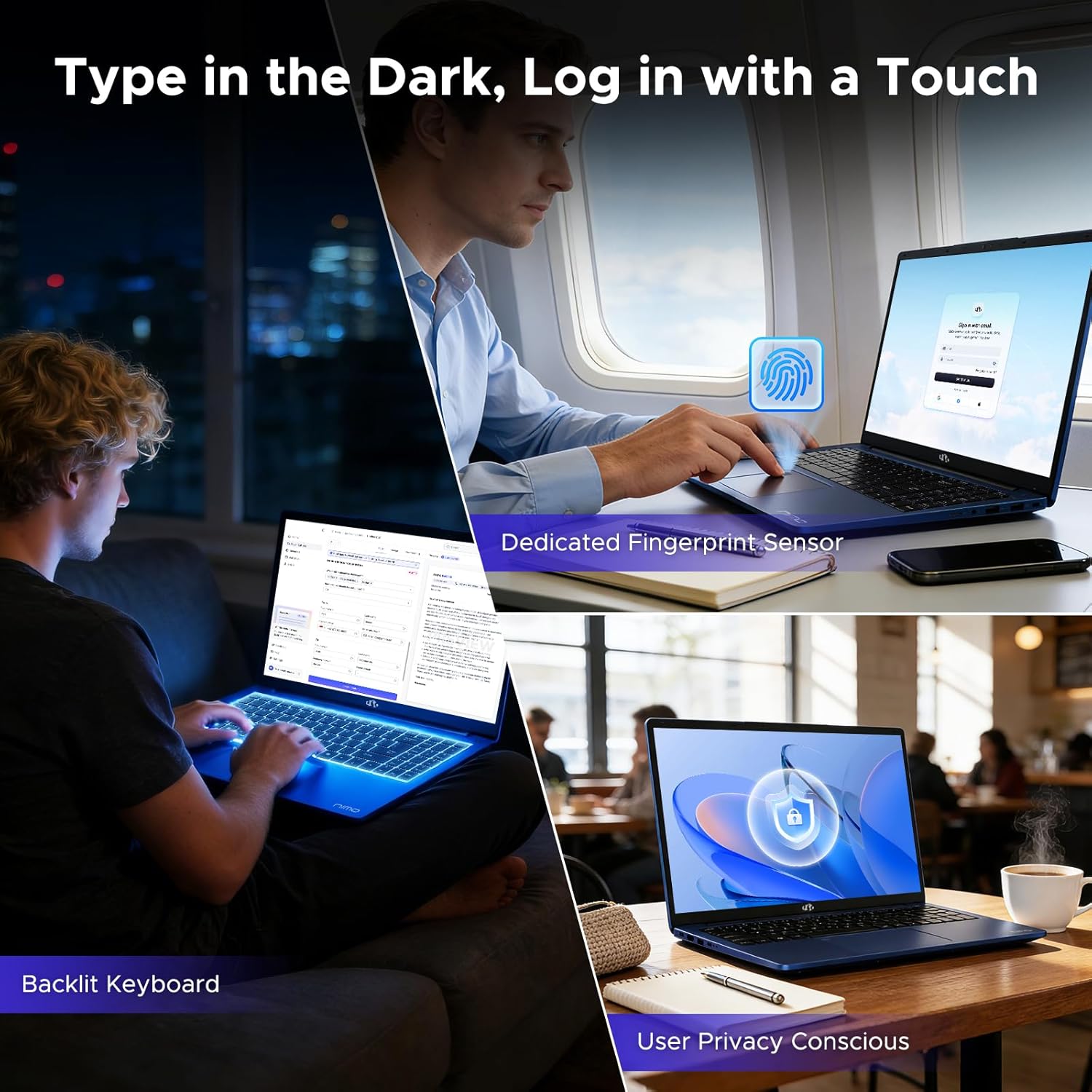
Figure 4.4: Fingerprint Reader for secure login.
5. Operating Instructions
5.1 Power Management
- Power On: Press the power button.
- Sleep Mode: Close the lid or select 'Sleep' from the Start Menu.
- Shut Down: Select 'Shut down' from the Start Menu.
- Restart: Select 'Restart' from the Start Menu.
5.2 Using the Backlit Keyboard
The keyboard backlight can be controlled using the F9 key. Pressing F9 cycles through different backlight settings:
- 1 Tap: Light (Temporary)
- 2 Taps: Light (Temporary)
- 3 Taps: Light (Constant)
- 4 Taps: Off
5.3 Fingerprint Login
Once configured during Windows setup, place your registered finger on the fingerprint reader to log in securely without a password.
6. Performance Features
The NIMO N177 is equipped with advanced components for high performance:
- Processor: AMD Ryzen 7 8745HS (8 cores, 16 threads, up to 4.9GHz) for demanding tasks and multitasking.
- Graphics: Integrated AMD Radeon 780M Graphics (RDNA 3 architecture) for smooth visuals, light gaming, and content creation.
- Memory: 16GB DDR5 RAM for fluid multitasking and application responsiveness.
- Storage: 512GB SSD for fast boot times and quick access to files and applications.
Video 6.1: NIMO 17.3" Laptop Performance Overview. This video demonstrates the performance of a NIMO 17.3" laptop, though it features a 6600h processor, not the 8745HS.
7. Connectivity
7.1 Wireless Connections
- Wi-Fi 6: Provides faster speeds and improved performance in crowded network environments.
- Bluetooth 5.2: For connecting wireless peripherals such as headphones, mice, and keyboards.
7.2 Wired Connections
Utilize the available ports for various wired connections:
- USB4 (Type-C): High-speed data transfer, external display output (DisplayPort), and power delivery.
- HDMI 2.1: Connect to external monitors or TVs for high-resolution video output (up to 8K/4K).
- USB 3.2 / 2.0: Connect USB devices such as external storage, mice, and keyboards.
- MicroSD Card Reader: Transfer data from memory cards.

Figure 7.1: NIMO Laptop connected to a multi-monitor setup.
8. Battery and Charging
The NIMO N177 is equipped with a 75Wh Lithium Polymer battery, offering up to 15.5 hours of active use and 19.2 hours of standby time. The included 100W Type-C PD Fast Charger ensures rapid recharging.
- Connect the Type-C charger to any USB-C port on the laptop for charging.
- The charging indicator light will show the charging status.
- For optimal battery life, avoid completely draining the battery frequently.

Figure 8.1: NIMO Laptop connected to its Type-C charger.
9. Maintenance
9.1 Cleaning
- Use a soft, lint-free cloth to clean the screen and exterior surfaces.
- Avoid using harsh chemicals or abrasive materials.
- For the screen, use a specialized screen cleaner if necessary, applied to the cloth, not directly to the screen.
9.2 Software Updates
Regularly check for and install operating system and driver updates to ensure optimal performance and security. Windows Update can be accessed through the Settings menu.
10. Troubleshooting
10.1 Power Issues
- Laptop not turning on: Ensure the charger is securely connected and the power outlet is functional. Try a different outlet.
- Battery not charging: Verify the Type-C charger is correctly inserted into both the laptop and the power source. Check for any damage to the cable or adapter.
10.2 Display Problems
- No display: Connect an external monitor via HDMI to check if the issue is with the laptop's internal display.
- Dim screen: Adjust brightness settings using the function keys (usually F5/F6) or through Windows display settings.
10.3 Connectivity Issues
- Wi-Fi not connecting: Ensure Wi-Fi is enabled in Windows settings. Restart the laptop and your router.
- Bluetooth device not pairing: Ensure Bluetooth is enabled on both devices and they are in pairing mode.
For further assistance, refer to the support section or contact NIMO customer service.
11. Specifications
| Feature | Detail |
|---|---|
| Brand | NIMO |
| Model Name | NIMO N177 |
| Screen Size | 17.3 inches |
| Color | Blue |
| CPU Model | AMD Ryzen 7 8745HS (up to 4.9 GHz) |
| RAM Memory Installed Size | 16 GB DDR5 (4800 MHz) |
| Hard Disk Size | 512 GB SSD |
| Graphics Coprocessor | AMD Radeon 780M (Integrated) |
| Operating System | Windows 11 Home |
| Special Features | Backlit Keyboard, Fingerprint Reader, HD Audio, Numeric Keypad |
| Battery Life | 15.5 hours (active), 19.2 hours (standby) |
| Battery Energy Content | 75 watt-hours |
| Charging | 100W Type-C PD Fast Charger |
| Wireless Connectivity | Wi-Fi 6, Bluetooth 5.2 |
| Ports | USB4 (Type-C), HDMI 2.1, USB 3.2, USB 2.0, MicroSD, Headphone Jack |
| Item Weight | 4.6 pounds |
| Dimensions (L x W x Th) | 15.66" x 9.99" x 0.74" |
12. Warranty and Support
12.1 Warranty Information
Your NIMO N177 laptop comes with a 2-year warranty from the manufacturer, NIMO Direct Inc. This warranty covers defects in materials and workmanship under normal use.
12.2 Return Policy
A 90-day worry-free return policy is provided, allowing returns for any reason within 90 days of purchase.
12.3 Customer Support
For technical assistance, warranty claims, or product-related questions, please contact NIMO customer support:
- Email: service@nimopc.com
- Online: Visit the official NIMO website or product page for additional resources and live chat support.

Figure 12.1: NIMO Customer Support and Warranty Details.