
1. Introduction
The origimagic A1 Pro Mini PC is a compact and powerful desktop computer designed for various applications, from gaming to professional tasks. It features an AMD Ryzen 9 7940HS processor, Radeon 780M integrated graphics, and extensive connectivity options. This manual provides essential information for setting up, operating, maintaining, and troubleshooting your device.
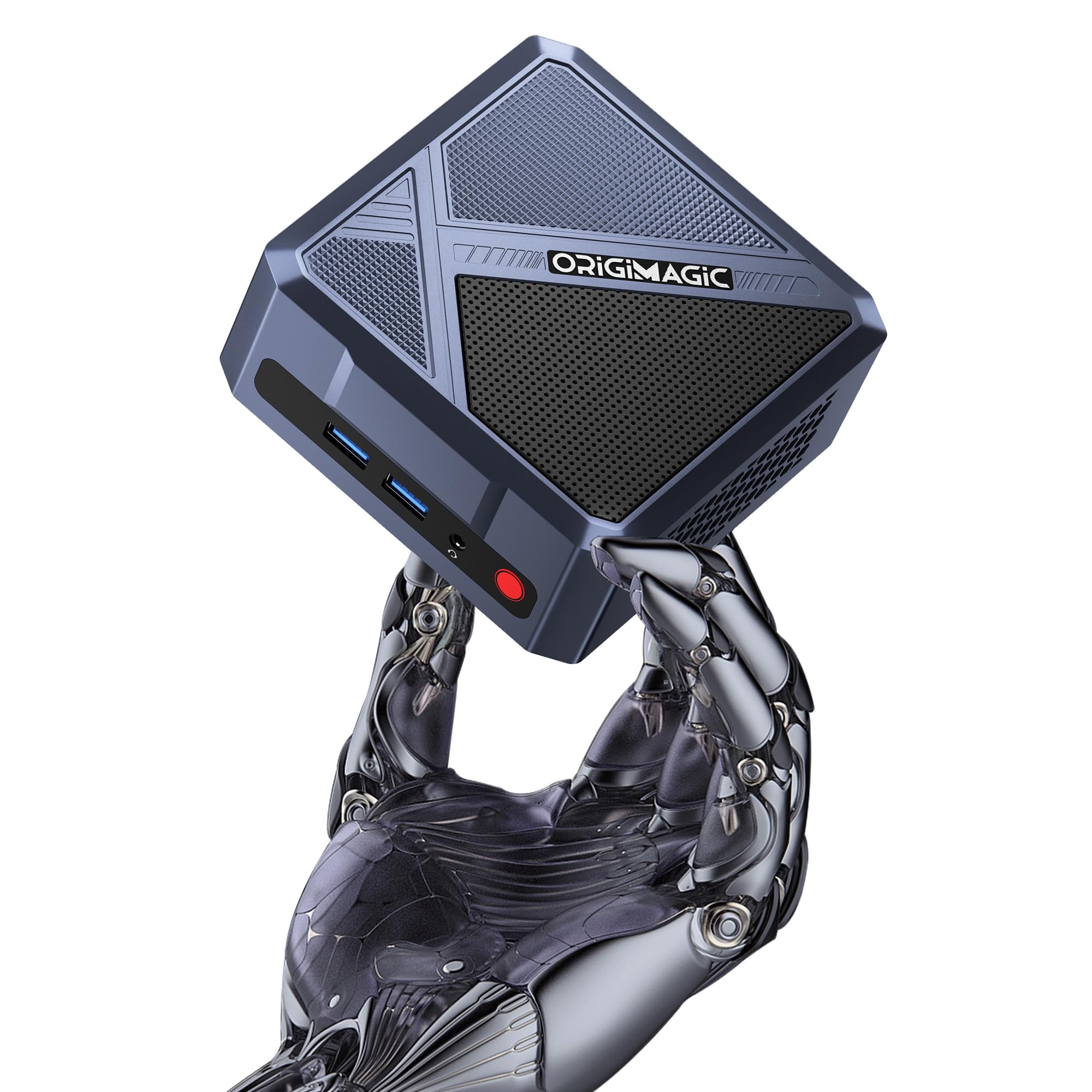
Figure 1: The origimagic A1 Pro Mini PC.
2. What's in the Box
Verify that all items are present in the package:
- 1x ORIGIMAGIC A1 Pro Mini PC
- 1x HDMI Cable
- 1x Power Adapter
- 1x Vesa Mount
- 1x User Manual (this document)
3. Setup Guide
3.1 Connecting Peripherals
Before powering on your Mini PC, connect the necessary peripherals:
- Power Adapter: Connect the power adapter to the DC-in port on the Mini PC and then to a power outlet.
- Display: Connect your monitor(s) using the HDMI, DisplayPort (DP), or USB4.0 (Type-C) ports. The device supports up to three displays simultaneously.
- Keyboard and Mouse: Connect your USB keyboard and mouse to the available USB ports.
- Network: For a wired connection, connect an Ethernet cable to the 2.5G RJ45 LAN port. For wireless, ensure Wi-Fi is enabled (see Section 4.2).

Figure 2: Overview of the Mini PC's ports and interfaces.
3.2 First Boot
After connecting all peripherals:
- Press the power button located on the front of the Mini PC.
- The system will boot into the pre-installed Windows 11 Pro operating system. Follow the on-screen instructions to complete the initial setup.
4. Operating Instructions
4.1 Performance Modes
The Mini PC offers three performance modes: Performance Mode, Balanced Mode, and Quiet Mode. To switch between these modes:
- Restart the Mini PC.
- During startup, repeatedly press the Delete key to enter the BIOS settings.
- Navigate to the performance settings and select your desired mode.
- Save changes and exit the BIOS to apply the new setting.
4.2 Wireless Connectivity (Wi-Fi 6E & Bluetooth 5.2)
The Mini PC includes an Intel AX210 module for Wi-Fi 6E and Bluetooth 5.2 connectivity. To connect:
- Wi-Fi: Access network settings in Windows 11 Pro, select your desired Wi-Fi network, and enter the password.
- Bluetooth: Enable Bluetooth in Windows settings and pair with your Bluetooth devices.
4.3 External GPU Connection (Oculink/USB4.0)
For enhanced graphics performance, an external GPU can be connected via the Oculink/USB4.0 Type-C port. Note the following important procedure for Oculink:
- OCuLink does not support hot-plugging.
- To connect an eGPU via Oculink:
- Power off the Mini PC.
- Connect the OCuLink cable to both the Mini PC and the eGPU.
- Power on the eGPU.
- Power on the Mini PC.

Figure 3: Connecting an external GPU via Oculink.
4.4 Triple Display Setup
The Mini PC supports connecting up to three displays simultaneously for enhanced productivity or entertainment. Use a combination of the HDMI, DisplayPort, and USB4.0 (Type-C) outputs.

Figure 4: Example of a triple screen display setup.
5. Maintenance
5.1 Efficient Cooling System
The A1 Pro Mini PC features an advanced cooling system with a VC vapor chamber and enhanced heat pipes. This design provides faster and more uniform heat dissipation compared to traditional copper heat pipes, contributing to the longevity and stable performance of your Mini PC. Ensure proper airflow around the device and keep vents clear of obstructions.

Figure 5: Diagram illustrating the efficient heat dissipation system.
5.2 RAM and Storage Expansion
The Mini PC allows for RAM and storage upgrades:
- RAM: The device comes with 32GB DDR5 RAM (4800 MHz) and can be expanded up to a total of 96GB.
- Storage: It includes a 1TB M.2 NVMe PCIe SSD. There is space for a second M.2 PCIe 4.0 x4 SSD, allowing for expansion up to 8TB total storage.
For expansion, consult a qualified technician or refer to detailed upgrade guides available online to avoid damaging components.

Figure 6: Internal view showing RAM and M.2 SSD expansion slots.
6. Troubleshooting
This section addresses common issues you might encounter with your Mini PC.
6.1 No Power / System Not Starting
- Ensure the power adapter is securely connected to both the Mini PC and a working power outlet.
- Verify the power outlet is functional by testing it with another device.
- Check the power button for any damage or obstruction.
6.2 No Display Output
- Confirm that the monitor is powered on and set to the correct input source (HDMI, DP, USB-C).
- Ensure the display cables are securely connected to both the Mini PC and the monitor.
- Try using a different display cable or monitor to rule out faulty equipment.
6.3 Oculink eGPU Not Detected
- Remember that Oculink does not support hot-plugging. Follow the correct connection sequence as described in Section 4.3: Power off Mini PC & eGPU, connect Oculink cable, power on eGPU, then power on Mini PC.
- Ensure the eGPU itself is powered on and functioning correctly.
- Check the Oculink cable for any damage.
6.4 Wi-Fi or Bluetooth Connectivity Issues
- Check if Wi-Fi or Bluetooth is enabled in Windows settings.
- Restart your router/modem for Wi-Fi issues.
- Ensure your device is within range of the Wi-Fi network or Bluetooth accessory.
- Update wireless drivers if necessary.
7. Specifications
Detailed technical specifications for the origimagic A1 Pro Mini PC:
| Feature | Specification |
|---|---|
| Brand | origimagic |
| Model Name | A1 Pro |
| Operating System | Windows 11 Pro |
| CPU Model | Ryzen 9 7940HS (8 Cores, 16 Threads) |
| CPU Speed | Up to 5.2 GHz |
| Graphics Coprocessor | Radeon 780M (Integrated) |
| RAM Memory Installed | 32 GB DDR5 (4800 MHz) |
| RAM Memory Maximum Size | 96 GB |
| Hard Disk Description | 1 TB M.2 NVMe PCIe 4.0 SSD |
| Hard Disk Interface | PCIE x 4 (supports second M.2 SSD) |
| Video Output Interface | HDMI, DisplayPort, USB4.0 (Type-C) |
| Max Display Resolution | 8K (7680x4320) @ 60Hz |
| Wireless Connectivity | Wi-Fi 6E, Bluetooth 5.2 |
| Wired Network | 2.5 GbE LAN (RJ45) |
| USB Ports | 5 (including USB4.0 Type-C) |
| Additional Features | Auto Power On, Wake On LAN, Oculink Interface |
| Item Dimensions | 4.33 x 4.33 x 1.57 inches |
| Item Weight | 2.62 Pounds |

Figure 7: Key features and specifications at a glance.
8. Warranty and Support
8.1 Warranty Information
The origimagic A1 Pro Mini PC comes with a 2-year quality guarantee. This warranty covers manufacturing defects and hardware malfunctions under normal use conditions.
8.2 Customer Support
For technical assistance, product inquiries, or warranty claims, please contact origimagic customer support. We offer 24/7 technical support to help you with any questions related to your product.
- Technical Support: Available 24/7.
- Returns: 30-day free return policy.
Please refer to the contact information provided on the official origimagic website or your purchase documentation for the most current support channels.
Figure 8: origimagic customer service provides technical support and assistance.

