
Introduction
The NUROUM OpenEar Pro 2 Headphones are designed for enhanced comfort and clear communication in various environments. Featuring an open-ear design, Environmental Noise Cancellation (ENC) with a DSP chip, and multi-point Bluetooth 5.3 connectivity, these headphones are optimized for professional use, offering up to 15 hours of battery life.
What's in the Box

The package includes:
- 1x OpenEar Pro 2 Headphones
- 1x Adapter (USB-C to USB-A)
- 1x USB Cable (USB-A to USB-C)
- 1x Carrying Case
- User Manual
This image displays all items included in the NUROUM OpenEar Pro 2 Headphones package, neatly arranged. You can see the headphones, a USB-C charging cable, a USB-C to USB-A adapter, a grey carrying case, and the user manual.
Product Overview

The NUROUM OpenEar Pro 2 features a lightweight, flexible design with an adjustable boom microphone. The open-ear style allows for situational awareness while providing clear audio. Controls are integrated for ease of use.

Equipped with a HiFi 4 DSP processor, the OpenEar Pro 2 utilizes advanced algorithms for Environmental Noise Cancellation (ENC), ensuring your voice is clear during calls by reducing 99.9% of ambient noise.

User-friendly controls are integrated directly on the headset. This includes a power ON/OFF and multi-function button (MFB), volume up/down buttons, and a dedicated mute button on the microphone boom for quick access during calls.
Setup and Connectivity
The OpenEar Pro 2 offers versatile connectivity options for seamless integration into your workflow.
Bluetooth Pairing
- Ensure the headphones are powered off.
- Press and hold the Multi-function Button (MFB) for 3 seconds until the indicator light flashes blue and red, indicating pairing mode.
- On your device (smartphone, tablet, computer), enable Bluetooth and search for 'NUROUM OpenEar Pro 2'.
- Select the device to connect. A voice prompt will confirm successful pairing.
Dongle Connection (for PC/Mac)
For a more stable and low-latency connection with your computer, use the provided USB dongle.
- Plug the USB dongle into an available USB port on your computer.
- Power on your OpenEar Pro 2 headphones. They will automatically connect to the dongle.
- Ensure the headphones are selected as the audio input and output device in your computer's sound settings.

The headphones come with both a USB-C dongle and a USB-C to USB-A adapter, ensuring broad compatibility with different computer ports for stable connections.
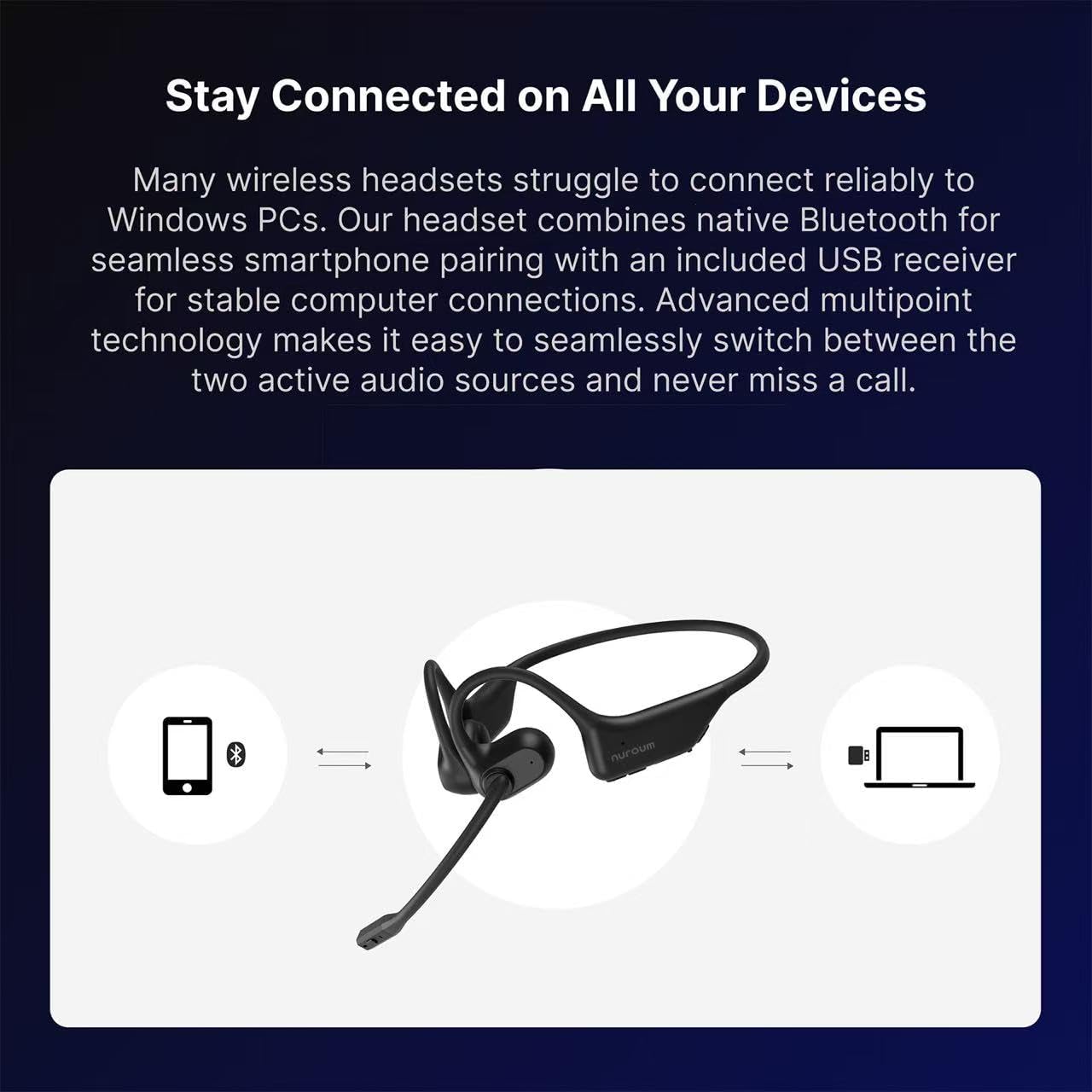
The multi-point connectivity feature allows the headphones to be connected to two devices simultaneously, such as a PC and a smartphone. This enables seamless switching between online meetings and phone calls without re-pairing.
Official Product Video: Connectivity Options
This video demonstrates the various connectivity options for the OpenEar Pro 2 headphones, including Bluetooth and the use of the USB dongle for stable connections with different devices.
Operating Instructions
Basic Controls
- Power ON/OFF: Press and hold the Multi-function Button (MFB) for 3 seconds.
- Volume Control: Use the dedicated volume +/- buttons.
- Mute/Unmute Microphone: Press the mute button located on the microphone boom.
- Answer/End Call: Press the MFB.
- Reject Call: Press and hold the MFB for 1 second.
- Play/Pause Music: Press the MFB.
- Next/Previous Track: Press volume +/- for 1 second.
- Activate Voice Assistant: Keep pressing MFB for 1 second.
- Clear Pairing History: Keep pressing volume+ and volume- at the same time for 5 seconds.
Official Product Video: Simple to Use
This video highlights the simple and intuitive controls of the OpenEar Pro 2 headphones, demonstrating how to manage calls, music, and other functions with ease.
Key Features
Ultimate Comfort

Crafted with soft silicone materials, the OpenEar Pro 2 weighs only 1.12 ounces (31g), providing unparalleled comfort for extended wear. The open-ear design sits delicately in front of each ear, preventing ear fatigue and allowing for natural airflow.
Official Product Video: Comfort is Our Priority
This video emphasizes the superior comfort of the Nuroum OpenEar Pro 2, showcasing its lightweight and ergonomic design for all-day wear without discomfort.
Environmental Noise Cancellation (ENC)

The integrated ENC technology, powered by a HiFi 4 DSP processor, significantly reduces ambient noise by up to 99.9%. This ensures your voice remains crystal clear during calls, even in noisy environments. The adjustable boom mic can be positioned closer to your mouth for optimal voice pickup.
Official Product Video: Noise Cancelling Test
This short video demonstrates the effectiveness of the noise-cancelling microphone in the OpenEar Pro 2 headphones, showing how it filters out background sounds during calls.
Long Battery Life

Enjoy up to 15 hours of continuous music playback or 12 hours of continuous call time on a single charge. The headphones feature 2-hour quick charging via the included Type-C cable, minimizing downtime. (Note: Headphones automatically power off during charging. Please restart after full charge.)
Specifications
| Feature | Detail |
|---|---|
| Brand | NUROUM |
| Model Number | US-OpenEar Pro 2-CD-5 |
| Ear Placement | Open Ear |
| Connectivity Technology | Wireless (Bluetooth 5.4) |
| Bluetooth Range | 10 Meters |
| Noise Control | Adaptive Noise Cancellation (ENC) |
| Battery Average Life | 15 Hours |
| Battery Charge Time | 2 Hours |
| Item Weight | 1.12 ounces |
| Water Resistance Level | Water Resistant |
| Compatible Devices | Cellphones, Desktops, Laptops |
| Additional Features | Echo Cancellation, Fast Charging, Lightweight, Multipoint Pairing, Volume Control |

The NUROUM OpenEar Pro 2 headphones offer broad compatibility with most operating systems, including iOS, Android, Windows, Mac, and Linux. They are also compatible with popular communication platforms like Zoom, Microsoft Teams, Skype, and more.
Maintenance
Cleaning
To maintain optimal performance and hygiene, regularly clean your headphones. Use a soft, dry cloth to wipe the surfaces. For stubborn dirt, a slightly damp cloth with mild soap can be used, ensuring no moisture enters the speaker or microphone openings.
Water Resistance
The OpenEar Pro 2 headphones are water resistant. This means they can withstand splashes and light rain, making them suitable for various environments. However, they are not designed for submersion in water. Avoid exposing them to heavy rain, showering, or swimming.
Storage
When not in use, store the headphones in the provided carrying case to protect them from dust, scratches, and physical damage. Avoid storing them in extreme temperatures or high humidity.
Troubleshooting
No Power
- Ensure the headphones are fully charged. Connect them to a power source using the USB-C cable.
- If charging, remember the headphones automatically power off. Restart them after charging is complete.
Cannot Pair via Bluetooth
- Ensure the headphones are in pairing mode (indicator light flashing blue and red).
- Make sure Bluetooth is enabled on your device and it is within 10 meters of the headphones.
- Clear the pairing history on the headphones (press volume+ and volume- for 5 seconds) and try pairing again.
- Restart both the headphones and your device.
Poor Audio Quality or Disconnections
- Ensure there are no obstructions between the headphones and your device.
- If using with a computer, try connecting via the USB dongle for a more stable connection.
- Check for interference from other wireless devices.
- Ensure the headphones are fully charged. Low battery can affect connection stability.
Microphone Issues
- Ensure the microphone is not muted. Press the mute button on the boom mic.
- Check that the headphones are selected as the input device in your communication software (e.g., Zoom, Microsoft Teams).
- Adjust the position of the boom microphone closer to your mouth for optimal voice pickup.
Warranty and Support
The NUROUM OpenEar Pro 2 Headphones come with a 1-Year Warranty from the manufacturer, Auditoryworks. This warranty covers defects in materials and workmanship under normal use.
For further assistance, product registration, or to explore other NUROUM products, please visit the official NUROUM Store: