
1. Introduction
This user manual provides comprehensive instructions for the installation, operation, and maintenance of your Polarlander B5350 Car Stereo. Please read this manual thoroughly before using the product to ensure proper functionality and to prevent damage. Keep this manual for future reference.
2. Safety Information
- Driving Safety: Always prioritize safe driving. Do not operate the system in a way that distracts you from the road.
- Installation: Professional installation is recommended. Ensure all wiring is correctly connected to prevent short circuits or damage.
- Power Supply: Connect the unit to a 9-30V DC power supply. Incorrect voltage can cause damage.
- Temperature: Operate the unit within the specified temperature range of -20℃ to 60℃.
- Moisture: Keep the unit away from water and excessive moisture.
3. Package Contents
Verify that all items are present in the package:
- Main Unit (Car Stereo)
- Waterproof Power Cord
- Fixed Mounting Bracket Set (Hardware bracket + Sunshade)
- MINI-USB to USB2.0 Cable
- User Manual (this document)

Image 3.1: Contents of the Polarlander B5350 package, including the main unit, power cord, mounting bracket, and USB cable.
4. Product Overview
The Polarlander B5350 is a double DIN car stereo featuring a 5.0-inch touchscreen display with 800x480 resolution. It supports wireless CarPlay and Android Auto, Bluetooth 5.0, and various media playback options.
4.1 Front Panel and Display
The front panel features the 5.0-inch touchscreen, which is the primary interface for controlling the unit. The display provides access to various functions including navigation, media playback, and phone calls.

Image 4.1: Examples of the user interface display, showing various application icons and menu layouts.
4.2 Side and Rear Connections
The unit includes several ports for connectivity and expansion:
- Headphone Jack: For private audio listening.
- TF Card Slot: For media playback from a TransFlash (MicroSD) card.
- MINI to USB Interface: For connecting USB devices or the provided MINI-USB to USB2.0 cable.
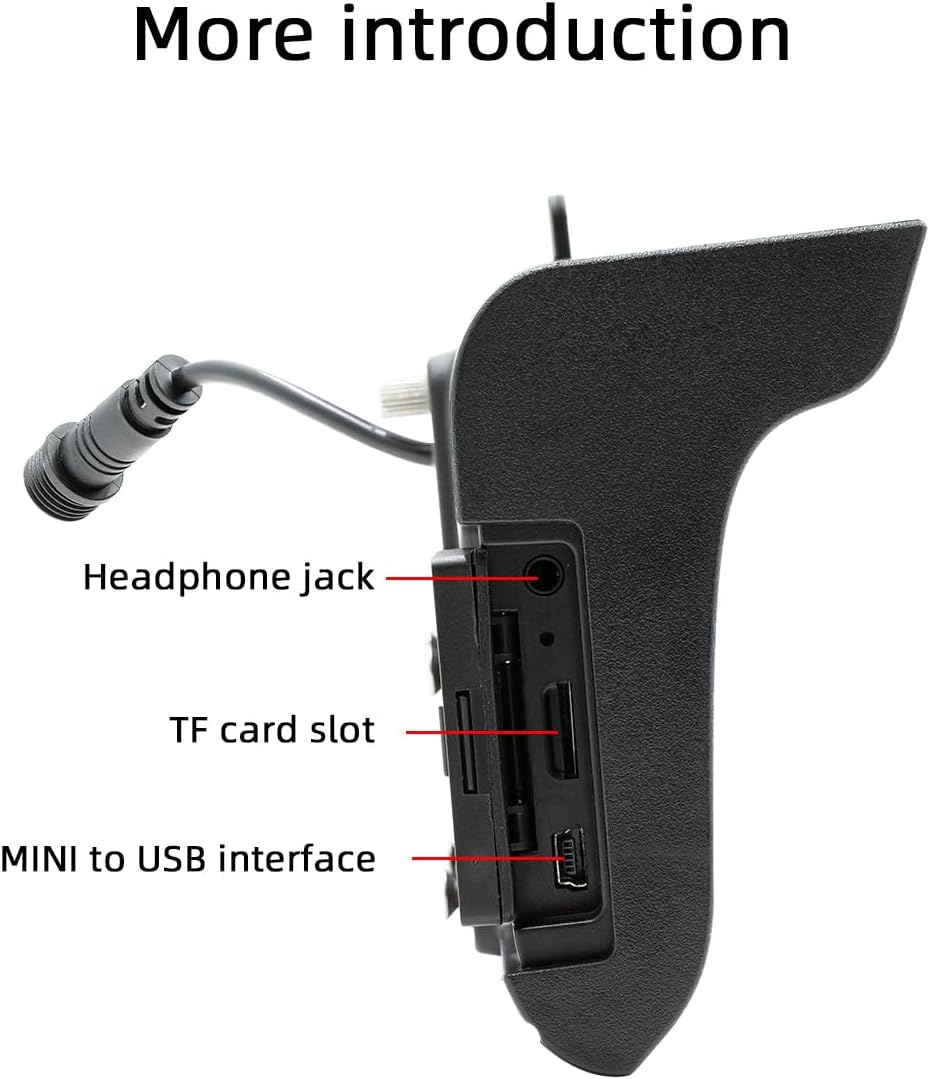
Image 4.2: Side view illustrating the headphone jack, TF card slot, and MINI to USB interface.
The rear of the unit houses a built-in 1W speaker and mounting points for the bracket.

Image 4.3: Rear view of the unit, highlighting the built-in 1W speaker.
5. Installation
This unit is designed for double DIN installation. Due to the complexity of vehicle wiring and dashboard configurations, professional installation is highly recommended. Incorrect installation can lead to vehicle damage or malfunction of the stereo unit.
5.1 General Installation Steps (Consult a professional)
- Disconnect the vehicle's battery to prevent electrical shorts.
- Remove the existing car stereo or dashboard trim to access the double DIN slot.
- Connect the wiring harness from the vehicle to the stereo's power and speaker connections. Ensure correct polarity.
- Connect any additional inputs/outputs such as the reversing camera, AUX-in, or RCA audio outputs.
- Mount the stereo securely into the double DIN slot using the provided mounting bracket set.
- Reconnect the vehicle's battery and test the unit's functionality.
- Reassemble the dashboard trim.
Note: The waterproof power cord should be routed carefully to avoid damage and ensure proper sealing.
6. Initial Setup
6.1 Powering On/Off
The unit will power on automatically when the vehicle's ignition is turned on. To power off, turn off the vehicle's ignition.
6.2 Language Settings
Upon first use, you may be prompted to select your preferred language. Navigate through the on-screen menu to select from English, Chinese, Spanish, Portuguese, Russian, German, French, Polish, Turkish, Arabic, Hebrew, Italian, Czech, Japanese, or Korean.
7. Operating Instructions
7.1 Touchscreen Navigation
The 5-inch touchscreen is the primary control interface. Tap icons to open applications, swipe to navigate menus, and use pinch-to-zoom gestures where applicable (e.g., in navigation apps).
7.2 Steering Wheel Control
If your vehicle supports steering wheel controls, connect the appropriate wires during installation. The unit supports programmable steering wheel controls, allowing you to map functions like volume, track skip, and mode selection to your vehicle's buttons.
7.3 Seven-Color Key Backlights
The unit features adjustable seven-color key backlights. Access the settings menu to customize the backlight color to match your vehicle's interior lighting or your personal preference.
8. Connectivity
8.1 Bluetooth 5.0
The unit features Bluetooth 5.0 for wireless audio streaming and hands-free calling. The default Bluetooth name is "SWL-BT".
- Enable Bluetooth on your mobile phone.
- On the car stereo, navigate to the Bluetooth menu.
- Search for available devices on your phone and select "SWL-BT".
- Confirm the pairing code if prompted.
The unit supports connecting to two Bluetooth devices simultaneously, such as a mobile phone and a Bluetooth earphone.

Image 8.1: Illustration of the dual Bluetooth connection capability, powered by a Bluetooth 5.0 chip.
8.2 Wireless & Wired CarPlay / Android Auto
Connect your smartphone to access functions like navigation, phone calls, messages, and music directly on the car stereo display. Both wired and wireless connections are supported.

Image 8.2: Display showing the CarPlay and Android Auto interfaces, demonstrating mobile phone function integration.
8.2.1 Wireless Connection
For wireless CarPlay or Android Auto, ensure your phone's Wi-Fi and Bluetooth are enabled. Follow the on-screen prompts on the car stereo to pair your device wirelessly.
8.2.2 Wired Connection
Connect your smartphone to the unit's USB port using a compatible USB cable. The system will automatically detect and launch CarPlay or Android Auto.
9. Media Playback
The Polarlander B5350 supports multiple methods for media playback:
- Bluetooth (BT) Playback: Stream audio wirelessly from your paired smartphone.
- TF Card Playback: Insert a TF (MicroSD) card into the designated slot to play audio and video files.
- USB Playback: Connect a USB flash drive to the USB port for audio and video file playback.
- AUX-in: Connect external audio devices via the auxiliary input.
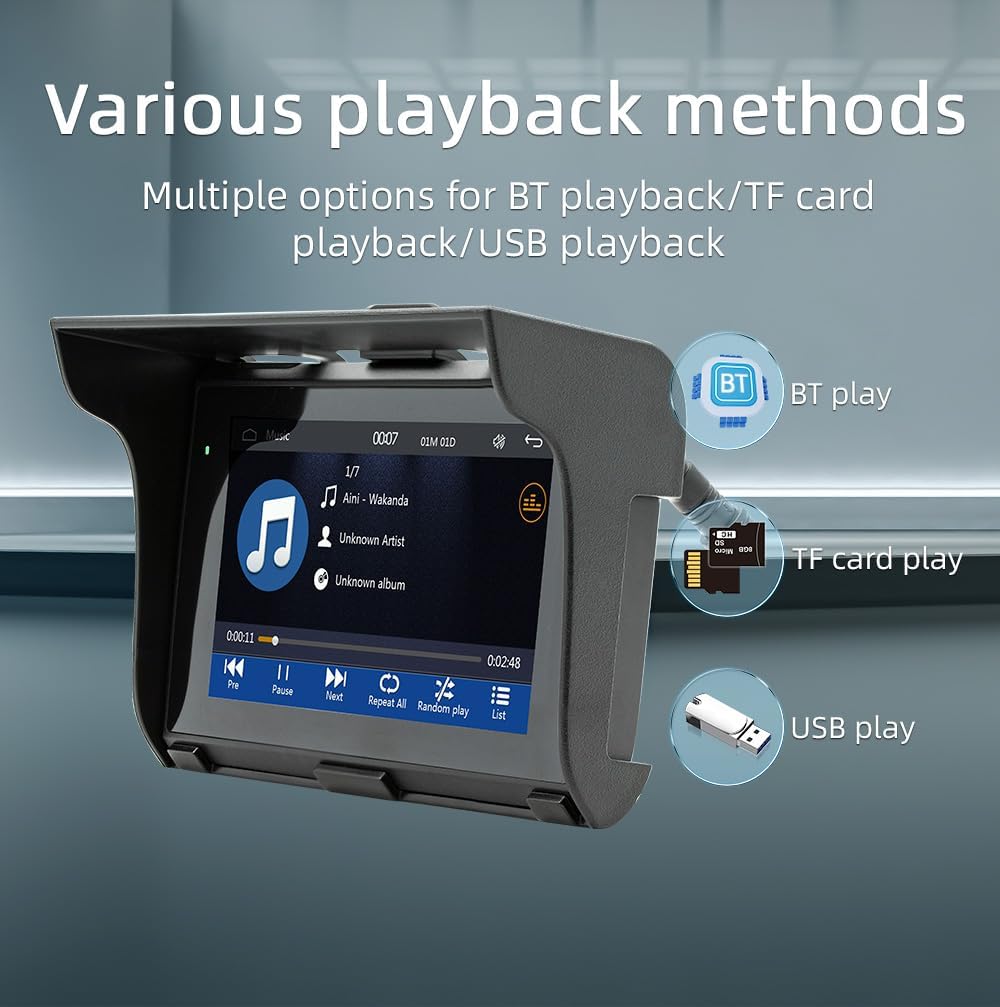
Image 9.1: Visual representation of the various media playback methods available: Bluetooth, TF card, and USB.
9.1 Supported Media Formats
- Audio Formats: MP3, AAC, APE, OGG, M4A, RA, WAV
- Video Formats: H263, H264, H265, DIVX HD, AVI, FLV, MKV, MPEG, MP4, WMV9, VC, ASF, TS, QT
- Image Formats: JPEG, PNG, BMP, GIF, TIFF
10. AM/FM Radio Operation
The unit includes an AM/FM radio receiver. To access the radio function, select the "Radio" icon from the main menu.
- Scanning: Use the scan function to automatically search for and save available radio stations.
- Manual Tuning: Manually tune to specific frequencies using the on-screen controls.
- Presets: Save your favorite stations to preset buttons for quick access.
The radio allows you to stay updated with real-time traffic, news broadcasts, and weather forecasts.
11. Driving Recorder Function (Optional)
The Polarlander B5350 supports an optional car driving recorder. When connected, the unit can display and record your driving dynamics, providing additional security and peace of mind.

Image 11.1: The car stereo displaying footage from an optional driving recorder camera.
Note: The driving recorder camera is an optional accessory and is not included in the standard package.
12. Troubleshooting
| Problem | Possible Cause | Solution |
|---|---|---|
| Unit does not power on. | No power connection or incorrect wiring. | Check power cables and fuse. Ensure correct 9-30V DC supply. |
| No sound. | Volume too low, mute activated, or speaker wiring issue. | Increase volume, check mute status, verify speaker connections. |
| Bluetooth connection fails. | Bluetooth not enabled on phone/unit, or device out of range. | Ensure Bluetooth is active on both devices. Move phone closer to unit. Re-pair device. |
| CarPlay/Android Auto not connecting. | Incorrect cable, phone settings, or app issues. | Use a certified USB cable. Check phone settings for CarPlay/Android Auto. Restart phone and unit. |
| Touchscreen unresponsive. | System freeze or temporary software issue. | Restart the unit (turn off/on ignition). If issue persists, consult support. |
13. Specifications
| Feature | Detail |
|---|---|
| Product Type | Car Stereo (Double Din) |
| Display Size | 5.0 inches |
| Display Resolution | 800x480 |
| Output Power | Built-in 1W speaker |
| Working Voltage | 9~30V DC |
| Operating Temperature | -20℃ to 60℃ |
| Bluetooth Version | 5.0 (Default name: SWL-BT) |
| Running Memory | 1Gbit DRAM |
| Supported Audio Formats | MP3, AAC, APE, OGG, M4A, RA, WAV |
| Supported Video Formats | H263, H264, H265, DIVX HD, AVI, FLV, MKV, MPEG, MP4, WMV9, VC, ASF, TS, QT |
| Supported Image Formats | JPEG, PNG, BMP, GIF, TIFF |
| Input/Output | SD Card, USB, AUX-in, RCA Audio output, Reversing camera input |
| Manufacturer Part Number | B5350 |
14. Maintenance
- Cleaning the Display: Use a soft, lint-free cloth to gently wipe the touchscreen. Do not use abrasive cleaners or solvents.
- General Cleaning: Keep the unit free from dust and debris. Use a soft brush or compressed air for hard-to-reach areas.
- Cable Connections: Periodically check all cable connections to ensure they are secure.
15. Warranty and Support
For warranty information and technical support, please refer to the documentation provided at the time of purchase or contact your retailer. Keep your proof of purchase for any warranty claims.
For further assistance, visit the official Polarlander website or contact their customer service department.


