
Introduction
This manual provides detailed instructions for the Lemorele TC550 USB-C 7-in-1 Dual Display Docking Station. It covers setup, operation, and troubleshooting to help you maximize your productivity with dual 4K@60Hz displays, high-speed data transfer, and efficient power delivery.
Product Features
- 7-in-1 Connectivity: Features 2x 4K@60Hz display ports (HDMI and USB-C DisplayPort Alt Mode), 1x 5Gbps USB-A 3.0 port, 3x USB-A 2.0 data ports, and a 100W USB-C Power Delivery (PD) charging port.
- Dual 4K@60Hz Display Output: Supports simultaneous dual 4K@60Hz displays via the HDMI and USB-C DP ports.
Note for macOS users: Due to operating system limitations, macOS systems support only mirrored (AAA) or extended (ABB) display modes. True extended (ABC) mode is not supported. - High-Speed Data Transfer: Includes one USB-A 3.0 port for data transfer speeds up to 5Gbps and three USB-A 2.0 ports for connecting standard peripherals at 480Mbps.
Important: USB-A data ports do not support charging, audio, or video output. - 100W Pass-Through Charging: The dedicated USB-C PD port allows charging your laptop at up to 85W while using the docking station.
Important: This USB-C PD port is for charging only and does not support data transfer, audio, or video output. - Wide Compatibility: Compatible with most laptops featuring a USB-C port that supports DisplayPort Alt Mode, including models like Dell XPS, ThinkBook, ZenBook, Chromebook, and HP Elitebook 840 G6.
Package Contents
The Lemorele TC550 USB-C 7-in-1 Dual Display Docking Station package includes:
- 1 x Lemorele TC550 7-in-1 USB-C Docking Station
- 1 x User Manual
- 1 x Fault Investigation Report

Image: Package Contents and Dimensions. This image displays the retail packaging of the Lemorele 7-in-1 USB-C Docking Station, along with its physical dimensions (11.3cm/4.5inch length, 5.3cm/2.1inch width, and a 26cm/10.2inch cable length) and the included user manual and troubleshooting guide.
Specifications
| Feature | Detail |
|---|---|
| Brand | Lemorele |
| Model Number | TC550 |
| Colour | Glossy Black |
| Hardware Interface | HDMI, USB 2.0, USB 3.0, USB-C DP Alt Mode, USB-C PD |
| Special Feature | Dual Display 4K@60Hz (HDMI + USB-C DP Alt Mode) |
| Compatible Devices | AR glasses, Laptops, PC, Display Screens |
| Total USB Ports | 4 (1x USB-A 3.0, 3x USB-A 2.0) |
| Data Transfer Rate | 5 Gigabits Per Second (USB-A 3.0) |
| Number of Ports | 7 |
| Enclosure Material | Acrylonitrile Butadiene Styrene (ABS) |
| Item Dimensions (L x W x H) | 11.4L x 4.3W x 1.3H Centimeters |
| Item Weight | 49 Grams |
| Country of Origin | China |
Setup Instructions
Follow these steps to set up your Lemorele TC550 USB-C 7-in-1 Dual Display Docking Station:
- Verify Host Device Compatibility: Ensure your laptop's USB-C port supports DisplayPort Alt Mode. Refer to your laptop's specifications or the image below for common USB-C port types.

Image: USB-C Port Compatibility Guide. This diagram illustrates which types of USB-C ports on your laptop support DisplayPort Alt Mode, which is essential for video output. Compatible ports include Thunderbolt 3/4, Data+DisplayPort Alt, and Data+PD DisplayPort Alt. Ports that only support data transfer, charging, or data+power delivery without DisplayPort Alt are not suitable for video output through this docking station.
- Connect the Docking Station: Plug the USB-C cable of the docking station into a compatible USB-C port on your laptop.

Image: Lemorele 7-in-1 USB-C Docking Station. This image displays the docking station with its various ports clearly labeled, including USB-A 3.0, three USB-A 2.0 ports, an HDMI port, a USB-C DisplayPort, and a USB-C Power Delivery input. It highlights the 7-in-1 functionality.
- Connect External Displays:
- For the first external display, connect an HDMI cable from your monitor to the HDMI port on the docking station.
- For the second external display, connect a USB-C to DisplayPort cable (or a compatible USB-C cable for DP Alt Mode) from your monitor to the USB-C DP port on the docking station.

Image: Dual Display Setup. This image illustrates a laptop connected to two external monitors using the docking station. One monitor is connected via HDMI, and the other via USB-C DisplayPort, demonstrating the dual display capability.
- Connect Power (Optional but Recommended): For stable operation and to charge your laptop, connect your laptop's USB-C power adapter to the USB-C PD Input port on the docking station.
- Connect USB Peripherals: Plug your USB devices (e.g., keyboard, mouse, external hard drive) into the available USB-A 3.0 or USB-A 2.0 data ports.
Operating Instructions
Once the docking station is set up, you can begin using its various functions.
- Dual Display Configuration:
- Windows Systems: Supports various display modes including mirrored (showing the same content on all screens) and extended (allowing different content on each screen, creating a larger workspace). You can configure these settings in your display settings.
- macOS Systems: Supports mirrored (AAA) mode, where all displays show the same content, or extended (ABB) mode, where the laptop screen is one display and both external monitors mirror each other. macOS does not support Multi-Stream Transport (MST) for three distinct extended displays (ABC).
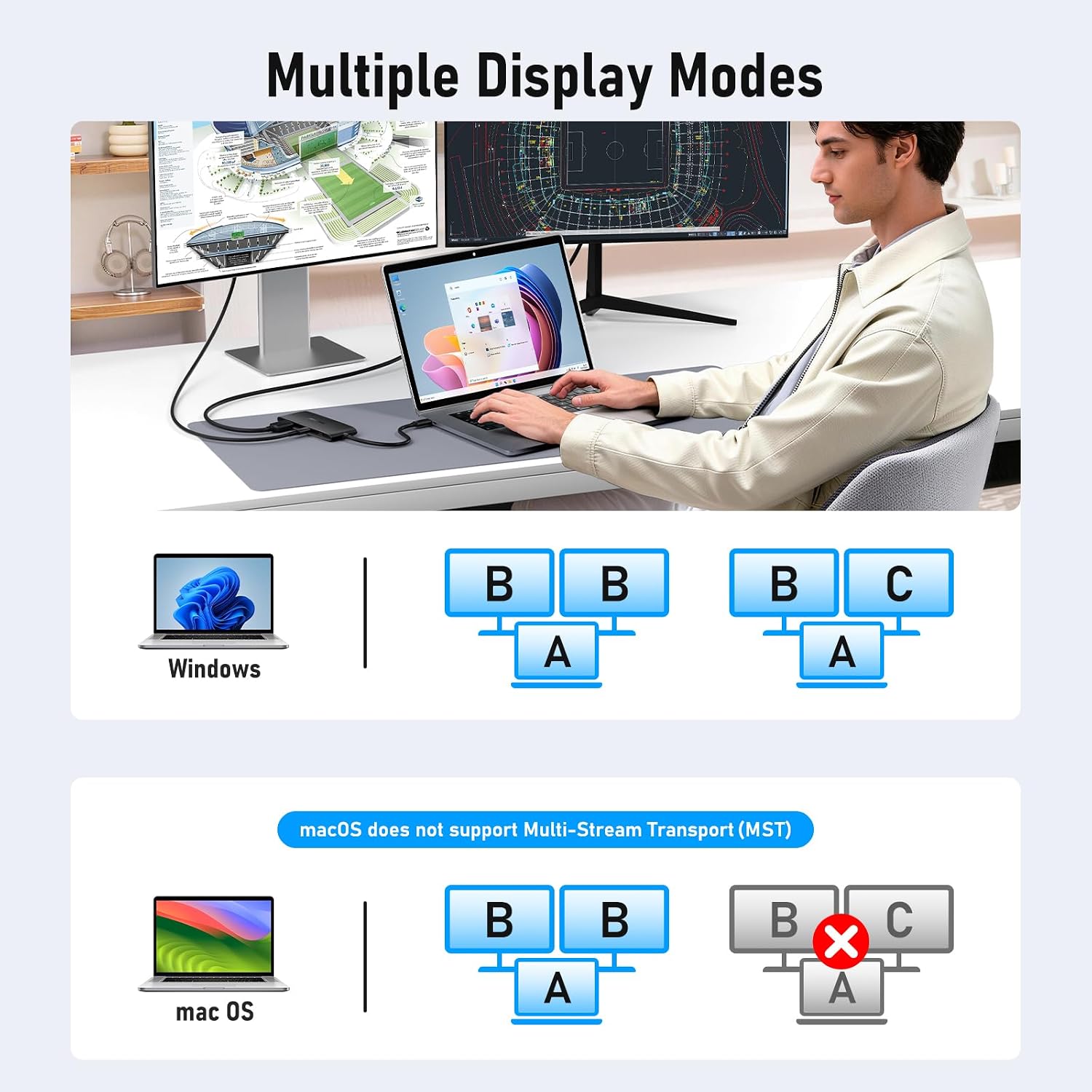
Image: Multiple Display Modes. This diagram visually explains the different display configurations available for Windows and macOS users. It shows that Windows supports mirrored (AAA), extended (ABB), and triple extended (ABC) modes, while macOS is limited to mirrored (AAA) and extended (ABB) modes, with the external displays mirroring each other.
- Data Transfer: Use the blue USB-A 3.0 port for connecting devices requiring high-speed data transfer, such as external SSDs or flash drives, at up to 5Gbps. The three black USB-A 2.0 ports are suitable for standard peripherals like keyboards, mice, and printers.

Image: Fast Data Transfer and PD Charging. This image demonstrates the docking station's capabilities for quick data transfer via the 5Gbps USB-A 3.0 port and efficient laptop charging through the 100W USB-C Power Delivery port.
- Power Delivery: If your laptop supports USB-C Power Delivery, connecting your laptop's power adapter to the docking station's USB-C PD port will charge your laptop at up to 85W. This allows you to power your laptop and use the docking station with a single connection.
Compatibility
The Lemorele TC550 docking station offers broad compatibility with various devices and operating systems.
- Laptops and PCs: Works with most laptops and PCs equipped with a full-featured USB-C port (supporting data, video, and power delivery), including popular models like Dell XPS, ThinkBook, ZenBook, Chromebook, and HP Elitebook 840 G6.
- Display Devices: Compatible with projectors, TVs, monitors, Apple Pro Display XDR, portable monitors, Apple Studio Display, and AR glasses.
- Peripherals: Supports a wide range of USB peripherals such as keyboards, mice, gamepads, external hard drives, printers, and pocket cameras.
- Other Devices: Can be used with Xbox, game consoles, smartphones, Mac mini, and tablets that support USB-C video output.
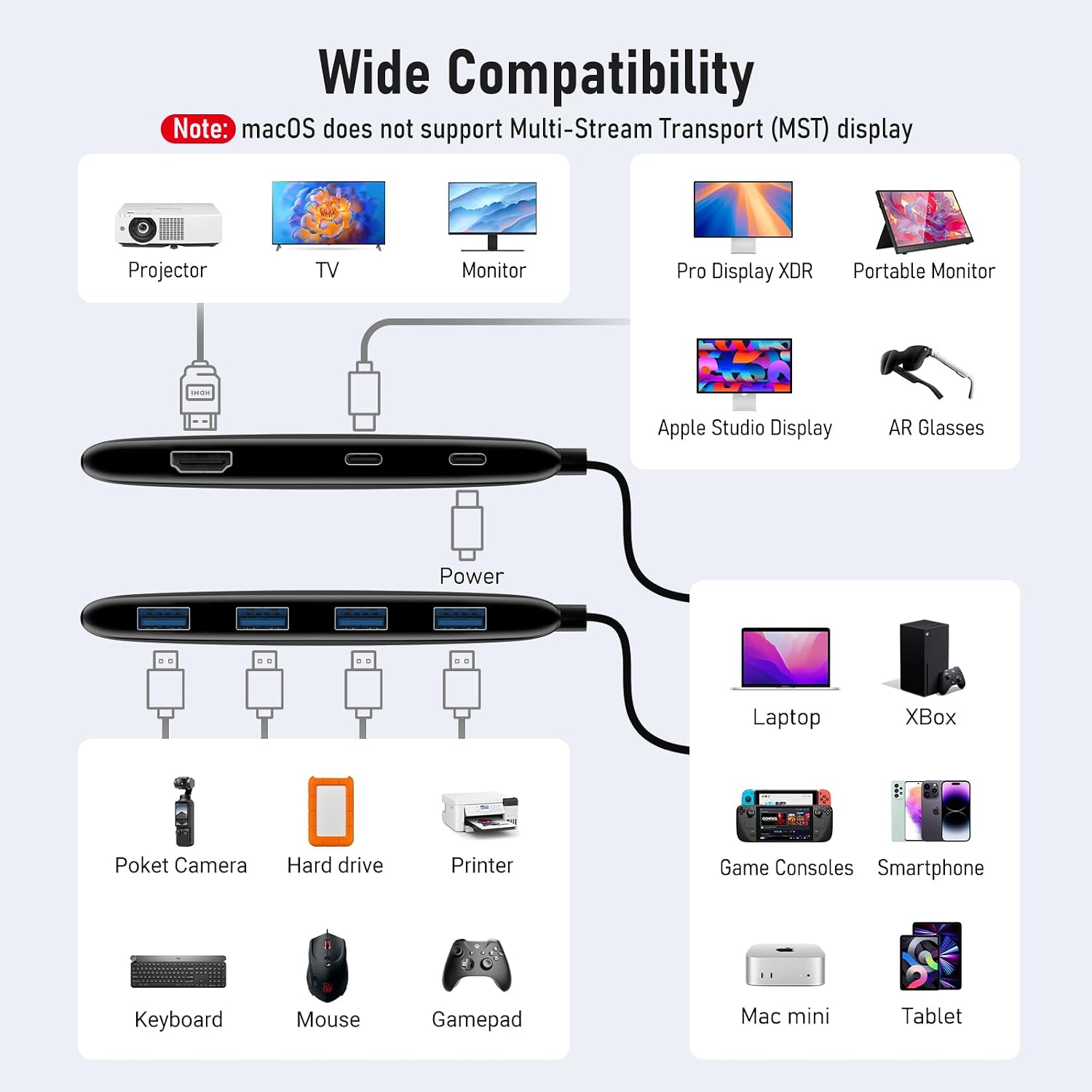
Image: Wide Compatibility Overview. This comprehensive diagram illustrates the extensive range of devices compatible with the docking station, including different types of displays (projectors, TVs, monitors), various host devices (laptops, Xbox, smartphones), and numerous USB peripherals (keyboards, mice, hard drives).
Maintenance
To ensure the longevity and optimal performance of your docking station, follow these maintenance guidelines:
- Cleaning: Use a soft, dry cloth to clean the exterior of the docking station. Avoid using liquid cleaners or aerosols.
- Storage: Store the device in a cool, dry place away from direct sunlight and extreme temperatures.
- Handling: Handle the docking station with care. Avoid dropping it or subjecting it to strong impacts.
- Ventilation: Ensure proper ventilation around the device during operation to prevent overheating. Do not cover the docking station.
- Disassembly: Do not attempt to disassemble or repair the device yourself. This will void the warranty and may cause damage.
Troubleshooting
If you encounter issues with your Lemorele TC550 docking station, refer to the following common problems and solutions:
| Problem | Possible Cause / Solution |
|---|---|
| No display output on external monitors. |
|
| External displays disconnect intermittently or flicker. |
|
| USB-A data ports are not working or devices are slow. |
|
| Laptop is not charging via the USB-C PD port. |
|
Warranty and Support
Lemorele provides comprehensive support and warranty services for your product.
- Product Warranty: The Lemorele TC550 USB-C 7-in-1 Dual Display Docking Station comes with a 1-year product warranty.
- Return Policy: Enjoy a seven-day no-reason return policy.
- After-Sales Support:
- Hotline: 080-456-80400 (Landline)
- Email: support@lemorele.in

Image: Quality and Production. This image displays various product certifications and a view of a manufacturing facility, highlighting Lemorele's commitment to quality control and world-class production standards.


