
1. Introduction
This manual provides essential information for setting up, operating, and maintaining your Plimpton Kids Tablet 10 Inch, Model Kids 20. This device is designed to offer a secure and engaging digital experience for children, featuring the Android 15 operating system, an octa-core processor, and integrated Google Kids Space.
2. What's in the Box
- 1 x PlimPad Kids Android 15 Tablet
- 1 x USB Adaptor
- 1 x USB Charge Cable
- User Manual

3. Product Features
- Advanced Performance: Equipped with an enhanced Android 15 system, a 2.0GHz 8-core processor, 4GB RAM, and 64GB storage (expandable to 1TB).
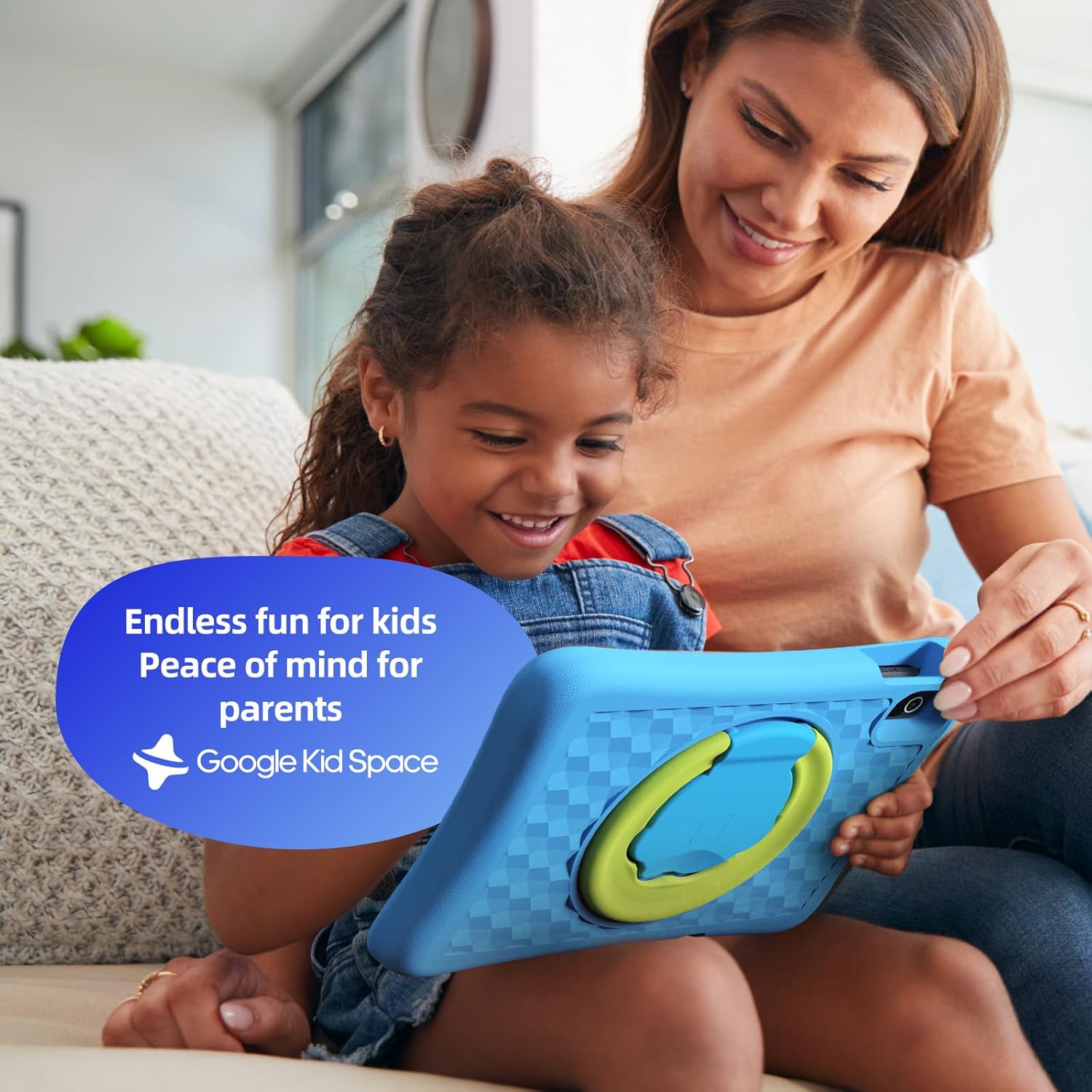
- Google Kids Space & Parental Control: Pre-installed with Google Kids Space and educator-endorsed apps. User-friendly parental controls allow content filtering, educational targets, and time restrictions.
- Eye Protection Display: 10.1" HD IPS glass screen (1280 x 800 resolution) with low blue light technology and automatic brightness adjustment to reduce eye fatigue.
- Durable Design: Rugged, anti-drop EVA protective case, odorless and resistant to deformation, with a 360° rotatable bracket.
- Optimized Battery: Upgraded power system for extended daily use, leveraging Android 15's efficiency for smarter power management.

4. Setup
4.1 Initial Power On
- Press and hold the power button located on the side of the tablet until the screen lights up.
- Follow the on-screen prompts to select your preferred language and region.
4.2 Wi-Fi Connection
- From the initial setup screen or Settings menu, select 'Wi-Fi'.
- Choose your home Wi-Fi network from the list.
- Enter your Wi-Fi password and tap 'Connect'.
4.3 Google Account Setup
- Sign in with an existing Google account or create a new one. This account will be used for parental controls and app downloads.
- Follow the instructions to link your child's profile to your Google Family Link account for parental management.
4.4 Google Kids Space Configuration
- Once your Google account is set up, the tablet will guide you through configuring Google Kids Space.
- Select your child's age and interests to personalize content recommendations.
- Review and adjust parental control settings within Google Kids Space or via the Google Family Link app on your own device.
5. Operating the Tablet
5.1 Navigating Google Kids Space
Google Kids Space provides a child-friendly interface with curated content. Children can navigate through different categories like 'Play', 'Read', and 'Watch' to discover apps, books, and videos tailored to their age and interests.
5.2 Parental Controls with Google Family Link
Manage your child's digital experience remotely using the Google Family Link app on your smartphone. This allows you to:
- Set daily screen time limits.
- Approve or block apps from the Google Play Store.
- Track app usage and activity.
- Set device bedtime.
- Manage content restrictions for websites and searches.

5.3 Media Consumption
The tablet supports various media types:
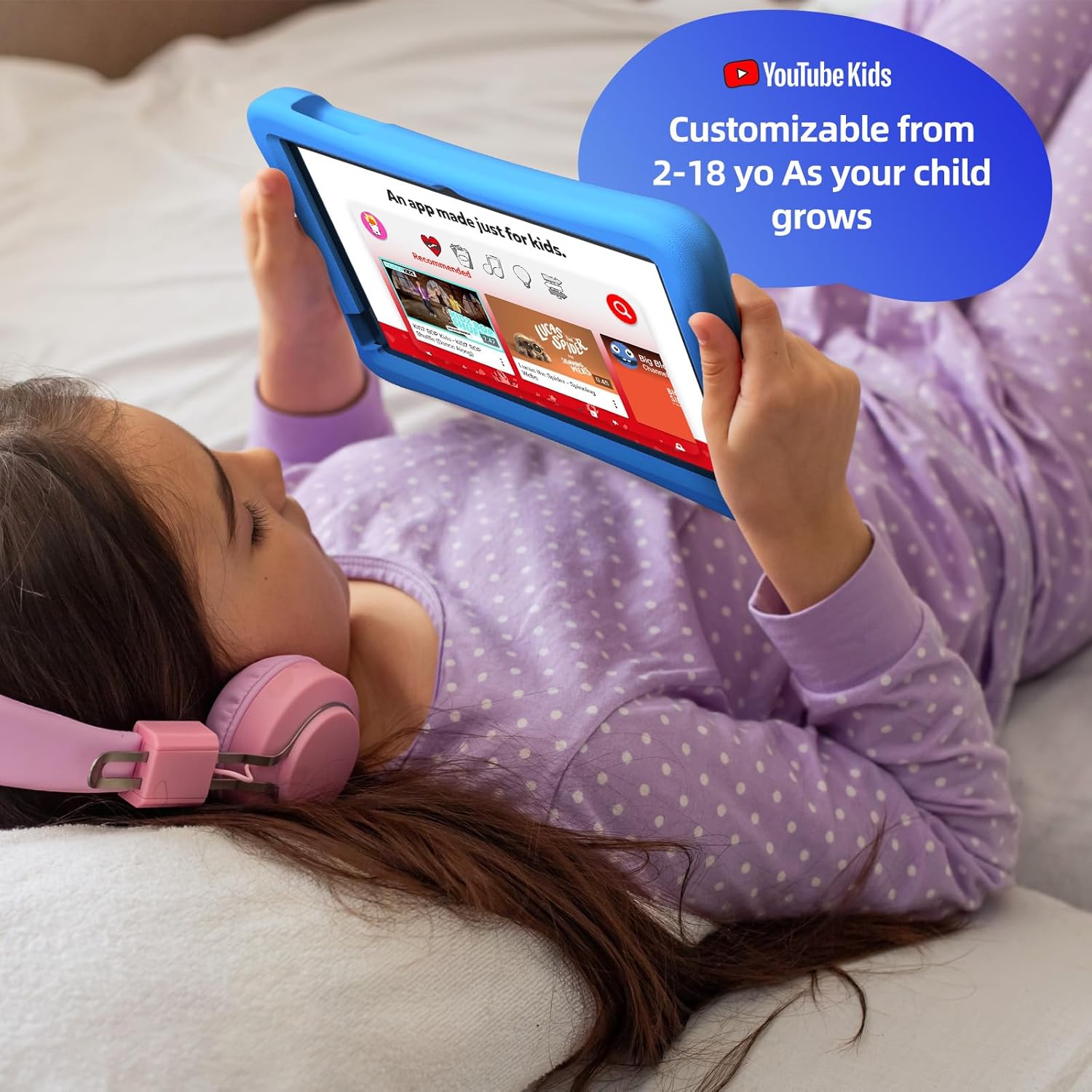
- Videos: Access YouTube Kids for age-appropriate video content. Parental controls can further refine available videos.
- Books: Explore a library of digital books within Google Kids Space, promoting reading and literacy.
- Games: A wide selection of educational and entertaining games are available, with new content regularly updated.

6. Maintenance
6.1 Battery Care
- Charge the tablet fully before first use.
- Avoid completely draining the battery regularly to prolong its lifespan.
- Use only the provided USB Adaptor and Charge Cable.
6.2 Cleaning
- Turn off the tablet before cleaning.
- Use a soft, lint-free cloth to wipe the screen and exterior.
- Avoid using harsh chemicals or abrasive materials.
6.3 Software Updates
Ensure the tablet's software is up-to-date for optimal performance and security. Connect to Wi-Fi and check for updates periodically in the Settings menu.
7. Troubleshooting
7.1 Tablet Not Turning On
- Ensure the battery is charged. Connect the tablet to the charger and wait a few minutes before attempting to power on again.
- Press and hold the power button for 10-15 seconds to perform a hard reset.
7.2 Slow Performance
- Close unused applications running in the background.
- Clear cache data for frequently used apps in Settings > Apps.
- Ensure sufficient storage space is available. Delete unnecessary files or apps.
7.3 Wi-Fi Connectivity Issues
- Restart your Wi-Fi router and the tablet.
- Forget the network in Wi-Fi settings and reconnect.
- Ensure the tablet is within range of the Wi-Fi signal.
8. Specifications
| Feature | Specification |
|---|---|
| Standing screen display size | 10.1 Inches |
| Screen Resolution | 1280 x 800 pixels |
| Processor | 2 GHz Octa-Core |
| Operating System | Android 15 |
| Flash Memory Size | 64 GB |
| RAM | 4 GB |
| Expandable Storage | Up to 1 TB (SD card not included) |
| Average Battery Life | 8 Hours |
| Item Weight | 1.76 pounds |
| Product Dimensions | 10.86 x 7.83 x 1.22 inches |
| Color | Blue |
9. Warranty & Support
The Plimpton Kids Tablet comes with a 2-year warranty. Additionally, a 30-day worry-free return and replacement policy is provided. For any questions or concerns, please contact Plimpton customer support. Our team is dedicated to resolving any issues you may encounter.
For detailed support, refer to the customer support card included in your product packaging or visit the official Plimpton website.
