
1. Introduction
Thank you for purchasing the IROK FE87 V2 Mechanical Keyboard. This manual provides detailed instructions for setting up, operating, maintaining, and troubleshooting your new keyboard. Please read this manual thoroughly before use to ensure optimal performance and longevity of your device.
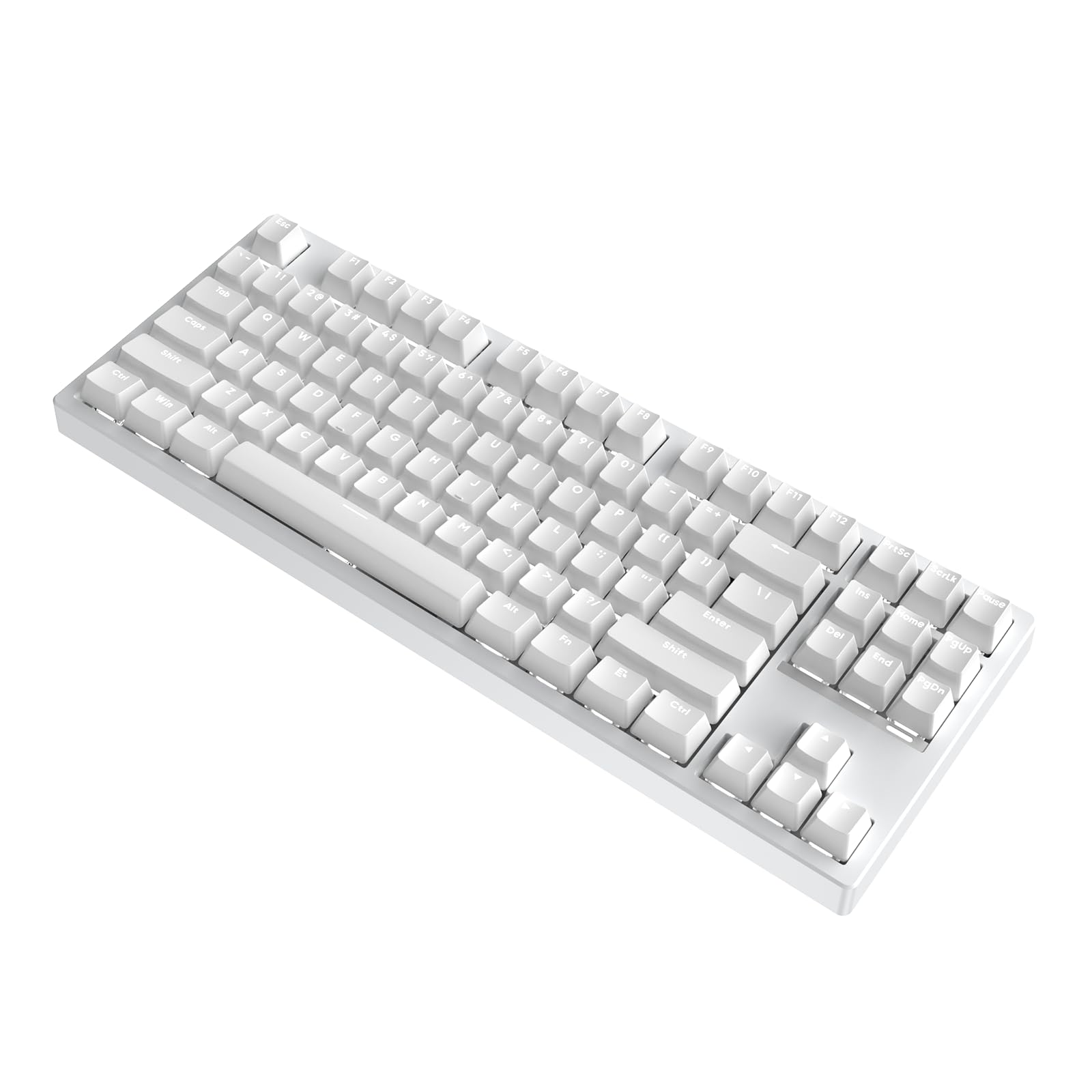
Image: The IROK FE87 V2 Mechanical Keyboard in white, showcasing its TKL layout.
2. Package Contents
Ensure all items are present in the package:
- IROK FE87 V2 Mechanical Keyboard
- USB Cable (Type-C)
- Keycap Puller
- User Manual (this document)
3. Key Features
3.1 Adaptive Power Management Technology
The keyboard intelligently adjusts its power consumption based on usage patterns. This technology optimizes battery life during idle periods without affecting responsiveness during active use, balancing endurance and performance.

Image: Diagram illustrating the Adaptive Power Management Technology for balanced performance and endurance.
3.2 Fully Hot-Swappable Switches
The IROK FE87 V2 allows for easy customization of mechanical switches. Users can swap, upgrade, or repair any mechanical switch without soldering, providing flexibility and simplified maintenance.

Image: Close-up view of the hot-swappable switch sockets on the keyboard PCB.
3.3 SOCD Support
The keyboard supports Simultaneous Opposite Cardinal Direction (SOCD) cleaning. This feature ensures precise and predictable inputs by resolving conflicts when opposite direction keys (e.g., Left + Right) are pressed simultaneously, preventing unintended behavior in competitive gaming.

Image: Visual representation of SOCD support, highlighting precise input processing.
3.4 Gasket Structure
The Gasket mount design isolates the PCB and plate within the keyboard case using soft silicone or foam gaskets. This construction absorbs typing vibrations and reduces harsh noise, resulting in a softer, more flexible typing feel and a consistent sound profile.

Image: Cross-section diagram illustrating the Gasket Structure components, including PCB, plate, and sound-absorbing materials.
3.5 Proprietary Driver (Web Driver & One-stop HUB Drive)
The IROK FE87 V2 features a proprietary driver system, including a Web Driver and a One-stop HUB Drive. This software simplifies operation and management, allowing for customization of lighting, key functions, and other settings without complex installation steps.

Image: Screenshot of the IROK keyboard driver interface, showing lighting and action settings.
3.6 87-Key TKL Layout
The Tenkeyless (TKL) layout provides a compact and portable design by omitting the numeric keypad, saving desk space while retaining essential keys for typing and gaming.

Image: Top-down view of the IROK FE87 V2 keyboard, highlighting its compact 87-key layout.
3.7 White Backlighting
The keyboard features white backlighting, enhancing visibility in various lighting conditions and adding to the aesthetic appeal. The lighting can be adjusted through the proprietary driver.
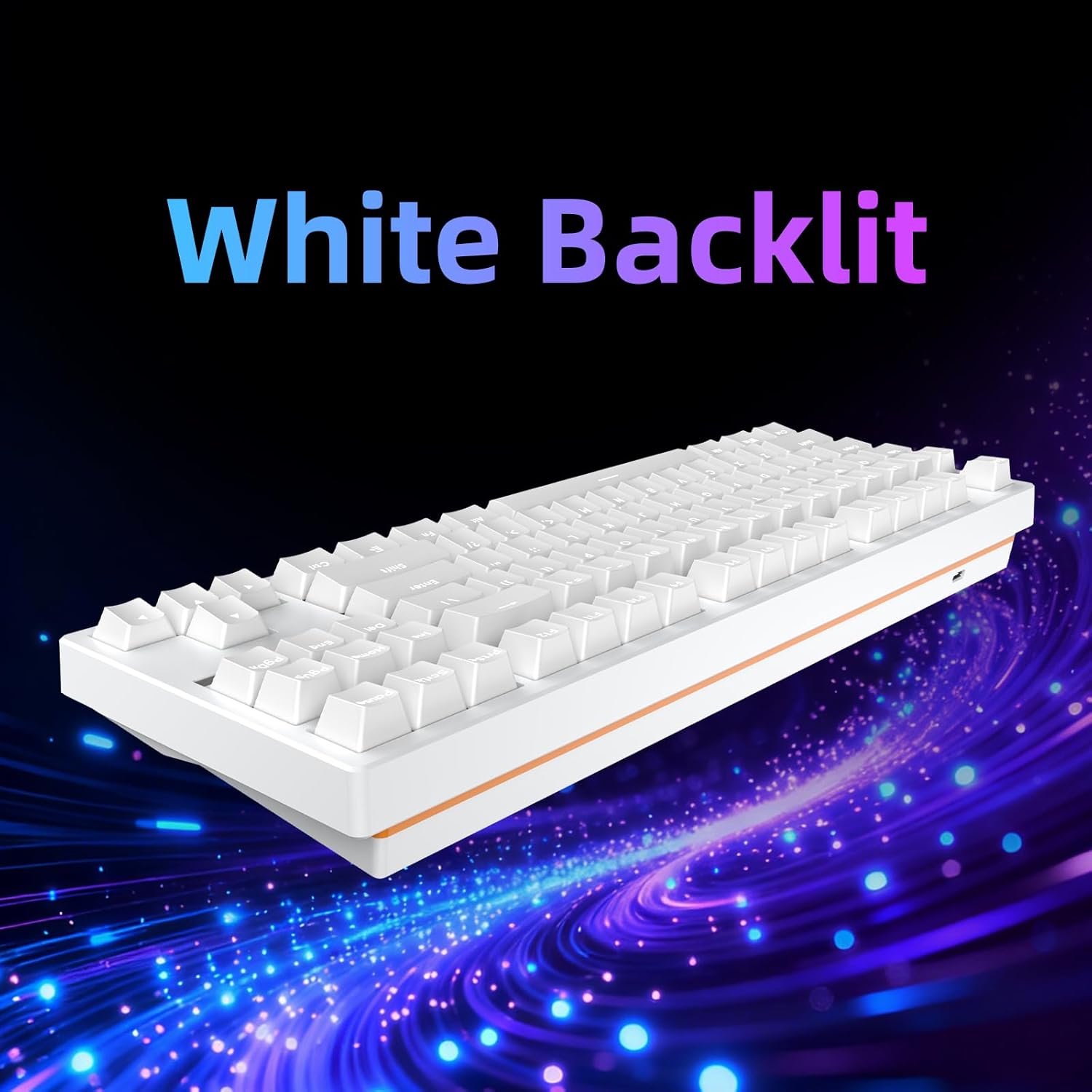
Image: The IROK FE87 V2 keyboard with its white backlighting illuminated.
3.8 High Polling Rate
The keyboard supports an 8KHz polling rate, ensuring seamless and lag-free input transmission for responsive performance, especially critical in gaming scenarios.

Image: Graphic illustrating the high polling rate for fast and responsive key inputs.
4. Setup Instructions
- Unpack the Keyboard: Carefully remove the IROK FE87 V2 keyboard and its accessories from the packaging.
- Connect the USB Cable: Insert the USB Type-C end of the provided cable into the port on the keyboard.
- Connect to Computer: Plug the standard USB-A end of the cable into an available USB port on your computer (Laptop or PC).
- Driver Installation (Optional but Recommended): For full customization and advanced features, download and install the proprietary driver from the official IROK website. Refer to the "Customization" section for more details.
- Initial Test: Once connected, the keyboard should be recognized by your operating system. Test basic key functions to ensure proper operation.
5. Operating Instructions
5.1 Basic Usage
The IROK FE87 V2 functions as a standard mechanical keyboard. Simply plug it into your computer, and it will be ready for use. No special drivers are required for basic typing functionality.
5.2 Function Keys (Fn Combinations)
The keyboard features a Function (Fn) key, typically located near the right Alt key. Pressing and holding the Fn key in combination with other keys activates secondary functions. Specific Fn key combinations may vary; refer to the keycap legends or the driver software for a complete list.
- Fn + F1-F12: Multimedia controls (e.g., volume, play/pause, stop).
- Fn + Arrow Keys: Adjust backlighting brightness or effects.
- Fn + Specific Keys: Access other special functions as indicated on the keycaps.
6. Customization
6.1 Using the Proprietary Driver
The IROK proprietary driver (Web Driver & One-stop HUB Drive) allows for extensive customization:
- Key Remapping: Assign new functions to individual keys.
- Macro Creation: Record and assign complex key sequences to a single key.
- Lighting Effects: Customize backlighting patterns, colors, brightness, and speed.
- Profile Management: Create and save multiple profiles for different applications or games.
Download the latest driver from the official IROK website for the most up-to-date features and compatibility.
6.2 Hot-Swapping Switches
To change a switch:
- Remove Keycap: Use the provided keycap puller to gently remove the keycap from the desired switch.
- Remove Switch: Use a switch puller (often integrated with the keycap puller) to carefully grip the top and bottom clips of the switch. Gently pull the switch straight up to remove it from the PCB.
- Insert New Switch: Align the pins of the new switch with the holes on the PCB. Ensure the pins are straight to avoid bending. Press the switch firmly until it clicks into place.
- Replace Keycap: Place the keycap back onto the new switch.
Caution: Apply gentle, even pressure when inserting switches to prevent bending pins or damaging the hot-swap sockets.
Video: A short demonstration of the IROK FE87 V2 keyboard, showcasing its features and design. This video is provided by the seller, twenty-one.
7. Maintenance
- Cleaning Keycaps: Use a keycap puller to remove keycaps. Clean them with a mild soap solution and a soft cloth. Ensure they are completely dry before reattaching.
- Cleaning the Keyboard Body: Use a soft, dry cloth to wipe down the keyboard body. For stubborn dirt, a slightly damp cloth can be used, but avoid excessive moisture.
- Dust Removal: Use compressed air to remove dust and debris from between the keycaps and switches.
- Avoid Liquids: Do not spill liquids on the keyboard. If a spill occurs, immediately disconnect the keyboard, turn it upside down to drain, and allow it to dry completely before reconnecting.
8. Troubleshooting
8.1 Keyboard Not Responding
- Ensure the USB cable is securely connected to both the keyboard and the computer.
- Try plugging the keyboard into a different USB port on your computer.
- Test the keyboard on another computer to rule out a computer-specific issue.
- Restart your computer.
8.2 Keys Not Registering or Double-Typing
- Remove the keycap and switch for the affected key. Inspect the switch pins for any bends or damage. Straighten bent pins carefully if possible.
- Ensure the switch is fully seated in the hot-swap socket.
- Try replacing the switch with a known working switch to determine if the issue is with the switch or the socket.
- Clean any debris from around the switch socket using compressed air.
8.3 Backlighting Issues
- Check the Fn key combinations for adjusting brightness or cycling through lighting modes.
- Ensure the proprietary driver is installed and updated. Use the driver software to configure lighting settings.
- If only specific LEDs are not working, it might indicate a faulty LED or switch.
9. Specifications
| Brand | IROK |
| Model | FE87 V2 |
| Layout | TKL (87 Keys) |
| Connectivity | Wired (USB-C) |
| Switch Type | Hot-Swappable Mechanical |
| Backlighting | White (Single Color) |
| Polling Rate | 8KHz |
| Material | Plastic |
| Dimensions (L x W x H) | 14.29" x 5.35" x 1.81" (36.3cm x 13.6cm x 4.6cm) |
| Weight | 0.78 Kilograms |
| Compatible Devices | Laptop, PC |
10. Warranty and Support
10.1 Warranty Information
The IROK FE87 V2 Mechanical Keyboard comes with a one-year warranty from the date of purchase. This warranty covers manufacturing defects and malfunctions under normal use. It does not cover damage caused by misuse, accidents, unauthorized modifications, or natural disasters.
Please retain your proof of purchase for warranty claims.
10.2 Customer Support
For technical assistance, warranty claims, or general inquiries, please contact IROK customer support through their official website or the retailer where the product was purchased. You may find additional resources and FAQs on the IROK support page.
Official IROK Store: Visit IROK Store on Amazon