
Introduction
This manual provides detailed instructions for the setup, operation, and maintenance of your Philips Wireless Trackball Mouse, model SPK7808. Please read this manual thoroughly before using the product to ensure optimal performance and longevity.
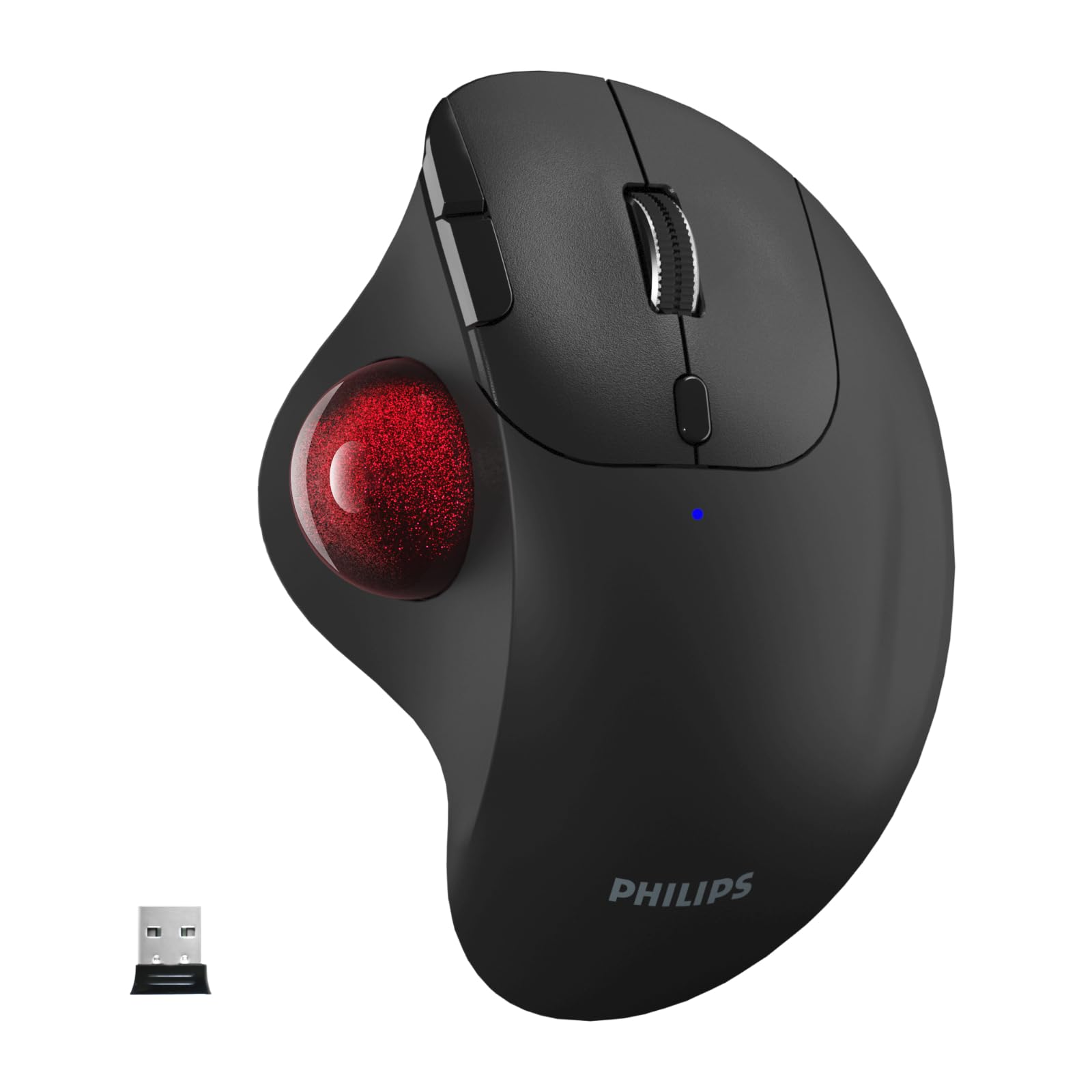
Figure 1: Philips Wireless Trackball Mouse SPK7808
Product Features
- Ergonomic Design: Approximately 15° natural tilt and hand-fitting shape reduce wrist and arm strain during long work sessions. Thumb-operated cursor control eliminates the need to move the entire arm, enhancing comfort.
- Smooth Tracking with High-Precision Sensor: Features a large 34mm artificial ruby ball, a high-precision sensor, and an advanced Philips chip for smooth and accurate tracking.
- 5-Stage DPI Adjustment: Supports 5 adjustable DPI levels (800/1200/1600/2400/3200) to suit various tasks and preferences.
- Multi-Device Connectivity: Connects to up to three devices simultaneously via Bluetooth (Bluetooth 1, Bluetooth 2) and USB receiver (2.4GHz). One-touch switching between devices.
- Energy-Saving Performance: Powered by one AA battery, providing up to 18 months of use. (Note: Battery life may vary depending on usage environment.)
- Silent Click: Reduces click noise by approximately 90%, making it suitable for quiet environments such as libraries, offices, or late-night use.
- 7-Button Configuration: Includes convenient forward and back buttons to enhance browsing and work efficiency.

Figure 2: Ergonomic design for reduced wrist strain.

Figure 3: DPI adjustment button and sensitivity levels.

Figure 4: Multi-device connection setup.

Figure 5: Energy-saving design and battery life.

Figure 6: Silent click operation.
Package Contents
- Philips Wireless Trackball Mouse SPK7808
- AA LR6 1.5V Battery x 1 (Please remove the insulation film from the battery before use.)
- USB Receiver x 1 (Stored inside the battery compartment of the mouse.)
- English Instruction Manual
Setup
1. Battery Installation
- Open the battery compartment cover located on the underside of the mouse.
- Insert the provided AA LR6 1.5V battery, ensuring the polarity (+/-) matches the indicators inside the compartment.
- Important: Remove the insulation film from the battery before insertion.
- Close the battery compartment cover.
2. Connecting via USB Receiver (2.4GHz)
- Retrieve the USB receiver from the battery compartment of the mouse.
- Plug the USB receiver into an available USB port on your computer.
- The mouse should automatically connect. The LED indicator on the mouse will light up briefly.
- Switch the connection mode on the underside of the mouse to '2.4G'.
3. Connecting via Bluetooth
The mouse supports two Bluetooth connections (BT1 and BT2).
- Switch the connection mode on the underside of the mouse to 'BT1' or 'BT2'.
- Press and hold the device switching button (usually on the underside or top of the mouse) for 3-5 seconds until the LED indicator for BT1 or BT2 starts blinking rapidly. This indicates pairing mode.
- On your device (PC, tablet, smartphone), go to Bluetooth settings and search for new devices.
- Select "Philips SPK7808" from the list of available devices to pair.
- Once connected, the LED indicator will stop blinking and remain solid for a few seconds before turning off.
Operating Instructions
1. DPI Adjustment
The mouse features a dedicated DPI button, typically located near the scroll wheel. Press this button to cycle through the 5 DPI sensitivity levels: 800, 1200, 1600, 2400, and 3200 DPI. Select the sensitivity that best suits your task.
2. Multi-Device Switching
To switch between connected devices (2.4G, BT1, BT2), press the device switching button on the underside of the mouse. The corresponding LED indicator will briefly light up to show the active connection.
3. Button Functions
- Left Click: Standard selection.
- Right Click: Context menu.
- Scroll Wheel: Scroll up/down, middle click.
- Forward Button: Navigate forward in web browsers or file explorers.
- Back Button: Navigate backward in web browsers or file explorers.
- DPI Button: Adjust cursor sensitivity.
- Device Switch Button: Switch between 2.4G, BT1, and BT2 connections.

Figure 7: Versatile usage scenarios.
Maintenance
Cleaning the Trackball
To maintain smooth tracking performance, it is recommended to periodically clean the trackball and its internal sensors.
- Turn off the mouse.
- Gently push the trackball from the underside opening to remove it.
- Use a soft, lint-free cloth to wipe the trackball clean.
- Use a cotton swab or compressed air to clean any dust or debris from the three small support points and the optical sensor inside the trackball cavity.
- Reinsert the trackball into its socket until it clicks into place.
Troubleshooting
- Mouse not responding:
- Check if the battery is correctly installed and has sufficient charge. Replace if necessary.
- Ensure the mouse is powered on.
- Verify the connection mode (2.4G, BT1, BT2) matches your device.
- For 2.4G connection, ensure the USB receiver is securely plugged into a working USB port. Try a different USB port.
- For Bluetooth connection, ensure Bluetooth is enabled on your device and the mouse is properly paired. Try re-pairing the mouse.
- Cursor movement is erratic or sluggish:
- Clean the trackball and the internal sensors as described in the Maintenance section.
- Adjust the DPI setting to a higher or lower value to see if it improves responsiveness.
- Cannot switch between devices:
- Ensure all devices are properly paired or connected.
- Press the device switching button firmly.
Specifications
| Feature | Description |
|---|---|
| Model Number | SPK7808 |
| Brand | PHILIPS |
| Connectivity | Bluetooth, USB (2.4GHz Wireless) |
| DPI Levels | 800, 1200, 1600, 2400, 3200 |
| Buttons | 7 (Left, Right, Scroll Wheel, Forward, Back, DPI, Device Switch) |
| Click Type | Silent Click (90% noise reduction) |
| Power Source | 1 x AA LR6 1.5V Battery |
| Battery Life | Up to 18 months (varies by usage) |
| Compatible OS | Windows 7/8/10/11+, macOS 10.5+, Android 3.2+, Chrome OS, Linux |
| Material | Plastic |
| Product Dimensions | 13.53 x 9.89 x 0.1 cm |
| Product Weight | 125 grams |
| Movement Detection | Laser |

Figure 8: Wide operating system compatibility.

Figure 9: Hand size guide for optimal fit.
Warranty and Support
For warranty information and customer support, please refer to the official Philips website or contact your retailer. Philips also offers support via LINE for certain regions, as mentioned in customer feedback.


