
1. Introduction
The ACECONN ACE11 is a versatile streaming TV box designed to deliver a high-quality entertainment experience. Running on Android 11 TV OS and Linux, it supports 4K Ultra HD resolution at 60fps, HDR10+, and features dual-band Wi-Fi for stable connectivity. This manual provides essential information for setting up, operating, and maintaining your device.
2. Package Contents
Verify that all items listed below are included in your package. If any items are missing or damaged, please contact customer support.

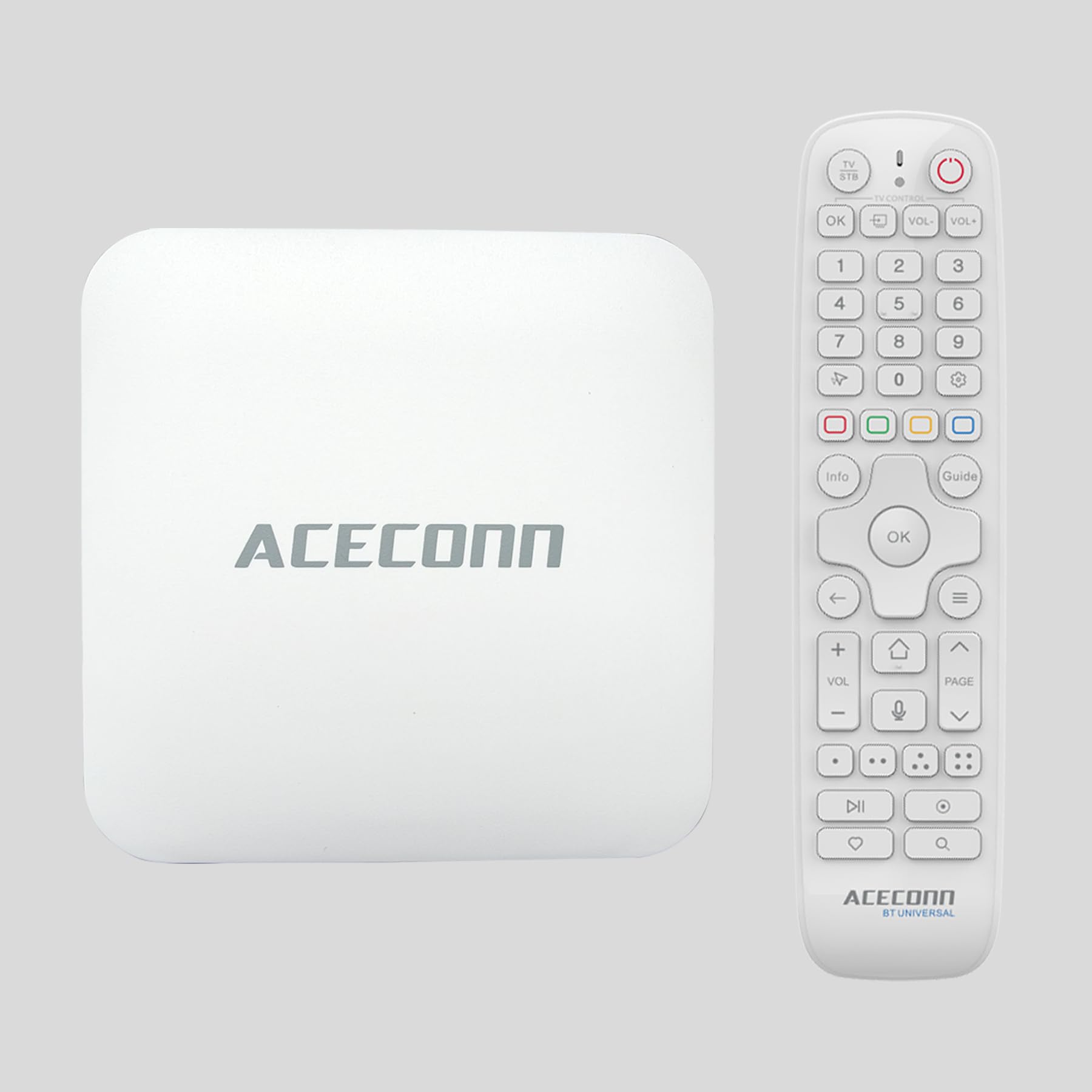
The package includes the ACE11 TV Box, a Bluetooth Voice Remote, a Power Adapter, an HDMI Cable, an IR Extender, and a Quick User Guide.
- ACECONN ACE11 TV Box
- Bluetooth Voice Remote Control
- Power Adapter (5V/2A)
- HDMI Cable
- IR Sensor / Extender
- Quick User Guide
3. Product Overview
Familiarize yourself with the ports and indicators on your ACECONN ACE11 TV Box.
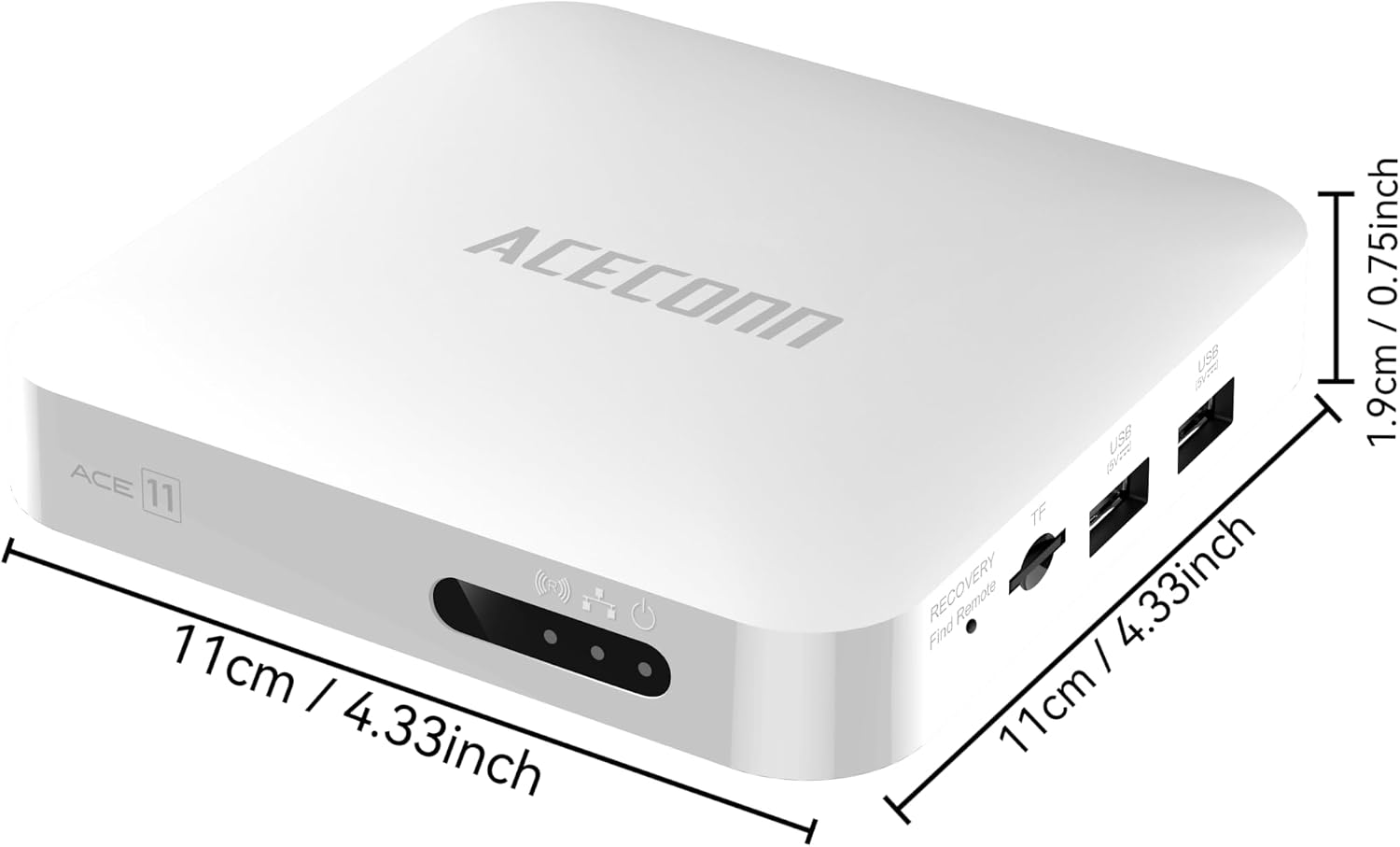
This image displays the ACECONN ACE11 TV Box from two angles, highlighting its various ports and indicators. The front features status lights and a recovery button, while the rear includes power input, optical audio, LAN, HDMI, and USB ports.
Front Panel
- Status Indicators: Lights indicating power, Wi-Fi, and other operational statuses.
- Recovery Button: Used for system recovery or firmware updates.
Rear Panel
- Power Input: Connect the provided 5V/2A power adapter.
- AV Output: For older televisions (if applicable, not explicitly listed but common).
- LAN Port: For wired Ethernet connection.
- HDMI 2.1 Port: Connect to your TV or display for video and audio output.
- SPDIF: Digital audio output.
- IR Port: Connect the IR extender for remote control functionality if the box is out of direct line of sight.
- USB Ports (USB 2.0 & USB 3.0): For connecting external storage devices, keyboards, or other peripherals.
- TF Card Slot: For expandable storage via a MicroSD card.
Dimensions

The ACECONN ACE11 TV Box measures approximately 11cm (4.33 inches) in length and width, and 1.9cm (0.75 inches) in height.
4. Remote Control Overview
The ACECONN ACE11 comes with a Bluetooth Voice Remote Control featuring an Air Mouse function and auto-learning hotkeys. This section details the functions of the remote control buttons.
This diagram illustrates the layout of the Bluetooth Voice Remote Control, with labels pointing to each button and its corresponding function, including power, volume, navigation, voice assistant, and hotkeys.
- TV Power On/Off: Controls your television's power.
- STB Power On/Off: Controls the TV box power.
- OK Key for TV Source: Selects TV input source.
- TV Volume +/-: Adjusts television volume.
- Number Keys (0-9): For direct input.
- Mouse: Activates/deactivates Air Mouse function.
- Options: Access additional menu options.
- Color Keys: Functionality may vary by application.
- Information (Info): Displays program or system information.
- Open TV Guide (Guide): Accesses the electronic program guide.
- Up/Down/Left/Right: Navigation buttons.
- Confirm/Select (OK): Confirms selections.
- Menu: Opens the main menu.
- Exit: Returns to the previous screen or exits an application.
- Home: Returns to the home screen.
- Volume +/-: Adjusts TV box volume.
- Page Up/Down, Channel Up/Down: Navigates through pages or channels.
- Voice Assistant: Activates voice control for commands and search.
- Hot Keys: Customizable shortcut buttons.
- Play/Pause: Media playback control.
- Record: Initiates recording (if supported by application/service).
- Setup Favorite: Assigns favorite channels or apps.
- Search: Opens search function.
5. Setup
Follow these steps to connect and power on your ACECONN ACE11 TV Box.
5.1 Connecting the TV Box
- Connect HDMI Cable: Insert one end of the HDMI cable into the HDMI 2.1 port on the back of the ACE11 TV Box and the other end into an available HDMI input on your television.
- (Optional) Connect IR Extender: If the TV box will be placed out of direct line of sight, connect the IR extender to the IR port on the TV box and position the extender's sensor where it can receive signals from the remote.
- (Optional) Connect Ethernet Cable: For a wired internet connection, connect an Ethernet cable from your router to the LAN port on the TV box.
- Connect Power Adapter: Plug the power adapter into the DC IN port on the TV box, then plug the adapter into a wall outlet.
5.2 Powering On and Initial Setup
- Power On: The TV box should power on automatically once connected to power. If not, press the STB Power On/Off button on the remote control.
- Select Input: Use your TV remote to select the correct HDMI input source for the TV box.
- Pair Bluetooth Remote: Follow the on-screen instructions to pair your Bluetooth Voice Remote Control. This usually involves holding down specific buttons on the remote until a pairing confirmation appears.
- Language and Region: Select your preferred language and region.
- Network Connection: If you are not using a wired Ethernet connection, select your Wi-Fi network from the list and enter the password. The ACE11 supports dual-band 2.4G and 5G Wi-Fi for optimal performance.

The ACE11 supports dual-band 2.4G and 5G Wi-Fi, providing faster and more stable wireless connectivity for streaming.
- Google Account Login: Log in with your Google account to access the Google Play Store and other Google services.
- Complete Setup: Follow any remaining on-screen prompts to complete the initial setup process.
6. Operating Instructions
This section covers basic operation and key features of your ACECONN ACE11 TV Box.
6.1 Navigation
- Use the Up/Down/Left/Right buttons on the remote to navigate through menus and applications.
- Press the OK button to select an item.
- Press the Home button to return to the main Android TV home screen at any time.
- Activate the Air Mouse function for pointer-based navigation, similar to a computer mouse.
6.2 Using Voice Control
The Bluetooth Voice Remote allows for convenient voice commands.

The ACE11 supports smart voice control, allowing users to issue commands and search content using the dedicated voice assistant button on the remote.
- Press the Voice Assistant button on your remote control.
- Speak clearly into the remote's microphone. You can ask to open apps, search for content, check weather, and more.
6.3 Installing Applications
The ACE11 comes with the Google Play Store and ACECONN exclusive app store pre-installed.
- From the home screen, navigate to the Apps section.
- Select Google Play Store or the ACECONN App Store.
- Browse or search for desired applications and select Install.
6.4 Media Playback and 4K HDR
The ACE11 supports 4K Ultra HD resolution at 60fps and HDR10+ for enhanced visual quality.

The ACE11 supports 4K video streaming up to 3840x2160 at 60Hz, with Dynamic HDR for enhanced contrast and color, and AV1 format decoding.
- Ensure your television is 4K and HDR compatible and that the HDMI cable is connected to an HDMI 2.1 port on your TV for optimal performance.
- Stream 4K content from supported applications like YouTube, Netflix, and TVONAIR3+.
- The device supports AV1/HEVC/H.265 video decoding for efficient high-quality streaming.
7. Maintenance
Proper maintenance ensures the longevity and optimal performance of your TV box.
7.1 System Updates (OTA)
The ACE11 supports Over-The-Air (OTA) updates for both the system and applications.
- Regularly check for system updates in the device settings to ensure you have the latest features and security patches.
- Follow on-screen instructions to download and install updates. Do not power off the device during an update.
7.2 Cleaning
- Disconnect the power adapter before cleaning.
- Use a soft, dry cloth to wipe the exterior of the TV box.
- Do not use liquid cleaners or abrasive materials.
8. Troubleshooting
If you encounter issues with your ACECONN ACE11 TV Box, refer to the following common solutions.
- No Power:
- Ensure the power adapter is securely connected to the TV box and a working power outlet.
- Try a different power outlet.
- No Picture/Signal:
- Verify the HDMI cable is securely connected to both the TV box and the TV.
- Ensure your TV is set to the correct HDMI input source.
- Try a different HDMI cable or TV port.
- Remote Control Not Working:
- Ensure the remote's batteries are correctly inserted and have sufficient charge.
- Re-pair the Bluetooth remote control by following the initial setup instructions.
- If using the IR extender, ensure it is properly connected and positioned.
- No Internet Connection:
- For Wi-Fi, check your network settings and ensure the correct password is entered.
- For wired connection, ensure the Ethernet cable is properly connected to both the TV box and the router.
- Restart your router and the TV box.
- App Freezing/Crashing:
- Close and restart the application.
- Clear the app's cache and data in the device settings (Settings > Apps > [App Name] > Clear Cache/Clear Data).
- Ensure the app is updated to its latest version.
9. Specifications
| Feature | Specification |
|---|---|
| Model | ACE11 |
| Operating System | Android 11 TV OS, Linux |
| Resolution | 4Kx2k@60fps |
| HDR Support | HDR10+ |
| RAM | 2 GB |
| Internal Storage | 32 GB (expandable via TF card) |
| Wi-Fi | Dual-Band (2.4G/5G) MIMO |
| Bluetooth | Bluetooth 5.1 |
| Video Decoding | AV1/HEVC/H.265 |
| HDMI | HDMI 2.1 |
| USB Ports | USB 2.0, USB 3.0 |
| Connectivity Technology | Bluetooth, HDMI, IR, USB, Wi-Fi |
| Dimensions (L x W x H) | 11.18 x 11.18 x 2.03 cm (approx. 4.4 x 4.4 x 0.8 inches) |
| Supported Internet Services | Browser, Skype, TV ONAIR, YouTube |
10. Warranty and Support
For warranty information and technical support, please refer to the documentation included with your purchase or visit the official ACECONN website. Keep your proof of purchase for warranty claims.