1. Introduction
This manual provides essential information for the proper use and care of your Lenovo Tab Plus 12.1-inch AI-enhanced tablet, Model ZAG70922US. Designed for students, this tablet offers a large display and intelligent features to support educational and productivity tasks. Please read this manual thoroughly before using your device to ensure optimal performance and longevity.
2. What's in the Box
Verify that all items are present in your product packaging:
- Lenovo Tab Plus 12.1-inch Tablet (Model ZAG70922US)
- Tab Pen
- Charging Cable
- Power Adapter
- Quick Start Guide
- Safety and Warranty Information
3. Product Overview
The Lenovo Tab Plus features a 12.1-inch 2.5K IPS display, an AI-enhanced processor, and runs on Android 15. It is designed for portability and functionality, making it suitable for extended study sessions and various educational activities.
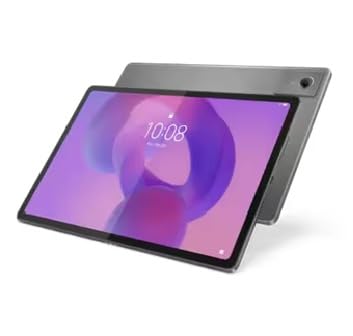
Image: Lenovo Tab Plus tablet shown with its detachable keyboard cover and stylus pen.

Image: The Lenovo Tab Plus tablet, keyboard, and pen arranged to show multiple components.
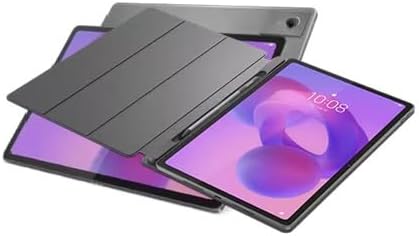
Image: The Lenovo Tab Plus tablet with its protective cover, showcasing its sleek design.

Image: The Lenovo Tab Plus tablet positioned in stand mode with the keyboard attached, ready for use.
4. Setup
4.1 Initial Charging
Before first use, fully charge your tablet. Connect the charging cable to the tablet's USB-C port and the power adapter to a wall outlet. The battery indicator will show charging status.
4.2 Powering On/Off
- To Power On: Press and hold the Power button until the Lenovo logo appears.
- To Power Off: Press and hold the Power button, then select 'Power off' from the options on the screen.
4.3 First-Time Setup
Upon first power-on, follow the on-screen instructions to:
- Select your language.
- Connect to a Wi-Fi network.
- Sign in with your Google account or create a new one.
- Set up security features (PIN, pattern, fingerprint).
- Review and accept terms and conditions.
5. Operating Instructions
5.1 Navigation
Navigate your tablet using touch gestures:
- Tap: Select an item.
- Swipe: Scroll through screens or content.
- Pinch: Zoom in or out.
- Long Press: Access contextual menus or move icons.
5.2 Using the Tab Pen
The included Tab Pen allows for precise input, note-taking, and drawing. Simply touch the pen to the screen to activate its functions. Specific app functionalities may vary.
5.3 AI-Enhanced Features
The tablet's AI capabilities optimize performance and adapt to your usage patterns. This includes intelligent resource management for smoother multitasking and enhanced learning experiences. Specific AI features may be integrated into system settings or compatible applications.
5.4 Connecting Accessories
You can connect various accessories via Bluetooth (e.g., headphones, external keyboards) or the USB-C port (e.g., external drives, hubs).
6. Maintenance
6.1 Cleaning the Tablet
Use a soft, lint-free cloth slightly dampened with water or a screen cleaner specifically designed for electronics. Avoid harsh chemicals or abrasive materials.
6.2 Software Updates
Regularly check for and install system updates to ensure your tablet has the latest features, security patches, and performance improvements. Go to Settings > System > System update.
6.3 Battery Care
To prolong battery life:
- Avoid extreme temperatures.
- Do not let the battery fully discharge frequently.
- Use the original charger and cable.
7. Troubleshooting
This section addresses common issues you might encounter.
7.1 Tablet Does Not Power On
- Ensure the battery is charged. Connect the charger and wait a few minutes before attempting to power on again.
- Press and hold the Power button for at least 10-15 seconds to perform a forced restart.
7.2 Wi-Fi Connection Issues
- Restart your Wi-Fi router and the tablet.
- Forget the network in Wi-Fi settings and reconnect.
- Ensure you are within range of the Wi-Fi signal.
7.3 Apps Crashing or Freezing
- Close and reopen the app.
- Clear the app's cache and data in Settings > Apps.
- Ensure the app is updated to its latest version.
- Restart the tablet.
8. Specifications
Key technical specifications for the Lenovo Tab Plus Model ZAG70922US:
| Feature | Specification |
|---|---|
| Model Name | ZAG70922US |
| Display Size | 12.1 Inches |
| Screen Resolution | 2560 x 1600 pixels (2.5K) |
| Operating System | Android 15 |
| Processor Brand | MediaTek |
| Processor Speed | 2.4 GHz |
| Memory (RAM) | 8 GB LPDDR4X |
| Storage (Flash Memory) | 128 GB UFS 2.2 |
| Graphics Coprocessor | Integrated Graphics |
| Wireless Type | 802.11ac, 802.11ax |
| Rear Webcam Resolution | 13 MP |
| Item Weight | 1.5 pounds |
| Product Dimensions (LxWxH) | 10.98 x 0.25 x 7.13 inches |
| Color | Gray |
| Batteries | 1 Nonstandard Battery (included) |
9. Warranty Information
Your Lenovo Tab Plus tablet is covered by a manufacturer's warranty. Please refer to the 'Safety and Warranty Information' document included in your product packaging for full details on warranty terms and conditions.
9.1 Return Policy
Most new, unopened items can be returned within 30 days of delivery for a full refund. Specific return policies may vary based on the retailer and purchase conditions.
9.2 Extended Protection Plans
Extended protection plans may be available for purchase to provide additional coverage beyond the standard manufacturer's warranty. Options may include 2-Year or 4-Year protection plans.
10. Support
For further assistance, technical support, or to download the latest drivers and software, please visit the official Lenovo support website. You can also find FAQs and community forums there.
Lenovo Support Website: https://support.lenovo.com
When contacting support, please have your tablet's model number (ZAG70922US) and serial number ready.


