
Introduction
This manual provides detailed instructions for the installation, operation, and maintenance of your BoyKeep K30 Indoor Camera. Please read this manual thoroughly before using the product to ensure proper function and safety.
Safety Information
- Ensure the camera is installed in a stable location to prevent falling.
- Use only the provided power adapter.
- Do not expose the camera to extreme temperatures, humidity, or direct sunlight.
- Keep the camera away from water or other liquids.
- Do not attempt to disassemble or repair the camera yourself. Contact customer support for assistance.
- Keep out of reach of children and pets.
Package Contents
Verify that all items are present in your package:
- BoyKeep K30 Indoor Camera
- Power Adapter
- Mounting Accessories (Screws, Wall Plugs)
- User Manual (This document)
Product Overview
Familiarize yourself with the components of your BoyKeep K30 Indoor Camera.
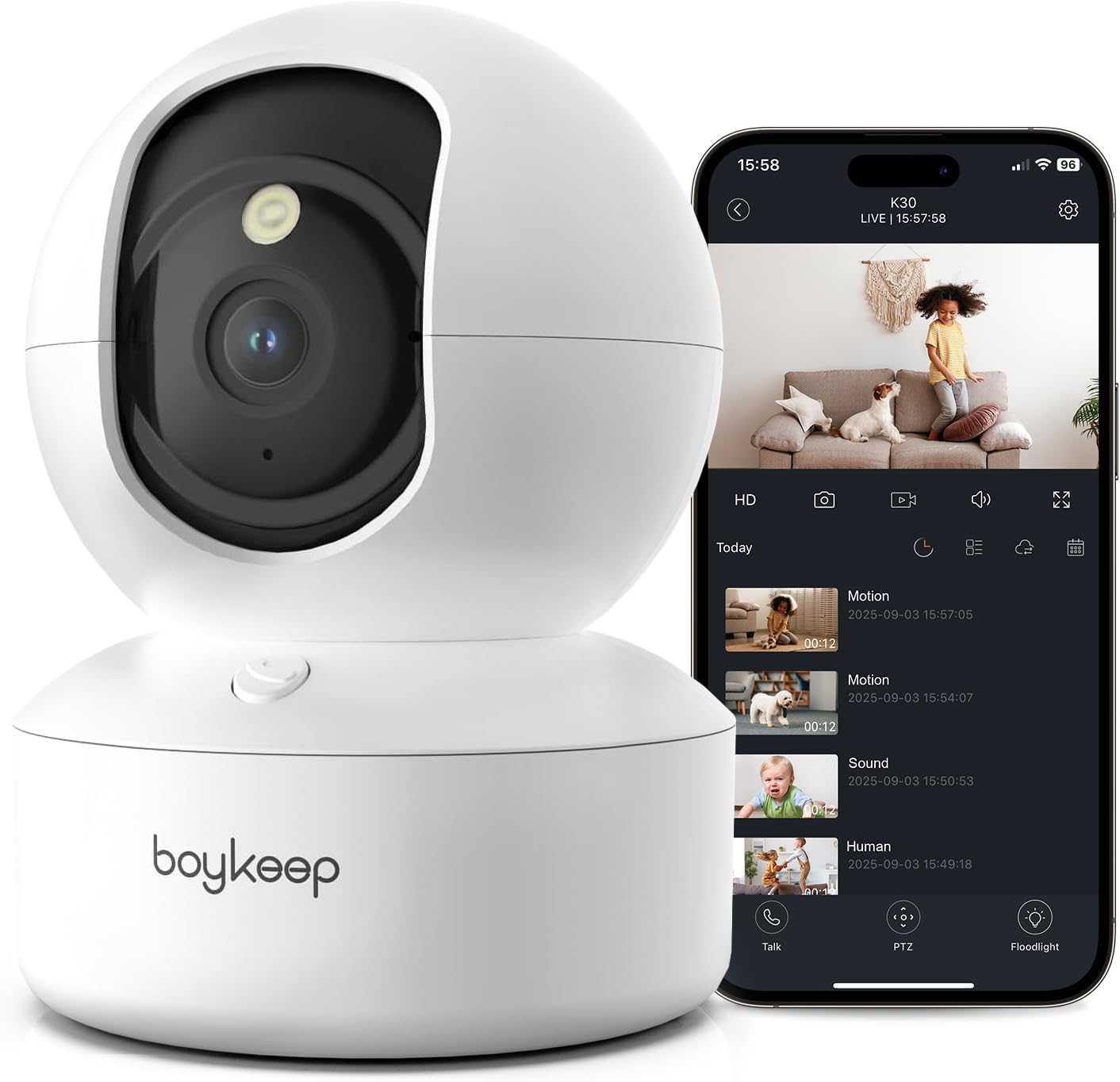
Figure 1: BoyKeep K30 Indoor Camera. This image displays the camera's main body, including the lens, microphone, speaker, status indicator light, and power input port located at the rear base.
- Lens: Captures video footage.
- Microphone: For audio input and two-way communication.
- Speaker: For audio output and two-way communication.
- Status Indicator Light: Indicates camera status (e.g., solid blue for connected, flashing red for waiting for connection).
- Power Port: Connects to the power adapter.
- Reset Button: Used to reset the camera to factory settings (usually a small pinhole button).
- MicroSD Card Slot: For local storage (card not included).
Setup
1. App Installation
Download the companion app from your mobile device's app store (e.g., Apple App Store or Google Play Store). Search for "BoyKeep" or refer to the QR code on the camera packaging for direct download.
2. Account Creation
- Open the BoyKeep app.
- Tap "Register" or "Sign Up" to create a new account.
- Follow the on-screen prompts to enter your email address and create a password.
- Verify your account if required.
3. Camera Connection (Wi-Fi)
- Plug the camera into a power outlet using the provided adapter. The status indicator light will begin to flash, indicating it's ready for connection.
- Open the BoyKeep app and tap the "+" icon to add a new device.
- Select your camera model from the list.
- Ensure your mobile device is connected to a 2.4GHz or 5GHz Wi-Fi network. The BoyKeep K30 supports both.
- Enter your Wi-Fi network password when prompted.
- The app will generate a QR code. Hold your phone's screen approximately 15-20 cm (6-8 inches) in front of the camera lens until you hear a confirmation sound from the camera.
- Once connected, the status indicator light will turn solid blue.
- Name your camera and complete the setup process.
Note: If connection fails, ensure your Wi-Fi password is correct and try resetting the camera by pressing the reset button for 5 seconds until the indicator light flashes again.
4. Camera Placement
Place the camera on a flat surface or mount it to a wall or ceiling using the provided accessories. Ensure it has a clear view of the area you wish to monitor. The camera's pan and tilt functions allow for flexible viewing angles.
Operating Instructions
1. Live View
Open the BoyKeep app and tap on your camera's name to access the live video feed. You can pan and tilt the camera remotely using the controls within the app.
2. Motion Detection and Tracking
- Enable Motion Detection: Go to camera settings in the app and enable "Motion Detection."
- Adjust Sensitivity: Set the motion detection sensitivity level to minimize false alarms.
- Motion Tracking: When enabled, the camera will automatically follow detected movement within its field of view.
- Alerts: Receive instant notifications on your phone when motion is detected.
3. Two-Way Audio
Tap the microphone icon in the live view interface to speak through the camera's speaker. Tap again to end communication. The camera's built-in microphone allows you to hear audio from the camera's location.
4. Night Vision
The camera automatically switches to night vision in low-light conditions. It supports both standard infrared (black and white) and color night vision modes. You can configure the night vision mode in the camera settings.
5. Cloud Storage and Local Recording
- Cloud Storage: The camera provides 12-second cloud storage for detected motion events. Access these clips through the app's playback section.
- Local Storage: Insert a MicroSD card (up to 128GB, not included) into the camera's slot for continuous recording or event-triggered recording. Format the MicroSD card via the app before first use.
6. Recording Playback
Access recorded footage (from cloud or MicroSD card) through the "Playback" or "History" section in the app. You can filter by date and time to review specific events.
7. Advanced Settings
Explore the camera settings within the app for options such as:
- Alarm settings (detection zones, schedule)
- Audio settings (microphone/speaker volume)
- Video quality adjustment (2K resolution)
- Device sharing with other users
- Firmware updates
Maintenance
- Cleaning: Use a soft, dry cloth to clean the camera lens and body. Do not use liquid cleaners or abrasive materials.
- Firmware Updates: Regularly check for and install firmware updates through the app to ensure optimal performance and security.
- Power Cycle: If the camera experiences issues, try unplugging it from the power source for 10 seconds and then plugging it back in.
Troubleshooting
| Problem | Solution |
|---|---|
| Camera fails to connect to Wi-Fi. |
|
| No live video feed. |
|
| Motion detection alerts are too frequent or not working. |
|
| Two-way audio is unclear or not working. |
|
Specifications
| Model Name | K30 |
| Video Resolution | 2K (1296p) |
| Connectivity | Wi-Fi (2.4GHz / 5GHz) |
| Indoor/Outdoor Usage | Indoor |
| Special Features | Motion Tracking, Color Night Vision, 2-Way Audio, Adjustable |
| Storage Options | 12-second Cloud Storage (event-based), MicroSD Card (up to 128GB, not included) |
| Power Source | Corded Electric |
| Item Dimensions | 6.5 x 3.46 x 3.46 inches |
Warranty and Support
For warranty information or technical support, please refer to the warranty card included with your product or visit the official BoyKeep website. You may also contact BoyKeep customer service directly through the contact information provided in the app or on the product packaging.


