
1. Introduction
This manual provides essential instructions for the safe and effective operation of your Genérico WRJ-12619 Professional HD Camera Drone. This rechargeable drone with an HD camera is designed for capturing impressive aerial images and videos. It features a high-definition camera for clear footage, a rechargeable battery system for convenience, and a responsive control system for stable flight. Please read this manual thoroughly before operating the drone to ensure proper usage and to prevent damage or injury.
2. Safety Guidelines
- Always operate the drone in open areas, away from people, animals, buildings, and obstacles.
- Do not fly near airports or restricted airspace.
- Avoid flying in strong winds or adverse weather conditions.
- Ensure the battery is fully charged before each flight.
- Keep fingers and loose clothing away from rotating propellers.
- Supervise children during drone operation.
- Do not modify the drone or its components.
- Always turn off the drone and controller when not in use.
3. Package Contents
Verify that all items are present in your package:
- WRJ-12619 HD Camera Drone
- Remote Controller
- Rechargeable Batteries (2 included)
- USB Charging Cable
- Spare Propellers
- Propeller Guards
- Screwdriver
- User Manual (this document)

Image: All components of the Genérico WRJ-12619 drone package, including the drone, remote controller, batteries, and accessories.
4. Product Overview
4.1 Drone Components
The WRJ-12619 drone features a compact, foldable design for portability, equipped with a front-facing HD camera and LED lights for visibility.

Image: The Genérico WRJ-12619 drone in its unfolded state, showcasing the camera, propellers, and LED lights, alongside the remote controller with a smartphone mounted.
4.2 Remote Controller
The remote controller provides intuitive control over the drone's flight and camera functions. It includes joysticks for movement, buttons for special functions, and a mount for your smartphone to view the live camera feed.
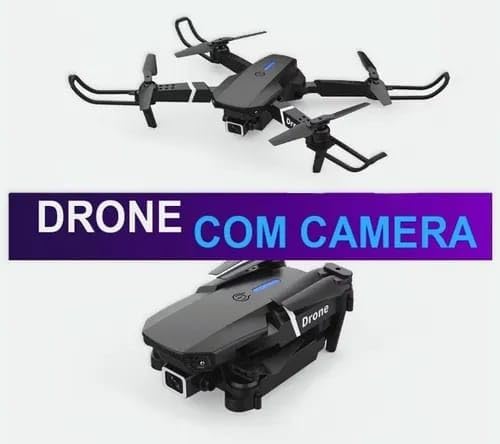
Image: The Genérico WRJ-12619 drone shown in both its compact, folded configuration and its ready-to-fly, unfolded configuration, highlighting its portability.
5. Setup
5.1 Battery Charging
- Remove the drone battery from the drone.
- Connect the USB charging cable to the battery and a suitable USB power adapter (not included).
- The indicator light on the charging cable will show the charging status. Refer to the battery's specific instructions for full charge indication.
- Charging typically takes 60-90 minutes. Do not overcharge.
5.2 Remote Controller Setup
- Open the battery compartment on the back of the remote controller.
- Insert the required batteries (usually AA, not included) according to the polarity markings.
- Close the battery compartment securely.
5.3 Drone Preparation
- Unfold the drone arms carefully until they click into place.
- Attach the propeller guards by snapping them onto the drone's motor arms.
- Insert the fully charged drone battery into the battery compartment on the drone until it is securely seated.

Image: The Genérico WRJ-12619 drone being held in a person's hand, illustrating its compact size and portability when unfolded.
6. Operating Instructions
6.1 Pairing the Drone and Controller
- Place the drone on a flat, level surface.
- Turn on the drone by pressing the power button. The drone's indicator lights will flash.
- Turn on the remote controller.
- Push the left joystick (throttle) all the way up, then all the way down. The drone's lights will stop flashing and remain solid, indicating successful pairing.
6.2 Takeoff and Landing
- One-Key Takeoff: After pairing, press the one-key takeoff button (usually indicated by an arrow pointing up). The drone will automatically ascend to a stable hovering height.
- Manual Takeoff: After pairing, push both joysticks down and outwards simultaneously to start the propellers. Then, gently push the left joystick (throttle) upwards to ascend.
- One-Key Landing: Press the one-key landing button (usually indicated by an arrow pointing down). The drone will automatically descend and land.
- Manual Landing: Gently pull the left joystick (throttle) downwards until the drone lands. Once landed, pull both joysticks down and inwards to stop the propellers.
6.3 Flight Controls
- Left Joystick (Throttle/Yaw): Up/Down controls altitude. Left/Right controls rotation (yaw).
- Right Joystick (Pitch/Roll): Up/Down controls forward/backward movement (pitch). Left/Right controls sideways movement (roll).
6.4 Camera Operation
To use the HD camera, download the dedicated drone app on your smartphone and connect to the drone's Wi-Fi network. The app will provide a live feed and controls for recording video and taking photos.
- Taking Photos: Press the photo button on the remote controller or in the app.
- Recording Video: Press the video button on the remote controller or in the app to start/stop recording.
6.5 Special Features
- Automatic Return: Press the Return to Home (RTH) button. The drone will attempt to fly back to its takeoff point. Ensure a clear path for RTH.
- Stabilized Flight: The drone features a stabilized flight system for easier control and smoother aerial footage.
7. Maintenance
7.1 Cleaning
Wipe the drone and controller with a soft, dry cloth. Do not use harsh chemicals or solvents. Keep the camera lens clean for optimal image quality.
7.2 Propeller Replacement
If a propeller is damaged, replace it with a spare propeller from the package. Use the included screwdriver to remove the screw holding the damaged propeller and install the new one, ensuring it is securely fastened.
7.3 Battery Care
- Store batteries in a cool, dry place.
- Do not expose batteries to extreme temperatures.
- If not using the drone for an extended period, charge the batteries to approximately 50% before storage.
8. Troubleshooting
- Drone not powering on: Ensure the battery is fully charged and correctly inserted.
- Controller not connecting: Ensure controller batteries are fresh and correctly inserted. Re-attempt the pairing process.
- Drone unstable during flight: Perform a gyroscope calibration (refer to specific instructions in the app or quick start guide if available). Check for damaged propellers.
- Poor camera quality/no live feed: Ensure your smartphone is correctly connected to the drone's Wi-Fi network. Clean the camera lens.
- Short flight time: Battery may not be fully charged, or it may be nearing the end of its lifespan.
9. Specifications
| Feature | Detail |
|---|---|
| Model Name | WRJ-12619 |
| Brand | Genérico |
| Video Resolution | 1280x720, 720p HD |
| Special Features | Rechargeable Battery, Remote Control, HD Camera, Automatic Return, Stabilized Flight |
| Connectivity Technology | Bluetooth, Wi-Fi |
| Battery Type | Lithium-ion (2 non-standard batteries included) |
| Material | Electronic Components, ABS Plastic |
| Color | Black |
| Product Dimensions | 25 x 15 x 5 cm |
| Product Weight | 350 g |
10. Warranty and Support
For warranty information or technical support, please refer to the retailer or manufacturer's contact details provided at the point of purchase. Keep your proof of purchase for any warranty claims.