
Introduction
Thank you for choosing the SINWE SU7 Gaming Microphone. This USB condenser microphone is designed to provide high-quality audio for streaming, gaming, podcasts, and voice chat. It features advanced noise cancellation, adjustable gain control, quick mute functionality, and dynamic RGB lighting to enhance your audio experience. This manual provides detailed instructions for setup, operation, maintenance, and troubleshooting to ensure optimal performance.
What's in the Box
- SU7 Microphone Unit
- Detachable Metal Pop Filter
- Professional Shock Mount
- Weighted Desktop Stand
- USB-C to USB-A Cable
- User Manual

Image: The SINWE SU7 Gaming Microphone shown with its desktop stand, USB cable, and pop filter, illustrating all components included in the package.
Setup Instructions
- Assemble the Microphone: Attach the microphone unit to the professional shock mount, then secure it onto the weighted desktop stand. Ensure all connections are firm.
- Connect the Pop Filter: Position the detachable metal pop filter in front of the microphone capsule to reduce plosive sounds.
- Plug and Play: Connect the included USB-C to USB-A cable from the microphone's USB-C port to an available USB-A port on your PC, PS5, or PS4. No additional drivers are required for most operating systems.
- System Recognition: Your operating system should automatically detect the SINWE SU7 microphone. Verify the microphone is selected as the input device in your system's sound settings.
Image: The SINWE SU7 microphone connected to a desktop computer, demonstrating the simple plug-and-play setup.
Operating Instructions
1. One-Touch Mute & Mute Indicator
The microphone features a touch-sensitive mute button located on the top. A single tap will mute or unmute the microphone. When muted, the RGB lighting will turn red, providing a clear visual indicator that your audio is off.

Image: A hand pressing the quick mute button on top of the microphone, with the microphone's RGB lighting indicating red for mute mode.
2. AI Noise Cancellation
Activate the AI noise cancellation feature with a single tap on the dedicated button (often indicated by a waveform icon). This function helps to eliminate persistent background noises such as keyboard clicks, fan hum, or traffic, ensuring your voice remains clear and focused.

Image: The microphone with its noise cancellation feature highlighted, showing a visual representation of sound waves before and after noise reduction.
3. Gain Control Knob
A precision rotary gain knob is located on the base of the microphone. Rotate this knob to adjust your input volume (microphone sensitivity). Find your optimal 'sound sweet spot' for clear and balanced audio, whether whispering or speaking loudly.

Image: A close-up of the microphone's base, highlighting the mic gain knob for adjusting input volume.
4. RGB Lighting
The microphone features immersive RGB lighting that cycles through various colors. This lighting cannot be manually adjusted or turned off unless the microphone is powered down. It serves as a visual indicator for mute status (red when muted) and adds to the aesthetic of your setup.

Image: The SINWE SU7 microphone showcasing its gradient RGB lighting, cycling through multiple colors.
5. Zero-Latency Monitoring & Reverb Effects
The built-in 3.5mm headphone jack allows for zero-latency monitoring, enabling you to hear your own voice in real-time without delay. The dedicated tactile dial on the microphone can be used to adjust both the monitor volume and reverb effects, giving you full command over your audio output.
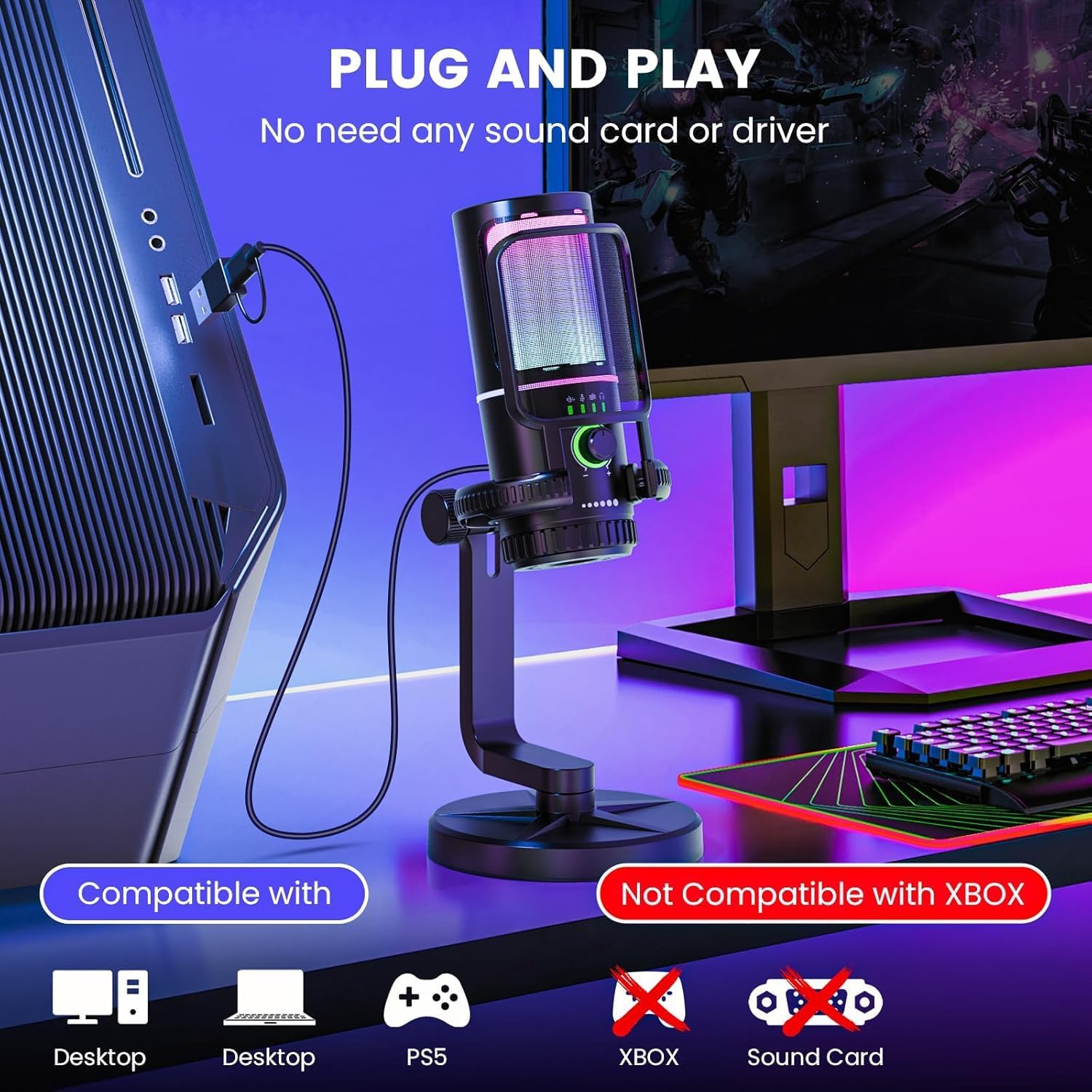
Image: A user wearing headphones while actively using the SINWE SU7 microphone, demonstrating the zero-latency monitoring feature for improved audio quality and game interaction.
Compatibility
The SINWE SU7 Gaming Microphone offers broad compatibility, functioning as a plug-and-play device without the need for additional drivers. It is compatible with:
- PC (Windows, macOS)
- PS5
- PS4
- OBS, Discord & Zoom
- Smartphone & Tablet (via USB-C connection, adapter may be required for some devices)
Note: This microphone is not compatible with Xbox consoles.
Image: Icons illustrating the compatibility of the SINWE SU7 microphone with various platforms like PC, PS5, and PS4, while explicitly showing incompatibility with Xbox.
Specifications
| Feature | Detail |
|---|---|
| Model Name | SU7 |
| Brand | SINWE |
| Connectivity Technology | USB |
| Connector Type | USB Type-C |
| Polar Pattern | Hyper Cardioid |
| Microphone Form Factor | Large Diaphragm |
| Audio Sensitivity | 45 Decibels |
| Signal-to-Noise Ratio | 78 dB |
| Special Features | Echo Control, Mute Function, Noise Reduction, Volume Control |
| Material | Acrylonitrile Butadiene Styrene |
| Item Weight | 1.01 pounds |
| Recommended Uses | Gaming, Karaoke, Singing, Streaming, Video Conference |
Maintenance
To ensure the longevity and optimal performance of your SINWE SU7 microphone, follow these maintenance guidelines:
- Cleaning: Use a soft, dry cloth to wipe the microphone's exterior. Avoid using liquid cleaners or abrasive materials, as these can damage the finish or internal components.
- Storage: When not in use, store the microphone in a cool, dry place away from direct sunlight and extreme temperatures.
- Handling: Handle the microphone with care. Avoid dropping it or subjecting it to strong impacts, which can affect its performance and durability.
- Cable Care: Do not bend or crimp the USB cable excessively. Store it neatly to prevent damage.
Troubleshooting
If you encounter issues with your SINWE SU7 Gaming Microphone, please refer to the following common troubleshooting steps:
- No Sound Input:
- Ensure the USB cable is securely connected to both the microphone and your device.
- Check your device's sound settings to confirm the 'SINWE SU7' is selected as the default input device.
- Verify the microphone is not muted (check for red RGB lighting).
- Adjust the gain control knob on the microphone's base to increase input volume.
- Poor Sound Quality / Distortion:
- Ensure the microphone is positioned correctly, ideally 6-12 inches from your mouth, aiming at the mic capsule.
- Adjust the gain control knob to prevent clipping or distortion.
- Activate AI noise cancellation if background noise is an issue.
- Ensure the pop filter is correctly installed to reduce plosive sounds.
- RGB Lighting Not Working:
- Confirm the microphone is powered on and connected via USB.
- The RGB lighting cannot be manually adjusted; it cycles automatically and turns red when muted.
- Headphone Monitoring Issues:
- Ensure your headphones are properly plugged into the 3.5mm jack on the microphone.
- Adjust the monitor volume using the dedicated dial on the microphone.
Warranty and Support
For specific warranty information and technical support, please refer to the documentation included with your product or visit the official SINWE website. Keep your purchase receipt as proof of purchase for any warranty claims.