
Introduction
Thank you for purchasing the InnoView 23.8-inch 4K Dual Foldable Mobile Monitor. This manual provides essential information for setting up, operating, maintaining, and troubleshooting your new display. Please read this manual thoroughly before use to ensure optimal performance and longevity of your product.

Figure 1: InnoView 23.8-inch 4K Dual Mobile Monitor with key features.
The InnoView dual monitor is designed to enhance productivity and provide a versatile display solution for various applications, including multitasking, professional work, academic studies, and creative projects. Its foldable design and multiple connectivity options make it a flexible addition to any workspace.
Product Features
- 23.8-inch 4K UHD Display: Experience stunning visuals with 3840x2160P resolution, offering a wide display area for enhanced productivity.
- 100% sRGB Color Accuracy: Enjoy rich, vibrant colors and smooth gradations, ideal for photo and video editing, and other color-critical tasks.
- Anti-Glare IPS Panel: The 178° wide viewing angle IPS panel with an anti-glare finish reduces reflections and minimizes eye strain.
- Foldable & Ergonomic Design: The dual-screen setup allows for vertical adjustment and a 340° folding range, promoting comfortable viewing angles and reducing physical fatigue.
- Multi-Mode Operation: Supports Copy, Extend, and Splicing modes for diverse usage scenarios, including meetings, presentations, and complex multitasking.
- Versatile Connectivity: Equipped with 2x USB Type-C (DisplayPort Alt Mode compatible), HDMI, and DisplayPort inputs for broad compatibility with various devices.
- Driver-Free Setup: Plug-and-play functionality for most devices, simplifying the connection process.
- Low Blue Light Mode: Reduces harmful blue light emissions to protect your eyes during extended use.
- VESA Mount Compatible: Features 100mm x 100mm VESA compatibility for flexible mounting options.

Figure 2: Resolution comparison (4K, WQHD, FHD).

Figure 3: Space-saving benefits of the dual monitor setup.
Setup Instructions
Package Contents
- InnoView 23.8-inch 4K Dual Foldable Mobile Monitor
- Power Adapter (65W or more recommended)
- USB Type-C to Type-C Cable
- HDMI Cable
- DisplayPort Cable
- User Manual
Connecting the Monitor
Ensure your device's USB Type-C port supports DisplayPort Alt Mode for full functionality. A power connection of 65W or more is recommended to prevent display issues.
- Unfold the Monitor: Carefully unfold the monitor to its desired viewing position. The integrated stand provides stability.
- Connect Power: Connect the power adapter to the monitor and a power outlet.
- Connect to Your Device:
- For Windows Devices:
- Use a USB Type-C to Type-C cable for video and power (if supported by your device).
- Alternatively, use a DisplayPort cable + power cable, or an HDMI cable + power cable. Note that HDMI connection may not support extend mode for dual displays.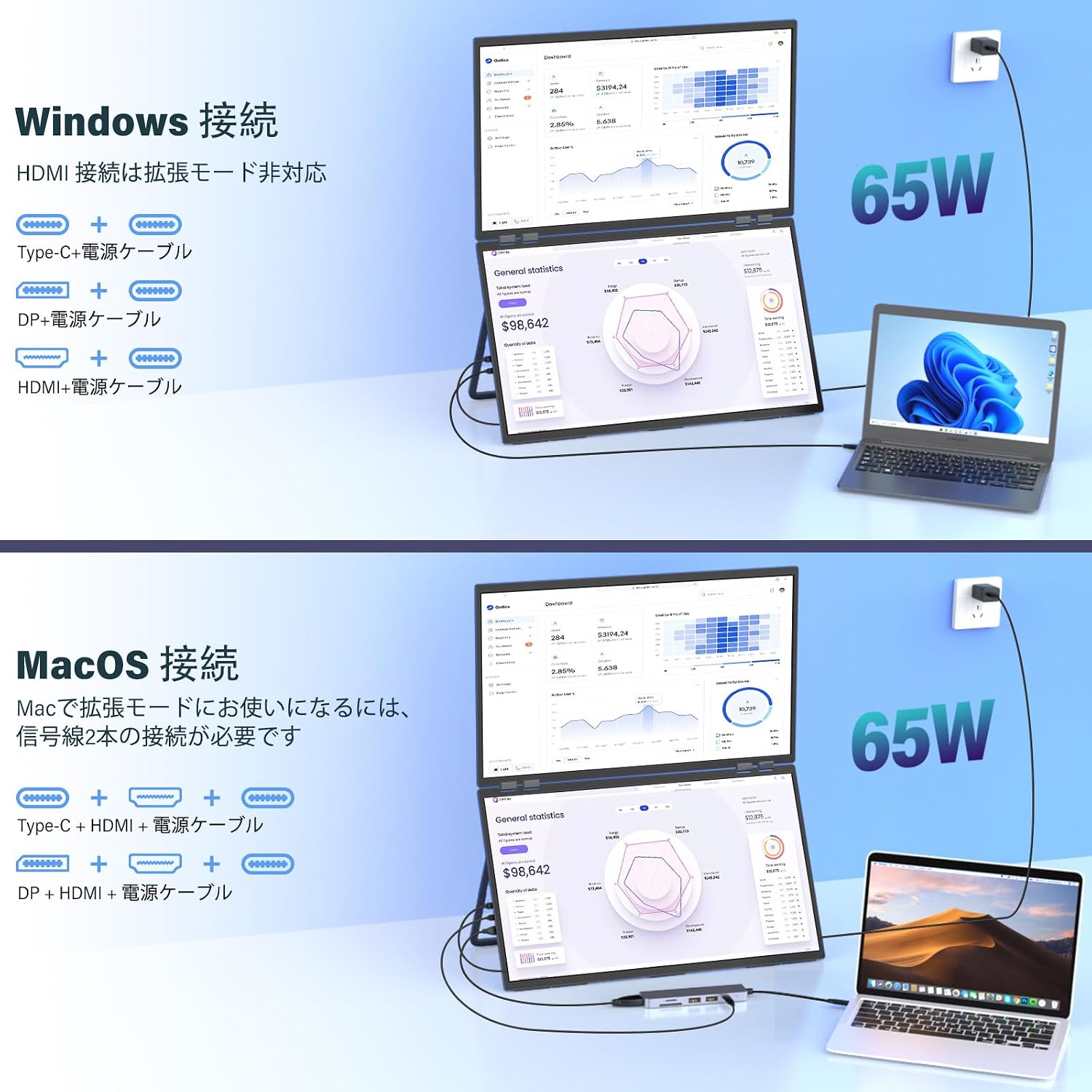
Figure 4: Windows connection options.
- For MacOS Devices:
- For extend mode, two signal cables are required: Type-C + HDMI + power cable, or DisplayPort + HDMI + power cable.
Figure 5: MacOS connection options.
- For Windows Devices:
- Power On: Press the power button on the monitor to turn it on.
- Adjust Display Settings: Your operating system should automatically detect the new display. Adjust display settings (resolution, orientation, extend/duplicate mode) as needed through your computer's display settings.

Figure 6: Monitor ports and control buttons.
Operating Instructions
Display Modes
The monitor supports various display modes to suit your workflow:
- Copy Mode: Duplicates the content of your primary screen onto both panels of the dual monitor.
- Extend Mode: Extends your desktop across both panels, providing a larger workspace. This is ideal for multitasking.
- Splicing Mode: Combines both panels into a single, continuous display, useful for viewing wide documents or code.
- Share Mode: Allows the screens to be oriented in a way that facilitates sharing content with others, such as in meetings.

Figure 7: Various display modes for enhanced productivity.
On-Screen Display (OSD) Menu
Use the control buttons (Mode, Up/Down, Menu) on the side of the monitor to navigate and adjust settings in the OSD menu. Common settings include:
- Brightness/Contrast: Adjust display luminance and contrast levels.
- Color Settings: Fine-tune color temperature, gamma, and other color parameters.
- Input Source: Manually select the input source (Type-C, HDMI, DP).
- AI Functions: Enable or disable AI Smart Rendering and Fukuro Vision for image enhancement.
- Low Blue Light Mode: Activate to reduce blue light emissions.
- Aspect Ratio: Adjust the display aspect ratio.
Maintenance
Cleaning the Monitor
- Always unplug the monitor from the power outlet before cleaning.
- Use a soft, lint-free cloth lightly dampened with water or a mild, non-abrasive screen cleaner.
- Do not spray cleaner directly onto the screen.
- Avoid using alcohol, ammonia, or abrasive cleaners, as they can damage the screen surface.
Storage
When not in use for extended periods, fold the monitor and store it in a cool, dry place away from direct sunlight and extreme temperatures. Use the original packaging or a protective case to prevent dust and physical damage.
Troubleshooting
| Problem | Possible Cause | Solution |
|---|---|---|
| No display/Black screen | No power, incorrect input source, loose cable connection. | Check power connection. Ensure the correct input source is selected. Reconnect video cables securely. Ensure your device's USB-C port supports DisplayPort Alt Mode. |
| Screen flickering or repeated restarts | Insufficient power supply. | Ensure a power adapter of 65W or more is connected to the monitor. |
| No sound | Volume too low, audio output not selected. | Adjust monitor volume. Check your computer's audio output settings to ensure the monitor is selected. |
| Extend mode not working on Mac | Requires two signal cables. | Connect both a Type-C and an HDMI cable (or DP and HDMI) along with the power cable for extend mode on MacOS. |
| Image is blurry or distorted | Incorrect resolution, cable issue. | Set the display resolution to 3840x2160. Try a different cable. |
Specifications
| Feature | Detail |
|---|---|
| Brand | InnoView |
| Model Number | PM609-02B |
| Screen Size | 23.8 inches |
| Resolution | 4K UHD (3840 x 2160) |
| Aspect Ratio | 16:9 |
| Panel Type | IPS |
| Screen Surface | Anti-glare |
| Contrast Ratio | 1300:1 |
| Refresh Rate | 60 Hz |
| Color Gamut | 100% sRGB |
| Response Time | 7 ms |
| Connectivity | 2x USB Type-C, 1x HDMI, 1x DisplayPort |
| Audio | Built-in speakers, 3.5mm headphone jack |
| Additional Features | Pivot (screen rotation), Height adjustment, Low Blue Light Mode, VESA mount (100x100mm) |
| Dimensions (unfolded) | 54.19 cm (W) x 64.8 cm (H) x 0.77 cm (D) |
| Weight | 4.75 kg |
| Compatible Devices | Desktops, Laptops (Windows, MacOS) |

Figure 8: Monitor dimensions and weight.
Warranty and Support
InnoView products undergo a 100% quality inspection before shipment and are designed with safety in mind, holding PSE certification.
- Warranty Period: A 1-year manufacturer's warranty is provided from the date of purchase. This can be extended up to 2 years upon product registration.
- Initial Defects: In cases of initial defects such as damage to the packaging during shipping or damaged accessories, a free replacement will be provided.
- Product Malfunctions: For product malfunctions occurring within the warranty period (excluding those caused by human factors), refunds, exchanges, or repairs will be offered.
- Customer Support: InnoView is committed to resolving issues promptly, typically within 24 hours. For any concerns or inquiries, please contact our dedicated support team.
For support, please refer to the contact information provided with your product or visit the official InnoView website.