
Introduction
Welcome to the user manual for your Yokatv IPX2 Streaming Box. This device is designed to provide smooth, powerful, and uninterrupted entertainment, serving as your gateway to 4K content and premium applications. Its IPX2 water-resistant design offers enhanced durability and protection against accidental splashes, making it suitable for various home environments. Please read this manual thoroughly to ensure proper setup, operation, and maintenance of your device.
Product Overview
The Yokatv IPX2 Streaming Box offers a range of features for an enhanced entertainment experience:
- Smooth and Fast Performance
- Stunning 4K Ultra HD Streaming capability
- Stable Dual-Band Wi-Fi Connectivity
- Compact, Modern, and Easy to Set Up design
- IPX2 water-resistant build for durability
- Supports popular internet services like Netflix and Amazon Prime Video

Figure 1: Yokatv IPX2 Streaming Box and its remote control. The box is white with gold "YOKATV" branding, featuring various ports on its sides. The remote is white with multiple buttons for navigation and media control.
Setup Instructions
1. Unpacking and Component Check
Carefully remove all components from the packaging. Ensure you have the following items:
- Yokatv IPX2 Streaming Box
- Remote Control
- Power Adapter
- HDMI Cable (typically included, check packaging)
2. Connecting the Device
Follow these steps to connect your streaming box to your television and power source:
- Connect to TV: Insert one end of the HDMI cable into the HDMI port on the Yokatv IPX2 Streaming Box. Connect the other end of the HDMI cable to an available HDMI input port on your television. Note the HDMI input number (e.g., HDMI 1, HDMI 2) for later selection.
- Connect Power: Plug the power adapter into the DC IN port on the streaming box. Then, plug the power adapter into a wall outlet.
- Optional: USB/Micro SD: If you wish to use external storage or peripherals, connect them to the available USB ports or the Micro SD slot.
- Optional: LAN Connection: For a wired internet connection, connect an Ethernet cable from your router to the LAN port on the streaming box.
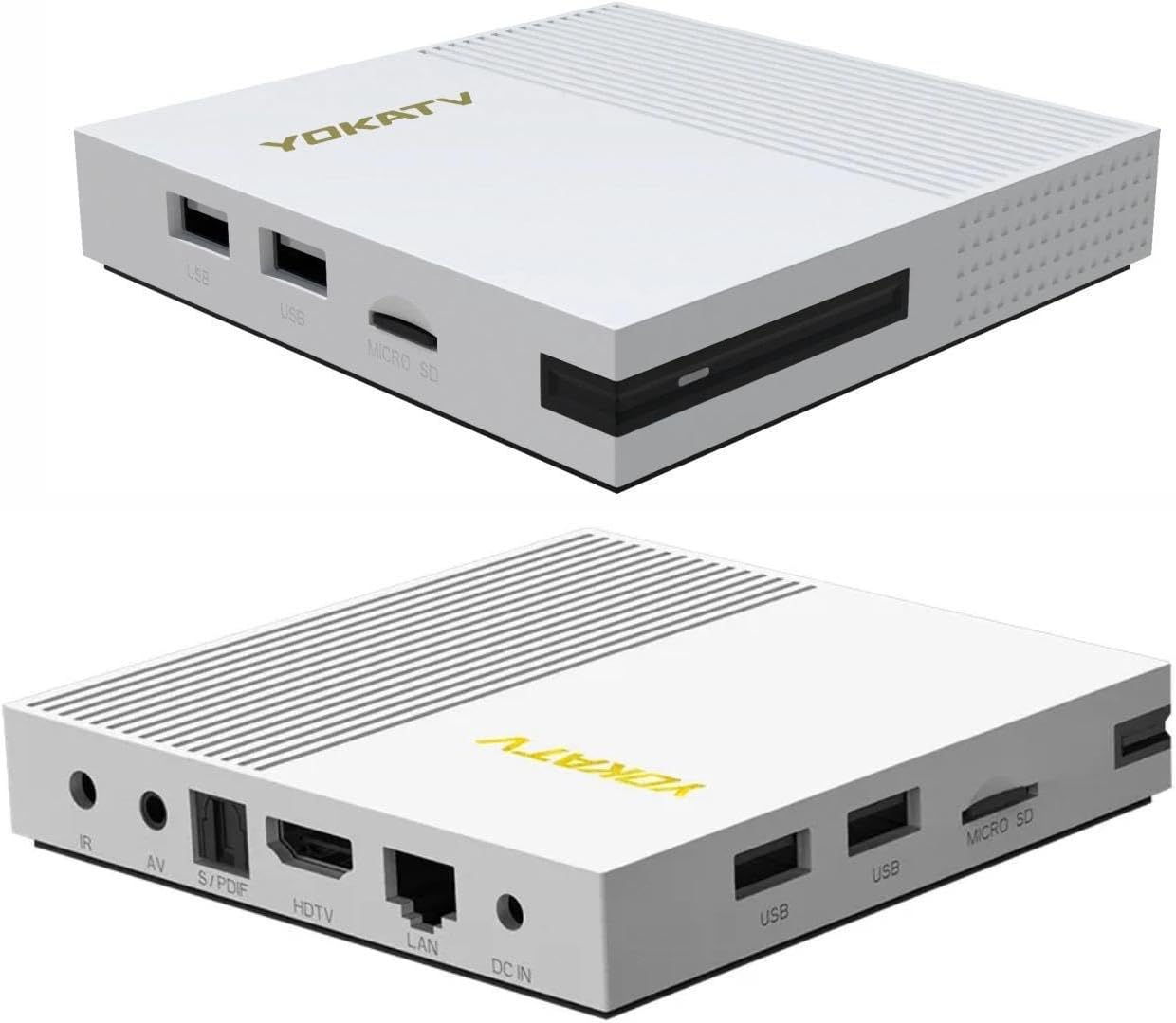
Figure 2: Rear and side view of the Yokatv IPX2 Streaming Box, showing various ports including USB, Micro SD, IR, AV, S/PDIF, HDTV (HDMI), LAN, and DC IN.
3. Initial Power-On and Network Setup
- Power On: Turn on your television and select the correct HDMI input source using your TV's remote control. The Yokatv IPX2 Streaming Box should power on automatically once connected to power.
- Initial Setup Wizard: Follow the on-screen instructions to complete the initial setup. This typically includes language selection, display settings, and network configuration.
- Wi-Fi Connection: If you are using Wi-Fi, select your network from the list of available networks and enter your Wi-Fi password. The device supports Dual-Band Wi-Fi for stable connectivity.
- Account Login: You may be prompted to log in to a Google account or other service accounts to access certain apps and features.
Operating Instructions
1. Remote Control Usage
The included remote control allows you to navigate the user interface and control media playback.

Figure 3: Front and back view of the Yokatv IPX2 Streaming Box remote control. The front features power, navigation, volume, channel, and number buttons. The back shows a learning button guide.
- Power Button: Turns the device on or off.
- Navigation Pad (Arrow Keys & OK): Used to move through menus and select items.
- Back/Return Button: Returns to the previous screen or menu.
- Home Button: Returns to the main home screen.
- Volume Buttons (+/-): Adjusts the audio volume.
- Mute Button: Mutes or unmutes the audio.
- Number Buttons: For direct input or specific functions.
- App Shortcut Buttons: Dedicated buttons for popular apps like YouTube.
- Voice Control Button: Activates voice search or commands (if supported).
Note: The remote control may have a learning function to control your TV. Refer to the remote's back panel for a quick guide on programming these buttons.
2. Navigating the Interface
The Yokatv IPX2 Streaming Box features a user-friendly interface. Use the navigation pad on your remote to browse through applications, settings, and content.
- Home Screen: Displays your installed apps, recommended content, and quick access to settings.
- Apps Section: Access all your downloaded and pre-installed applications.
- Settings: Configure network, display, audio, system, and other device preferences.
3. Streaming 4K Content
To enjoy 4K Ultra HD content, ensure the following:
- Your television supports 4K resolution.
- You are using a high-speed HDMI cable.
- Your internet connection is stable and fast enough for 4K streaming (recommended minimum 25 Mbps).
- The content you are streaming is available in 4K resolution.
Access 4K content through supported applications like Netflix or Amazon Prime Video, provided you have a subscription that includes 4K streaming.
Maintenance
1. Cleaning the Device
To maintain optimal performance and appearance:
- Disconnect the power adapter before cleaning.
- Use a soft, dry, lint-free cloth to wipe the exterior of the streaming box.
- Do not use liquid cleaners, aerosols, or abrasive solvents, as these may damage the device.
- The IPX2 rating provides protection against dripping water, but avoid submerging the device or exposing it to strong water jets.
2. Software Updates
Periodically check for software updates in the device's settings menu. Updates can improve performance, add new features, and enhance security. Ensure your device is connected to the internet during updates and do not power it off until the update process is complete.
Troubleshooting
If you encounter issues with your Yokatv IPX2 Streaming Box, refer to the following common problems and solutions:
| Problem | Possible Solution |
|---|---|
| No Power |
|
| No Signal on TV |
|
| Wi-Fi Connection Issues |
|
| App Not Working / Freezing |
|
| Remote Control Unresponsive |
|
Specifications
Below are the technical specifications for the Yokatv IPX2 Streaming Box:
| Model Name | IPX2 |
| Brand | Yokatv |
| Connectivity Technology | Wi-Fi (Dual-Band) |
| Connector Types | HDMI, USB |
| Special Features | Support Dual-WiFi, 4K |
| Resolution | 4K (3840 pixels video output) |
| Supported Internet Services | Netflix, Amazon Prime Video |
| Form Factor | TV Box |
| Compatible Devices | Television |
| Video Codec | H.265/HEVC, VP9 |
| Color | Black |
| ASIN | B0G4FHLVHB |
Warranty and Support
For warranty information and technical support, please refer to the documentation included with your purchase or visit the official Yokatv website. Keep your purchase receipt as proof of purchase for warranty claims.
For further assistance, you may contact Yokatv customer support through their official channels.
