
Introduction
Thank you for choosing the Redragon Luna Pro Gaming Headset. This manual provides essential information for setting up, operating, and maintaining your headset to ensure optimal performance and longevity. The Luna Pro headset is designed for gamers seeking superior audio quality, comfort, and versatile connectivity.
Product Overview
The Redragon Luna Pro (Model H540) is an advanced gaming headset featuring open-back acoustics for a wider soundstage and enhanced spatiality. Its lightweight and ergonomic design ensures maximum comfort during extended use. Key features include a removable microphone for convenience and ear cushions with passive cooling technology, offering three different coatings: microfiber, leatherette, and sports mesh.
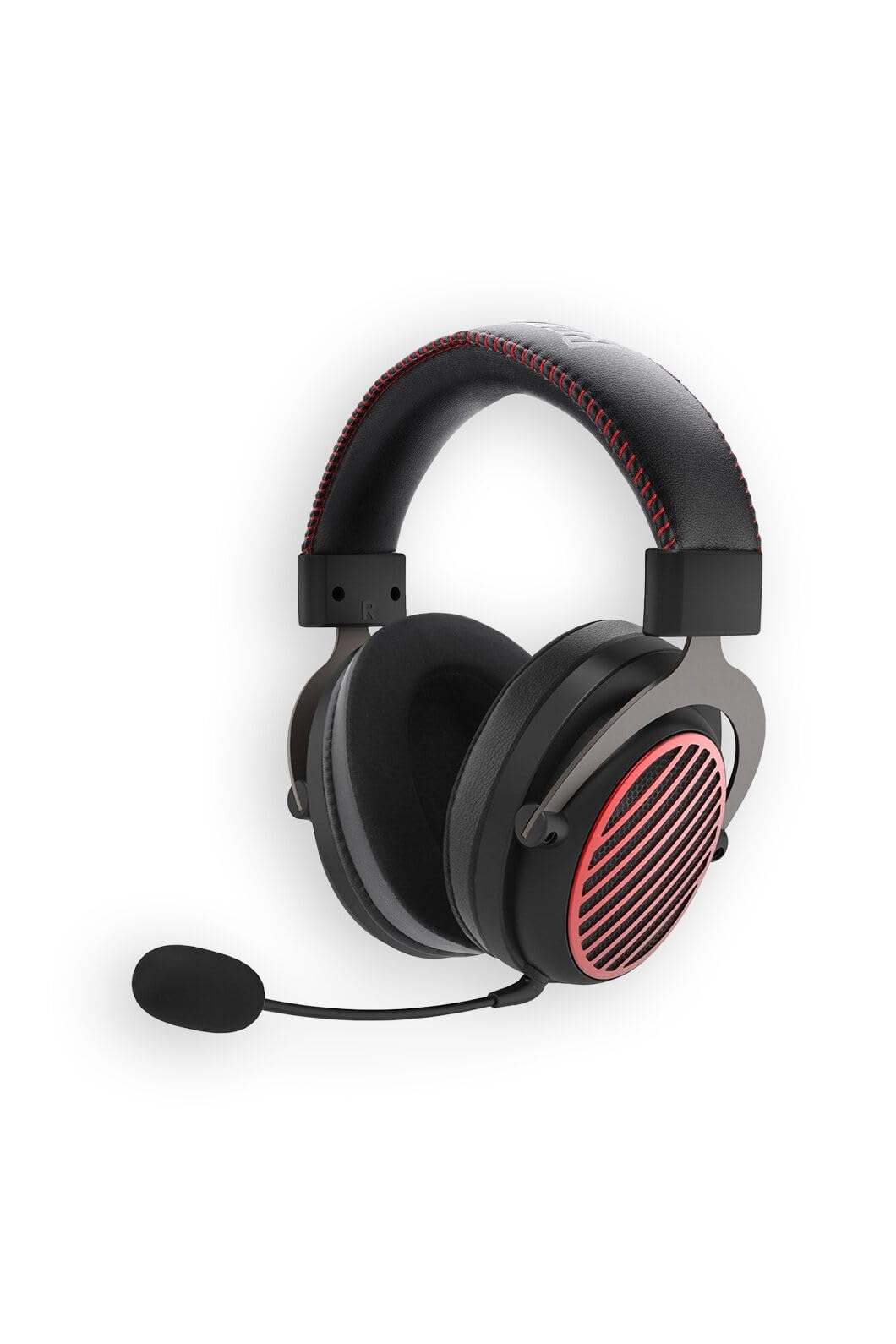
Figure 1: Front view of the Redragon Luna Pro Gaming Headset.
Package Contents
Ensure all items are present in the package:
- 1x Redragon Luna Pro Headset
- 1x USB Type-A / USB Type-C 2.4GHz Receiver
- 1x USB Type-A to USB Type-C Cable
- 1x USB Type-C to 3.5mm Cable
- 1x Removable Microphone
- 1x Redragon Sticker
- 1x Instruction Manual (this document)

Figure 2: Redragon Luna Pro Headset with all included accessories.
Setup Instructions
1. Attaching the Microphone
- Locate the microphone port on the left earcup.
- Align the microphone's 3.5mm jack with the port.
- Gently push the microphone into the port until it clicks securely into place.
- To remove, pull the microphone gently but firmly from the port.

Figure 3: Headset with the removable microphone attached.
2. Connecting to Devices
The Redragon Luna Pro offers multiple connectivity options:
- 3.5mm Jack (Wired): Connect the USB Type-C to 3.5mm cable to the headset, then plug the 3.5mm end into your PC, gaming console controller, or mobile device. This provides universal compatibility.
- USB Type-C (Wired): Use the USB Type-A to USB Type-C cable to connect the headset directly to a USB-C port on your PC for digital audio.
- 2.4GHz Wireless: Plug the 2.4GHz USB Type-A / USB Type-C receiver into your PC or compatible console. The headset will automatically connect. Ensure the headset is powered on.
- Bluetooth: Power on the headset and activate Bluetooth pairing mode (refer to the 'Operating Instructions' section). Search for 'Redragon Luna Pro' on your mobile device or tablet's Bluetooth settings and connect.
Operating Instructions
1. Power On/Off
- To power on, press and hold the Power button located on the left earcup until the indicator light illuminates.
- To power off, press and hold the Power button again until the indicator light turns off.
2. Volume Control
- Adjust the volume using the scroll wheel or dedicated volume buttons on the left earcup.
3. Microphone Mute
- A dedicated switch on the left earcup allows you to quickly mute or unmute the microphone.

Figure 4: Close-up of the left earcup showing power, volume, and microphone mute controls.
4. Charging the Headset
- Connect the USB Type-A to USB Type-C cable to the headset's charging port and a power source (e.g., PC USB port, USB wall adapter).
- The LED indicator will show charging status. A full charge provides approximately 25 hours of continuous use.
Maintenance
Proper maintenance ensures the longevity and performance of your headset:
- Cleaning: Use a soft, dry cloth to wipe the headset. For ear cushions, gently wipe with a slightly damp cloth and allow to air dry completely before use. Avoid harsh chemicals or abrasive materials.
- Storage: Store the headset in a cool, dry place away from direct sunlight and extreme temperatures. When not in use, consider placing it on a headset stand to maintain its shape and prevent cable damage.
- Cable Care: Avoid sharp bends or excessive pulling on the cables. Disconnect by gripping the connector, not the cable itself.

Figure 5: Close-up of the ear cup, highlighting the cooling ear cushion material.
Troubleshooting
If you encounter issues with your Redragon Luna Pro headset, try the following solutions:
- No Sound:
- Check volume levels on both the headset and your device.
- Ensure the headset is properly connected (wired, wireless receiver, or Bluetooth).
- For PC, verify audio output settings are configured to the headset.
- Microphone Not Working:
- Ensure the microphone is securely attached and not muted via the switch on the earcup.
- Check microphone input settings on your device.
- Test the microphone on another device if possible.
- Wireless Connection Issues:
- Ensure the 2.4GHz receiver is plugged in correctly and the headset is in 2.4GHz mode.
- For Bluetooth, ensure the headset is in pairing mode and within range of your device.
- Recharge the headset battery.
Specifications
| Feature | Specification |
|---|---|
| Brand | Redragon |
| Model Number | H540 |
| Color | Black |
| Ear Placement | Open-back, Circumaural |
| Driver Diameter | 53 mm |
| Frequency Response | 20Hz to 20000Hz |
| Impedance | 64 Ohm ± 15% |
| Microphone Sensitivity | 117 ± 3dB (0dB = 1V/PA) |
| Microphone Polar Pattern | Omnidirectional |
| Connectivity Technology | 3.5mm, Bluetooth, USB 2.4GHz, USB Type-C |
| Wireless Communication Technology | Bluetooth |
| Cable Length | 1.8m |
| Battery | 600mAh 3.7V |
| Approximate Product Weight | 263 g |
| Compatible Devices | Mobile phones, Desktop computers, Gaming consoles, Laptops, Tablets |
Warranty and Support
The Redragon Luna Pro Gaming Headset comes with a 12-month warranty from the date of purchase. This warranty covers manufacturing defects and ensures your product is free from material and workmanship flaws under normal use.
For warranty claims, technical support, or any inquiries regarding your product, please contact Redragon customer service through their official website or the retailer where you purchased the headset. Please retain your proof of purchase for warranty validation.

