
1. Introduction
Thank you for choosing the Naroote 10.1 Inch Digital Smart Calendar. This device is designed to help you organize your daily life with its interactive touchscreen, WiFi connectivity, and comprehensive scheduling features. Please read this manual carefully to ensure proper setup and operation.
2. Safety Information
- Keep the device away from water and moisture to prevent electric shock.
- Do not expose the device to extreme temperatures or direct sunlight.
- Use only the provided power adapter.
- Avoid dropping or subjecting the device to strong impacts.
- Do not attempt to disassemble or repair the device yourself. Contact customer support if needed.
3. Package Contents
Ensure all items are present in the package:
- 1 x Naroote 10.1 Inch Digital Calendar
- 1 x User Manual
- 1 x Power Adapter (US Plug)

Image: The Naroote Digital Smart Calendar and its included accessories, such as the user manual and power adapter, neatly arranged in its packaging.
4. Product Overview
The Naroote Digital Smart Calendar features a 10.1-inch HD touchscreen display, providing clear visibility of text and images from various angles. It is designed for intuitive interaction and can be placed on a desk or mounted on a wall.
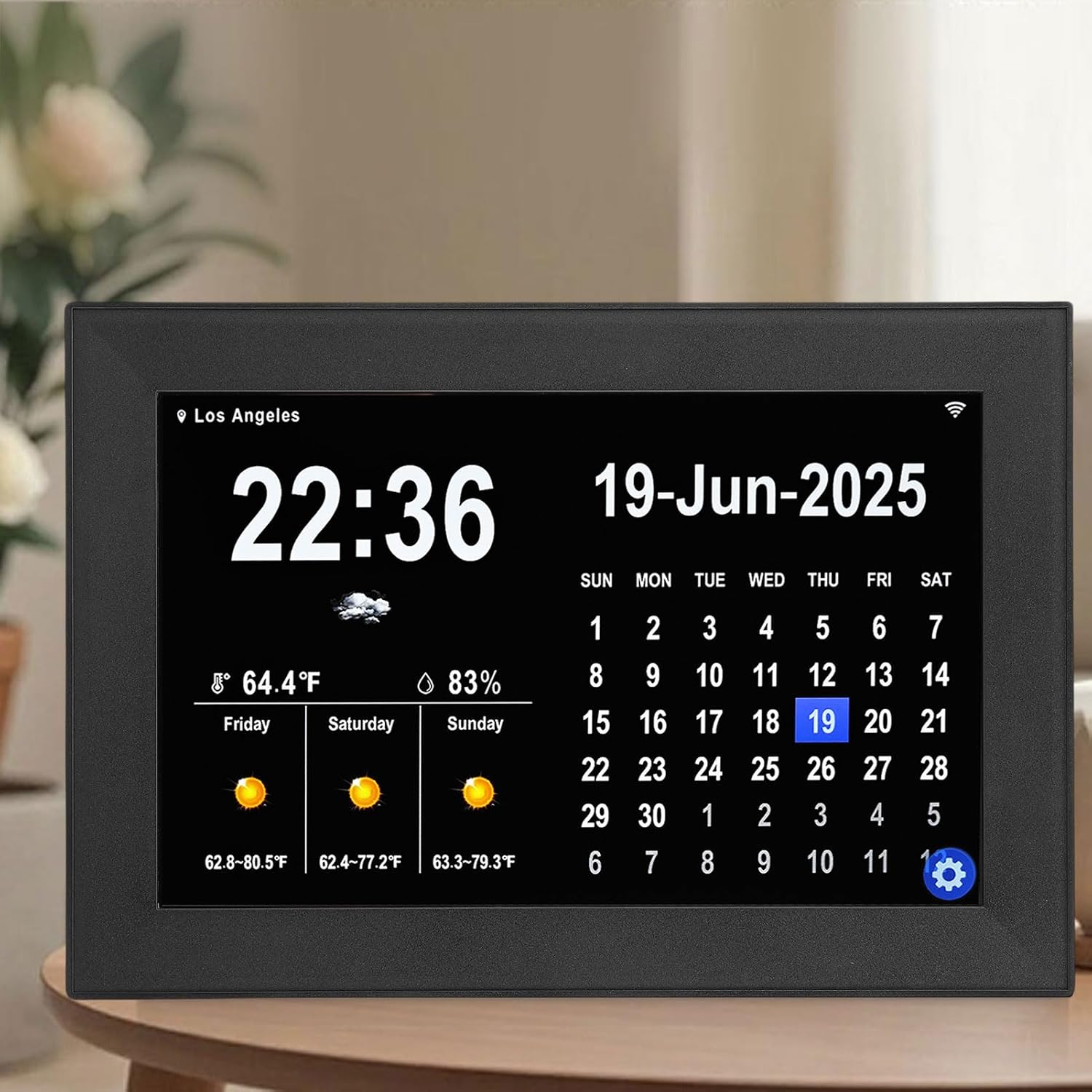
Image: A close-up of the Naroote Digital Smart Calendar's screen, showcasing its clear display of time, date, and weather information.

Image: The back of the Naroote Digital Smart Calendar, highlighting the power input, USB port, and adjustable stand for versatile placement.
5. Setup
- Connect Power: Plug the provided power adapter into the DC port on the back of the calendar and then into a power outlet.
- Power On: The device will automatically power on. If not, press the power button located on the back.
- Language Selection: On the initial setup screen, select your preferred language.
- WiFi Connection: Connect the calendar to your home WiFi network by selecting your network and entering the password.
- City Positioning: Set your city location to enable accurate weather forecasts.
- Activation: Follow the on-screen instructions to download the eCalendar app and enter the activation code to link your device.
Video: This video demonstrates the unboxing and initial setup process of the 10.1 Inch Digital Calendar, including connecting the power, setting up the stand, and navigating the initial language and WiFi connection screens.
6. Operating Instructions
6.1 Basic Navigation
The Naroote Digital Smart Calendar features a responsive touchscreen. Swipe left or right to navigate between different views and tap icons to access specific functions or settings.
6.2 Calendar Features
The calendar can display daily, weekly, and monthly views. It supports synchronization with various online calendars such as Apple, Google, and Outlook calendars. Events entered on your phone's linked calendar will appear on the device, and vice-versa.

Image: The digital calendar displaying a clear and organized schedule, demonstrating its ability to manage events and tasks efficiently.
6.3 Task Management and Reminders
Set up to 64 custom alarms and 64 pending tasks. Choose from three different ringtone options for reminders. The device helps track tasks and family progress towards rewards, which can be customized via the app.
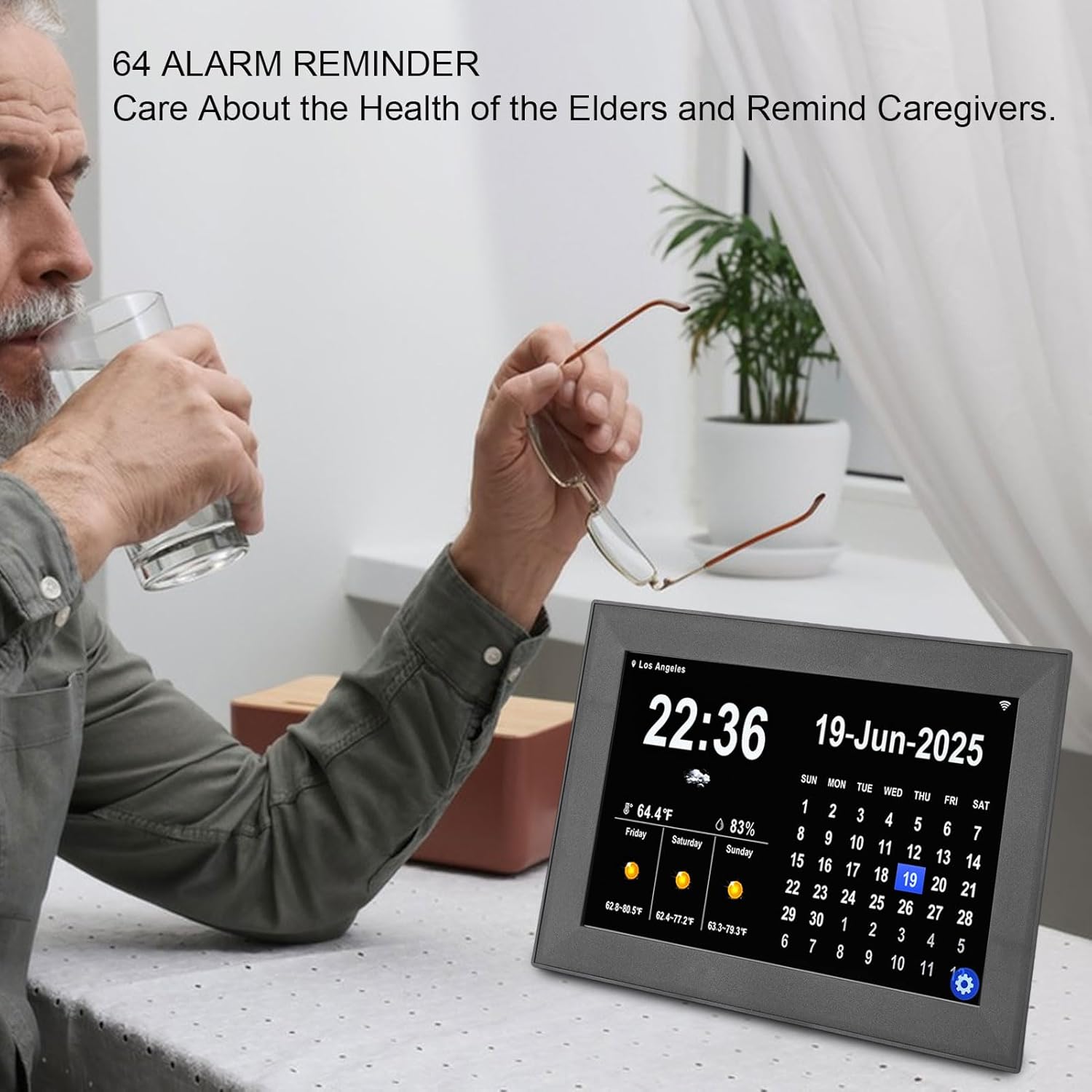
Image: The Naroote Digital Smart Calendar displaying multiple alarm reminders, useful for managing daily schedules and care for individuals.
6.4 Weather Forecast
Once connected to WiFi and your city is set, the calendar automatically updates a 7-day local weather forecast, including outdoor temperature, humidity, wind speed, and current weather conditions.
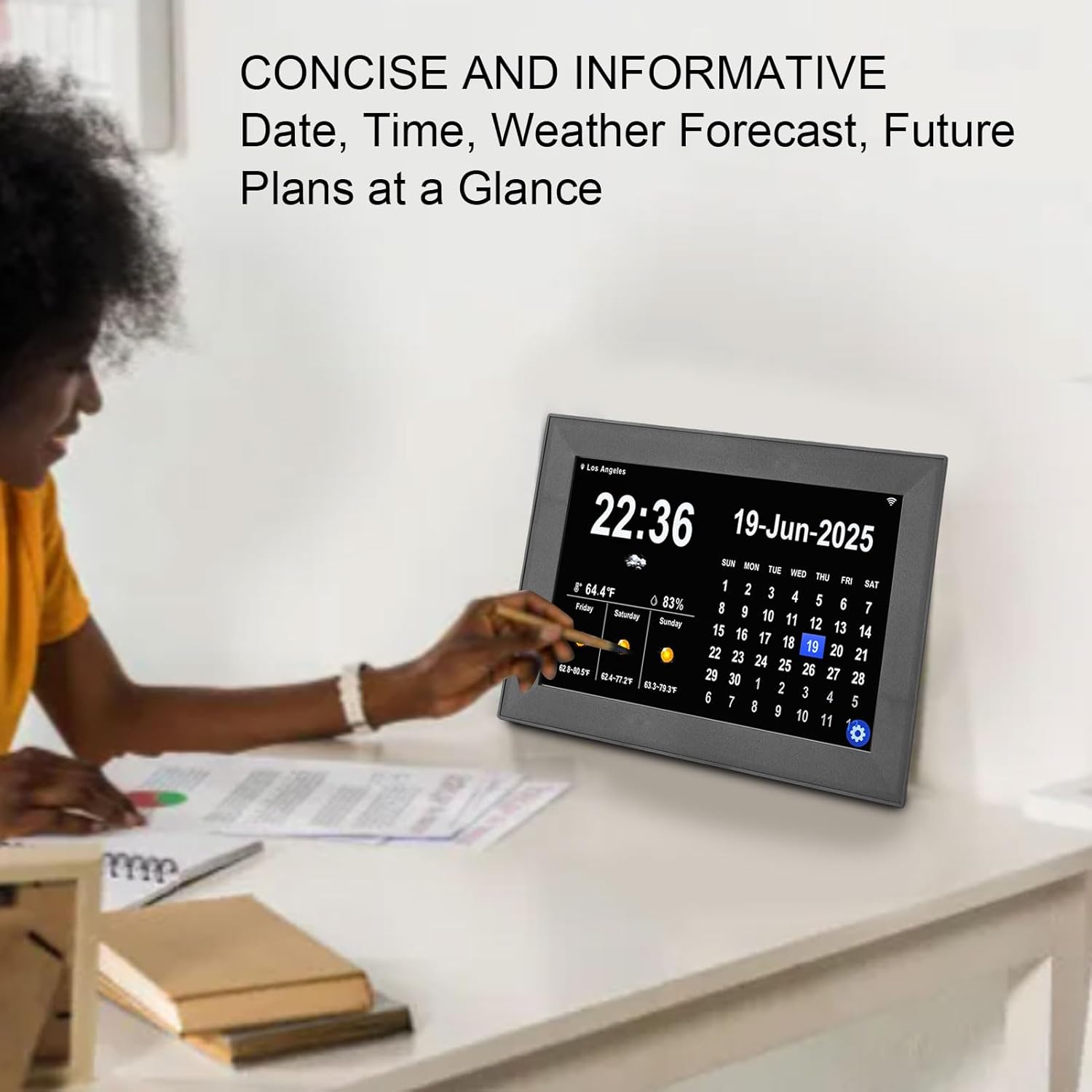
Image: The Naroote Digital Smart Calendar showing a concise display of date, time, weather forecast, and upcoming plans, all at a glance.
6.5 Meal Planning
Utilize the meal planning feature to organize your weekly meals, including breakfast, lunch, and dinner. Add recipes to your recipe box and plan your week's menu.
6.6 Photo Display
The device allows you to add and display photos, turning it into a digital photo frame when not actively used for scheduling.
6.7 Lists
Create and manage various lists, such as grocery lists and to-do lists, directly on the device or through the companion app.
6.8 Sleep Mode
The sleep mode feature allows you to schedule specific times for the device to automatically turn off its display, making it suitable for bedrooms or quiet environments.
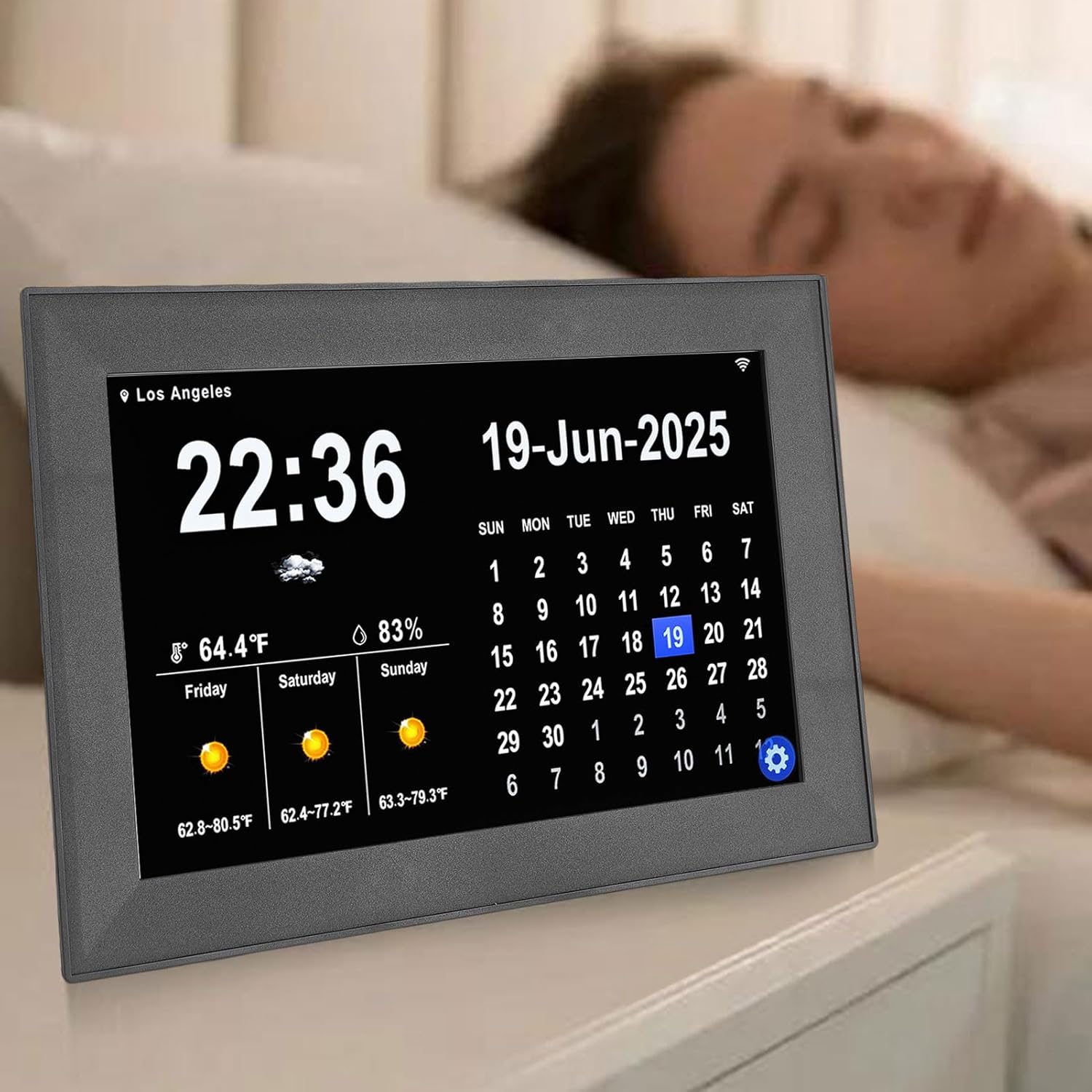
Image: The Naroote Digital Smart Calendar placed on a bedside table, illustrating its sleep mode functionality for undisturbed rest.
6.9 Settings
Access the settings menu to customize various aspects of your calendar, including:
- General: Time zone, 24/12 hour format, date format, language (18 countries supported), font size, automatic backlight brightness, volume.
- Calendar: Link and manage external calendars.
- Photos: Manage photo display settings.
- Tasks: Configure task and reward settings.
- Wi-Fi: Manage network connections.
- File: Access device files.
- User Management: Invite loved ones and manage profiles.
7. Specifications
| Feature | Detail |
|---|---|
| Item Type | Digital Calendar |
| Material | ABS |
| Screen Size | 10.1 Inch |
| Product Size | Approx. 26.4x18x8.5cm / 10.4x7.09x3.35in |
| Weight | Approx. 670.00g / 23.63oz (1.48 pounds) |
| Human Computer Interaction | WiFi, Touch Screen |
| City Positioning | Supported |
| Weather Forecast | 7 Day Weather Forecast, Outdoor Temperature & Humidity |
| Built-in Scenes | 40 |
| Custom Alarm Number | 64 (Custom English Input) |
| Custom Plan Number | 64 (Custom English Input) |
| Alarm Sound | 3 Types |
| Display Interface | 7 Types |
| Language | Multiple (18 Countries) |
| Time Format | 24/12 Hour Format |
| Date Format | MM DD YY, DD MM YY |
| Backlight Brightness | Automatic |
| Sleep Mode | Supported |
| Volume | Adjustable |
| Model Number | Narootet5i41ousb9-11 |
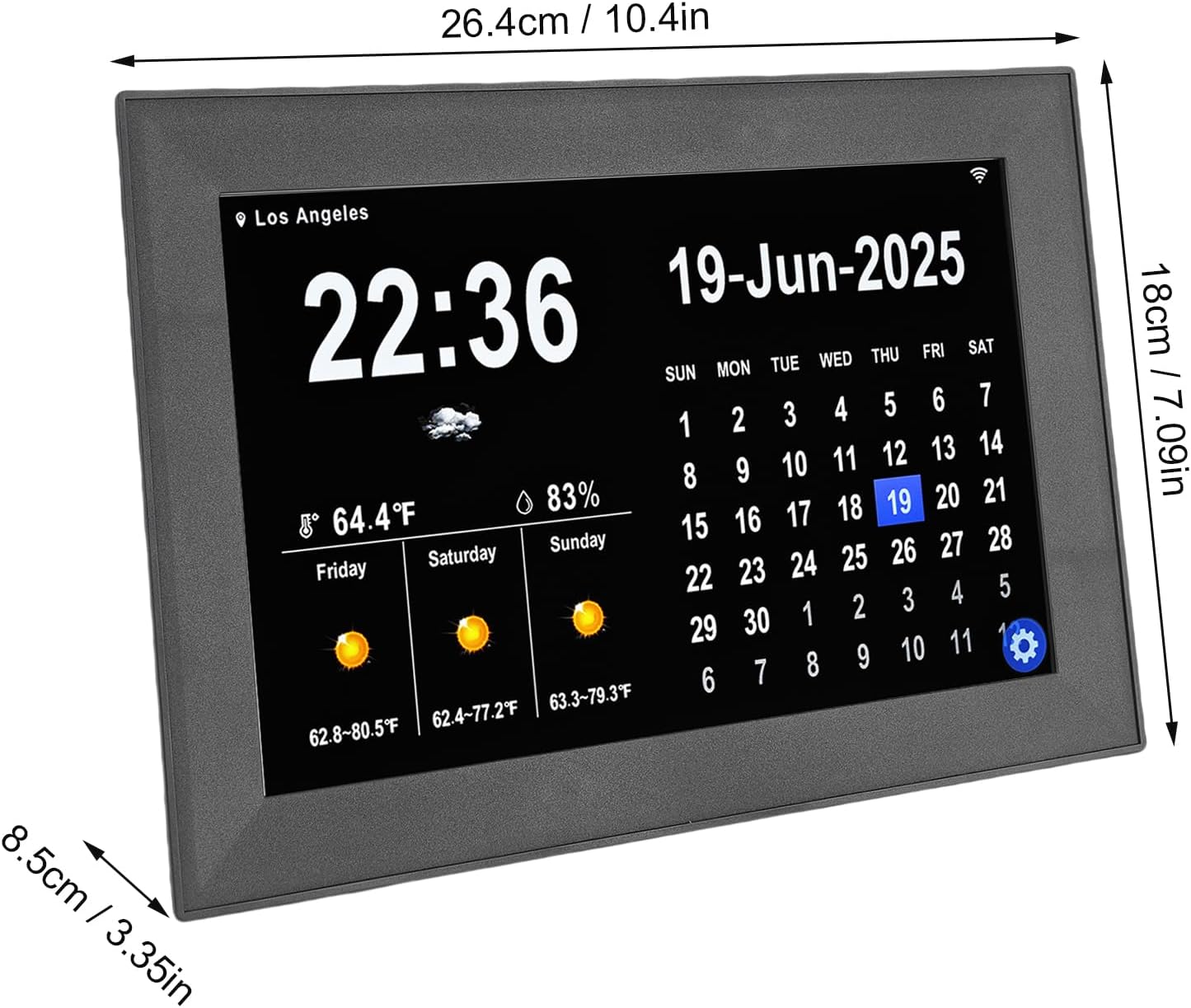
Image: The Naroote Digital Smart Calendar shown with its key dimensions (length, width, depth) indicated for reference.
8. Maintenance
- Clean the screen with a soft, dry, lint-free cloth. Do not use abrasive cleaners or solvents.
- Keep the device free from dust and debris.
- Store the device in a cool, dry place when not in use for extended periods.
9. Troubleshooting
- Device not powering on: Ensure the power adapter is securely connected to both the device and a working power outlet.
- No WiFi connection: Check your router and ensure the WiFi password is entered correctly. Try restarting the device and your router.
- Incorrect time/date/weather: Verify that your city location is correctly set and the device is connected to WiFi.
- Touchscreen unresponsive: Restart the device. If the issue persists, contact customer support.
10. Warranty and Support
For warranty information and technical support, please refer to the warranty card included in your package or visit the official Naroote website. Keep your purchase receipt as proof of purchase.