
1. Introduction
This manual provides essential instructions for the installation, operation, and maintenance of your Sinopé TH1144WF Smart Wi-Fi Thermostat. Designed for electric baseboard heaters, this thermostat offers advanced control and energy management features. Please read this manual thoroughly before installation and use to ensure proper function and safety.

The Sinopé TH1144WF Smart Wi-Fi Thermostat installed on a wall.
2. Safety Information
WARNING: Risk of electric shock. Installation must be performed by a qualified electrician in accordance with local and national electrical codes. Always disconnect power at the main circuit breaker before installing or servicing this thermostat.
- This thermostat is designed for high-voltage electric heating systems only (baseboards, convectors, radiant ceilings).
- Do not use with low-voltage systems (24 V), central heating systems, or fan-forced convectors.
- Ensure the electrical box is clean and free of debris before installation.
- Verify that the thermostat's maximum load (4000 W @ 240 V) is not exceeded by your heating system.
3. Package Contents
Verify that your package contains the following items:
- Sinopé TH1144WF Smart Wi-Fi Thermostat
- 2 Wire Connectors
4. Installation
4.1 Wiring Instructions
- Turn off power to the heating system at the main circuit breaker.
- Remove the old thermostat.
- Connect the two non-polarized wires from the TH1144WF thermostat to the heating system wires using the provided wire connectors. The wires are non-polarized, meaning either thermostat wire can connect to either load or line wire.
- Ensure all connections are secure.
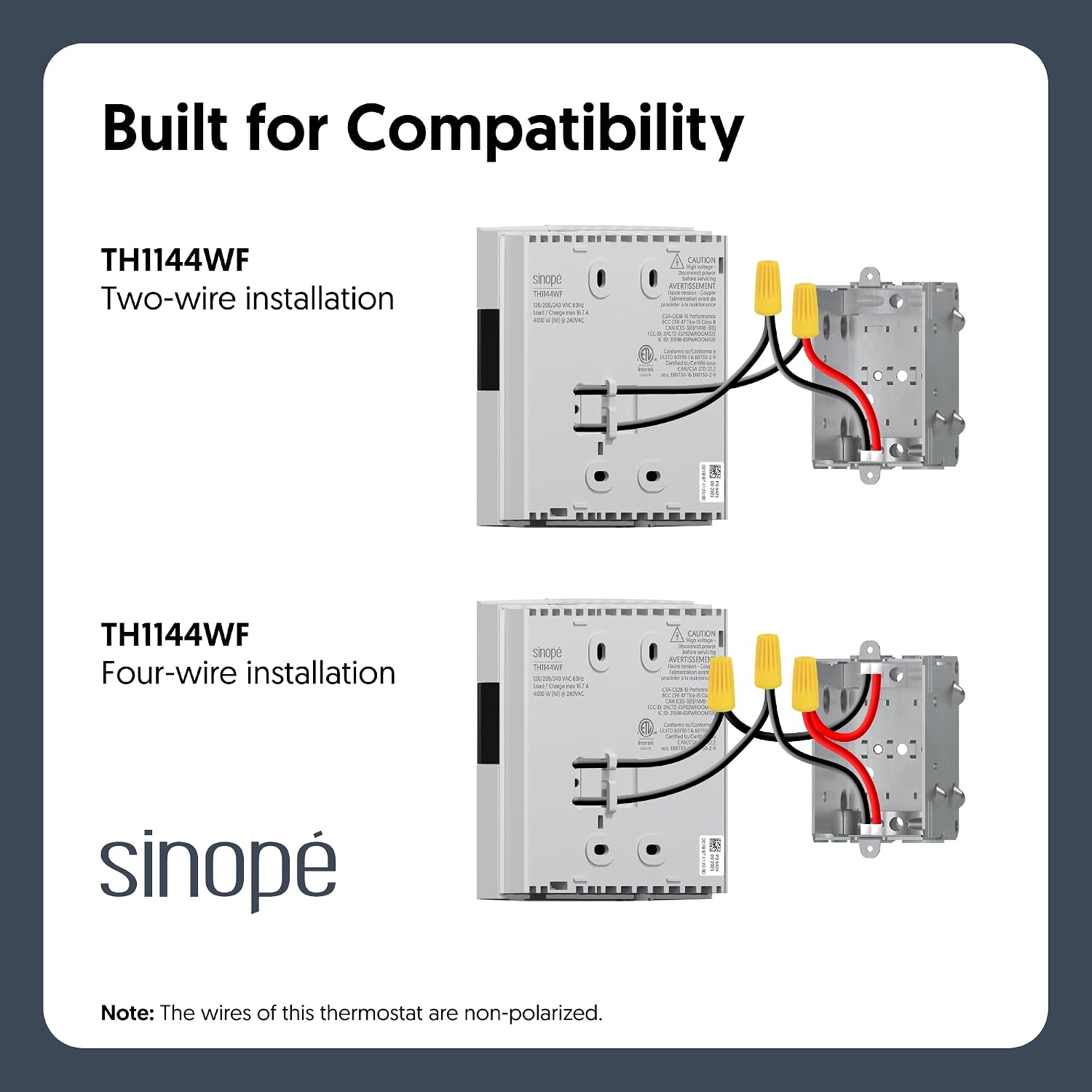
Wiring diagram illustrating two-wire and four-wire installation for the TH1144WF. Note that the thermostat wires are non-polarized.
4.2 Mounting
- Carefully push the excess wires into the electrical box.
- Secure the thermostat to the electrical box using the provided screws.
- Ensure the thermostat is flush against the wall.

Rear view of the TH1144WF thermostat, highlighting wiring connections and safety warnings.
5. Initial Setup and Wi-Fi Connection
- Restore power to the heating system at the main circuit breaker.
- The thermostat will power on and display initial setup options. Follow the on-screen prompts to set the date, time, and temperature format.
- Download the Sinopé Neviweb App: Search for "Neviweb" in the Apple App Store or Google Play Store.
- Create an Account: Open the Neviweb app and follow the instructions to create a new account or log in.
- Add Your Thermostat: In the Neviweb app, select the option to add a new device and follow the in-app instructions to connect your TH1144WF thermostat to your home Wi-Fi network (2.4 GHz).

A smartphone showing the Sinopé Neviweb application, used for controlling the thermostat.
6. Operating Instructions
6.1 Manual Temperature Control
- Use the up/down buttons on the thermostat to adjust the desired temperature. The display will show the current temperature and the setpoint.

A detailed view of the TH1144WF thermostat's color display, showing current time, outdoor temperature, and the setpoint temperature.
6.2 App Control (Neviweb)
- Open the Neviweb app on your smartphone or tablet.
- Select your TH1144WF thermostat to view its current status and adjust settings remotely.
- The app allows for detailed scheduling, temperature adjustments, and access to energy reports.
6.3 Voice Control
The TH1144WF is compatible with Amazon Alexa, Google Home, and Apple Home. Once integrated, you can control your thermostat using voice commands.
- Example commands: "Alexa, set the living room thermostat to 22 degrees." or "Hey Google, what's the temperature in the bedroom?"

An Amazon Echo Dot, representing the voice assistant compatibility of the thermostat.
7. Features
7.1 Smart Heating Control
- Flexible Schedules: Program heating schedules to match your daily routine, optimizing comfort and energy use.
- Geofencing: The thermostat can adjust heating based on your proximity to home, ensuring comfort upon arrival and savings when away.

A map illustrating the geofencing feature, which adjusts heating based on user location.
7.2 Energy Savings
- Real-time Energy Reports: Monitor your energy consumption directly through the Neviweb app to identify savings opportunities.
- Éco Sinopé Feature: Benefit from exclusive features designed to lower electricity costs, especially during peak demand periods.

A smartphone screen showing a graph of energy consumption history, accessible via the Neviweb app.

The Éco Sinopé logo, representing the thermostat's energy-saving capabilities.
7.3 Universal Compatibility (High-Voltage)
The TH1144WF is compatible with most resistive heating setups, including electric baseboards, convectors, and radiant ceilings. It is designed for high-voltage systems and is not compatible with low-voltage (24V) or HVAC systems.

An infographic summarizing key specifications and compatibility details for the TH1144WF thermostat.
8. Maintenance
- Cleaning: Clean the thermostat's display and casing with a soft, damp cloth. Do not use abrasive cleaners or solvents.
- No User-Serviceable Parts: The thermostat contains no user-serviceable parts. Do not attempt to open or repair the device.
9. Troubleshooting
| Issue | Possible Cause | Solution |
|---|---|---|
| Thermostat not powering on | No power from circuit breaker; incorrect wiring. | Check circuit breaker. Verify wiring connections are secure and correct. Consult a qualified electrician if unsure. |
| Cannot connect to Wi-Fi | Incorrect Wi-Fi password; 5 GHz network; weak signal. | Ensure correct password. Confirm router is broadcasting 2.4 GHz. Move thermostat closer to router or use a Wi-Fi extender. |
| Heating not responding | Thermostat in OFF mode; wiring issue; heater malfunction. | Check thermostat mode. Verify wiring. Test heater independently if possible. |
| Inaccurate temperature reading | Thermostat exposed to direct sunlight or drafts. | Relocate thermostat if possible, or shield it from direct environmental influences. |
10. Specifications
| Feature | Detail |
|---|---|
| Model Number | TH1144WF |
| Brand | Sinopé |
| Product Dimensions | 3.2D x 11.5W x 12.7H centimetres (1.26D x 4.53W x 5.00H inches) |
| Weight | 0.3 kg |
| Voltage | 240 VAC |
| Maximum Load | 4000 W @ 240 V |
| Connectivity | Wi-Fi (2.4 GHz) |
| Controller Type | Amazon Alexa, Apple HomeKit, Google Assistant, Sinopé Neviweb App |
| Display Type | Color Display |
| Mounting Type | Wall Mount |
| Material | Plastic |
| Included Components | 2 connectors |
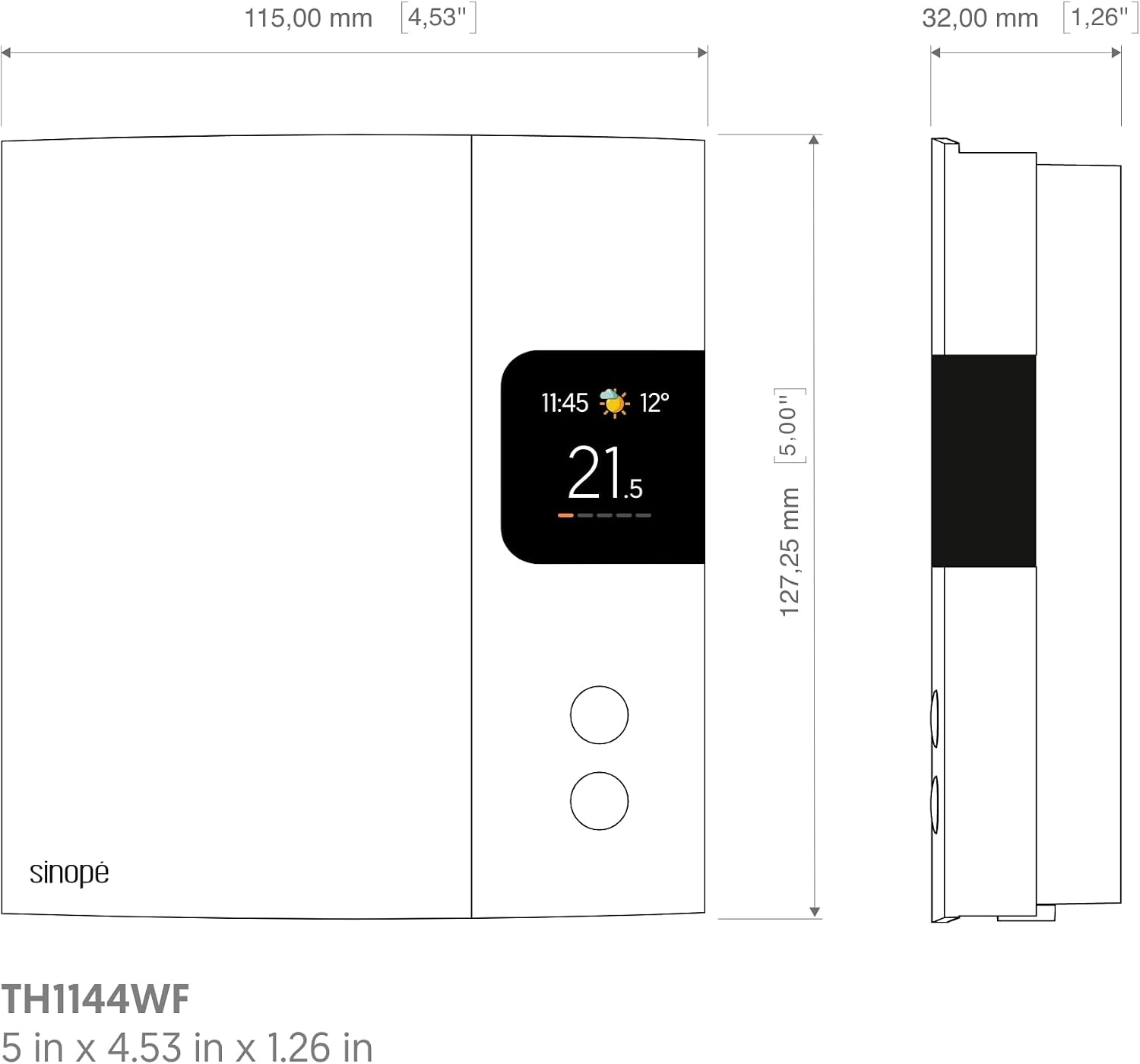
Technical drawing showing the precise dimensions of the Sinopé TH1144WF thermostat.
11. Warranty and Support
Warranty: This product comes with a 3-year limited warranty. This warranty is valid only for products sold by Sinopé Technologies.
Manufacturer Contact Information:
Sinopé Technologies Inc.
705 av. Montrichard, Saint-Jean-sur-Richelieu, QC, Canada
Phone: 1-855-741-7701
For further assistance, please visit the official Sinopé website or contact customer support directly.


