
1. Introduction
This manual provides detailed instructions for the installation, operation, and maintenance of your Oskkude Double Din Car Radio. Please read this manual thoroughly before using the product to ensure proper function and to prevent damage. Keep this manual for future reference.
2. Product Overview
The Oskkude Double Din Car Radio is an advanced car audio receiver designed for Dodge Dakota models from 2005 to 2007. It integrates modern connectivity and entertainment features into your vehicle's dashboard.
Key Features:
- 6.86-inch HD IPS Touch Screen
- Wireless & Wired CarPlay and Android Auto Support
- Android 13.0 Operating System
- 2GB RAM + 32GB ROM
- Powerful 4-Core Processor
- Built-in WiFi for Online/Offline GPS Navigation
- Bluetooth Connectivity for Hands-Free Calls and Audio Streaming
- Steering Wheel Control Compatibility
- Mirror Link Functionality
- FM/RDS Radio Tuner
- Split Screen Multitasking
- USB/SD/AUX Input
- Supports AHD Backup Camera (Waterproof Night Vision Camera included)
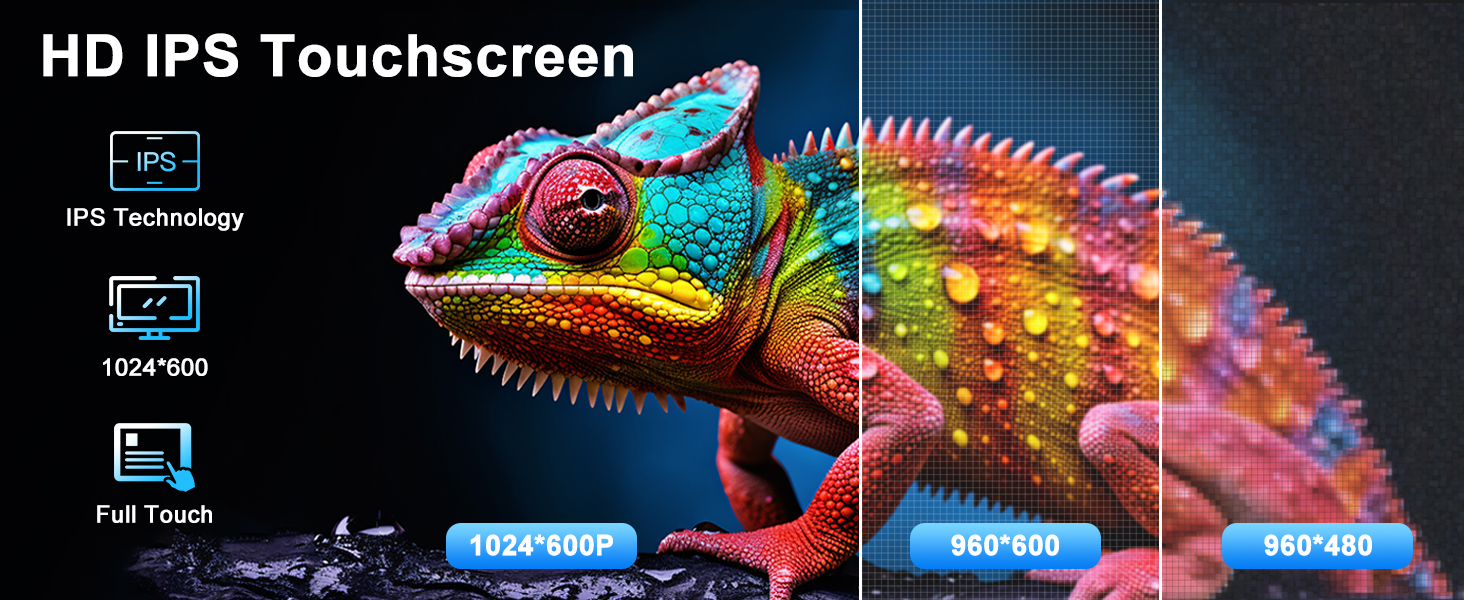
Image: The 6.86-inch HD IPS touchscreen offers clear visuals and responsive interaction.
3. Setup and Installation
3.1 Pre-Installation Checklist
- Verify vehicle compatibility: This unit is designed for Dodge Dakota 2005-2007 models.
- Gather necessary tools: Screwdrivers, wire strippers, electrical tape, multimeter.
- Disconnect the vehicle's battery before starting installation to prevent electrical shorts.
3.2 Package Contents
Ensure all components are present before beginning installation:

Image: All components included in the package for the car radio system.
3.3 Wiring Diagram and Connections
Refer to the detailed wiring diagram provided with your unit for specific connections. Below are general guidelines and important notes:

Image: Rear view of the car radio unit with all wiring harnesses connected.
Important Note for Camera Input:
The white plug for the camera input must be securely connected to the main device. Failure to do so will result in no Bluetooth or Wi-Fi signals.

Image: Proper connection of the camera input cable.
4. Operating Instructions
4.1 Power On/Off
The unit powers on automatically when the vehicle's ignition is turned on. To manually power off or on, press and hold the power button (usually a volume knob) on the front panel.
4.2 Touchscreen Interface
Navigate through menus and applications by tapping or swiping on the 6.86-inch HD IPS touch screen. The interface is designed for intuitive use.
4.3 Wireless & Wired CarPlay and Android Auto
Connect your iOS or Android smartphone to access navigation, make calls, send messages, and listen to music directly from the car radio display.
- Wireless Connection: Ensure Bluetooth is enabled on your phone and the car radio. Pair your phone with the car radio. Follow on-screen prompts to activate CarPlay or Android Auto.
- Wired Connection: Connect your phone to the car radio via a USB cable. The system will automatically detect and launch CarPlay or Android Auto.
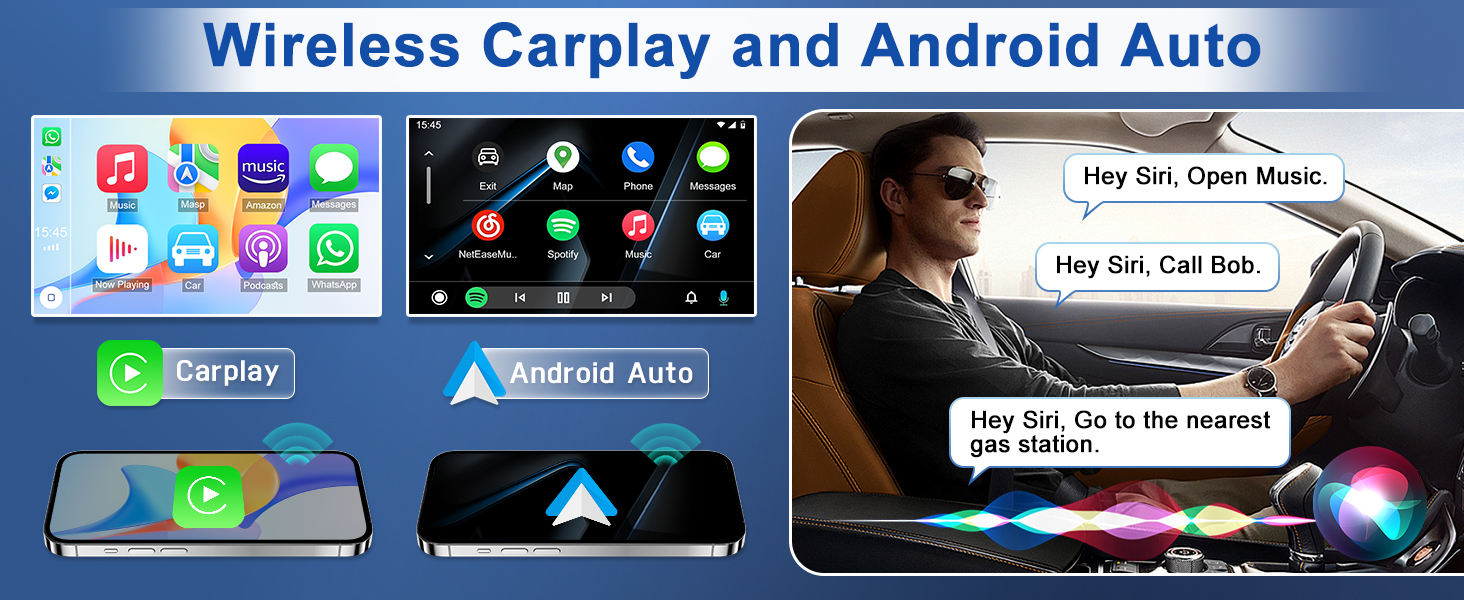
Image: Examples of Apple CarPlay and Android Auto interfaces.
4.4 GPS Navigation
The unit supports both online and offline navigation. Connect to Wi-Fi to download offline maps or use online navigation apps like Google Maps, Waze, or Here Maps.
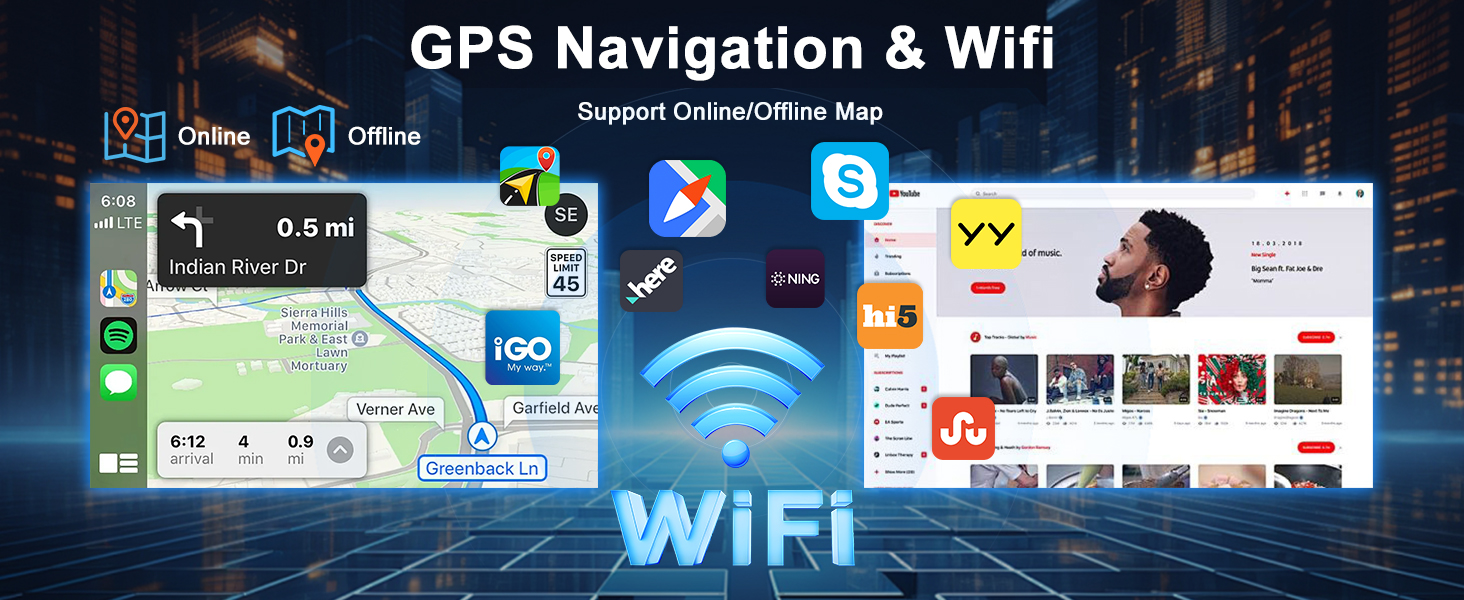
Image: GPS navigation interface with online and offline map support.
4.5 Bluetooth Connectivity
Pair your smartphone via Bluetooth for hands-free calling and wireless audio streaming. The Bluetooth connection password is typically 0000.
- Go to the Bluetooth settings on the car radio.
- Enable Bluetooth on your phone and search for available devices.
- Select the car radio's Bluetooth name (e.g., "CarBT") and enter the password if prompted.
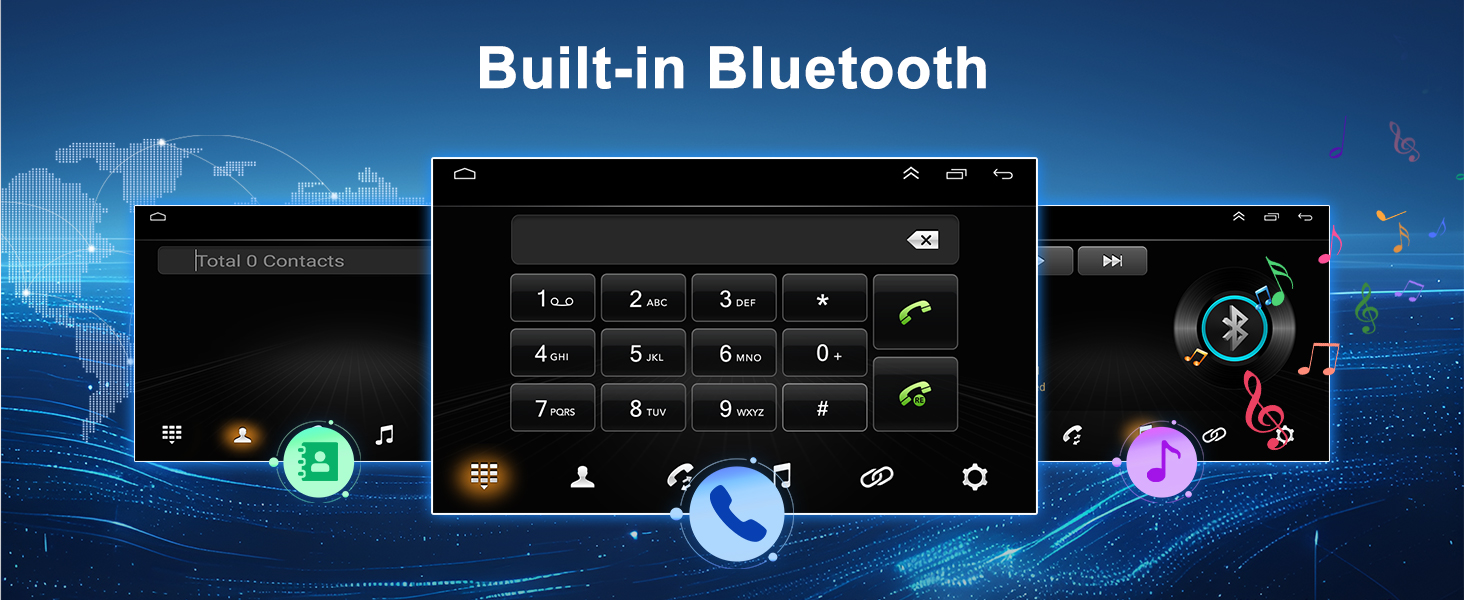
Image: Bluetooth interface for calls and music.
4.6 FM/RDS Radio
Access FM radio stations with RDS (Radio Data System) support for station information display.
- Tap the "Radio" icon on the main screen.
- Use the search function for automatic or manual tuning.
- Save your favorite stations for quick access.
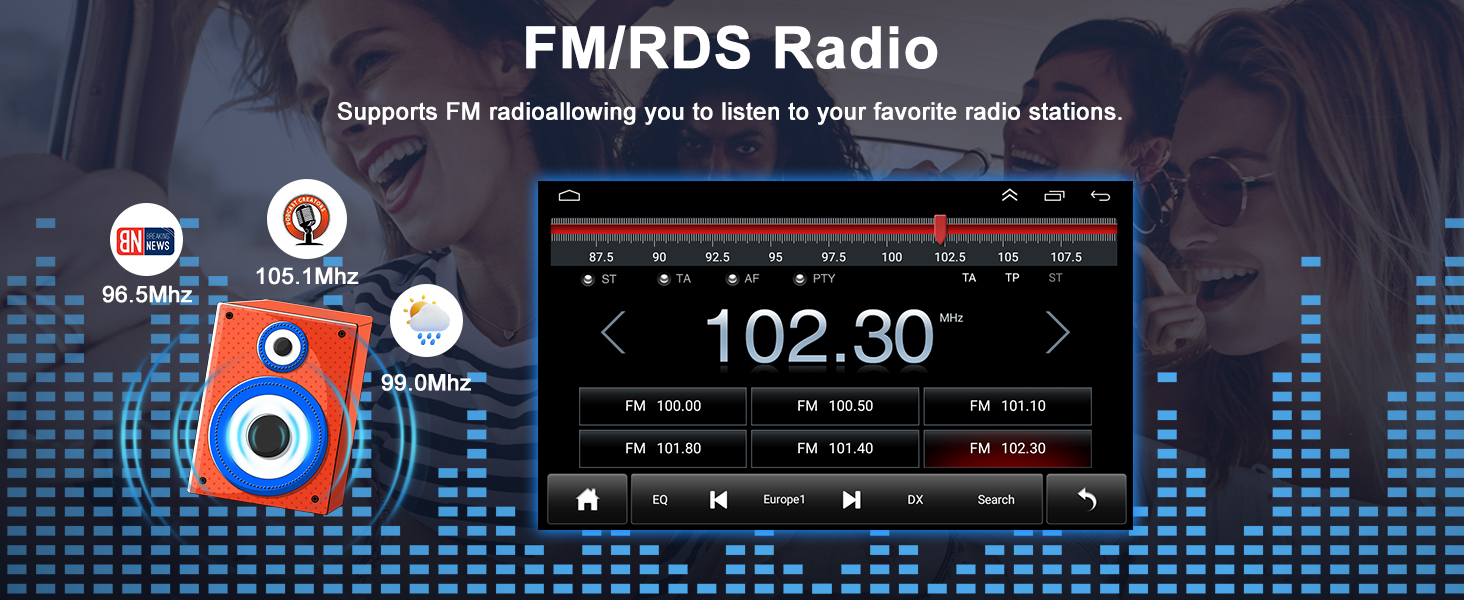
Image: FM/RDS Radio interface.
4.7 Mirror Link
The Mirror Link function allows you to display your smartphone screen directly on the car radio. This is useful for viewing navigation apps, videos, or other content from your phone.
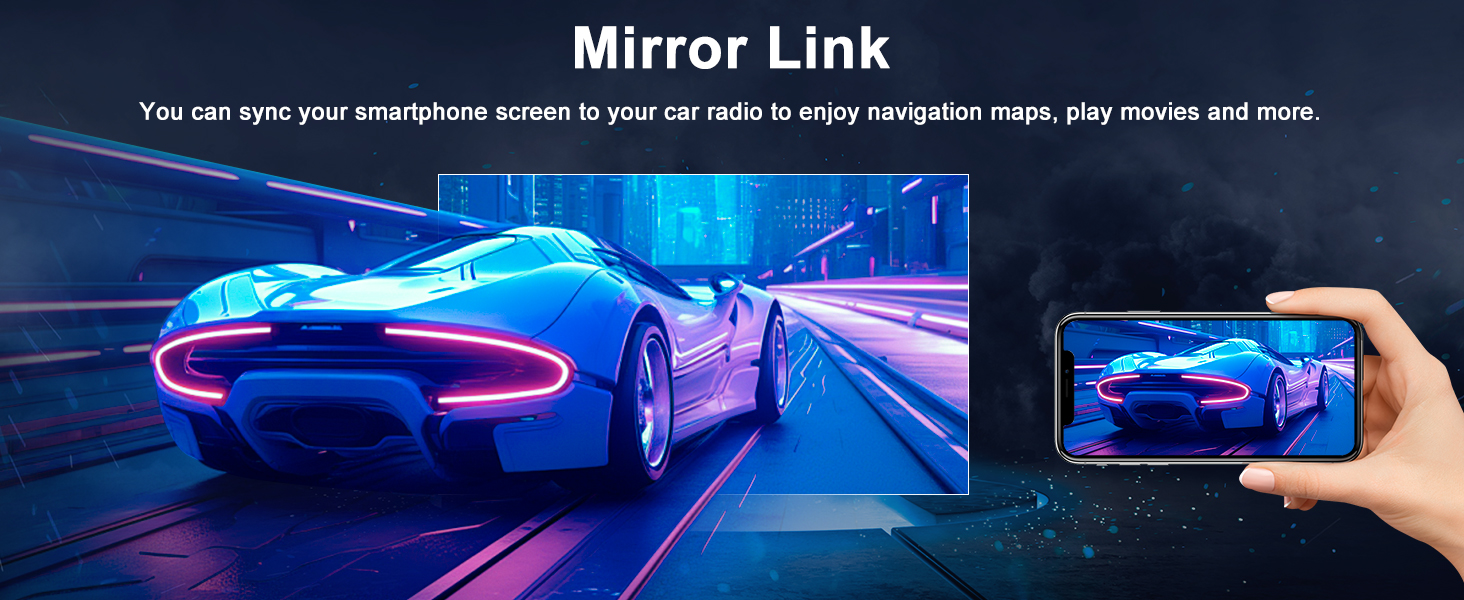
Image: Mirror Link functionality displaying a smartphone screen on the car radio.
4.8 Split Screen
Utilize the split-screen feature to run two applications simultaneously, such as navigation and music playback.
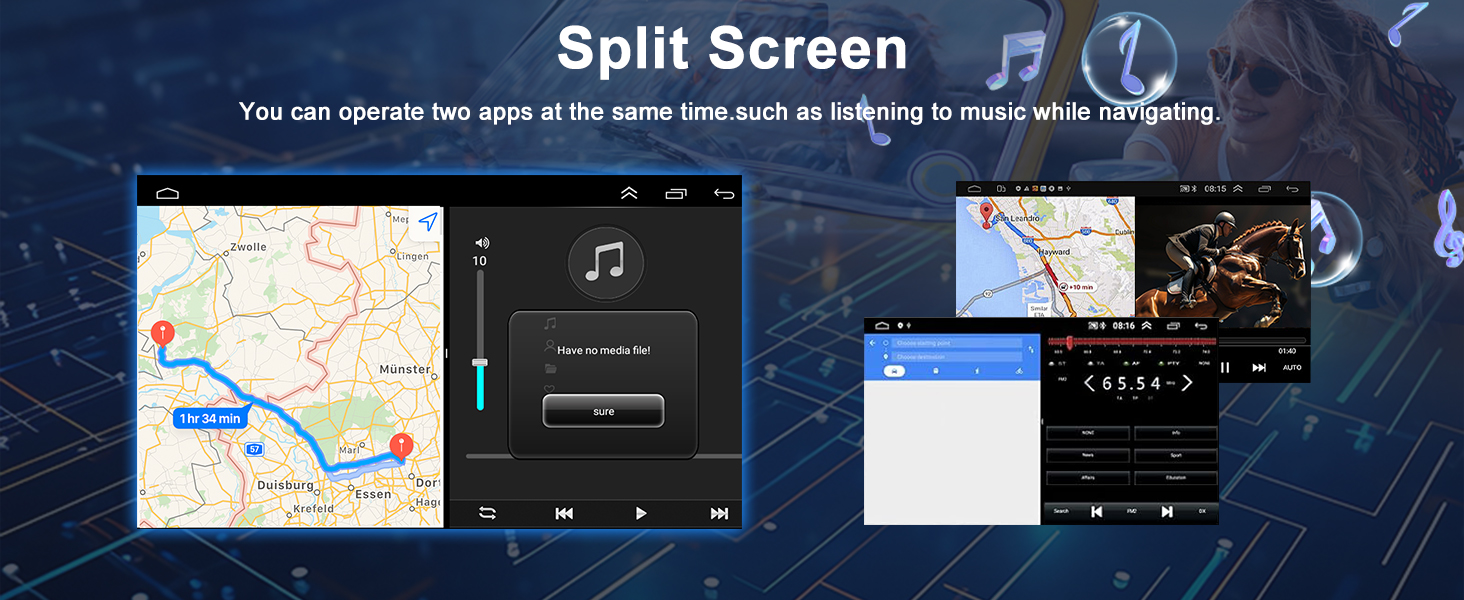
Image: Split screen mode showing navigation and music applications.
4.9 Steering Wheel Control (SWC)
The unit supports your vehicle's existing steering wheel controls. This allows for convenient operation of media and volume without taking your hands off the wheel.
- Access the "Steering Learn" option in the car settings menu.
- Follow the on-screen instructions to program each button on your steering wheel.
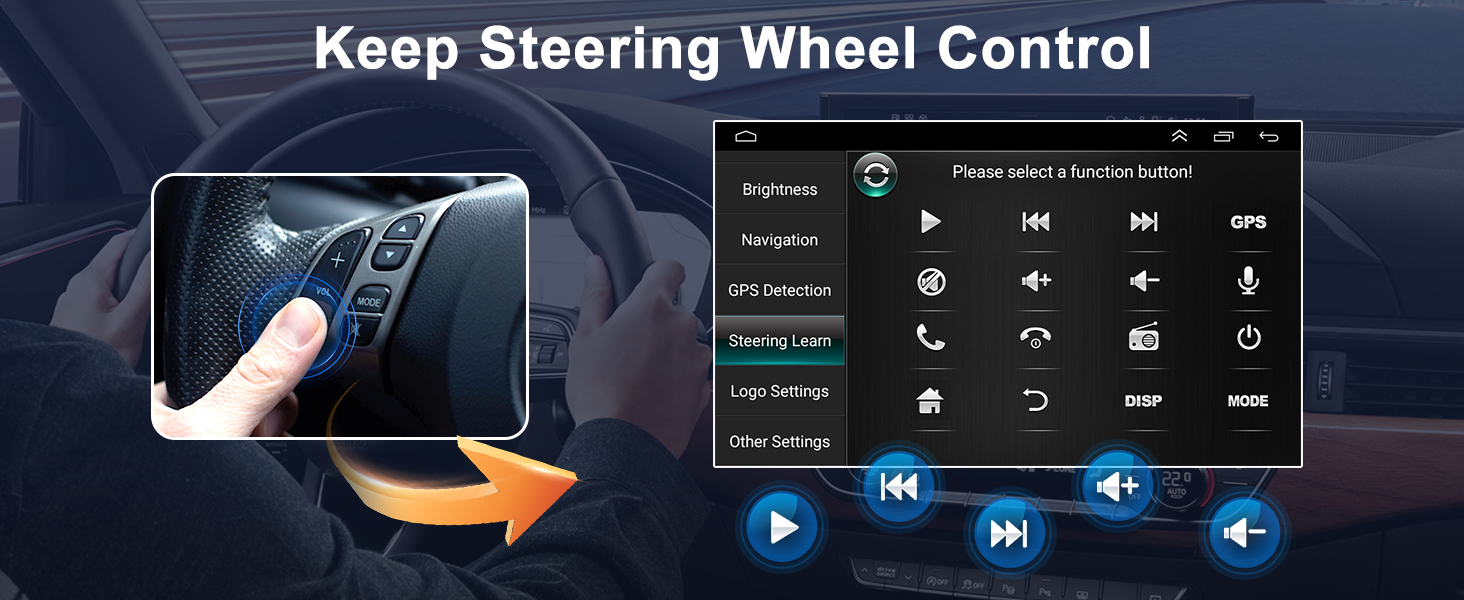
Image: Steering Wheel Control setup interface.
4.10 Backup Camera
The included waterproof night vision backup camera automatically displays a clear image on the screen when the vehicle is in reverse, assisting with parking and maneuvering.
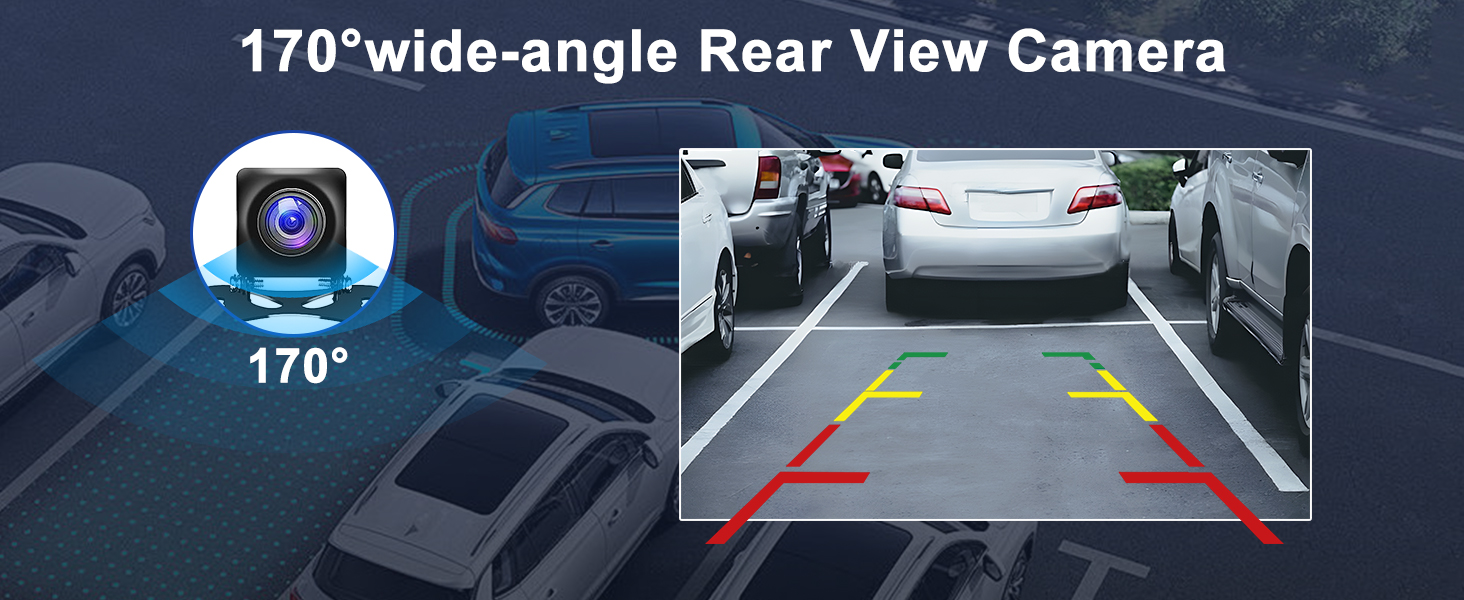
Image: Rear view camera display with parking assistance lines.
4.11 System and Audio Settings
The car radio offers various system and audio settings for customization. This includes UI themes, equalizer (EQ) adjustments, and other system configurations.
Video: This video demonstrates various UI settings, system information access, factory settings, and equalizer (EQ) adjustments available on the car radio. It also shows the CarPlay connection process.
5. Maintenance
5.1 Cleaning the Screen
Use a soft, lint-free cloth to gently wipe the touchscreen. For stubborn smudges, slightly dampen the cloth with water or a screen-safe cleaner. Avoid harsh chemicals or abrasive materials.
5.2 Software Updates
Periodically check for software updates to ensure optimal performance and access to new features. Updates can typically be found through the system settings menu or the manufacturer's website.
6. Troubleshooting
6.1 No Power
- Check all power connections, ensuring they are secure.
- Verify the vehicle's fuse for the car radio is not blown.
- Ensure the vehicle's battery is properly connected and charged.
6.2 No Bluetooth/Wi-Fi Signal
- Confirm the white camera input plug is correctly connected to the main unit. This connection is crucial for signal reception.
- Restart the car radio and your mobile device.
- Ensure Bluetooth/Wi-Fi is enabled on both devices.
6.3 CarPlay/Android Auto Not Connecting
- For wired connections, try a different USB cable.
- Ensure your phone's operating system is up to date.
- Check the settings on your phone for CarPlay/Android Auto permissions.
- Close any background apps on your phone.
6.4 Poor Sound Quality
- Check speaker wiring connections.
- Adjust the equalizer (EQ) settings in the audio menu.
- Ensure audio sources are of good quality.
7. Specifications
| Brand | Oskkude |
| Compatible Devices | Dodge Dakota 2005-2007 |
| Connectivity Technology | Bluetooth, USB, Wi-Fi |
| Audio Output Mode | Stereo |
| Control Method | Touch |
| Operating System | Android 13.0 |
| RAM | 2GB |
| ROM (Storage) | 32GB |
| Processor | 4-Core |
| Screen Size | 6.86 inches |
| Screen Type | HD IPS Touchscreen |
8. Warranty Information
Oskkude products are manufactured to high-quality standards. For specific warranty terms and conditions, please refer to the warranty card included in your product packaging or visit the official Oskkude website. Keep your proof of purchase for warranty claims.
9. Support
If you encounter any issues or have questions not covered in this manual, please contact Oskkude customer support. Contact information can typically be found on the product packaging, the official Oskkude website, or through your retailer.