
Introduction
The VAST H1 4G LTE Mobile WiFi Hotspot Router provides high-speed internet access using 4G LTE network technology. This device is designed for portability and offers reliable connectivity for multiple devices, making it suitable for home, office, or travel use. It supports dual-band Wi-Fi (2.4GHz and 5GHz) and allows for wired connections via USB tethering.
Package Contents
Verify that all items are present in the package:
- VAST H1 Router
- USB Cable
- Wall Charger
- User Manual

Image: VAST H1 Hotspot Router, its packaging, USB cable, wall charger, and user manual.
Product Overview
The VAST H1 features a compact design with essential indicators and ports for easy operation.
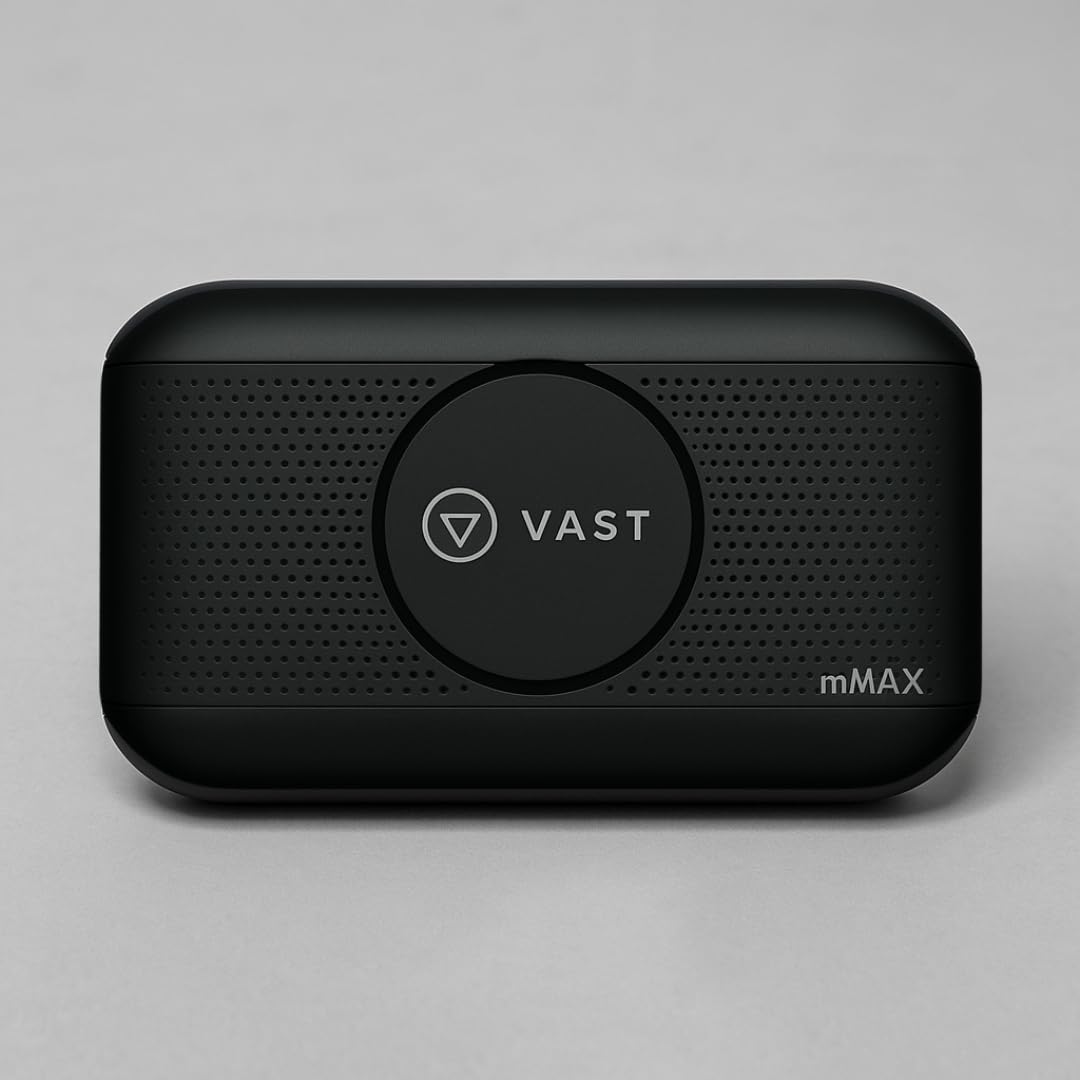
Image: Front view of the VAST H1 Hotspot, highlighting key features such as removable 3000mAh battery, fast 4G LTE speed, ability to connect up to 10 devices, inclusion of USB cable, wall charger, and user manual, and its unlocked status.
Device Components:
- Power Button: Used to turn the device on or off.
- Display Screen: Shows network status, battery level, signal strength, and connected devices.
- SIM Card Slot: Located under the battery cover, for inserting a 4G LTE SIM card.
- USB Port: For charging the device and potentially for wired tethering to a single computer.
- Wi-Fi Indicator: Shows Wi-Fi status.
- Signal Indicator: Displays cellular signal strength.
- Battery Indicator: Shows current battery level.
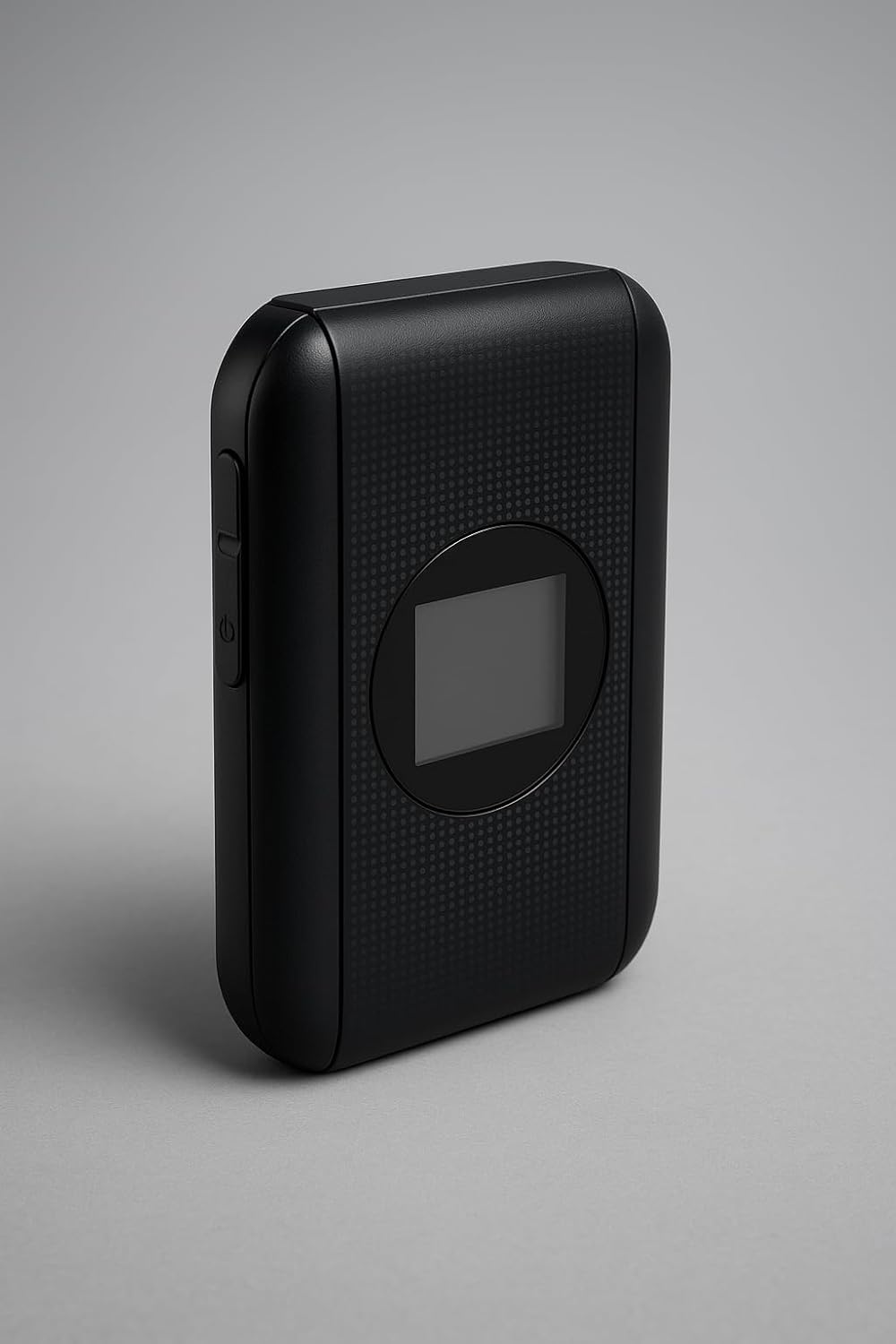
Image: Side view of the VAST H1 Hotspot, illustrating the power button and device profile.
Setup
1. Inserting the SIM Card:
- Ensure the VAST H1 device is powered off.
- Carefully remove the back cover of the device.
- Locate the SIM card slot.
- Insert your activated 4G LTE SIM card into the slot with the gold contacts facing down and the notched corner aligned correctly.
- Replace the back cover and ensure it is securely fastened.
2. Charging the Device:
- Connect the provided USB cable to the VAST H1's USB port.
- Connect the other end of the USB cable to the wall charger.
- Plug the wall charger into a power outlet.
- The battery indicator on the device will show charging status. Allow the device to fully charge before first use.
Operating Instructions
1. Powering On/Off:
- To power on, press and hold the Power button until the display screen illuminates.
- To power off, press and hold the Power button until the device shuts down.
2. Connecting Devices via Wi-Fi:
- Ensure the VAST H1 is powered on and has established a cellular connection (indicated by the signal icon).
- On your Wi-Fi enabled device (smartphone, laptop, tablet), search for available Wi-Fi networks.
- Locate the network name (SSID) of your VAST H1 hotspot. The SSID and default password are typically found on a sticker inside the battery compartment or on the device packaging.
- Select the VAST H1 network and enter the Wi-Fi password when prompted.
- Your device should now be connected to the internet through the VAST H1 hotspot.
3. Wi-Fi Band Selection (2.4GHz / 5GHz):
The VAST H1 supports both 2.4GHz and 5GHz Wi-Fi bands. However, only one band can be active at a time. To switch between bands:
- Access the device's web management interface (usually via a web browser on a connected device, e.g., 192.168.x.x). Refer to the device's display or packaging for the exact IP address and login credentials.
- Navigate to the Wi-Fi settings section.
- Select your preferred Wi-Fi band (2.4GHz for wider range, 5GHz for faster speeds over shorter distances).
- Save the changes. The device will restart its Wi-Fi module.
4. Advanced Settings (APN Configuration):
For some carriers, manual APN (Access Point Name) configuration may be required. This is typically done through the device's web management interface.
- Log in to the web management interface.
- Locate the Network Settings or APN settings section.
- If your carrier requires a specific APN, enter the details provided by your carrier (APN name, username, password, etc.).
- Save the new APN profile.
Important Note: Some users have reported that custom APN profiles may not persist after the device reboots. If you encounter this issue, you may need to re-enter the APN settings after each restart. Ensure your SIM card is fully activated with your chosen carrier.
Maintenance
- Cleaning: Use a soft, dry cloth to clean the device. Avoid liquid cleaners.
- Storage: Store the device in a cool, dry place away from direct sunlight and extreme temperatures.
- Battery Care: To prolong battery life, avoid fully discharging the battery frequently. If storing for extended periods, charge the battery to about 50%.
- Firmware Updates: Check the manufacturer's website periodically for firmware updates to ensure optimal performance and security.
Troubleshooting
| Problem | Possible Cause | Solution |
|---|---|---|
| No internet connection | No SIM card, inactive SIM, incorrect APN settings, no cellular signal. | Ensure SIM is inserted correctly and activated. Check APN settings. Move to an area with better signal. Restart the device. |
| Device won't power on | Low battery, faulty battery, power button issue. | Charge the device fully. If the device only powers on when plugged in, the battery may be depleted or faulty. |
| Wi-Fi connection drops frequently | Interference, too many connected devices, device too far from hotspot. | Reduce distance to hotspot. Minimize interference from other electronic devices. Limit number of connected devices. |
| Slow internet speed | Weak cellular signal, network congestion, data plan limitations, 2.4GHz Wi-Fi band selected. | Move to an area with better signal. Check your data plan. Switch to 5GHz Wi-Fi band if available and within range. |
| Custom APN settings not saving | Firmware limitation or bug. | Re-enter APN settings after each reboot. Check for firmware updates that might address this issue. |
Specifications
- Model Name: H1
- Connectivity Technology: 4G LTE
- Wireless Communication Standard: 802.11a (Wi-Fi)
- Frequency Band Class: Dual-Band (2.4GHz and 5GHz, selectable)
- Battery: 3000mAh Nonstandard Battery (included)
- Item Weight: 7.2 ounces
- Package Dimensions: 4.41 x 3.07 x 2.24 inches
- Color: Black
- Special Feature: High-Speed 4G LTE Connectivity, GSM Unlocked
- Compatible Devices: Smartphones, Laptops, Tablets, etc.
- Recommended Uses: Home WiFi, Mobile Hotspot, Travel
Warranty and Support
For warranty information and technical support, please refer to the documentation included with your purchase or contact the retailer/manufacturer directly. Keep your proof of purchase for warranty claims.
Note: The product is described as "open-box, like-new condition" and "includes all original accessories". Warranty terms may vary for such items. Please consult your seller for specific warranty details.