
1. Introduction and Overview
The Dell 24 Plus Monitor S2425HSM is a 23.8-inch Full HD (1920x1080) display designed for crisp and smooth visuals. It features a 144Hz refresh rate, 1ms Moving Picture Response Time (MPRT), and integrated dual 3W speakers. This monitor is TÜV 4-star certified for eye comfort, reducing harmful blue light emissions while maintaining image quality.
Key features include:
- Elevated Visuals: FHD resolution and 1500:1 contrast ratio for clarity, combined with a 144Hz refresh rate and 1ms MPRT for a smooth, tear-free viewing experience.
- Integrated Audio: Dual 3W speakers provide immersive sound without external clutter.
- Eye Comfort: TÜV 4-star certified display reduces blue light emissions for prolonged viewing comfort.
- Ergonomic Design: Adjustable stand allows for height, tilt, pivot, and swivel adjustments.
- Productivity Tools: Compatible with Dell Display and Peripheral Manager for optimized workspace performance.
2. What's in the Box
Verify that all components are present before proceeding with setup:
- Monitor with Stand
- Power cable
- 1 x HDMI 1.4 cable (1.80 m)
- QR Card
- Safety/Environmental/Regulatory Information
3. Setup Instructions
3.1 Assembling the Monitor Stand
The monitor comes with a pre-assembled stand. Ensure the stand is securely attached to the monitor panel. If not, follow the instructions provided in the Quick Setup Guide included in the box.

Figure 3.1: Front view of the Dell S2425HSM monitor with its stand.
3.2 Connecting the Monitor
Connect the monitor to your computer using the provided HDMI cable. Ensure the power cable is connected to the monitor and a power outlet.
- Connect one end of the HDMI cable to the HDMI port on your computer.
- Connect the other end of the HDMI cable to one of the HDMI ports (2x HDMI 1.4) on the back of the monitor.
- Connect the power cable to the monitor's power connector and then to a wall outlet.
- Press the power button on the monitor to turn it on.

Figure 3.2: Rear view of the Dell S2425HSM monitor showing HDMI ports, power connector, and security lock slot.
4. Operating the Monitor
4.1 Power On/Off
The power button is typically located on the back or bottom edge of the monitor. Press it once to turn the monitor on or off.
4.2 On-Screen Display (OSD) Menu
The monitor features a joystick control on the back for navigating the On-Screen Display (OSD) menu. This menu allows you to adjust various settings such as brightness, contrast, color modes, input source, and audio volume.
- Push the joystick inward to activate the OSD menu.
- Move the joystick up, down, left, or right to navigate through menu options.
- Push the joystick inward again to select an option or confirm a setting.
5. Adjustments and Ergonomics
The Dell S2425HSM monitor is designed for optimal viewing comfort with a highly adjustable stand. You can modify its position to suit your preferences throughout the day.
- Height Adjustment: Raise or lower the monitor to align the top of the screen with your eye level.
- Tilt Adjustment: Tilt the screen forward or backward to minimize glare and optimize your viewing angle.
- Swivel Adjustment: Rotate the monitor left or right on its base to share your screen or adjust your viewing position.
- Pivot Adjustment: Rotate the screen 90 degrees to switch between landscape and portrait orientations, ideal for coding or long documents.

Figure 5.1: Monitor adjustability options for height, tilt, swivel, and pivot.
6. Audio Features
The Dell S2425HSM monitor includes integrated dual 3W speakers, providing a clear and balanced audio experience without the need for external speakers. Adjust the volume through the OSD menu or your connected device's audio controls.

Figure 6.1: The monitor's integrated dual 3W speakers deliver a wider range of frequencies.
7. Eye Comfort Features
This monitor is TÜV 4-star certified, indicating advanced features for eye comfort. It reduces harmful blue light emissions without compromising color accuracy, making it suitable for extended use.

Figure 7.1: TÜV 4-star certified display for reduced blue light and eye comfort.
8. Dell Display and Peripheral Manager
Optimize your workspace with Dell's innovative application. The Dell Display and Peripheral Manager allows you to easily arrange applications across screens with pre-set partitions and customize up to five windows, enhancing multitasking capabilities.
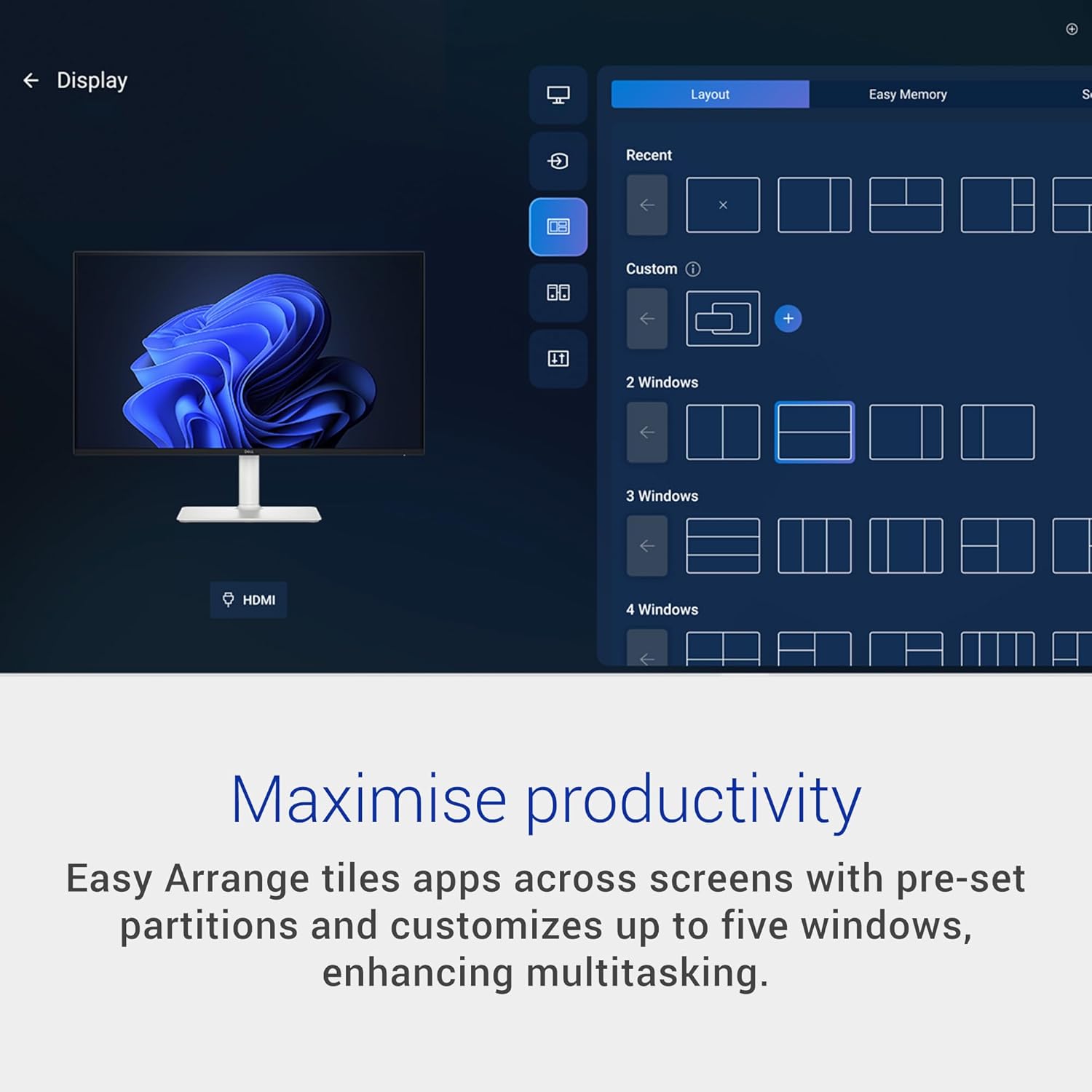
Figure 8.1: Dell Display and Peripheral Manager for enhanced productivity.
9. Connectivity
The Dell S2425HSM monitor offers versatile connectivity options:
- HDMI: Two HDMI 1.4 ports (HDCP 1.4) supporting up to 1920 x 1080 resolution.
- Adaptive Sync: Features AMD FreeSync for smooth, tear-free visuals during gaming.
Video 9.1: Official Dell video highlighting the monitor's speed and precision.
10. Specifications
| Feature | Detail |
|---|---|
| Brand | Dell |
| Model Number | S2425HSM |
| Screen Size | 24 Inches (23.8-inch viewable) |
| Resolution | FHD 1080p (1920x1080 Pixels) |
| Refresh Rate | 144 Hz |
| Response Time | 1ms MPRT (Moving Picture Response Time) |
| Display Type | LCD, IPS Panel |
| Aspect Ratio | 16:9 |
| Contrast Ratio | 1500:1 |
| Brightness | 300 cd/m² |
| Color Gamut | 99% sRGB |
| Viewing Angle | 178 Degrees |
| Connectivity | 2 x HDMI 1.4 (HDCP 1.4) |
| Adaptive Sync | AMD FreeSync |
| Speakers | 2 x 3W Built-in Speakers |
| Adjustability | Height, Tilt, Swivel, Pivot |
| Eye Care Technology | TÜV 4-star certified, Flicker-Free, Anti-Glare Screen |
| Color | Ash White |
| Item Dimensions (D x W x H) | 7.55"D x 21.17"W x 13.66"H |
| Item Weight | 11.05 Pounds |
| Power Consumption | 14.3 Watts |
11. Maintenance and Care
To ensure the longevity and optimal performance of your Dell monitor, follow these maintenance guidelines:
- Cleaning the Screen: Use a soft, lint-free cloth lightly dampened with water or a screen-cleaning solution. Avoid harsh chemicals or abrasive materials.
- Cleaning the Casing: Wipe the monitor casing with a soft, dry cloth.
- Ventilation: Ensure adequate airflow around the monitor by keeping vents clear of obstructions.
- Power Management: Turn off the monitor when not in use to conserve energy and extend its lifespan.
12. Troubleshooting
If you encounter issues with your monitor, refer to the following common troubleshooting steps:
- No Power:
- Check if the power cable is securely connected to both the monitor and the power outlet.
- Verify the power outlet is functional by plugging in another device.
- No Image/Black Screen:
- Ensure the HDMI cable is properly connected to both the monitor and the computer.
- Select the correct input source using the OSD menu.
- Restart your computer.
- Flickering Screen:
- Check the display resolution and refresh rate settings on your computer to ensure they are within the monitor's supported range.
- Ensure the HDMI cable is not damaged.
- No Sound from Speakers:
- Increase the volume using the OSD menu or your computer's audio settings.
- Ensure the correct audio output device is selected on your computer.
For more detailed troubleshooting, refer to the full user manual available on the Dell support website.
13. Warranty and Support
The Dell 24 Plus Monitor - S2425HSM comes with a 1-Year Advanced Exchange Service and Premium Panel Exchange. This warranty covers manufacturing defects and provides a replacement unit if an issue cannot be resolved remotely.
For technical support, warranty claims, or additional information, please visit the official Dell support website or contact Dell customer service.
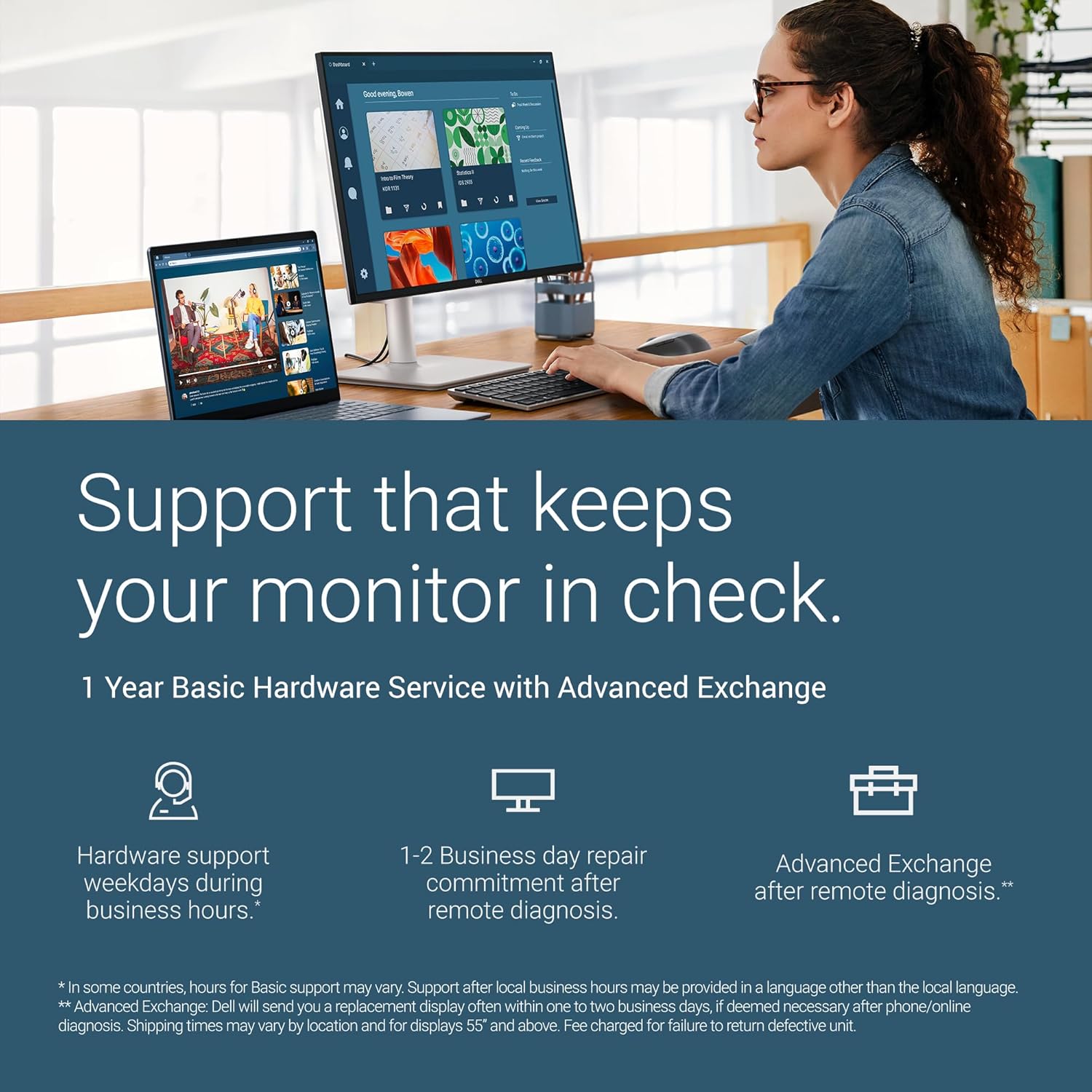
Figure 13.1: Dell's comprehensive support services for your monitor.
14. Environmental Standards
This monitor is certified ENERGY STAR®, meaning it has met high standards for energy efficiency. Dell is committed to circular design, utilizing recycled and repurposed materials in its products to promote sustainability.

Figure 14.1: The Dell S2425HSM monitor meets ENERGY STAR® environmental standards.
Video 14.2: Official Dell video discussing product sustainability and circular design.