
1. Introduction
Your Nikon Z6 III is a high-performance camera, but it can be intimidating at first. Button functions change depending on the mode, menus are deep, and a slight setting error can ruin a shot. This guide is designed for those who want to shoot without hesitation. The Nikon Z6 III Beginner's Guide walks new users through operations in the order they would actually encounter them. Starting with the basics needed on day one, you'll master operations in short, practical steps.
This manual covers essential topics to help you get started:
- Items to check before shooting, accessory verification, and simple equipment preparation.
- Power and memory card selection, including how to utilize Slot 1 and Slot 2.
- Initial setup procedures, safe reset methods, and reliable starter configurations.
- Detailed explanation of main operating parts to clarify their functions.
- Achieving confident auto shooting early on, with key points for focus and exposure confirmation.
- Basic exposure operations using Program (P), Aperture-priority (A), and Shutter-priority (S) modes, along with setting examples for typical scenes.
- Beginner-friendly autofocus (AF) usage, subject detection, and 3D tracking.
- Image quality settings and color selection to enhance your photographs.
- Video recording fundamentals, focusing on stable footage and clear audio.
- Playback, transferring images to smartphones and PCs, and establishing safe backup habits.
- Solutions for common problems new users often encounter.
- Short practice plans to reinforce learned content.
With the Z6 III in hand, follow this guide from the first page, and you will be well-prepared to capture reliable and high-quality images and videos.
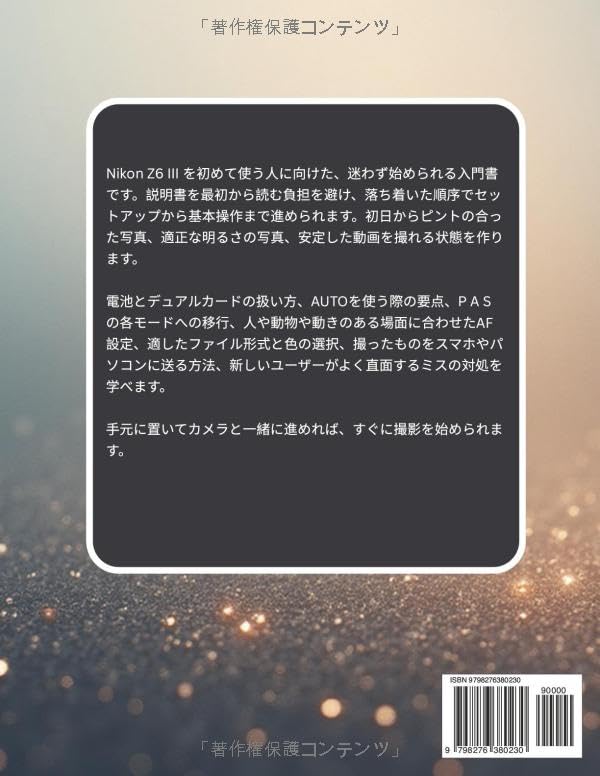
Image 1.1: Back cover of the user guide, detailing the topics covered in the manual.
2. Setup
2.1 Unpacking and Initial Inspection
Carefully unpack your Nikon Z6 III camera and all accessories. Verify that all components listed in the packaging contents are present. Inspect the camera body and lens for any visible damage.
2.2 Battery and Memory Card Installation
- Charging the Battery: Insert the supplied EN-EL15c battery into the battery charger and connect it to a power outlet. The charging indicator will blink during charging and turn steady when complete.
- Inserting the Battery: Open the battery chamber cover on the bottom of the camera. Insert the charged battery with the contacts facing the correct direction until it clicks into place. Close the cover securely.
- Inserting Memory Cards: The Z6 III features two memory card slots. Open the memory card slot cover. Insert your CFexpress (Type B) card into Slot 1 and your SD card into Slot 2, ensuring they are oriented correctly. Push until they click. Close the cover.
2.3 Attaching a Lens
Align the mounting mark on the lens with the mounting mark on the camera body. Rotate the lens counter-clockwise until it clicks into place. To remove, press the lens release button and rotate the lens clockwise.
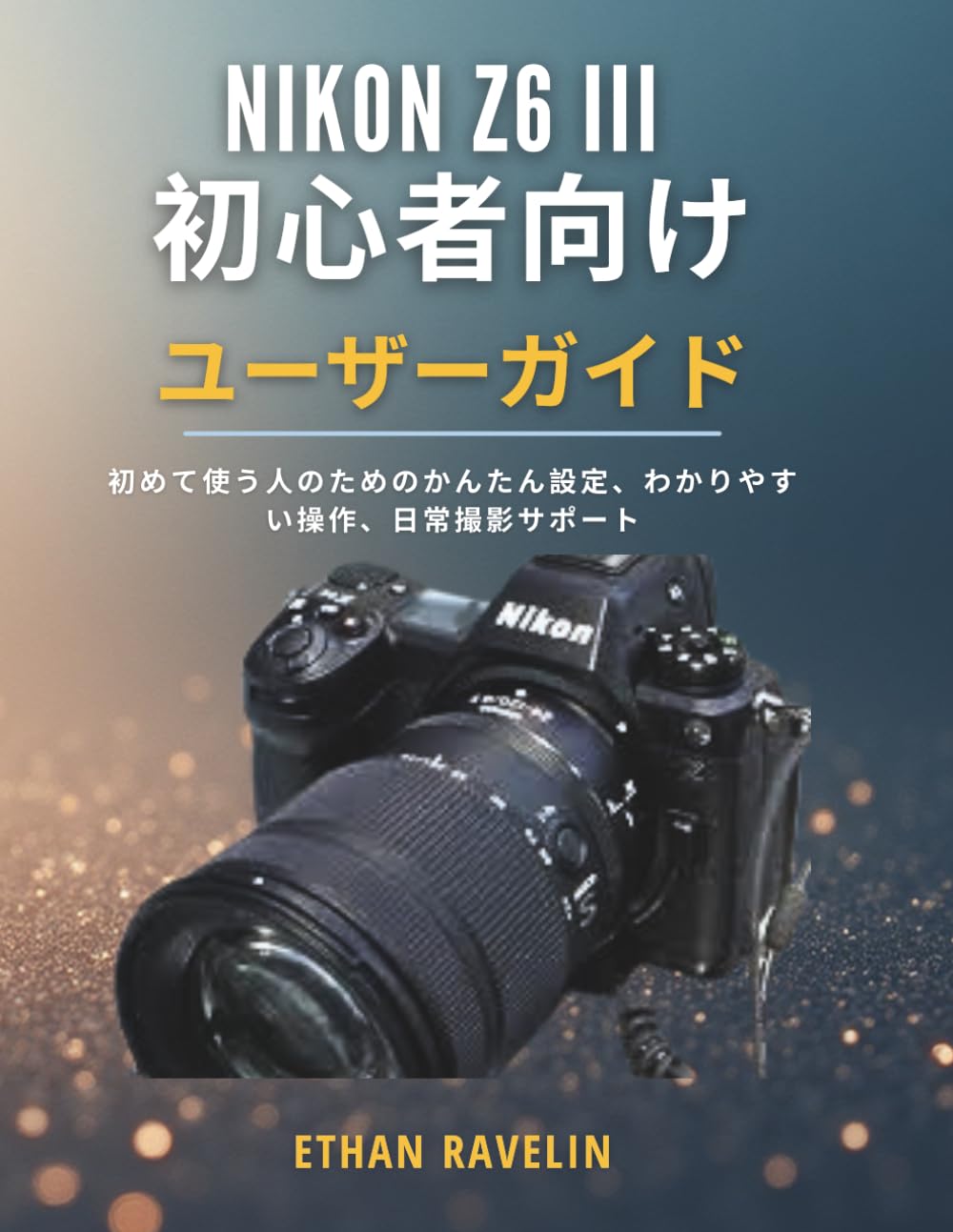
Image 2.1: The Nikon Z6 III camera with a lens, ready for use.
3. Operating Instructions
3.1 Basic Shooting Modes
The Z6 III offers various shooting modes to suit different situations. Rotate the mode dial to select your desired mode:
- P (Programmed Auto): The camera automatically sets both shutter speed and aperture for optimal exposure.
- A (Aperture-Priority Auto): You set the aperture, and the camera automatically selects the shutter speed. Ideal for controlling depth of field.
- S (Shutter-Priority Auto): You set the shutter speed, and the camera automatically selects the aperture. Useful for controlling motion blur.
- M (Manual): You control both shutter speed and aperture.
- AUTO: Fully automatic mode for simple point-and-shoot operation.
3.2 Autofocus (AF) Settings
The Z6 III features advanced autofocus capabilities. To adjust AF settings:
- Press the i button or navigate through the menu to access AF-area mode and AF mode settings.
- AF-Area Mode: Select from options like Single-point AF, Wide-area AF, Auto-area AF, and 3D-tracking for various subject types.
- AF Mode: Choose between AF-S (Single-servo AF) for stationary subjects or AF-C (Continuous-servo AF) for moving subjects.
- Subject Detection: Enable subject detection for humans, animals, or vehicles to improve focus accuracy.
3.3 Image Quality and Color
Adjust image quality and color settings to match your creative vision:
- Image Quality: Select between RAW, JPEG, or RAW+JPEG. RAW files offer maximum flexibility for post-processing.
- Image Size: Choose from Large, Medium, or Small depending on your needs.
- Picture Control: Apply various Picture Control settings (e.g., Standard, Neutral, Vivid, Portrait) to adjust color, tone, and sharpness.
- White Balance: Set white balance to match the light source (e.g., Auto, Daylight, Cloudy, Fluorescent) for accurate color reproduction.
3.4 Video Recording
The Z6 III is capable of high-quality video recording. To start recording:
- Rotate the photo/video selector to the video camera icon.
- Adjust video settings such as frame rate, resolution, and Picture Control in the video recording menu.
- Press the dedicated video record button to start and stop recording.
- For stable footage, consider using in-camera vibration reduction (VR) or an external gimbal. Ensure clear audio by using an external microphone if needed.
3.5 Playback and Transfer
Review your photos and videos, and transfer them to other devices:
- Playback: Press the playback button to view your images and videos on the camera monitor. Use the multi-selector to navigate.
- Transfer to Smartphone: Use the Nikon SnapBridge app to wirelessly transfer images to your smartphone or tablet.
- Transfer to PC: Connect the camera to your computer via USB, or insert the memory card directly into a card reader to transfer files.
- Backup Habits: Regularly back up your photos and videos to an external hard drive or cloud storage to prevent data loss.
4. Maintenance
4.1 Cleaning the Camera
Regular cleaning helps maintain your camera's performance and longevity:
- Camera Body: Use a soft, dry cloth to wipe the camera body. For stubborn dirt, slightly dampen the cloth with water or lens cleaner.
- Lens: Use a lens brush or blower to remove dust. For smudges, use a lens cleaning solution and a microfiber cloth. Avoid touching the lens surface with your fingers.
- Sensor: The Z6 III has an automatic sensor cleaning function. If dust spots persist, consult a professional service center.
4.2 Battery Care
Proper battery care ensures optimal performance:
- Store batteries in a cool, dry place when not in use.
- Avoid fully discharging batteries frequently.
- If storing for an extended period, charge batteries to about 50% capacity.
4.3 Firmware Updates
Nikon periodically releases firmware updates to improve camera performance and add new features. Check the official Nikon website for the latest firmware and follow the instructions carefully for installation.
5. Troubleshooting
This section addresses common issues new users might encounter:
| Problem | Possible Cause / Solution |
|---|---|
| Camera does not turn on. | Battery is not charged or incorrectly inserted. Check battery charge and reinsert. |
| Images are blurry. | Incorrect focus, camera shake, or slow shutter speed. Ensure proper focus, use a faster shutter speed, or enable VR. |
| Photos are too dark or too bright. | Incorrect exposure settings. Adjust aperture, shutter speed, ISO, or use exposure compensation. |
| Memory card error. | Card is full, corrupted, or incompatible. Try a different card, format the card (this will erase all data), or check compatibility. |
| Cannot transfer images to smartphone. | Bluetooth/Wi-Fi not enabled, or SnapBridge app not properly configured. Ensure camera and phone settings are correct. |
If you encounter issues not covered here, refer to the full camera manual or contact Nikon customer support.
6. Specifications
Key specifications for the Nikon Z6 III:
- ASIN: B0G492YSNK
- ISBN-13: 979-8276380230
- Publication Date: 2025/11/27
- Product Weight: 413 g
- Product Dimensions: 21.59 x 0.79 x 27.94 cm
- Language: Japanese (Original manual content)
Note: These specifications are for the user guide itself. For detailed camera specifications, please refer to the official Nikon Z6 III product page.
7. Warranty and Support
For information regarding your Nikon Z6 III camera's warranty, please refer to the warranty card included with your product or visit the official Nikon website for your region. Warranty terms and conditions may vary by country.
If you require technical assistance, repairs, or have questions not covered in this manual, please contact Nikon customer support through their official website or authorized service centers. Keep your proof of purchase handy when contacting support.


