
Introduction
This manual provides detailed instructions for the installation, operation, and maintenance of your SIXTOP 4K Dual Dash Camera. Please read this manual thoroughly before using the device to ensure proper functionality and to maximize your user experience. This dash camera system records both front (4K) and rear (1080P) views, offering comprehensive coverage for your vehicle.
What's in the Box
Verify that all items listed below are included in your package:
- 1 x Main Dash Cam (Front Camera)
- 1 x Rear View Camera
- 1 x Car Charger Power Cable
- 1 x Extended Line (for Rear Camera)
- 1 x Anti-Slip Mat
- 1 x 64GB TF Card
- 1 x User Manual

Image: All components included in the SIXTOP 4K Dual Dash Camera package.
Product Overview
The SIXTOP 4K Dual Dash Camera features a compact design with a 3.16-inch IPS screen. It includes a front camera for 4K recording and a rear camera for 1080P recording. Key features include built-in GPS, WiFi for app control, enhanced night vision, G-Sensor, loop recording, and 24-hour parking monitoring.

Image: Product dimensions and interface layout of the main dash camera unit.
Main Unit Controls and Ports:
- Power Button: Turns the device on/off.
- Menu Button: Accesses settings and menu options.
- OK Button: Confirms selections or starts/stops recording.
- Up/Down Buttons: Navigates through menu options.
- TF Card Slot: Insert the provided 64GB TF card here. Supports up to 128GB C10 high-speed cards.
- Type-C Power Port: Connects to the car charger.
- AV-IN Rear Cam Interface: Connects the rear camera.
Setup and Installation
Follow these steps for proper installation of your dash camera system:
- Mount Front Camera: Attach the main dash cam unit to the windshield, typically on the passenger side, ensuring it does not obstruct your view. Use the provided anti-slip mat or adhesive mount.
- Install Rear Camera: Apply the electrostatic film to the rear windshield, then attach the rear camera. Position it to capture a clear view of the rear.
- Run Rear Cam Cable: Connect the extended line from the rear camera to the AV-IN port on the main dash cam. Carefully hide the cable along the roof liner or panels using the included trim tool for a neat installation.
- Power Up: Plug the car charger into your vehicle's cigarette lighter socket and connect it to the Type-C power port on the main dash cam.
- Insert TF Card: Ensure the provided 64GB TF card is inserted into the TF card slot before powering on the device.

Image: Visual guide for installing the front and rear dash cameras and routing cables.
Initial Configuration:
- Upon first power-on, the camera may prompt you to format the TF card. It is recommended to format the card to ensure optimal performance.
- Adjust date, time, and other basic settings via the menu.
Operating Instructions
Dual Recording (4K Front & 1080P Rear)
The dash cam simultaneously records video from both the front (3840x2160P) and rear (1920x1080P) cameras. Recording starts automatically when the vehicle is powered on. The front camera offers a 150° wide angle, and the rear camera offers a 120° wide angle.

Image: Dual channel recording overview with front and rear camera views.
GPS Function
The built-in GPS module records your vehicle's lane drive route, speed, and location data. This information can be viewed during video playback via the dedicated app, providing crucial data in case of an incident.

Image: GPS tracking features and app integration.
WiFi & App Control
Connect your smartphone (iOS or Android) to the dash cam via its built-in WiFi. Download the dedicated app to view real-time video, playback recorded footage, download videos, and take photos directly from your phone.

Image: WiFi and app control interface on a smartphone.
Enhanced Night Vision
The dash cam is equipped with night vision technology and exposure adjustment, allowing it to capture clear details in low-light and strong-light conditions, preventing overexposure and ensuring visibility of license plates and road signs.
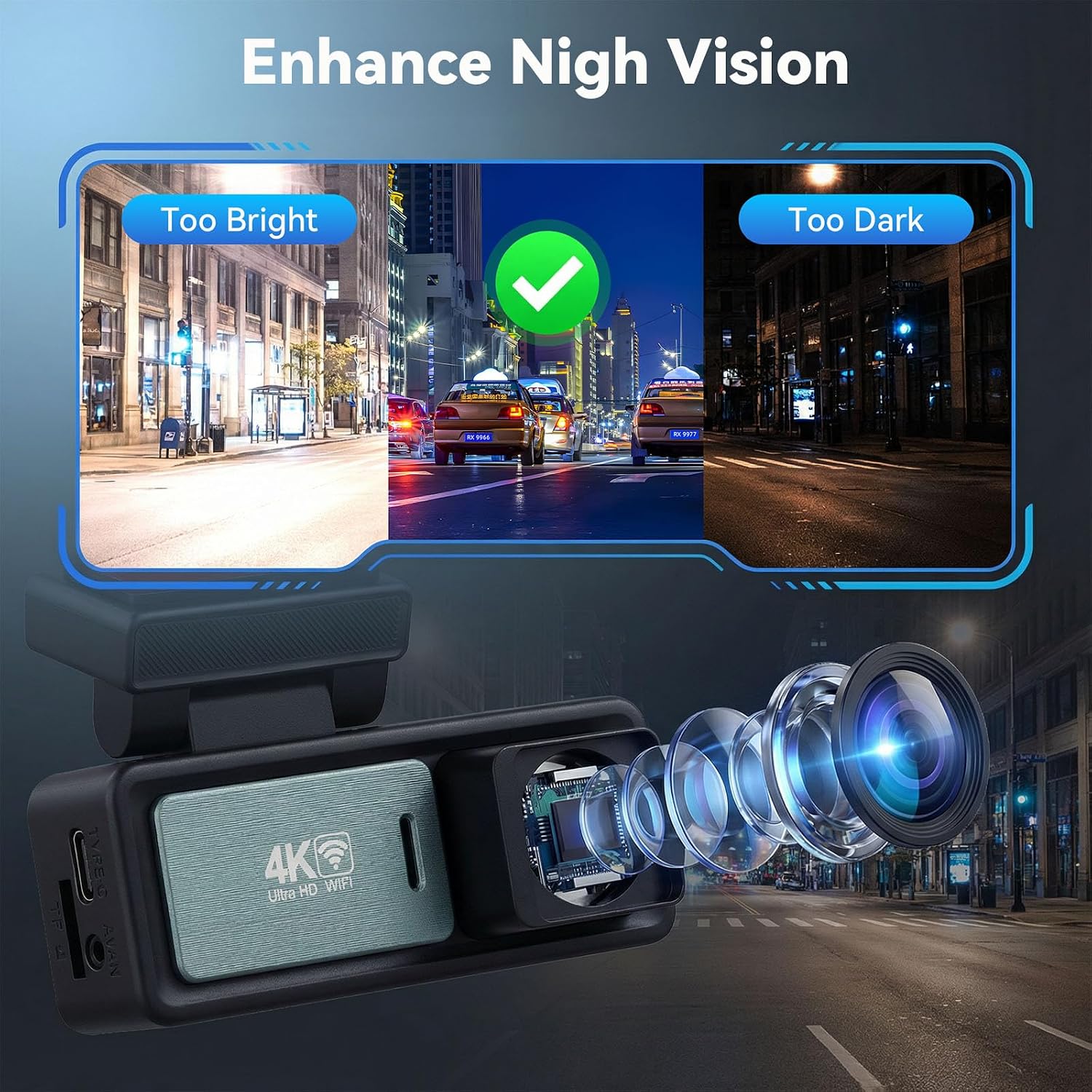
Image: Night vision performance in various lighting conditions.
G-Sensor (Emergency Recording)
The built-in G-Sensor detects sudden impacts or collisions. When triggered, it automatically activates recording and locks the current video file to prevent it from being overwritten, securing critical evidence.

Image: G-Sensor activation during an impact, securing video evidence.
Loop Recording
When the memory card reaches its full capacity, the loop recording function automatically overwrites the oldest unlocked video files with new recordings. This ensures continuous recording without manual intervention. The included 64GB card provides approximately 8 hours of recording time.

Image: Loop recording functionality and memory card capacity.
24-Hour Parking Monitoring Mode
When your car is parked, the dash cam can automatically switch to parking mode for continuous monitoring. This feature requires the purchase and installation of an additional ACC hardwire kit (not included). Delayed recording compresses videos to save power and storage space.

Image: 24-hour parking monitoring feature.
Reversing Assist
If the rear camera is connected to your vehicle's reversing light power supply, the recorder will automatically display a reverse assistance line on the screen when your car is in reverse, aiding in safe parking.
Maintenance
- Clean Lenses: Regularly clean the front and rear camera lenses with a soft, lint-free cloth to ensure clear video quality.
- Format TF Card: Periodically format the TF card (e.g., once a month) to maintain optimal performance and prevent data corruption. Back up any important files before formatting.
- Temperature: Avoid exposing the dash cam to extreme temperatures for extended periods, as this can affect battery life and device performance.
- Firmware Updates: Check the manufacturer's website or app for any available firmware updates to ensure your device has the latest features and bug fixes.
Troubleshooting
| Problem | Possible Solution |
|---|---|
| Dash cam does not power on. | Ensure the power cable is securely connected to both the dash cam and the car's cigarette lighter. Check the car's power outlet for functionality. |
| Recording stops unexpectedly. | Check if the TF card is full (loop recording should prevent this, but locked files can accumulate). Format the TF card. Ensure the TF card is a C10 high-speed card. |
| Video quality is poor. | Clean the camera lenses. Ensure the protective film has been removed from the lenses. Check video resolution settings in the menu. |
| WiFi connection issues. | Ensure WiFi is enabled on the dash cam. Restart both the dash cam and your smartphone. Try reconnecting through the app. |
| GPS not tracking location/speed. | Ensure the dash cam has a clear view of the sky for GPS signal acquisition. It may take a few minutes to acquire a signal after startup. |
Specifications
- Front Camera Resolution: 4K (3840x2160P)
- Rear Camera Resolution: 1080P (1920x1080P)
- Screen Size: 3.16 Inches IPS
- Connectivity: Wi-Fi, GPS
- Special Features: Night Vision, G-Sensor, Loop Recording, 24H Parking Monitor (requires hardwire kit), App Control, Reversing Assist
- Storage: Supports up to 128GB C10 high-speed TF card (64GB included)
- Mounting Type: Windshield Mount
- Control Method: Push Button
- Product Dimensions: Approximately 1"D x 1"W x 1"H (Main Unit)
- Item Weight: 1.32 pounds
Warranty and Support
For warranty information, please refer to the documentation provided with your purchase or contact the seller directly. The manufacturer, SIXTOP, provides support for this product.
If you encounter any issues or have questions regarding your SIXTOP 4K Dual Dash Camera, please contact the seller, xinshunhang, through the Amazon platform for assistance.
