
1. Safety Information
Please read all safety instructions carefully before using the EC Buying T90A Intelligent Soldering Iron Set. Failure to follow these instructions may result in electric shock, fire, or serious injury.
- Always wear appropriate personal protective equipment, including safety glasses, when operating the soldering iron.
- Ensure adequate ventilation in your workspace to avoid inhaling solder fumes.
- Do not touch the soldering iron tip or heating element when hot. Temperatures can reach up to 450°C.
- Place the soldering iron in its TH30 holder when not in use to prevent accidental burns or damage.
- Keep the soldering iron and all accessories out of reach of children and pets.
- Do not use the soldering iron near flammable materials or liquids.
- Disconnect the power cable when the soldering iron is not in use or before performing maintenance.
- Inspect the power cable and soldering iron for any damage before each use. Do not use if damaged.
- This device is designed for soldering electronic components and similar materials. Do not use it for purposes other than its intended use.
- The T90A Intelligent Soldering Iron Set includes a triple safety protection mechanism: resistance, MOS anomaly, and overcurrent detection. However, always exercise caution during operation.
2. Product Overview
The EC Buying T90A Intelligent Soldering Iron Set is a portable and efficient tool designed for precise soldering tasks. It features rapid heating, adjustable temperature control, and a clear IPS LCD color screen for real-time information.

Image: The EC Buying T90A Intelligent Soldering Iron, showcasing its sleek design and digital display.
Key Features:
- Precise Temperature Control: Adjustable temperature range from 80°C to 450°C with a 0.99-inch IPS LCD color screen displaying real-time temperature and power.
- Rapid Heating: 140W fast heating capability ensures quick readiness for soldering tasks.
- Compact and Portable: All-aluminum CNC-machined body for lightweight and durable design, ideal for on-the-go use.
- Smart Features: Supports PD protocol for automatic power detection, quick temperature setting, and sleep standby functions.
- Enhanced Safety: Incorporates triple safety protection mechanisms including resistance, MOS anomaly, and overcurrent detection.
3. Package Contents
Verify that all items are present in your package:
- EC Buying T90A Intelligent Soldering Iron
- TH30 Holder
- C2C Cable (USB-C to USB-C)
- 3 Type Soldering Iron Tips (Pencil, Chisel, Bevel)
- User Manual (this document)

Image: The T90A Soldering Iron with its various tips, highlighting precise temperature control and fast heating core.
4. Specifications
Technical specifications for the EC Buying T90A Intelligent Soldering Iron:
| Feature | Detail |
|---|---|
| Model | T90A |
| Brand | EC Buying |
| Power Source | Battery Powered (via C2C Cable, PD protocol) |
| Wattage | Up to 140W (Heating power for T90A is ~18-65W, but the set is 140W fast heating) |
| Temperature Range | 80°C - 450°C |
| Display | 0.99-inch IPS LCD (160*40 Pixel) |
| Handle Size | L178mm Ø16mm |
| Overall Weight | ~55g |
| Tip Type | T210 (Pencil, Chisel, Bevel included) |
| Resistance | 2.1Ω |
| Melting Time | ~2.5S (at 65W) |
| Special Features | Portable, Digital Display, Fast Heating, Adjustable Temperature, Sleep Standby, Triple Safety Protection |

Image: Detailed specifications table for the T90 series, including T90A.
5. Setup
5.1 Attaching a Soldering Tip
- Ensure the soldering iron is powered off and cool.
- Gently insert the desired soldering tip into the heating element end of the iron. Ensure it is fully seated.
- Do not force the tip. It should slide in smoothly.
5.2 Connecting Power
- Connect one end of the provided C2C cable to the USB-C port on the soldering iron.
- Connect the other end of the C2C cable to a compatible USB-C power adapter (not included) that supports PD protocol. The soldering iron supports automatic power detection.
- Place the soldering iron securely in the TH30 holder when not actively soldering.
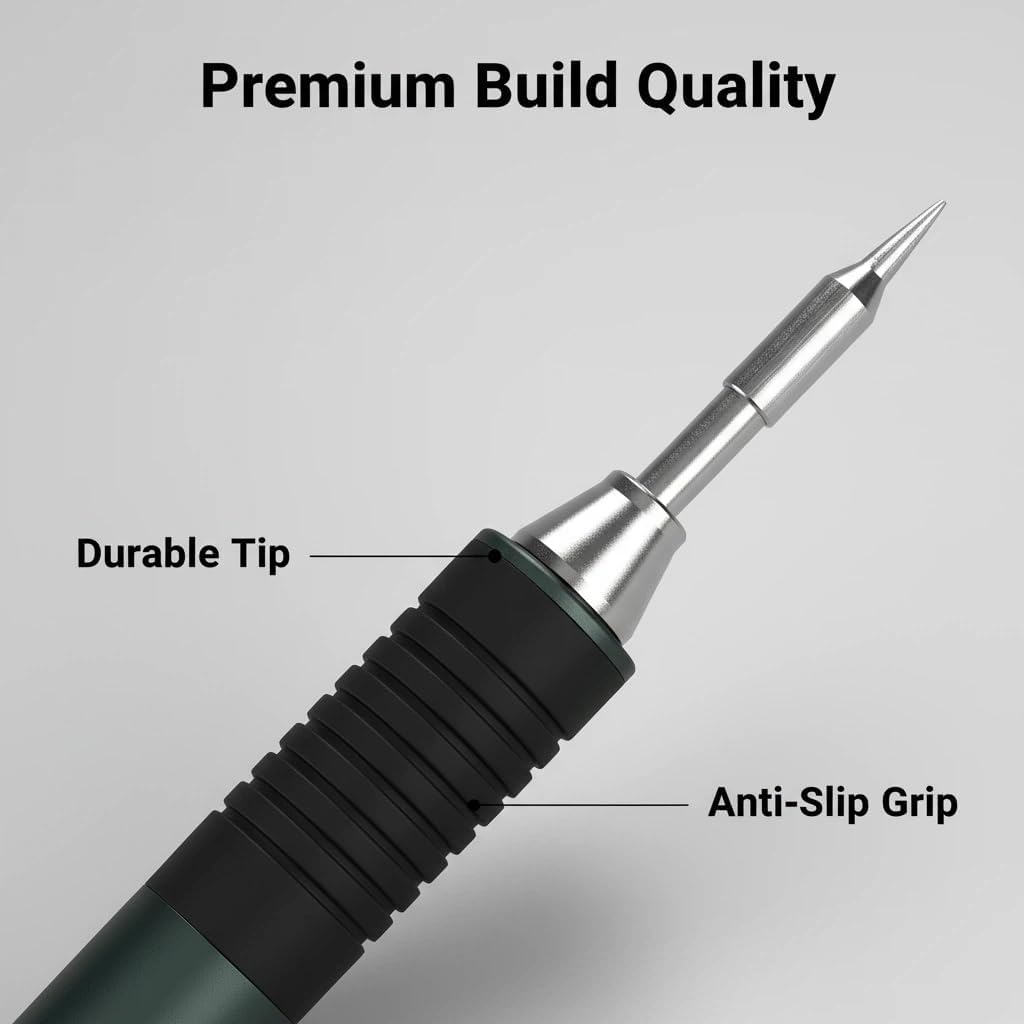
Image: Close-up view of the soldering iron's durable tip and anti-slip grip for secure handling.
6. Operating Instructions
6.1 Power On/Off
Once connected to a power source, the soldering iron will typically power on automatically. To power off, disconnect the C2C cable.
6.2 Temperature Adjustment
- The 0.99-inch IPS LCD color screen displays the current temperature.
- Use the adjustment buttons (usually '+' and '-' or similar) on the handle to increase or decrease the target temperature.
- The iron will rapidly heat up to the set temperature.
6.3 Sleep Standby Function
The soldering iron features an intelligent sleep standby function. If inactive for a set period, it will automatically enter sleep mode to conserve energy and prolong tip life. Movement or pressing a button will wake it up.
6.4 General Soldering Tips
- Ensure the soldering tip is clean and tinned before use.
- Apply a small amount of solder to the tip to improve heat transfer.
- Heat both the component lead and the PCB pad simultaneously with the soldering iron tip.
- Apply solder to the heated joint, not directly to the iron tip.
- Remove the solder and then the iron, allowing the joint to cool naturally.
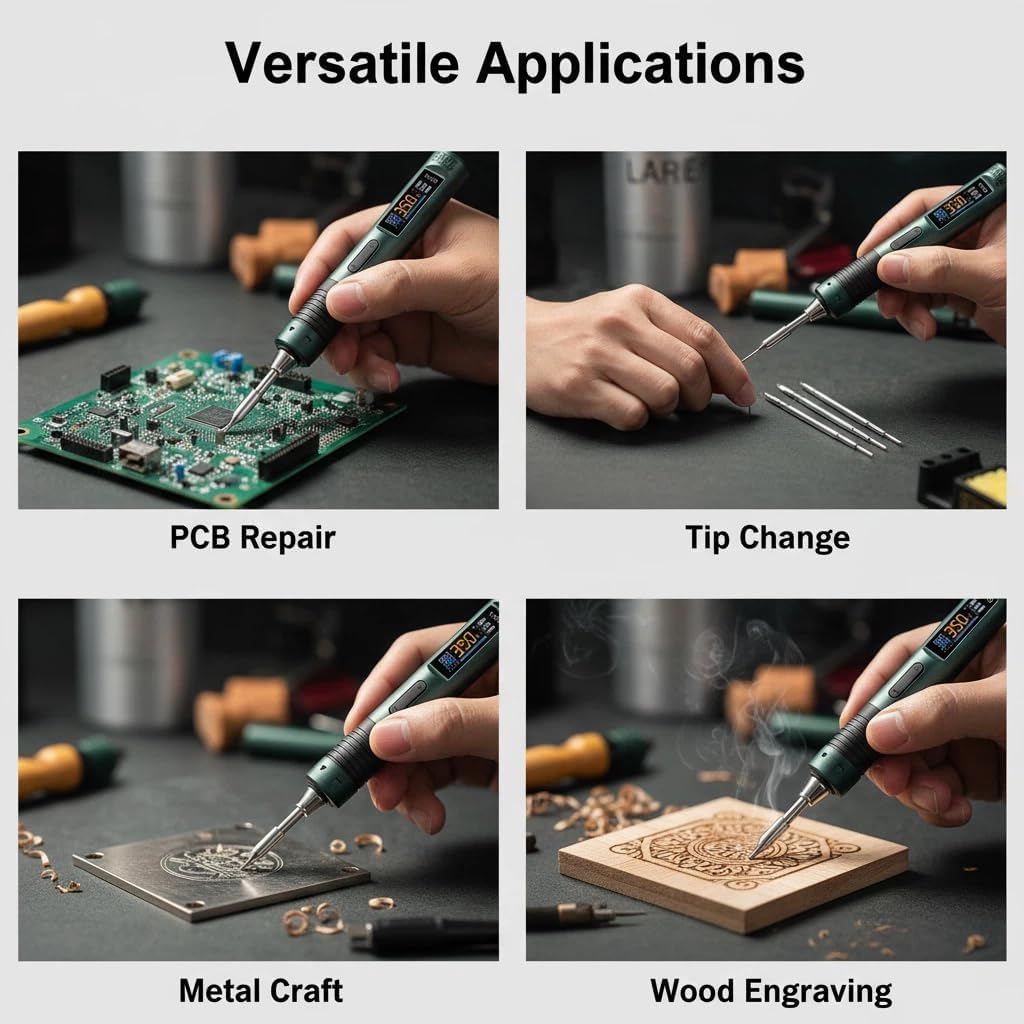
Image: The T90A soldering iron being used for various tasks including PCB repair, tip changing, metal crafting, and wood engraving.
7. Maintenance
7.1 Cleaning the Soldering Tip
- Regularly clean the soldering tip using a damp sponge or brass wool to remove excess solder and oxidation.
- After cleaning, re-tin the tip with a small amount of fresh solder to prevent oxidation and ensure optimal performance.
- Never file or sand the soldering tip, as this can damage the plating and shorten its lifespan.
7.2 General Cleaning
- Ensure the device is cool and disconnected from power before cleaning.
- Wipe the body of the soldering iron with a soft, dry cloth. Do not use abrasive cleaners or solvents.
7.3 Storage
- Store the soldering iron in a dry, cool place, away from direct sunlight and moisture.
- Always place the protective cap over the tip when storing to prevent accidental damage or injury.
8. Troubleshooting
| Problem | Possible Cause | Solution |
|---|---|---|
| Iron not heating up. | No power, faulty cable, incorrect power adapter. | Check C2C cable connection. Ensure power adapter supports PD protocol and provides sufficient power. Try a different power adapter/cable. |
| Temperature display is erratic. | Loose tip, sensor issue. | Ensure the soldering tip is fully and securely inserted. If the problem persists, contact customer support. |
| Solder not melting easily. | Low temperature setting, oxidized tip, insufficient power. | Increase the temperature setting. Clean and re-tin the soldering tip. Ensure power adapter provides adequate wattage. |
| Iron enters sleep mode too quickly. | Default sleep setting. | Refer to the on-screen menu (if available) for adjusting sleep timer settings. |
9. Warranty and Customer Support
EC Buying products are manufactured to high-quality standards. For warranty information or technical support, please refer to the purchase platform or contact EC Buying customer service directly.
Please retain your proof of purchase for any warranty claims.
You can visit the EC Buying Store on Amazon for more information or to contact support.