
jumper J1
Jumper J1 16-inch Convertible Laptop User Manual
Model: J1
1. Introduction
This manual provides essential information for setting up, operating, and maintaining your Jumper J1 16-inch Convertible Laptop. Please read this guide thoroughly to ensure proper use and to maximize the performance and longevity of your device. Keep this manual for future reference.
2. Product Overview
The Jumper J1 is a versatile 16-inch convertible laptop designed for various tasks, from productivity to entertainment. Its 360-degree hinge allows for seamless transitions between multiple modes, adapting to your needs. Key features include a responsive touchscreen, a backlit keyboard, and a fingerprint reader for enhanced security.

Image: The Jumper J1 laptop demonstrating its 360-degree hinge, allowing it to be used in laptop, tent, stand, and tablet configurations.
Video: An overview of the Jumper 16-inch Convertible Laptop, showcasing its design and flexibility.
3. Setup
3.1 Initial Power On
- Unpack the laptop, adapter, and instruction manual from the box.
- Connect the power adapter to the laptop's DC-in port and plug it into a power outlet.
- Press the power button located on the side of the laptop to turn it on.
3.2 Windows 11 Home Setup
Follow the on-screen prompts to complete the initial setup of Windows 11 Home. This includes selecting your region, language, connecting to a Wi-Fi network, and creating a user account.
3.3 Office 365 Activation
Your laptop comes with a one-year subscription to Office 365. Follow the instructions provided on-screen or in the included documentation to activate your subscription and gain access to Word, Excel, PowerPoint, and other productivity tools.
4. Operating Your Laptop
4.1 Convertible Modes
The Jumper J1 features a 360-degree rotating hinge, allowing it to be used in four distinct modes:
- Laptop Mode: Traditional laptop configuration for typing and productivity.
- Tablet Mode: Fold the screen completely back to use as a tablet for browsing or drawing.
- Tent Mode: Position the laptop in an inverted 'V' shape for hands-free viewing of media.
- Stand Mode: Flip the keyboard underneath the screen to present or watch content.

Image: The Jumper J1 in traditional laptop mode, suitable for work meetings and general computing.

Image: The Jumper J1 in tablet mode, ideal for creative tasks like drawing or casual browsing.

Image: The Jumper J1 in tent mode, perfect for watching videos or following instructions hands-free.

Image: The Jumper J1 in stand mode, suitable for presentations or shared viewing.
4.2 Touchscreen Display
The 16-inch IPS touchscreen features a 1920x1200 resolution, providing clear visuals and responsive 10-point touch interaction. This enhances usability for navigation, drawing, and entertainment.

Image: The Jumper J1's 16-inch FHD display, highlighting its visual clarity and touch capabilities.
4.3 Backlit Keyboard
Activate the backlit keyboard by pressing the Fn + Spacebar keys simultaneously. This feature improves visibility in low-light conditions.

Image: Instructions for activating the backlit keyboard on the Jumper J1 laptop.
4.4 Fingerprint Reader
The integrated fingerprint reader provides a secure and convenient method for logging into your laptop. Register your fingerprint through Windows settings for quick access.

Image: A user utilizing the fingerprint reader for fast and secure access to the Jumper J1 laptop.
4.5 Hideable Camera
For privacy, the laptop features a hideable camera with a physical slide cover. Simply toggle the switch to cover or uncover the camera lens as needed.

Image: The hideable camera feature of the Jumper J1, illustrating how to toggle it for privacy.
5. Connectivity
5.1 Ports
The Jumper J1 is equipped with a variety of ports for flexible connectivity:
- 3 x USB 3.0 ports
- 1 x Type-C port
- 1 x HDMI port
- 1 x Headphone port
- 1 x Micro SD card slot
- DC-in port for power

Image: A detailed view of the Jumper J1's various connectivity ports.
5.2 Wireless Connectivity
The laptop supports advanced wireless standards for fast and stable connections:
- Wi-Fi 6 (802.11ax): For high-speed internet access and improved network efficiency.
- Bluetooth 5.2: For connecting wireless peripherals such as headphones, mice, and keyboards.

Image: The Jumper J1 demonstrating effortless wireless connectivity with Bluetooth devices.
6. Storage and Performance
6.1 Processor
The Jumper J1 is powered by an Intel Quad Core N95 Processor (up to 3.4GHz), providing efficient performance for everyday computing tasks, web browsing, office applications, and media streaming.

Image: Details of the Intel Celeron N95 processor, highlighting its core specifications.
6.2 Memory and Storage
The laptop includes 16GB DDR5 RAM and 640GB of storage (512GB SSD + 128GB eMMC). The SSD storage is expandable up to 2TB, allowing for ample space for documents, applications, and media files.
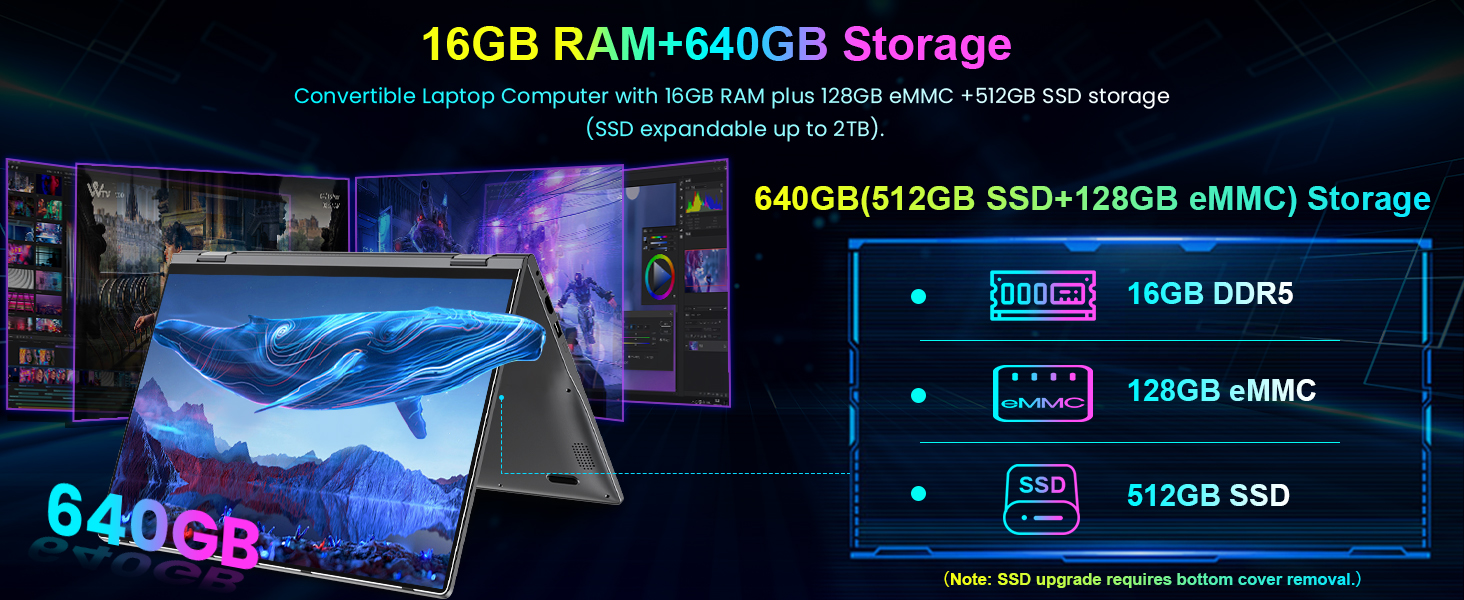
Image: A visual breakdown of the Jumper J1's memory and storage components.
6.3 Battery Life
The Jumper J1 is equipped with a large-capacity battery, offering up to 8 hours of usage on a single charge. This provides extended productivity and entertainment without frequent recharging.

Image: The Jumper J1's battery life supporting long hours of work or study.
7. Maintenance
7.1 Cooling System
The laptop incorporates an advanced cooling system with a fan to prevent overheating during intensive tasks. Ensure that the ventilation openings are not obstructed to maintain optimal performance and prolong the laptop's lifespan.

Image: A visual representation of the Jumper J1's internal cooling system.
7.2 General Care
- Keep the laptop clean by wiping surfaces with a soft, dry cloth.
- Avoid exposing the laptop to extreme temperatures, direct sunlight, or high humidity.
- Handle the laptop with care to prevent physical damage.
8. Troubleshooting
If you encounter issues with your Jumper J1 laptop, consider the following general troubleshooting steps:
- No Power: Ensure the power adapter is securely connected and the outlet is functional. Try a different power outlet.
- Screen Issues: If the screen is blank or flickering, try restarting the laptop. Check display settings if connected to an external monitor.
- Slow Performance: Close unnecessary applications, check for available storage space, and ensure Windows is up to date.
- Connectivity Problems: For Wi-Fi or Bluetooth issues, try restarting the laptop and your router/Bluetooth device. Check device drivers in Device Manager.
- Touchscreen Unresponsive: Restart the laptop. If the issue persists, check for updated touchscreen drivers.
For more complex issues, refer to the online support resources or contact Jumper customer service.
9. Specifications
| Feature | Specification |
|---|---|
| Brand | jumper |
| Model Name | J1 |
| Screen Size | 16 Inches |
| Screen Resolution | 1920 x 1200 pixels |
| Processor | Intel Quad Core N95 (up to 3.4GHz) |
| RAM | 16 GB DDR5 |
| Hard Drive | 640 GB SSD (512GB SSD + 128GB eMMC) |
| Graphics Coprocessor | Intel UHD Graphics |
| Operating System | Windows 11 Home |
| Wireless Type | Wi-Fi 6 (802.11ax), Bluetooth 5.2 |
| USB Ports | 3 x USB 3.0 |
| Other Ports | Type-C, HDMI, Headphone Port, Micro SD |
| Average Battery Life | 8 Hours |
| Item Weight | 5.05 pounds |
| Product Dimensions | 14.37 x 9.6 x 0.79 inches |
| Color | Gray |
| Special Features | 1 Year Office 365, 360° Rotation, Backlit Keyboard, Fingerprint Reader |
10. Warranty and Support
The Jumper J1 laptop typically comes with a 1-year manufacturer's warranty. For detailed warranty information, terms, and conditions, please refer to the warranty card included with your product or visit the official Jumper support website.
For technical assistance, troubleshooting, or customer service inquiries, please contact Jumper support through their official channels. Keep your purchase receipt and product serial number handy when seeking support.
Related documentsJ1


Ask a question about this manual
Ask about setup, troubleshooting, compatibility, parts, safety, or missing instructions. Manuals+ will review the question and use this page’s manual context to help answer it.