
OTTOCAST CA525
OTTOCAST Mini Pico Wireless CarPlay and Android Auto Adapter User Manual
Model: CA525
1. Introduction
The OTTOCAST Mini Pico is a compact wireless adapter designed to convert your vehicle's factory-wired CarPlay or Android Auto system into a wireless experience. This device utilizes advanced WiFi 6 and Bluetooth 5.4 technology to provide stable, low-latency connectivity for your iPhone (iOS 10+) or Android (Android 11+) smartphone. Enjoy seamless access to navigation, music, calls, and messages without the need for cables.
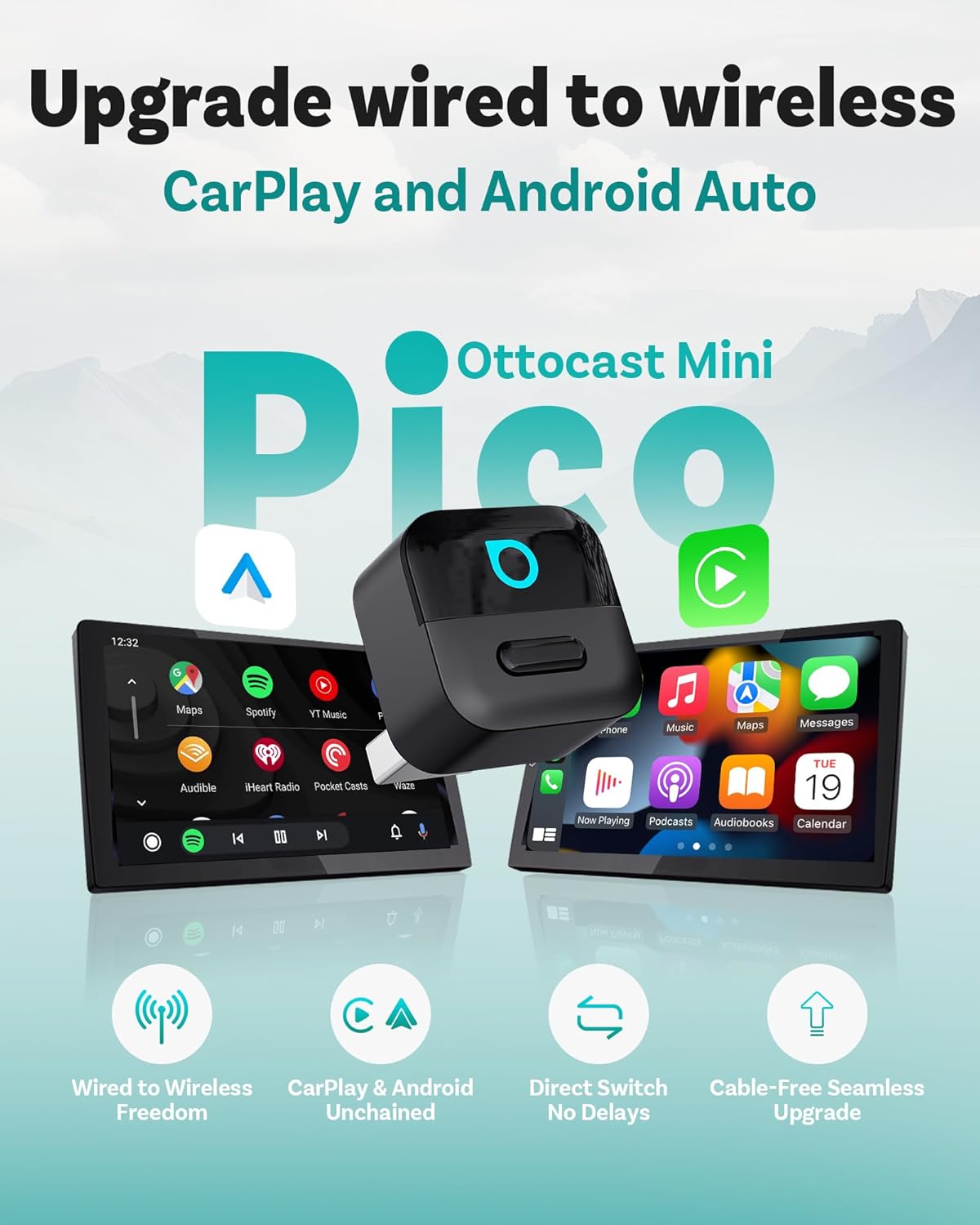
Image: The OTTOCAST Mini Pico adapter shown with its compact design, enabling wireless CarPlay and Android Auto on vehicle displays.
2. What's in the Box
- 1 x OTTOCAST Mini Pico Wireless CarPlay Adapter
- 1 x USB-A to USB-C Adapter
- 1 x User Manual

Image: Contents of the product packaging, showing the Mini Pico adapter, USB-A to USB-C adapter, and user manual.
3. Specifications
| Model Number | CA525 |
| Product Dimensions | 0.89"L x 0.89"W x 1.1"H (0.87 x 1.02 x 0.87 inches) |
| Item Weight | 6.4 Grams (0.226 ounces) |
| Hardware Interface | USB 2.0 Type A, USB 3.0 Type C |
| Data Link Protocol | Bluetooth 5.4, WiFi 6 (2.4GHz + 5GHz) |
| Compatible Devices | iPhone (iOS 10+), Android (Android 11+) Compatible with vehicles from 2016 onward equipped with factory wired CarPlay or Android Auto. |
| Incompatible Vehicles | Not for BMW/Tesla vehicles. |
4. Setup Guide
- Ensure Compatibility: Verify your vehicle has factory-wired CarPlay or Android Auto. The Mini Pico is not compatible with BMW or Tesla vehicles.
- Connect the Adapter: Plug the OTTOCAST Mini Pico into your vehicle's USB port that supports wired CarPlay or Android Auto. Use the provided USB-A to USB-C adapter if necessary.
- Bluetooth Pairing:
- On your vehicle's infotainment screen, follow the prompts to connect a device.
- On your smartphone, enable Bluetooth and search for available devices.
- Select the device named "CAR2-XXXX" (where XXXX is a unique identifier) from the Bluetooth list on your phone.
- Confirm the pairing request on both your phone and the car screen, if prompted.
- Allow contacts and favorites sync if desired.
- Connect to CarPlay/Android Auto: Once Bluetooth is paired, your phone will automatically connect to wireless CarPlay or Android Auto. Follow any on-screen prompts to complete the connection.

Image: Visual guide for the 3-step setup: Plug into USB port, Bluetooth pairing on phone, and successful connection displayed on the car screen.
Video: An unboxing and quick setup guide for the OTTOCAST Mini Pico adapter, demonstrating the plug-and-play process and initial Bluetooth pairing.
5. Operating Instructions
Automatic Reconnection
Once initially paired, the Mini Pico adapter will automatically reconnect to your smartphone every time you start your vehicle, ensuring CarPlay or Android Auto is ready for use without manual intervention.
Smart Button Functionality
The adapter features a smart button for convenient device management:
- One-Tap Disconnect: Press the button once to disconnect the currently active phone. This allows you to quickly switch to another paired device or use your phone independently.
- Switching Devices: If multiple phones are paired, pressing the button will disconnect the current phone and allow the system to connect to the next available paired device.

Image: The smart button on the Mini Pico adapter, designed for one-tap switching between paired devices (CarPlay and Android Auto).
Integrated Vehicle Controls
The Mini Pico adapter fully integrates with your vehicle's existing control interfaces, including:
- Voice Control (Siri, Google Assistant)
- Touchscreen
- OEM Control Knob
- Steering Wheel Buttons

Image: The adapter supports full integration with in-car interfaces, including voice control, touchscreen, OEM control knob, and steering wheel buttons.
6. Maintenance
Firmware Updates (OTA)
The OTTOCAST Mini Pico supports Over-The-Air (OTA) firmware updates to ensure optimal performance, compatibility with new operating systems, and bug fixes. To update:
- Connect your phone to the Mini Pico adapter.
- Open your phone's web browser and navigate to the update portal (usually an IP address displayed on the car screen during connection or found in the user manual).
- Check for available updates and follow the on-screen instructions to install.

Image: The process of performing an Over-The-Air (OTA) firmware update for the Mini Pico adapter using a smartphone.
Cleaning
Wipe the adapter with a soft, dry cloth. Do not use liquid cleaners or solvents.
7. Troubleshooting
| Problem | Possible Cause | Solution |
|---|---|---|
| Adapter not connecting / No CarPlay/Android Auto display. |
|
|
| Audio skipping or lag. |
|
|
| Adapter becomes hot. |
|
|
| Cannot switch between phones. |
|
|
Video: A user demonstrating the slight audio delay when skipping tracks using the wireless CarPlay adapter, a common characteristic of wireless units.
8. Support & Warranty
For further assistance, product registration, or warranty information, please visit the official OTTOCAST website or contact their customer support. You can also check for vehicle compatibility updates at check.adaptermanual.com/AMZ/.
Please refer to the packaging or the official OTTOCAST website for specific warranty terms and conditions.
Related documentsCA525


Ask a question about this manual
Ask about setup, troubleshooting, compatibility, parts, safety, or missing instructions. Manuals+ will review the question and use this page’s manual context to help answer it.