
1. Introduction
This manual provides instructions for the proper use and maintenance of your plplaaoo SC12022D wired 1D and 2D barcode scanner. This device is designed for fast and accurate scanning of both printed and screen-based barcodes, suitable for various retail, warehouse, and office environments.

Image 1.1: The plplaaoo SC12022D barcode scanner in operation, held by a user scanning a package. This illustrates the ergonomic design and typical use case of the device.
2. Safety Information
Please read and follow these safety guidelines to ensure safe operation and to prevent damage to the device or injury to yourself.
- Laser Safety: Do not stare directly into the scanning window or point the laser beam at eyes. This device uses a visible light laser.
- Environmental Conditions: Operate the scanner within the specified temperature range of 20℃ to +60℃. Avoid exposure to extreme temperatures, humidity, or dust.
- Handling: Handle the device with care. Avoid dropping or subjecting it to strong impacts.
- Cleaning: Use a soft, dry cloth for cleaning. Do not use abrasive cleaners or solvents.
3. Package Contents
Verify that all items are present in the package:
- plplaaoo SC12022D Barcode Scanner
- USB Cable (attached or separate)
- User Manual (this document)
4. Product Overview
The plplaaoo SC12022D is a handheld, gun-style barcode scanner designed for comfortable and efficient use. It features a high-resolution sensor for precise reading of various barcode types.
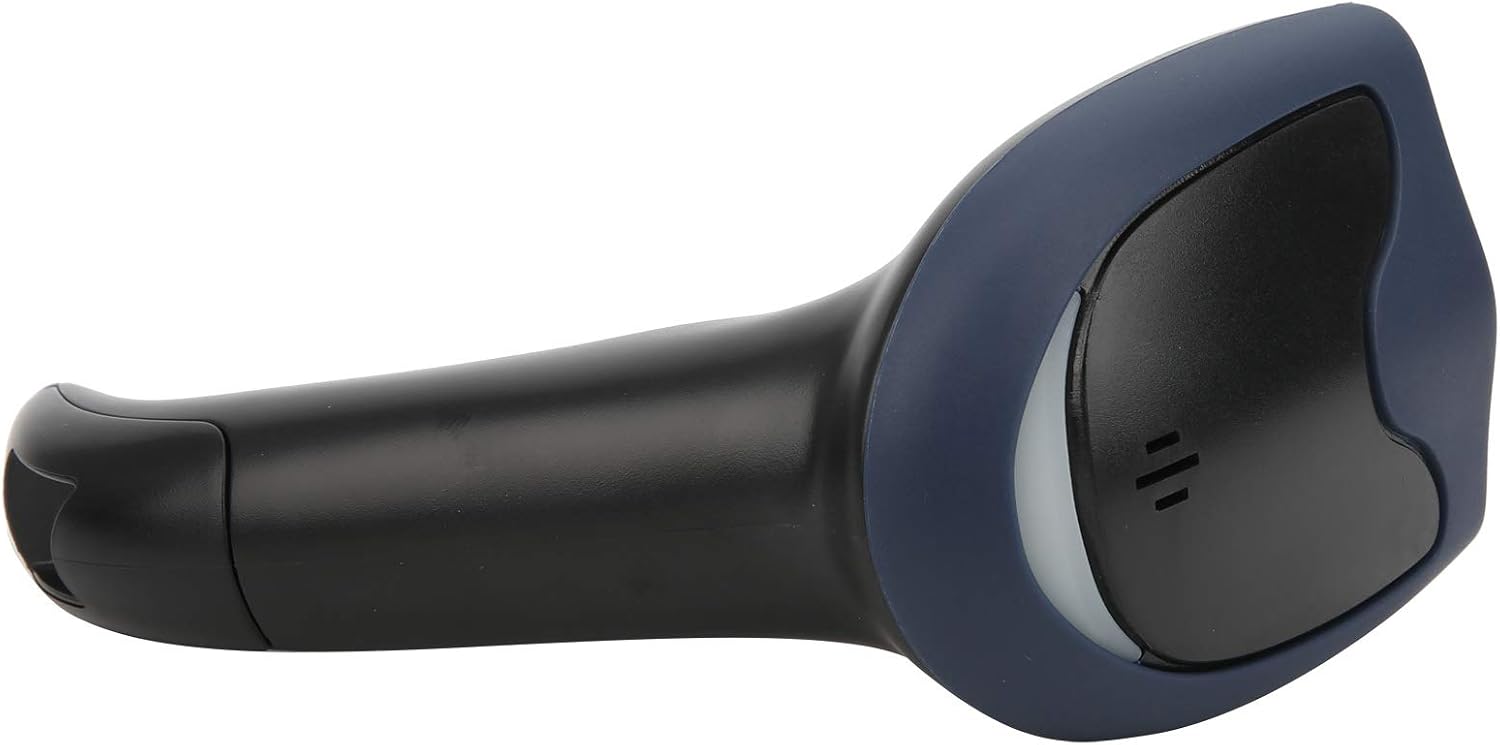
Image 4.1: Front view of the barcode scanner, highlighting the scanning window and the comfortable grip design.

Image 4.2: Side view of the barcode scanner, illustrating its contoured shape and the placement of the trigger button.

Image 4.3: A detailed view of the scanning window, where the laser beam is emitted and barcodes are read.
5. Setup
The plplaaoo SC12022D barcode scanner is designed for plug-and-play convenience. No driver installation is typically required for most operating systems.
- Connect the USB Cable: Locate the USB cable. If it is detachable, connect the smaller end to the port on the base of the scanner.
- Plug into Computer/POS System: Insert the standard USB-A end of the cable into an available USB port on your computer or Point-of-Sale (POS) system.
- System Recognition: Your operating system should automatically detect and install the necessary generic drivers. The scanner will typically emit a beep or flash an indicator light to confirm it is ready for use.

Image 5.1: The USB cable provided with the scanner, featuring a USB-A connector for the host device and a proprietary connector for the scanner.

Image 5.2: The USB cable securely connected to the port on the underside of the scanner's handle.
6. Operating Instructions
Once connected, the scanner functions as a keyboard wedge, inputting scanned data directly into any active text field.
- Aim: Point the scanning window towards the barcode you wish to read.
- Scan: Press and hold the trigger button. A red laser line or aiming pattern will appear. Position the laser line across the entire barcode.
- Confirmation: Upon successful scan, the scanner will emit a beep and/or the indicator light will flash. The barcode data will then appear in your active application.
- Scanning Performance: The scanner is capable of reading both 1D and 2D barcodes from paper and digital screens, even if they are poorly printed or slightly damaged.
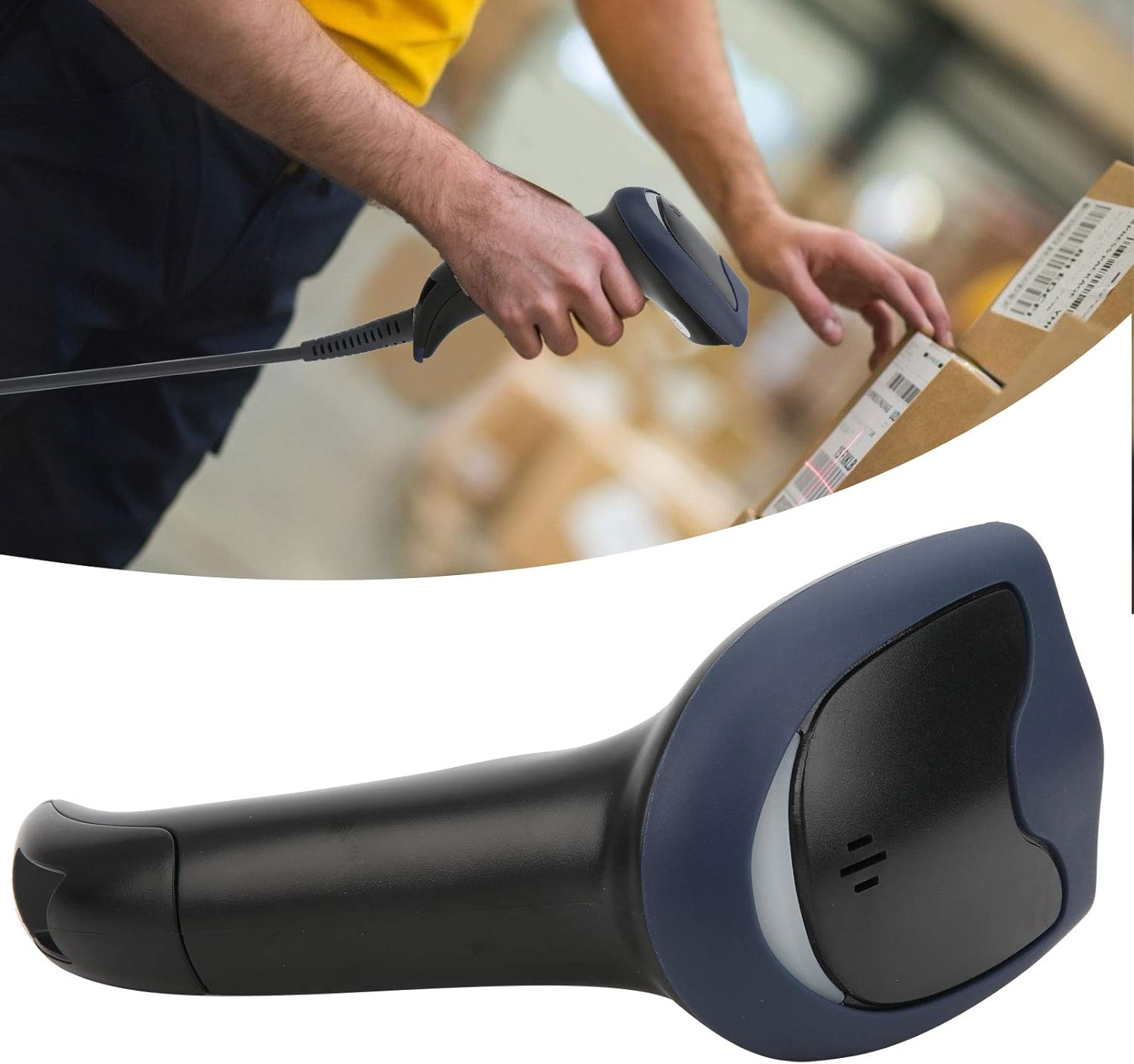
Image 6.1: A user actively scanning a barcode on a box, demonstrating the scanner's application in a typical work environment.

Image 6.2: The barcode scanner displayed alongside icons representing diverse environments such as retail, logistics, and office settings, illustrating its broad compatibility.
7. Maintenance
Proper maintenance ensures the longevity and optimal performance of your barcode scanner.
- Cleaning the Scanning Window: Regularly clean the scanning window with a soft, lint-free cloth. For stubborn smudges, slightly dampen the cloth with water or a mild, non-abrasive cleaner. Ensure the window is dry before use.
- General Cleaning: Wipe the exterior of the scanner with a soft, dry cloth. Avoid using harsh chemicals or solvents that could damage the plastic.
- Storage: When not in use, store the scanner in a clean, dry environment away from direct sunlight and extreme temperatures.
8. Troubleshooting
If you encounter issues with your scanner, refer to the following common problems and solutions:
| Problem | Possible Cause | Solution |
|---|---|---|
| Scanner does not power on or respond. | USB cable not properly connected or faulty USB port. | Ensure the USB cable is securely connected to both the scanner and the computer. Try a different USB port or computer. |
| Scanner beeps but no data is transmitted. | No active text field or incorrect keyboard layout. | Ensure a text input field is active (e.g., Notepad, Word document, browser search bar). Check your computer's keyboard language settings. |
| Unable to scan certain barcodes. | Barcode type not supported, damaged barcode, or poor lighting. | Refer to the Specifications section for supported symbologies. Try scanning a different, known-good barcode. Ensure adequate lighting and proper aiming. |
| Scanner is slow or inconsistent. | Dirty scanning window or interference. | Clean the scanning window as described in the Maintenance section. Ensure no obstructions are near the scanning area. |
9. Specifications
- Model: SC12022D
- Scanning Technology: 1D/2D Wired
- Interface: USB
- Supported Symbologies: QR, Micro QR, PDF417, Maxicode, Data Matrix, AztecCode, UPC, EAN, Code 128, and more than 20 other types.
- Operating Temperature: 20℃ to +60℃
- Electrostatic Discharge (ESD) Protection: Up to ±15 KV
- Design: Ergonomic handheld gun style
10. Warranty Information
This product comes with a standard manufacturer's warranty. Please retain your proof of purchase for warranty claims. The warranty typically covers defects in materials and workmanship under normal use. It does not cover damage caused by misuse, accidents, unauthorized modifications, or operation outside the specified environmental conditions.
11. Support
For technical assistance, troubleshooting beyond this manual, or warranty inquiries, please contact your retailer or the manufacturer directly. Refer to the product packaging or the manufacturer's official website for contact details.