
1. Introduction
This manual provides essential information for the proper installation, operation, and maintenance of your THOMSON M27FB2Y15 27-inch Full HD 120 Hz Professional Monitor. Please read this manual thoroughly before using the product to ensure optimal performance and safety. This monitor is designed to enhance productivity and multimedia tasks with its 27-inch IPS panel, Full HD resolution, and 120 Hz refresh rate. It offers vibrant colors, deep contrast, and visual comfort features like anti-flicker, anti-glare, and blue light reduction.
2. Package Contents
Upon unpacking, please verify that all the following items are present and in good condition:
- THOMSON M27FB2Y15 Monitor
- Monitor Stand (Base and Neck)
- Power Adapter
- HDMI Cable
- User Manual (this document)
- Warranty Card
Note: The actual contents may vary slightly depending on the region.
3. Setup and Installation
3.1 Assembling the Stand
Follow these steps to attach the stand to your monitor:
- Carefully place the monitor face down on a soft, clean surface to prevent scratches.
- Attach the stand neck to the back of the monitor by aligning the mounting points and securing it with the provided screws.
- Attach the stand base to the stand neck, ensuring it clicks into place or is secured with screws.
- Gently lift the monitor and place it on a stable, flat surface.
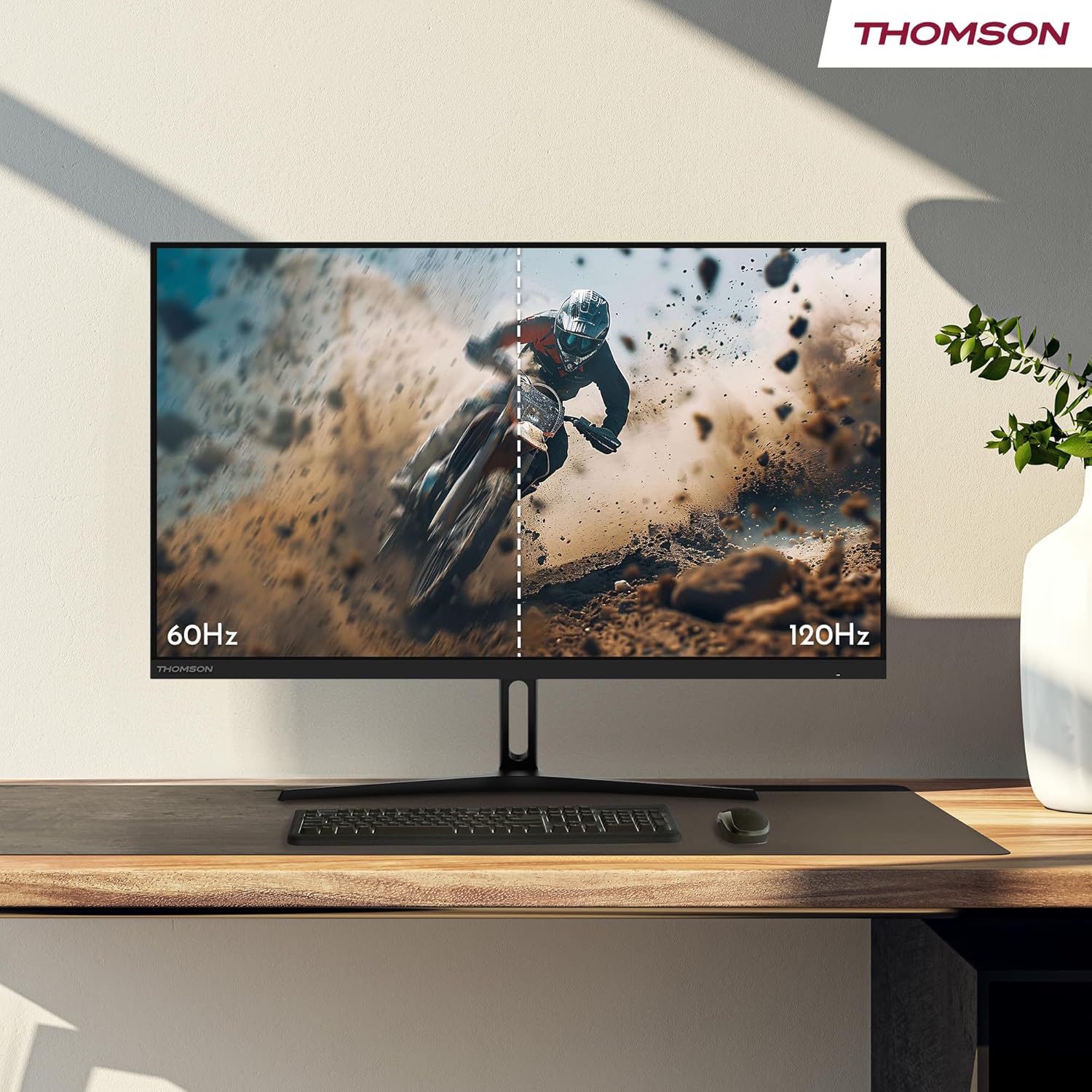
Figure 3.1: Illustration of the monitor stand assembly process. The image shows the back of the monitor with an arrow indicating upward movement for easy assembly of the stand.

Figure 3.2: Front view of the THOMSON 27-inch monitor fully assembled with its stand, ready for use.
3.2 VESA Wall Mount Installation (Optional)
This monitor supports VESA 100x100mm mounting. If you wish to wall-mount your monitor, remove the stand and attach a VESA-compatible wall mount (sold separately) according to the wall mount's instructions.

Figure 3.3: Rear view of the monitor, highlighting the VESA mounting points for alternative installation options.
3.3 Connecting to Devices
Connect your monitor to your computer or other devices using the available ports:
- HDMI: Use the provided HDMI cable to connect to your computer's HDMI output. The monitor has 2 HDMI 1.4 ports.
- USB-C: Connect compatible devices using a USB Type-C cable for video, audio, and power delivery (2.5W).
- Headphones: Connect headphones or external speakers to the 3.5mm audio jack.
- DC IN: Connect the power adapter to this port.

Figure 3.4: Detailed view of the monitor's rear ports, including 1x HDMI 1.4, 1x Type-C (2.5W), Headphones, DC IN, and the Navigation button for OSD control.
After connecting, plug the power adapter into a power outlet and press the power button on the monitor to turn it on.
4. Operating Instructions
4.1 Power On/Off
Press the power button located on the monitor to turn it on or off. The power indicator light will illuminate when the monitor is on.
4.2 On-Screen Display (OSD) Menu
Use the navigation button (joystick) located on the back of the monitor to access and navigate the OSD menu. This menu allows you to adjust various display settings.
- Brightness/Contrast: Adjust the overall luminance and contrast of the display.
- Color Settings: Modify color temperature, hue, and saturation.
- Input Source: Manually select the input source (HDMI 1, HDMI 2, USB-C).
- Picture Mode: Choose from preset picture modes (e.g., Standard, Game, Movie).
- Audio Settings: Adjust volume for connected headphones.
- OSD Settings: Configure OSD language, transparency, and timeout.
4.3 Visual Comfort Features
The monitor incorporates several technologies to reduce eye strain during prolonged use:
- Anti-Flicker: Reduces screen flickering for a more comfortable viewing experience.
- Low Blue Light: Filters harmful blue light emissions to minimize eye fatigue.
- Anti-Glare Screen: Minimizes reflections from ambient light sources.

Figure 4.1: Visual representation of the monitor's eye comfort features: Anti-Flicker, Low Blue Light, and Anti-Glare screen technology.
5. Key Features
The THOMSON M27FB2Y15 monitor offers advanced features for an enhanced visual experience:
- 27-inch Full HD IPS Panel: Enjoy vibrant colors and deep contrast with a 1920 x 1080 resolution and a wide 178° viewing angle. The IPS technology ensures consistent image quality from various perspectives.
- 300 Nits Brightness: Provides clear and bright visuals in various lighting conditions.
- 120 Hz Refresh Rate with Adaptive Sync: Experience smooth image fluidity, eliminating screen tearing and stuttering during fast-paced scenes. Adaptive Sync compatibility ensures synchronized frame rates between the monitor and your graphics card.
- HDR10 Support with 8-bit Color Depth: Delivers precise and rich colors, making it suitable for content creation and professional tasks. The monitor covers 110% of the sRGB color space.
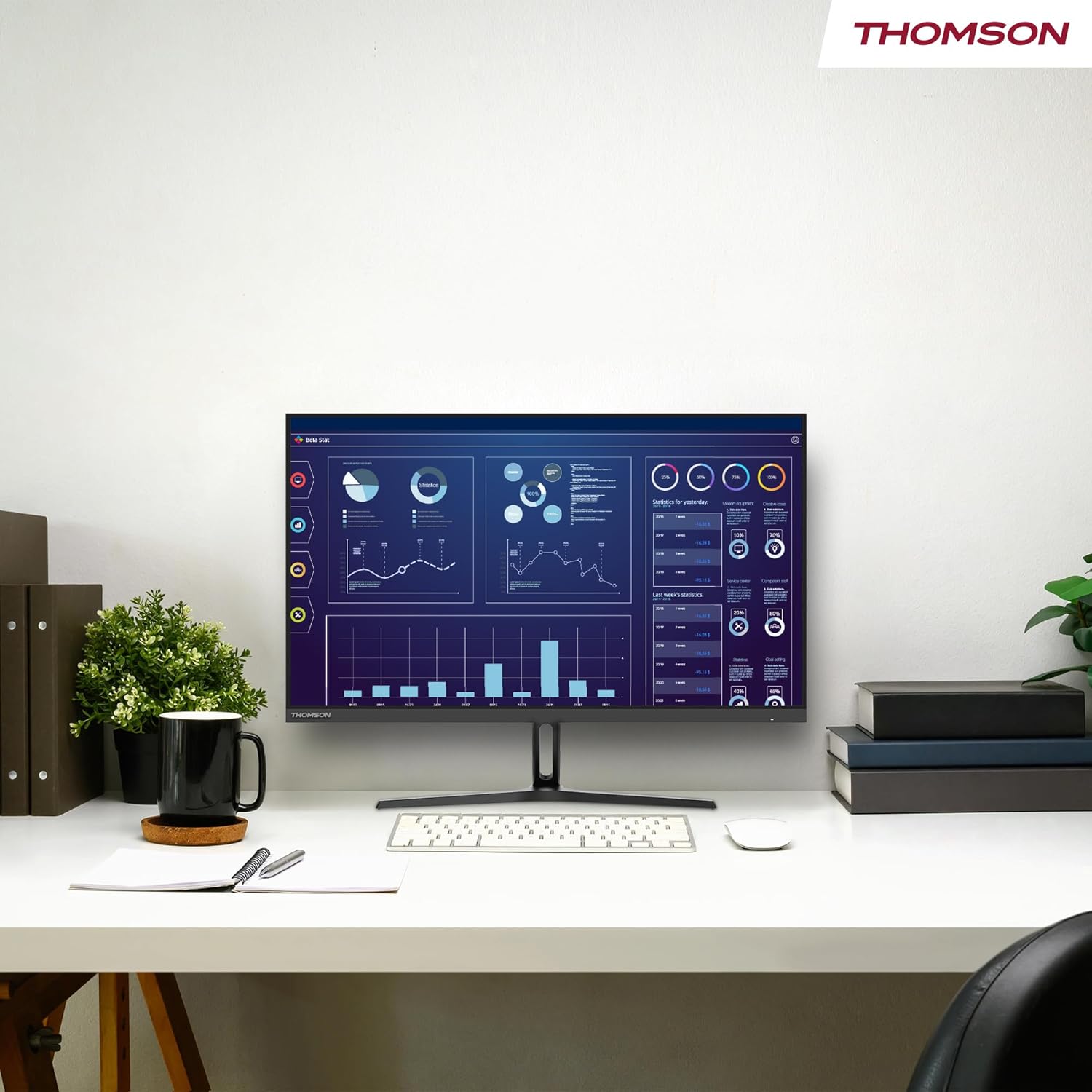
Figure 5.1: The monitor showcasing its color accuracy and display technologies, including HDR10, 110% sRGB coverage, Full HD resolution, IPS panel, and 300 nits brightness.
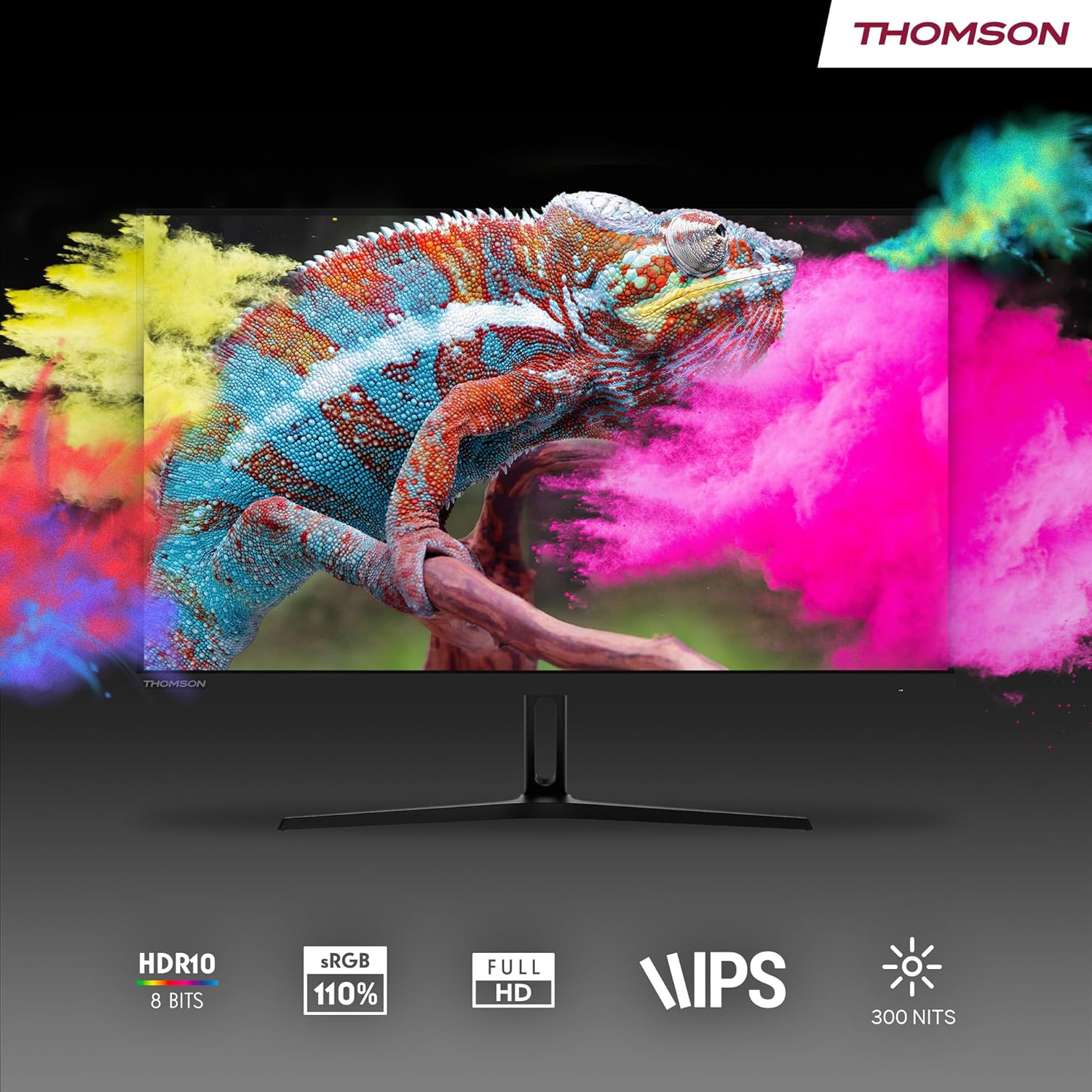
Figure 5.2: A visual comparison demonstrating the difference between 60Hz and 120Hz refresh rates, highlighting the smoother motion provided by 120Hz.
6. Maintenance
Proper maintenance ensures the longevity and optimal performance of your monitor.
- Cleaning the Screen: Gently wipe the screen with a soft, lint-free cloth. For stubborn marks, dampen the cloth with a small amount of screen cleaner specifically designed for LCD/LED displays. Do not spray cleaner directly onto the screen.
- Cleaning the Casing: Use a soft, dry cloth to wipe the monitor casing. Avoid using abrasive cleaners or solvents.
- Ventilation: Ensure the monitor's ventilation openings are not blocked to prevent overheating.
- Power Off: Always turn off the monitor and unplug it from the power outlet before cleaning or if it will not be used for an extended period.
7. Troubleshooting
If you encounter issues with your monitor, refer to the following troubleshooting guide:
| Problem | Possible Cause | Solution |
|---|---|---|
| No image on screen |
|
|
| Image is blurry or distorted |
|
|
| No sound from headphones |
|
|
| Screen flickering |
|
|
If the problem persists after trying these solutions, please contact THOMSON customer support.
8. Specifications
| Feature | Detail |
|---|---|
| Brand | THOMSON |
| Model Number | M27FB2Y15 |
| Screen Size | 27 Inches (69 cm) |
| Display Type | LED IPS Panel |
| Resolution | Full HD (1920 x 1080) |
| Aspect Ratio | 16:9 |
| Refresh Rate | 120 Hz |
| Response Time | 14 milliseconds |
| Brightness | 300 nits |
| Color Gamut | 110% sRGB |
| HDR Support | HDR10 (8-bit color depth) |
| Viewing Angle | 178° (Horizontal/Vertical) |
| Connectivity | 2x HDMI 1.4, 1x USB Type-C (2.5W), 1x Headphone Jack, DC IN |
| VESA Mount | 100 x 100 mm |
| Dimensions (L x W x H) | 50 x 610 x 360 mm (approx. without stand) |
| Product Weight | 3.7 Kilograms |
| Special Features | Anti-Flicker, Low Blue Light Filter, Anti-Glare Screen, Adaptive Sync |
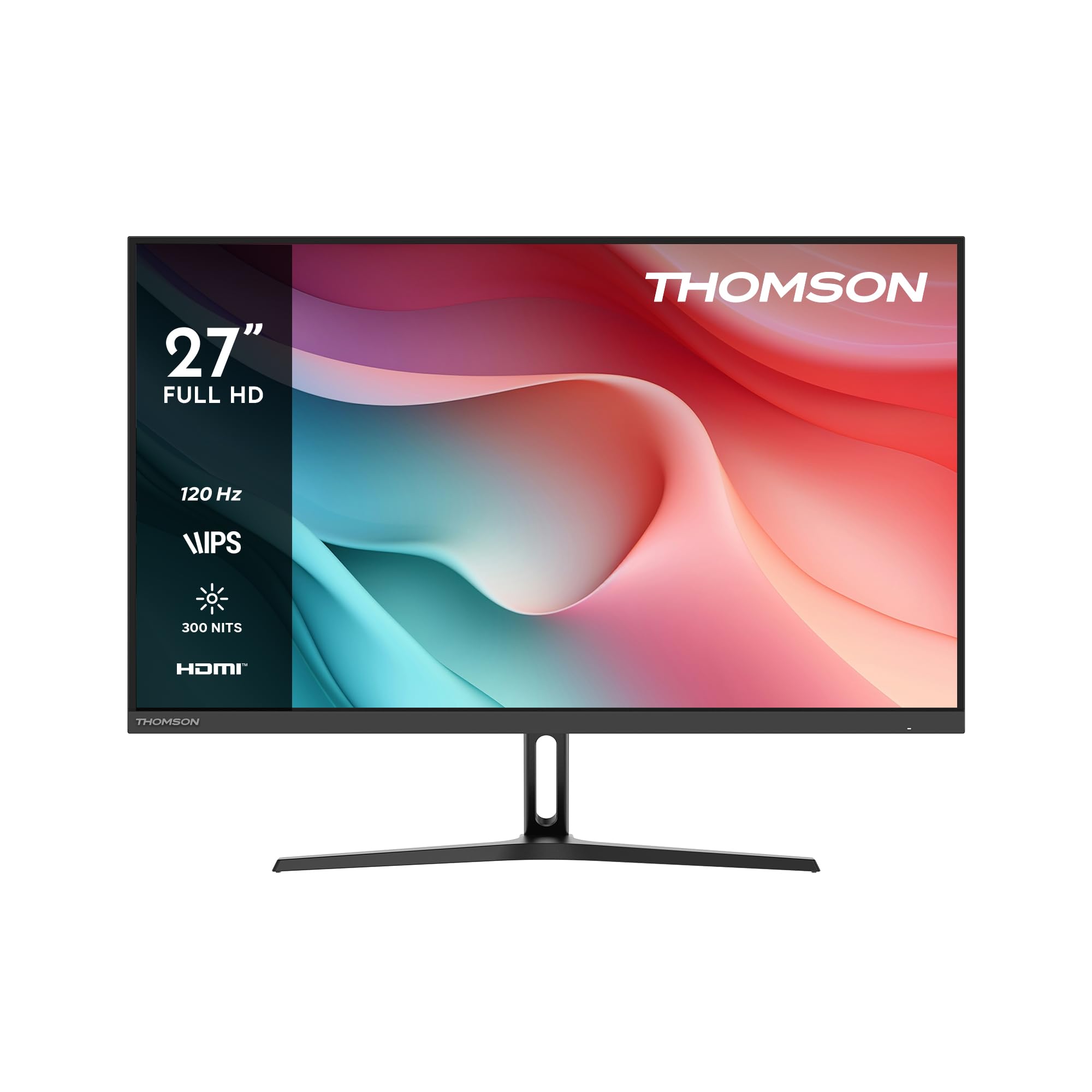
Figure 8.1: Diagram showing the physical dimensions of the THOMSON 27-inch monitor, including width, height, and depth with the stand.
9. Warranty and Support
Your THOMSON M27FB2Y15 monitor comes with a manufacturer's warranty.
- Warranty Period: 3 years manufacturer's warranty.
- Return Policy: 30-day refund/replacement policy through Amazon.
- Customer Support: For technical assistance or warranty claims, please refer to the contact information provided on your warranty card or visit the official THOMSON support website.


