
ZWXYVUT R40XX PROMAX
ZWXYVUT R40XX PROMAX Handheld Game Console User Manual
Model: R40XX PROMAX
Brand: ZWXYVUT
1. Introduction
Welcome to the user manual for your ZWXYVUT R40XX PROMAX Handheld Game Console. This device is designed to provide a portable retro gaming experience, featuring an open-source Linux system, a wide array of emulators, and a vast library of pre-installed games. This manual will guide you through the setup, operation, maintenance, and troubleshooting of your new console to ensure an optimal gaming experience.
2. Package Contents
Please verify that all items listed below are included in your package:
- ZWXYVUT R40XX PROMAX Handheld Game Console
- USB-C Charging Cable
- 64GB TF Card (pre-installed)
- User Manual
3. Device Overview
Familiarize yourself with the various components and controls of your R40XX PROMAX console.

Front view of the R40XX PROMAX console highlighting the dual analog joysticks and button layout.

Close-up view of the 4.2-inch IPS screen displaying game content.
3.1. Controls and Ports
- 4.2-inch IPS Screen: High-definition display for clear visuals.
- Dual Analog Joysticks: For precise movement and control.
- D-Pad: Directional pad for menu navigation and game control.
- Action Buttons (A, B, X, Y): Standard gaming input buttons.
- Shoulder Buttons (L1, L2, R1, R2): Additional input buttons, typically for in-game actions.
- Start/Select Buttons: For game functions and menu navigation.
- Function (FN) Button: Dedicated button for system-level functions or shortcuts.
- Power Button: To turn the console on or off.
- Volume Controls: Adjust audio output.
- USB-C Port: For charging and data transfer.
- Dual TF Card Slots: For system and game storage.
- Speaker: Audio output.
4. Setup
4.1. Initial Charging
Before first use, fully charge your R40XX PROMAX console. Connect the provided USB-C charging cable to the console's USB-C port and plug the other end into a compatible USB power adapter (not included) or a computer's USB port. The charging indicator will show the charging status and turn off when fully charged. A full charge typically takes approximately 2-3 hours.
4.2. TF Card Installation
Your console comes with a 64GB TF card pre-installed, containing the operating system and a library of games. The R40XX PROMAX features dual TF card slots. The first slot is typically for the system OS, and the second slot can be used for additional game storage. Ensure the TF card(s) are properly inserted before powering on the device.
4.3. Powering On/Off
- To Power On: Press and hold the Power Button for a few seconds until the screen illuminates.
- To Power Off: Press and hold the Power Button until a power-off menu appears on the screen. Select 'Shutdown' or 'Power Off' to safely turn off the device. A quick press of the power button will put the device into sleep mode.
5. Operating the Console
5.1. Navigation
Use the D-Pad or Analog Joysticks to navigate through menus and game lists. The A button typically confirms selections, while the B button usually cancels or goes back.
5.2. Game Selection and Launch
From the main menu, select an emulator or game category. Browse the list of pre-installed games. Select a game using the A button to launch it. The console supports over 30 emulators, allowing access to a wide range of classic titles.

Screenshot of the console's interface showing various emulator options, indicating support for over 30 types.
5.3. Saving and Loading Games
Most emulators on the R40XX PROMAX support in-game saving and 'save states'. Refer to the specific emulator's controls (often accessible via the FN button combined with another button) for saving and loading game progress. It is recommended to use both in-game saves and save states for critical progress.
5.4. System Settings
Access the system settings menu to configure various options such as language, display brightness, audio volume, and network settings. The open-source Linux system allows for customization and updates.
5.5. Wi-Fi Functionality
The console includes Wi-Fi functionality, which can be used for system updates or accessing online features if supported by the installed software. To connect to Wi-Fi, navigate to the system settings, select Wi-Fi, and choose your network.

Image showing the console connected to a Wi-Fi network, indicating its wireless capabilities.
6. Maintenance
6.1. Cleaning
To clean your console, use a soft, dry, lint-free cloth. Do not use liquid cleaners, aerosols, or abrasive materials, as these can damage the screen or casing. Keep the device free from dust and debris.
6.2. Battery Care
The R40XX PROMAX is equipped with a 4500mAh battery, providing up to 8 hours of playtime. To prolong battery life:
- Avoid fully discharging the battery frequently.
- Charge the console regularly, even if not in use for extended periods.
- Store the device in a cool, dry place, away from extreme temperatures.
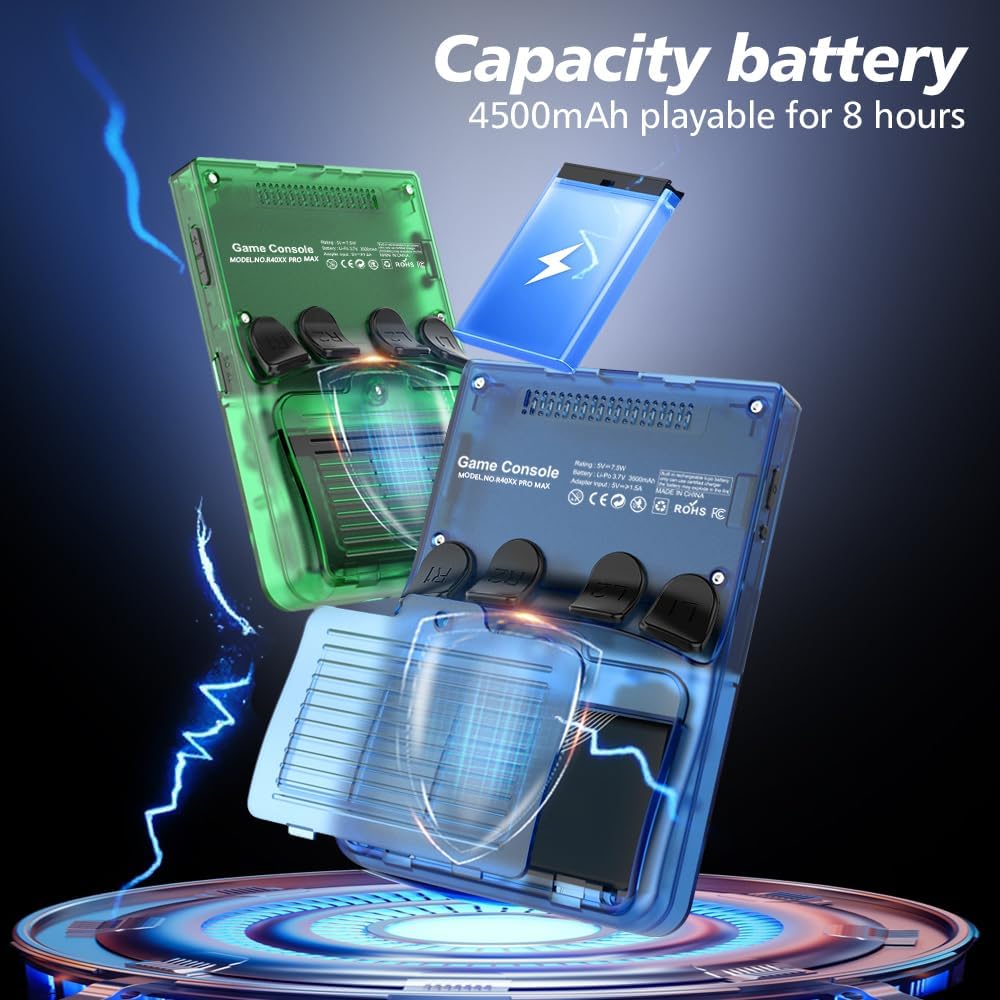
Illustration of the console's internal battery, highlighting its 4500mAh capacity for extended playtime.
6.3. Software Updates
Periodically check for system software updates to ensure optimal performance and access to new features. Updates can typically be performed via the Wi-Fi connection in the system settings menu.
7. Troubleshooting
If you encounter issues with your R40XX PROMAX, refer to the following common problems and solutions:
| Problem | Possible Cause | Solution |
|---|---|---|
| Console does not turn on. | Low battery, faulty charging cable, system crash. | Charge the console for at least 30 minutes. Try a different USB-C cable and power adapter. Perform a hard reset by holding the power button for 10-15 seconds. |
| Games are not loading or crashing. | Corrupted game files, improperly inserted TF card, incompatible emulator settings. | Ensure the TF card is properly inserted. Check game file integrity. Try different emulator settings if available. |
| Screen is unresponsive or frozen. | Software glitch, system crash. | Perform a soft reset by holding the power button until the device restarts. If unresponsive, perform a hard reset. |
| Controls are not responding. | Software issue, physical damage. | Restart the console. Check for any physical obstructions or damage to the buttons/joysticks. |
8. Specifications
- Model: R40XX PROMAX
- Brand: ZWXYVUT
- Processor: RK3326 Quad-core 32-bit ARM Cortex-A35, 1.5GHz
- Screen: 4.2-inch IPS Display, 1024x768 Resolution
- Operating System: Open Source Linux System
- Storage: 64GB TF Card (expandable via dual TF card slots)
- Battery: 4500mAh (up to 8 hours playtime)
- Emulators: Supports 30+ types
- Games: Pre-loaded with 15000+ classic games
- Connectivity: USB-C, Wi-Fi
- Material: Plastic
- Dimensions: Approximately 1 x 1 x 1 inches (L x W x H)
- Color: Blue Yellow (specific variant, other colors may vary)
9. Support
For further assistance, technical support, or warranty inquiries, please refer to the contact information provided with your purchase or visit the official ZWXYVUT support website. Please have your model number (R40XX PROMAX) and purchase details ready when contacting support.
Ask a question about this manual
Ask about setup, troubleshooting, compatibility, parts, safety, or missing instructions. Manuals+ will review the question and use this page’s manual context to help answer it.