
1. Introduction
This manual provides detailed instructions for the installation, operation, and troubleshooting of your iCarSEPTON 7-inch Wireless CarPlay Android Auto Car Radio. Please read this manual thoroughly before use to ensure proper functionality and safety.
2. Applicable Car Models
This double DIN car radio replacement is compatible with the following Honda models:
- Honda Accord 1990-2002
- Honda Civic 1996-2000
- Honda CRV 1997-2006
- Honda Element 2003-2011
- Honda Odyssey 1995-2004
- Honda Prelude 1992-2001
- Honda Brio 2011-2015
- Honda CITY 2003-2007
- Honda Element LX 2004-2011
- Honda HRV 1999-2006
- Honda Stepwgn 1996-2002

Examples of compatible Honda dashboards.

Before and after installation in a Honda Civic.
3. What's in the Box
The product package includes the following items:
- iCarSEPTON Car Radio
- Backup Camera
- Harness Cable
- CANbus Box
- Instructions and Installation Guide
- GPS Module
- USB Cables (x2)
- RCA Cable
- Reverse Cable

All components included in the package.
4. Setup and Installation
4.1 Wiring Diagram
Refer to the provided wiring diagram for correct connections. Ensure all cables are securely connected to prevent malfunctions.
General wiring diagram for the head unit.
4.2 Camera Cable Connection
It is recommended to insert the camera cable to enhance Wi-Fi and Bluetooth signal strength, regardless of whether a camera is installed.
Video demonstrating the insertion of the camera cable (0:04-0:14).
5. Operating Instructions
5.1 Bluetooth Connection
To connect your phone via Bluetooth:
- On the car radio, navigate to the Bluetooth settings.
- On your phone, search for Bluetooth devices and select "CarBT".
- Enter the password 0000 when prompted.
If you encounter issues, try turning Bluetooth on and off several times on both devices, or clear old Bluetooth devices from your phone and the car radio.
Video demonstrating Bluetooth connection (0:15-0:27).
5.2 Wireless Android Auto Connection
After successfully connecting via Bluetooth, Android Auto will automatically connect. Note that Wi-Fi will temporarily stop when Android Auto is active. If connection fails, ensure the Android Auto app is installed on your phone.
Video demonstrating Wireless Android Auto connection (0:28-0:39).
5.3 Disconnecting Android Auto
To disconnect Android Auto, clear background applications on the head unit. Then, find the Zlink application and turn off the automatic CarPlay background connection setting.
Video demonstrating how to disconnect Android Auto (0:40-0:58).
5.4 Wireless CarPlay Connection
After successfully connecting via Bluetooth, CarPlay will automatically connect. Note that Wi-Fi will temporarily stop when CarPlay is active. Ensure the CarPlay function is enabled on your iPhone (Settings > General > CarPlay > Zlink > Open/Close CarPlay).
Video demonstrating Wireless CarPlay connection (0:28-0:35).
5.5 Disconnecting CarPlay
To disconnect CarPlay, clear background applications on the head unit. Then, find the Zlink application and turn off the automatic CarPlay background connection setting.
Video demonstrating how to disconnect CarPlay (0:36-0:58).
5.6 Using Bluetooth and Wi-Fi Simultaneously
To use Bluetooth and Wi-Fi at the same time, ensure you turn off the automatic CarPlay/Android Auto connection feature and avoid opening the Zlink application.
Video demonstrating simultaneous Bluetooth and Wi-Fi use (0:59-1:25).
5.7 FM Radio Operation
The unit features a built-in AM/FM radio with unlimited preset stations. Enjoy clear audio and superior sound quality with DSP technology.

FM Radio interface and Bluetooth options.
5.8 GPS Navigation
Navigate confidently using pre-installed or downloaded navigation apps like Google Maps, Waze, or HERE Maps. The system supports both online and offline maps for reliable guidance.

GPS Navigation interface.
5.9 Steering Wheel Control Learning
Program your steering wheel buttons to control volume, track skipping, and calls. This feature enhances safety by allowing hands-on-wheel operation.
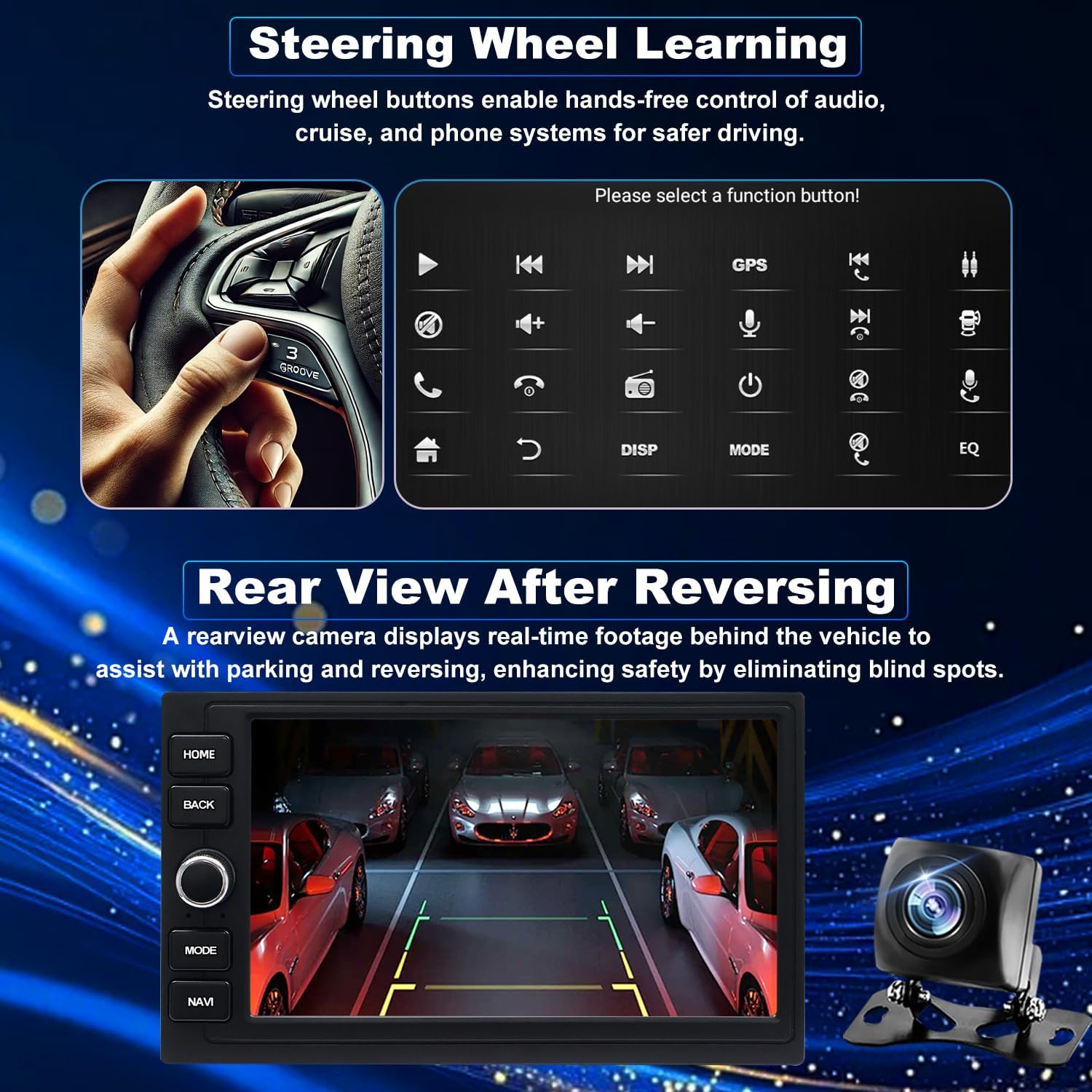
Steering Wheel Control learning interface.
5.10 Rear View Camera Display
The included backup camera provides a real-time rearview display, assisting with safe parking and reversing in various lighting conditions.
Rear View Camera display.
5.11 Audio Equalizer (EQ) Settings
Adjust audio settings using the built-in equalizer for optimal sound quality. Select from preset modes like Hi-Fi, Subwoofer, Voice, Rock, Jazz, Pop, Classical, or customize your own settings. Adjust subwoofer levels from Off to Strongest.
Video demonstrating Audio Equalizer (EQ) settings (0:30-0:47).
5.12 User Interface (UI) Customization
Customize the display with various user interface themes to match your preference. Access these options through the Car Settings menu.
Video demonstrating User Interface (UI) customization (0:59-1:07).
6. Troubleshooting
- Q: Why is my radio screen dark or not powering on?
A: Press the RST reset hole with a toothpick, check if the blue/red fuse on the back is blown, and confirm the CANbus box is connected correctly. - Q: Why won’t the touchscreen respond?
A: Recalibrate it using the five-finger method shown in the video tutorial. - Q: Why is there no sound coming from the system?
A: Ensure the speaker wires aren’t reversed or improperly connected, and verify the CANbus box is firmly plugged in. - Q: Why is Bluetooth or Wi-Fi signal weak?
A: Connecting the reverse wire can boost both Bluetooth and Wi-Fi signal strength. - Q: Why can’t my phone connect to Bluetooth?
A: Select “Car-BT,” enter “0000,” clear old Bluetooth devices from your phone, then reconnect. - Q: How do I enable or disable CarPlay?
A: 1. Pair Bluetooth to auto-start CarPlay via Zlink. 2. Close background apps (2nd top-right icon). 3. iPhone > General > CarPlay > Zlink. - Q: Why won’t the steering wheel buttons work?
A: 1. Check that the protocol cable is connected correctly. 2. Make sure the correct protocol is chosen in settings. - Q: Why is the reverse camera not showing video?
A: 1. Recheck wiring with the supplied diagram. 2. Settings > Factory Settings (8888) > Protocol Settings > Reverse Video Format > AHD/25.
7. Specifications
| Brand | iCarSEPTON |
| Model Name | 7-inch Wireless CarPlay Android Auto Car Radio |
| Vehicle Service Type | Car |
| Screen Size | 7 Inches |
| Special Features | 5G WiFi & Wireless/Wired CarPlay & Android Auto, 7 Inch 2+32G TouchScreen & Split Screen Function, Backup Camera & Steering Wheel Controls, Bluetooth & Voice Control & FM Radio, GPS Navigation & RDS |
| Connectivity Technology | Bluetooth, USB, Wi-Fi |
| Map Type | North America |
| Included Components | Car radio, Backup Camera, Harness Cable, CANbus Box, Instructions and Installation Guide |
| Audio Output Mode | Stereo |
| Mounting Type | Dashboard Mount |
| Operating System | Android |
| Memory Storage Capacity | 32 GB |
| Touch Screen Type | Capacitive |
| Display Type | LED |
| Human-Interface Input | Touchscreen |
| Compatible Devices | Smartphone |
| Control Method | Touch |
| Supported Satellite Navigation System | GPS |
| Connectivity Protocol | Bluetooth |
8. Warranty and Support
Your iCarSEPTON car radio comes with a 1-year warranty. Dedicated customer support is available to assist with installation, setup, troubleshooting, and any questions you may have. We are committed to ensuring your complete satisfaction and providing expert guidance.