
1. Introduction
This manual provides essential information for setting up, operating, maintaining, and troubleshooting your BLUEING 15.6-inch Laptop, Model NC15A. Please read this guide thoroughly before using your device to ensure optimal performance and longevity.
2. What's in the Box
Carefully unpack your BLUEING laptop and ensure all items are present:
- 1 × BLUEING NC15A Laptop
- 1 × Power Adapter
- 1 × User Manual (this document)
3. Product Overview
3.1 Key Features
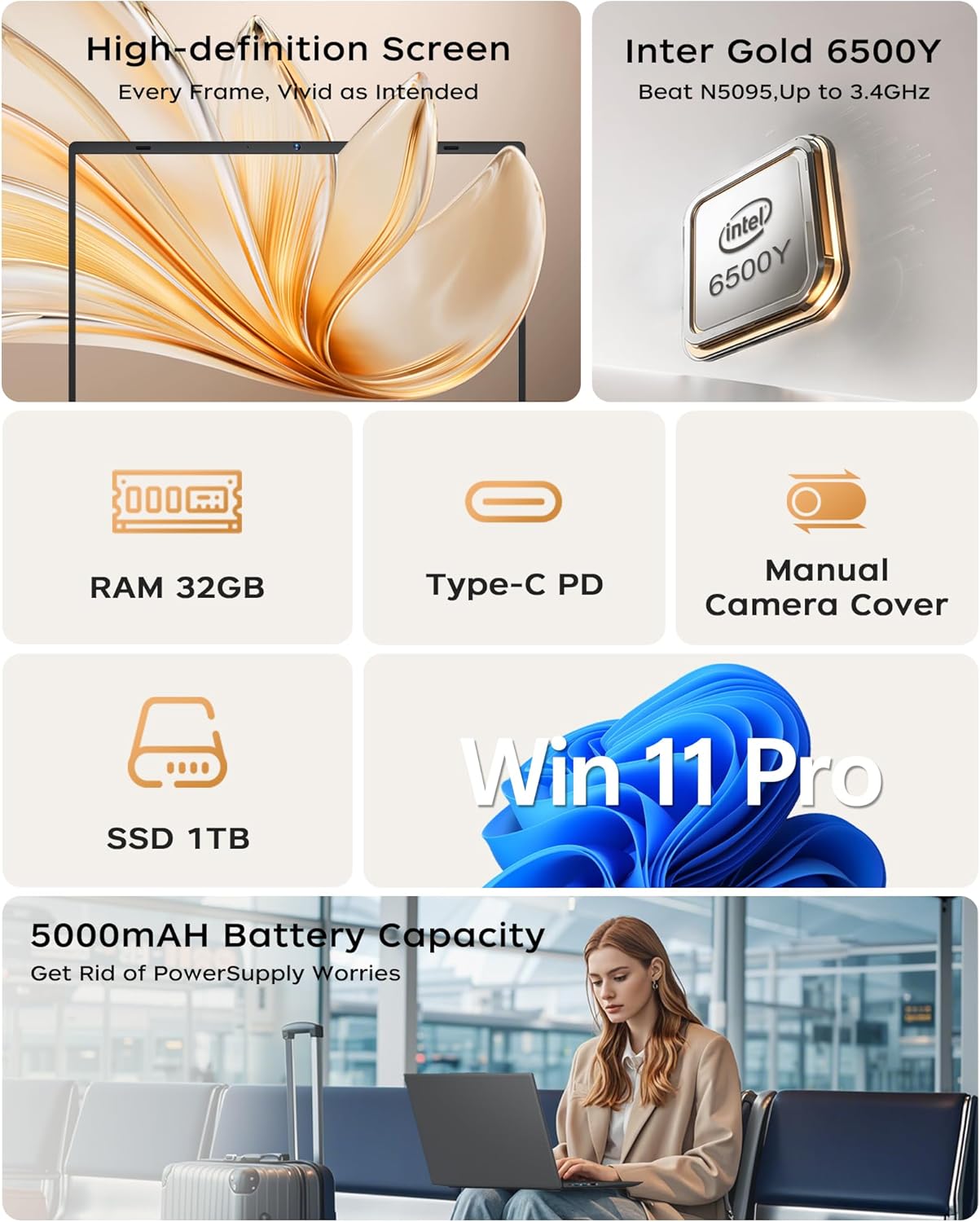
- Processor: Pentium Gold 6500Y, up to 3.4 GHz with 4-Thread, 4MB Smart Cache for efficient multitasking.
- Display: 15.6-inch FHD IPS display with 1920 x 1080 resolution and 100% sRGB color gamut for vibrant visuals.
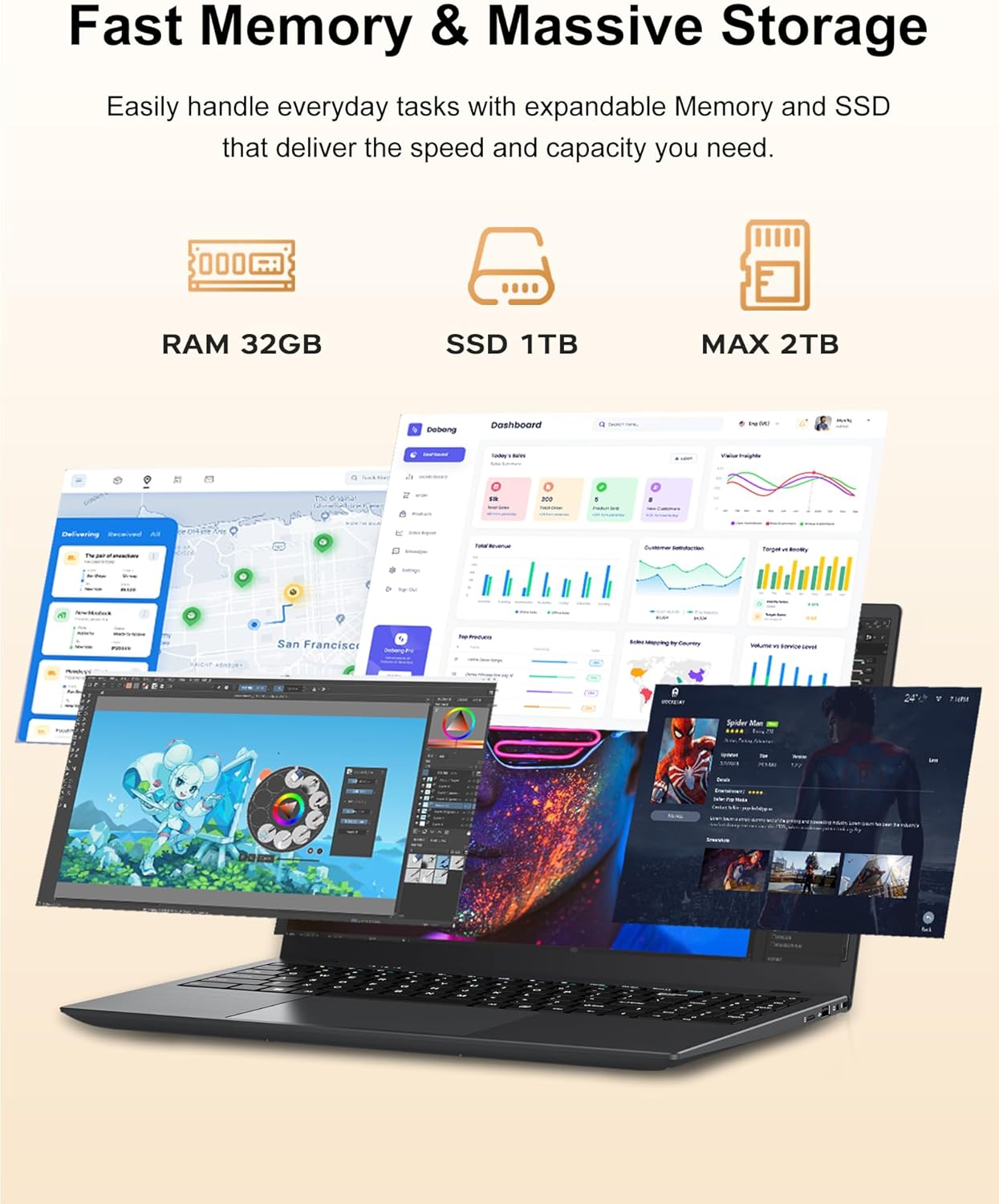
- Memory & Storage: 32GB RAM and 1TB M.2 2280 SATA High-Speed SSD with NVMe Protocol Support for fast boot times and ample storage.
- Connectivity: USB-C (Full-Function), 2x USB 3.2, 1x USB 2.0, HDMI, TF card slot, Headphone Jack, Type-C Charging Jack.
- Wireless: 2.4G+5G WiFi and Bluetooth 5 for reliable wireless connections.
- Operating System: Pre-installed with Windows 11.
3.2 Laptop Components

Overview of the BLUEING 15.6-inch Laptop, highlighting its key features such as the Gold Pentium processor, FHD display, Wi-Fi 5, Bluetooth 5.0, 32GB RAM, 1TB SSD, Type-C PD Charging, Manual Camera Cover, Four Speakers, and 7.6V/5000mAh battery.
Left side of the laptop showing the USB 2.0 port, Kensington Lock slot, and TF Card Socket.
Right side of the laptop showing the 3.5mm Headphone Jack, USB 3.2 ports, HDMI 1.4 port, and Type-C (Full Function) port which supports PD Charging, Data Transfer, and Video Output.

The laptop features a built-in privacy camera switch to disable the webcam when not in use, ensuring digital privacy.
4. Setup
4.1 Initial Power On
- Connect the power adapter to the laptop's Type-C charging port and then to a power outlet.
- Open the laptop lid.
- Press the power button located on the keyboard to turn on the laptop.
- Follow the on-screen instructions to complete the initial Windows setup, including language, region, and network settings.
4.2 Connecting Peripherals
- USB Devices: Insert USB devices (e.g., mouse, keyboard, external drive) into the available USB 2.0 or USB 3.2 ports.
- External Display: Connect an external monitor or TV using an HDMI cable to the HDMI port.
- Headphones: Plug 3.5mm headphones into the headphone jack.
- Memory Card: Insert a TF card into the TF card slot.
5. Operating Instructions
5.1 Basic Usage
- Power On/Off: Press the power button to turn on. To shut down, click the Start button, then Power > Shut down.
- Sleep Mode: Close the lid or click the Start button, then Power > Sleep.
- Keyboard: The full-size ergonomic keyboard provides a comfortable typing experience.
- Touchpad: Use the spacious touchpad for navigation. Supports multi-touch gestures.
5.2 Network Connectivity
- Wi-Fi: Click the Wi-Fi icon in the taskbar, select your network, enter the password, and connect. The laptop supports 2.4G and 5G Wi-Fi.
- Bluetooth: To connect Bluetooth devices, go to Settings > Bluetooth & devices, turn on Bluetooth, and pair your device.
6. Maintenance
6.1 Cleaning
- Use a soft, lint-free cloth to clean the screen and exterior. Avoid harsh chemicals.
- For the screen, use a specialized screen cleaner.
- Gently brush dust from the keyboard and ports.
6.2 Battery Care
- Avoid fully discharging the battery frequently.
- Store the laptop in a cool, dry place if not used for extended periods.
- Use only the provided power adapter.
6.3 Software Updates
- Regularly check for and install Windows updates to ensure system stability and security.
- Keep your drivers updated for optimal hardware performance.
7. Troubleshooting
7.1 No Power
- Ensure the power adapter is securely connected to both the laptop and a working power outlet.
- Check if the power outlet is functional by plugging in another device.
- Try holding the power button for 10-15 seconds to perform a hard reset.
7.2 No Display
- Connect an external monitor to verify if the issue is with the laptop's internal display.
- Adjust screen brightness using the function keys (Fn + Fx keys, refer to keyboard icons).
- Restart the laptop.
7.3 Wi-Fi Connection Issues
- Ensure Wi-Fi is enabled in Windows settings.
- Restart your router and modem.
- Forget the network and reconnect.
- Update your Wi-Fi drivers.
7.4 Slow Performance
- Close unnecessary applications running in the background.
- Check Task Manager for processes consuming high CPU or RAM.
- Ensure your SSD has sufficient free space.
- Run a disk cleanup and defragmentation (for HDD, not typically needed for SSD).
8. Specifications
| Feature | Specification |
|---|---|
| Brand | BLUEING |
| Model Name | NC15A |
| Screen Size | 15.6 Inches |
| Native Resolution | 1920 x 1080 pixels (FHD IPS) |
| CPU Model | Pentium Gold 6500Y |
| Processor Speed | Up to 3.4 GHz |
| RAM Memory Installed Size | 32 GB DDR3 SODIMM |
| Hard Disk Size | 1 TB SSD (M.2 2280 SATA with NVMe Protocol Support) |
| Operating System | Windows 11 |
| Graphics Coprocessor | UHD Graphics 615 (Integrated) |
| Connectivity Technology | Bluetooth 5.2, HDMI, USB, Wi-Fi (802.11a/b/g/n/ac) |
| Ports | USB-C (Full-Function), 2x USB 3.2, 1x USB 2.0, HDMI, TF card slot, Headphone Jack, Type-C Charging Jack |
| Battery Cell Type | Lithium Polymer (38 Watt Hours) |
| Special Features | HD Audio, Lightweight, Memory Card Slot, Webcam Capability |
| Item Dimensions (L x W x Thickness) | 14"L x 0.8"W x 9.2"Th |
9. Warranty and Support
9.1 Manufacturer's Warranty
Your BLUEING NC15A Laptop is covered by a 1-Year Manufacturer Protection Plan. This warranty covers defects in materials and workmanship under normal use.
9.2 Customer Support
For any questions or assistance with your device, BLUEING customer service is available. You can reach support through the following methods:
- Online Support: Log in to your Amazon buyer account, find your order, and click "Get Help."
- Email Support: Log in to your Amazon buyer account, find your order, and click "Get Help" to initiate email communication.

Visual representation of BLUEING customer support channels, including online and email support via Amazon buyer account.