
1. Product Overview
The Jufodrca 12.1-inch HD Tesla Style Touch Screen Car Stereo Radio is an advanced multimedia system designed to upgrade your vehicle's entertainment and navigation capabilities. It features an 8-core processor, 4GB RAM, and 64GB storage, ensuring smooth performance. This unit offers a wide range of functionalities including Wireless CarPlay, Wired Android Auto, GPS Navigation, 5G WiFi, Bluetooth 5.0, FM/AM/RDS Radio, 1080P Video Playback, and support for steering wheel controls and a backup camera.
It is specifically designed to fit Ford F150 (2015–2020) and F250 / F350 / F450 (2017–2020) models equipped with SYNC 1 or SYNC 2 systems. It is compatible with both manual and automatic air conditioning versions. Please note, this car radio is not compatible with vehicles equipped with the original B&O audio system.

Image: Jufodrca 12.1-inch Tesla Style Car Stereo installed in a Ford F150 dashboard, showcasing its large display and integrated controls.
2. Installation Guide
Warning: Professional operation is recommended. Do not attempt installation if you are not experienced with car electronics. Improper installation can cause damage to the unit or your vehicle.
2.1 Preparing for Installation
- Ensure your vehicle is turned off and the battery is disconnected before starting.
- Gather all necessary tools, including screwdrivers, trim removal tools, and wire cutters/strippers.
- Familiarize yourself with your vehicle's dashboard layout and existing wiring.
2.2 Removing the Original Radio System
- Carefully remove the top storage bin cover on the dashboard using a trim removal tool.
- Unscrew all visible screws securing the original radio frame.
- Gently pull out the original radio frame and disconnect all electrical connectors from the back of the unit.
- Remove the original radio unit by unscrewing its mounting screws and disconnecting any remaining cables, including antenna and power plugs.
2.3 Installing the New Jufodrca Unit
- Transfer the original buttons from the factory panel to the new unit's panel.
- Connect the main power harness, RCA cables, radio antenna, and GPS antenna to the new unit. Ensure all connections are secure.
- Connect the Canbus box to the new unit's wiring harness to ensure proper power and communication with the vehicle's systems.
- Connect the USB cables and any other external equipment as needed.
- Carefully insert the new unit into the dashboard opening, ensuring all wires are tucked away and not pinched.
- Secure the new unit with the screws previously removed.
- Reinstall the storage bin cover and any other trim pieces.
2.4 Post-Installation Testing
- Reconnect the vehicle battery.
- Power on your car and verify that the new unit powers on and the screen lights up.
- Test GPS signal reception. Place the GPS antenna in the glove box for better signal if needed.
- Test volume control and song switching using steering wheel controls.
- Verify air conditioning functionality (manual and automatic AC).
- Test the backup camera; it should display a reverse image automatically when shifting into reverse.
- Check if the radio can receive channels and if the sound is normal during music playback.
If your car has an aftermarket amplifier and you experience no sound after installation, please refer to the troubleshooting section or contact our support team.
Video: Installation guide for upgrading the radio in a 2015-2020 Ford F150 without a B&O audio system. This video demonstrates the process of removing the old unit and installing the new one, including connecting various cables and components.
Video: Detailed installation video for OEM SYNC1, SYNC2, and SYNC3 systems (without B&O). This video provides step-by-step instructions for disassembling the dashboard and connecting the new head unit.
3. Operating Instructions
3.1 Wireless CarPlay & Wired Android Auto
Easily connect your smartphone for seamless in-car integration. Make calls, stream music, access maps, and use voice commands hands-free. Enjoy smarter, safer driving with full access to your favorite apps directly from the touchscreen.
- To connect: Ensure Bluetooth is enabled on your phone and the car stereo. Select your phone from the device list on the stereo and follow the pairing instructions.
- For Wired Android Auto, connect your phone via a USB cable.

Image: The car stereo display showing the Wireless CarPlay and Android Auto interface, with a smartphone connected.
Video: Demonstration of how to connect and use CarPlay with the Jufodrca car stereo, showing the pairing process and interface.
3.2 GPS Navigation & WiFi Connectivity
Stay on track with both online and offline GPS navigation. Access real-time traffic updates with online maps, or switch to offline maps when there’s no signal. With WiFi hotspot support, you can download apps, stream music, or watch videos directly from the car radio.
- Online Maps: Connect to a WiFi hotspot (e.g., from your smartphone) to access real-time traffic and map updates.
- Offline Maps: Download map data for your region to use navigation without an internet connection.
- WiFi: Go to Settings > Network & Internet > Wi-Fi to connect to available networks.

Image: The GPS Navigation screen displaying a map with route information on the Jufodrca car stereo.

Image: Visual representation of 5G WiFi connectivity and OTA (Over-The-Air) updates for the car stereo.
3.3 Bluetooth 5.0
The built-in Bluetooth 5.0 module supports A2DP for high-quality audio streaming, hands-free calls, and phonebook synchronization. Enjoy clear communication and seamless music playback.
- Pairing: Go to Bluetooth settings on the stereo and your phone. Select the stereo's device name (e.g., "GT6-BT-33F9") and enter the PIN (usually 0000) if prompted.
- Hands-Free Calling: Once paired, you can make and receive calls directly from the stereo's touchscreen.
- Music Streaming: Play audio from your phone through the car's speakers.
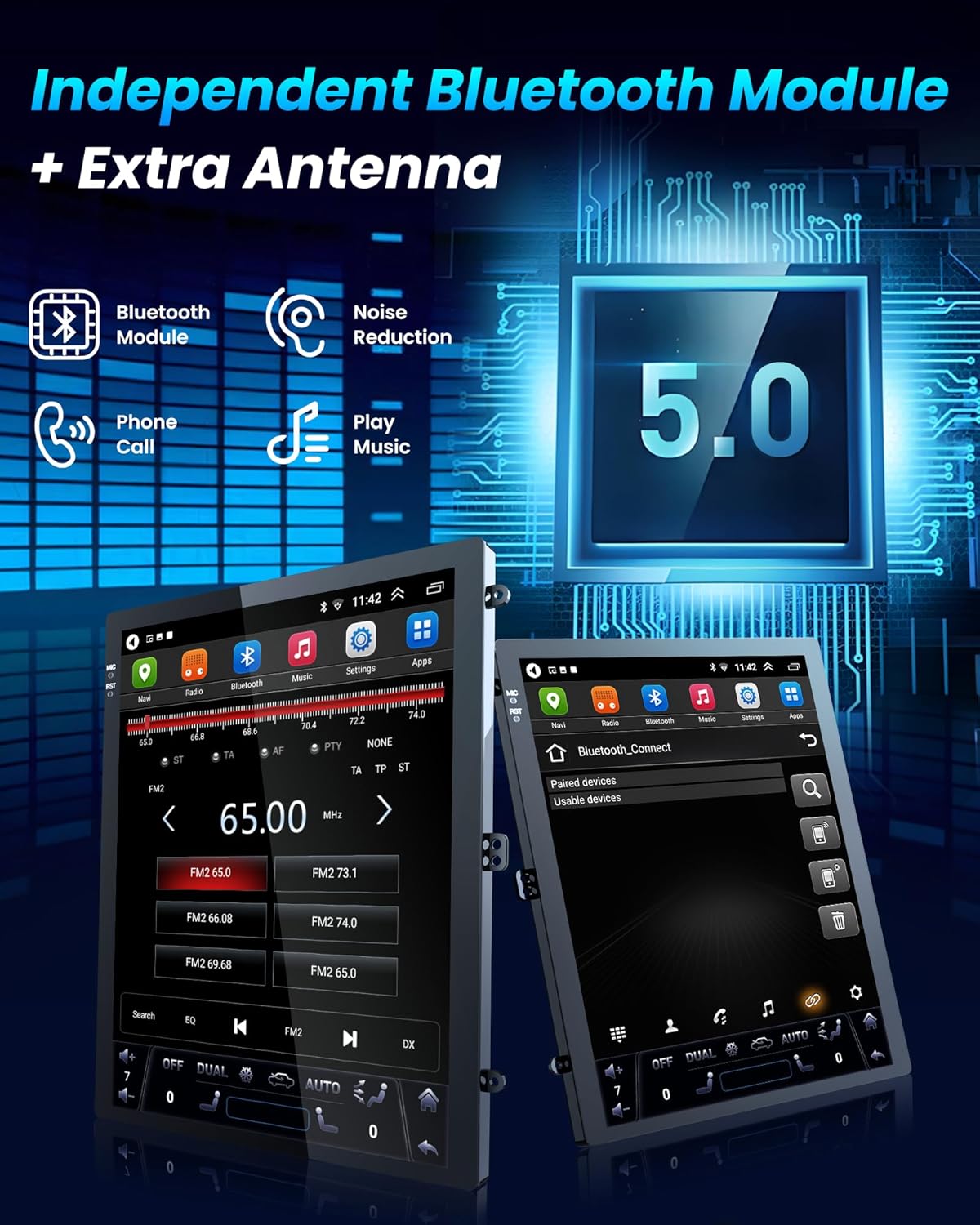
Image: The Bluetooth 5.0 pairing screen and phone call interface on the Jufodrca car stereo.
3.4 DSP Sound & FM/AM/RDS Radio
Experience superior sound quality with the integrated DSP (Digital Signal Processor) and 48 EQ settings. The FM/AM/RDS radio provides access to your favorite stations with clear reception.
- DSP Settings: Access the EQ settings to customize your audio experience with various presets (Rock, Pop, Jazz, etc.) or manual adjustments.
- Radio: Tune into FM or AM stations. RDS (Radio Data System) provides additional information like station name and song title where available.

Image: The DSP sound equalizer and FM/AM radio interface on the Jufodrca car stereo.
3.5 Steering Wheel Control (SWC)
The unit supports OEM steering wheel controls, allowing you to adjust music, calls, and navigation without taking your hands off the wheel, enhancing safety and convenience.
- Configuration: Access the steering wheel control settings in the system menu to map your vehicle's buttons to the stereo's functions.

Image: A driver using steering wheel controls to operate the Jufodrca car stereo, highlighting hands-free operation.
3.6 Backup Camera
The car stereo comes with a Full HD night vision backup camera featuring a 170° wide-angle view and IP69 waterproof rating. The screen automatically switches to the rear view when you shift into reverse, providing clear and reliable reversing even in low light or bad weather. It also supports OEM camera input.
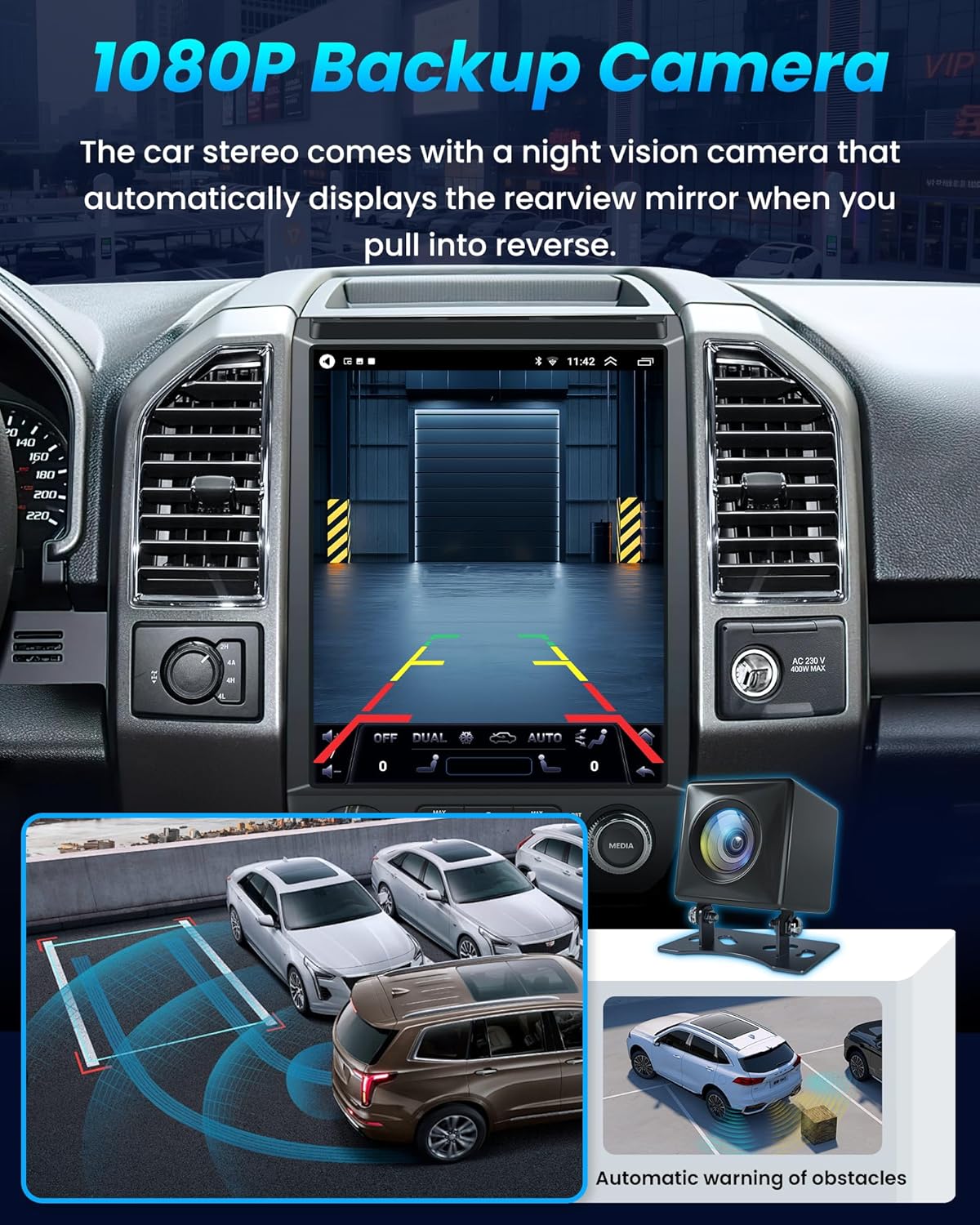
Image: The backup camera display on the Jufodrca car stereo, showing a wide-angle view with parking guidelines.
3.7 12.1-Inch Super HD Display with Split-Screen Function
Enjoy a stunning 12.1-inch IPS touchscreen with 1024×768 resolution and 2.5D capacitive glass, delivering vibrant, true-to-life colors from any angle. Supports 1080P video playback for crisp visuals. The split-screen feature lets you run two apps side by side—such as navigation and music—making multitasking easier and driving more enjoyable.
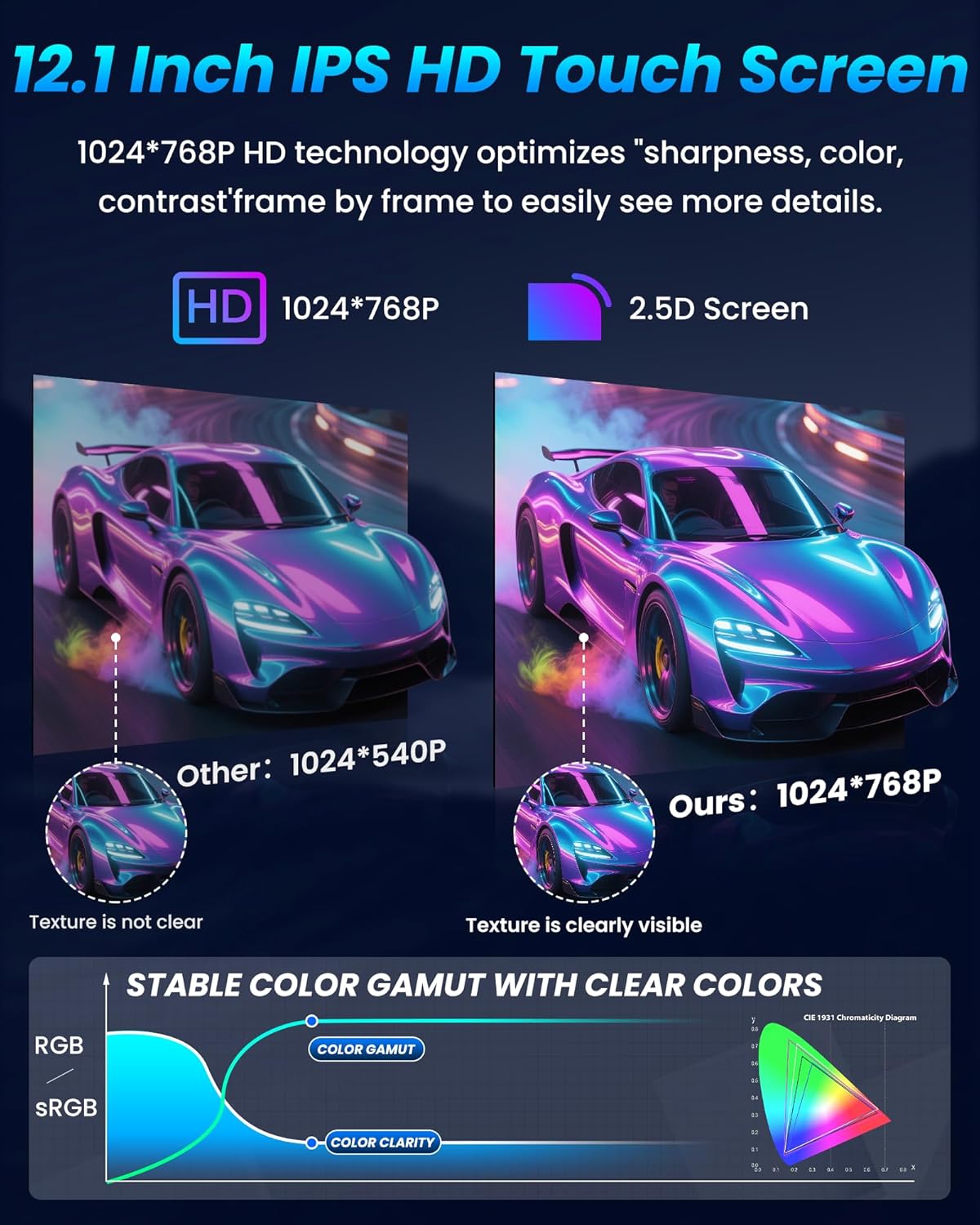
Image: A comparison of display quality, highlighting the 12.1-inch IPS HD Touch Screen with 1024x768 resolution.
4. Specifications
| Feature | Detail |
|---|---|
| Brand | Jufodrca |
| Screen Size | 12.1 Centimeters (approx. 4.76 inches, though product title implies 12.1 inches diagonal for the entire unit) |
| Display Resolution | 1024×768 |
| Processor | 8-Core |
| Memory (RAM) | 4GB |
| Storage (ROM) | 64GB |
| Connectivity Technology | Bluetooth, USB, Wi-Fi (5G WiFi) |
| Bluetooth Version | 5.0 |
| Supported Navigation | GPS (Online & Offline Maps) |
| Audio Features | DSP, 48 EQ settings, FM/AM/RDS Radio |
| Backup Camera | Full HD Night Vision, 170° Wide-Angle, IP69 Waterproof |
| Control Method | Touch, Voice, Steering Wheel Control |

Image: Visual representation of the 4GB RAM and 64GB ROM specifications of the Jufodrca car stereo.
5. Troubleshooting
If you encounter any issues with your Jufodrca car stereo, please refer to the common problems and solutions below. For further assistance, contact our professional tech support team.
- Low Volume Output: If the volume is very low, check the stereo's volume settings and your phone's volume if connected via Bluetooth or CarPlay/Android Auto. Ensure all audio cables are securely connected.
- No Sound After Installation (with aftermarket amplifier): If your car has an aftermarket amplifier (not B&O) and you get no sound, ensure all amplifier connections are correct. Some aftermarket amplifiers may require specific wiring or settings adjustments. Contact support if the issue persists.
- Stock Backup Camera Not Working: This unit may not directly support all stock backup cameras without re-wiring or a new camera/cable. The included backup camera is designed for optimal compatibility. If you wish to use the original camera, professional assistance may be required for integration.
- Screen Slow to Change: If the screen is slow to respond or change, try restarting the unit. Ensure there are no excessive applications running in the background that might consume system resources.
- GPS Signal Issues: Ensure the GPS antenna is properly installed and placed in an area with clear sky view, such as the glove box, not behind metal obstructions.
6. Accessories
The Jufodrca car stereo comes with a complete set of wiring harnesses and accessories to facilitate installation and enhance your driving experience. These include:
- Reversing Cable
- GPS Antenna
- Backup Camera (Night Vision HD)
- External Microphone
- Radio Antenna
- 4-pin USB Cable
- CAN BUS Decoder
- Crowbar (Trim Removal Tool)
- Power Cable
- RCA Cable
- 6-pin USB Cable

Image: A visual representation of all the cables and accessories included with the Jufodrca car stereo.
7. Warranty and Support
Jufodrca is committed to providing high-quality products and excellent customer service. If you have any questions during installation or use, our professional tech support team is ready to help. We are dedicated to offering fast, friendly assistance whenever you need it.
For support, please refer to the contact information provided with your purchase or visit the Jufodrca store on Amazon.