
1. Product Overview
The MOFII Wireless Keyboard and Mouse Combo provides a reliable and comfortable input solution for various computing needs. This compact set features a full-size keyboard with a numeric keypad and a contoured mouse, designed for ease of use and efficiency. It operates on a 2.4G wireless connection, offering a stable and interference-free experience.
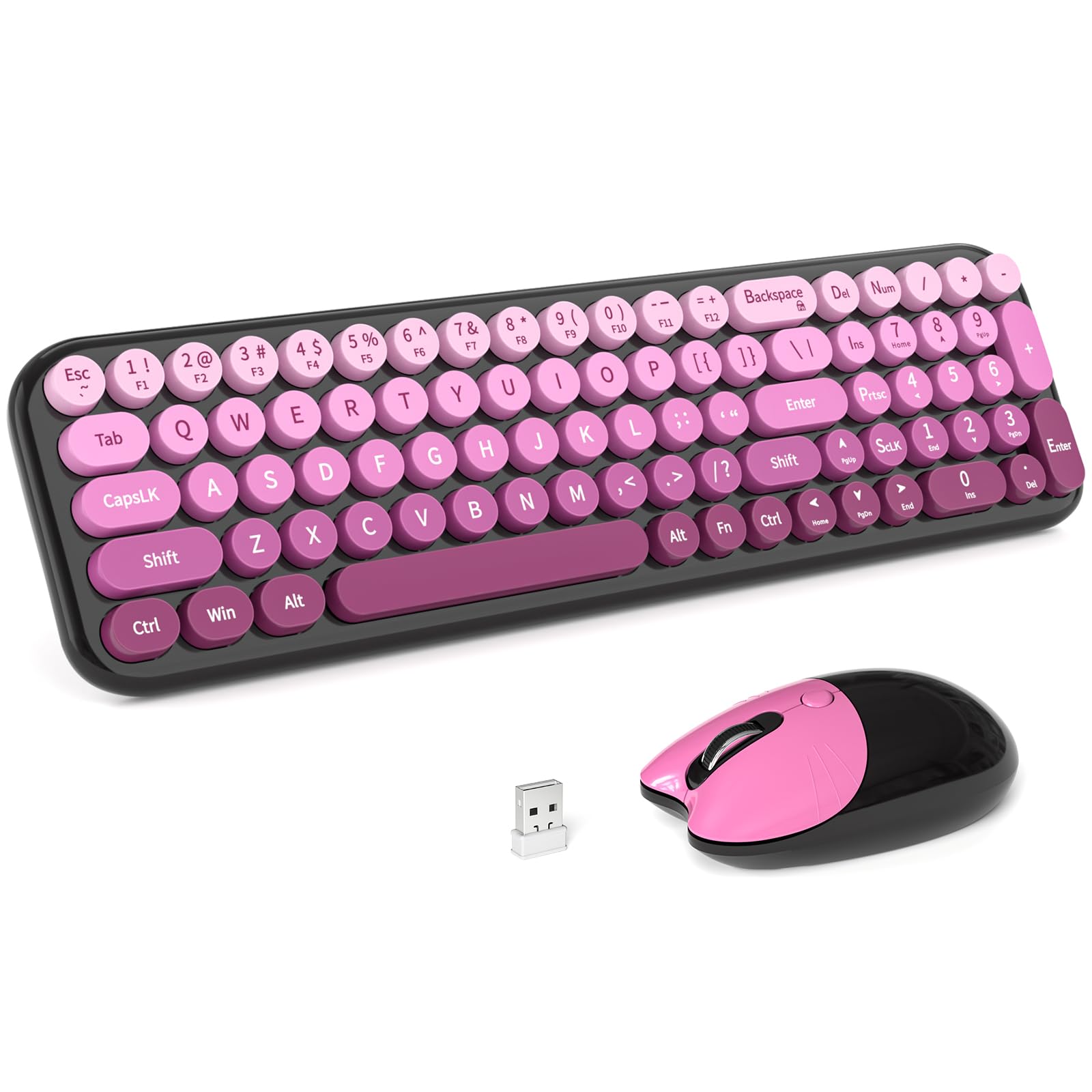
Image 1.1: MOFII Wireless Keyboard and Mouse Combo (Black Pink Gradient).
Key features include:
- Wide Compatibility: Works with PCs, desktops, and laptops running Windows, Chrome OS, and Linux.
- Reliable 2.4G Wireless: Provides stable, anti-interference wireless freedom up to 10 meters (33 feet).
- Ergonomic Design: Keyboard features a folding holder for an optimal slope, reducing wrist strain. The mouse is contoured for comfort.
- Auto-Sleep Feature: Both keyboard and mouse enter auto-sleep mode after 8-10 minutes of inactivity to conserve battery life.
- Easy Maintenance: Removable keycaps facilitate easy cleaning.
2. Setup Instructions
Follow these steps to set up your MOFII Wireless Keyboard and Mouse Combo:
2.1. Battery Installation
- Locate the battery compartments on the underside of both the keyboard and the mouse.
- Open the battery covers.
- Insert 2 AAA batteries into the keyboard and 1 AA battery into the mouse, ensuring correct polarity (+/-). Batteries are not included.
- Close the battery covers securely.
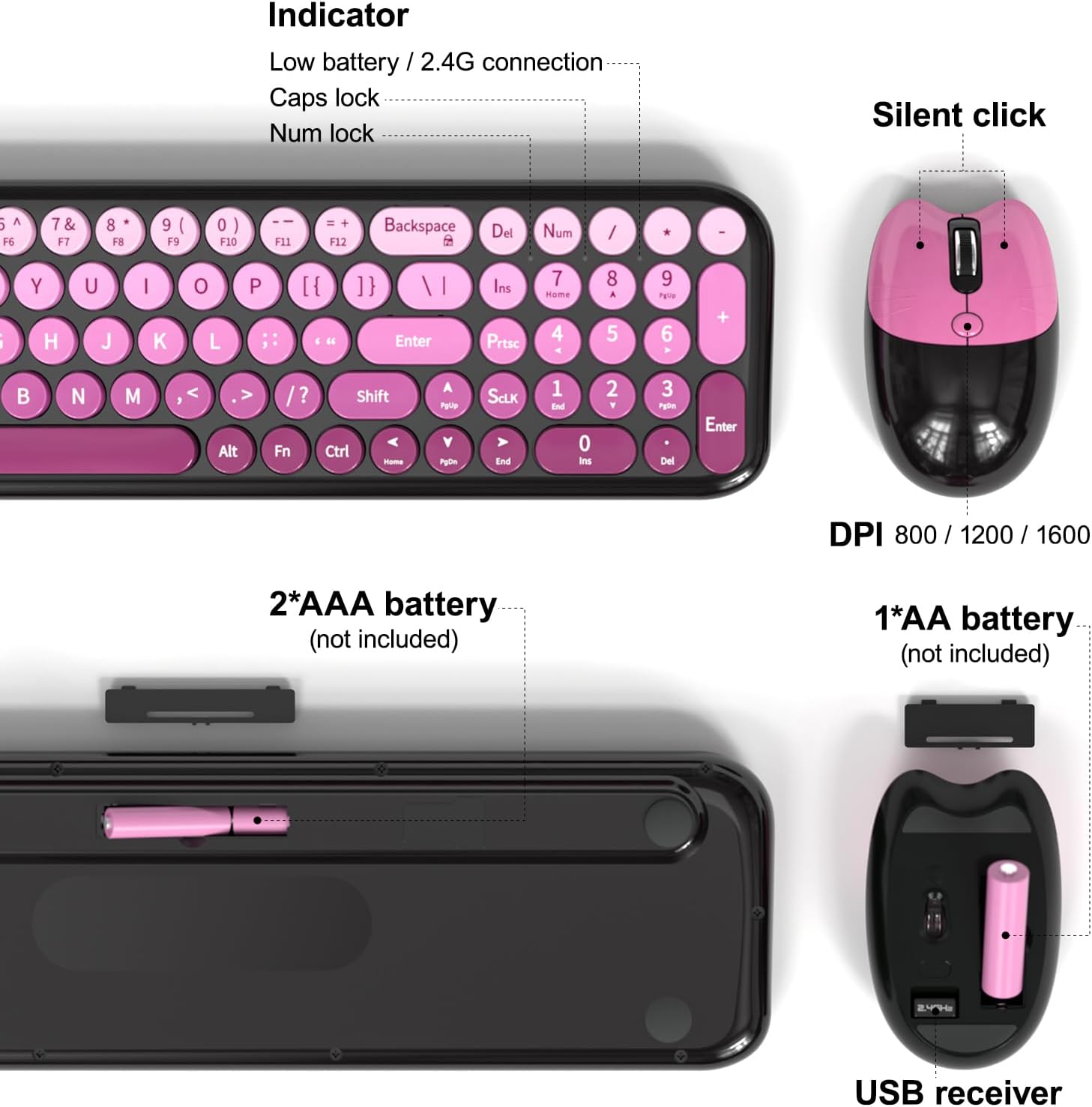
Image 2.1: Battery compartments for the keyboard (2xAAA) and mouse (1xAA).
2.2. Connecting the USB Receiver
- The USB receiver for both the keyboard and mouse is stored inside the mouse's battery compartment. Carefully remove it.
- Plug the USB receiver into an available USB port on your computer (PC, desktop, or laptop).
- The keyboard and mouse are designed for plug-and-play functionality and should connect automatically within a few seconds.
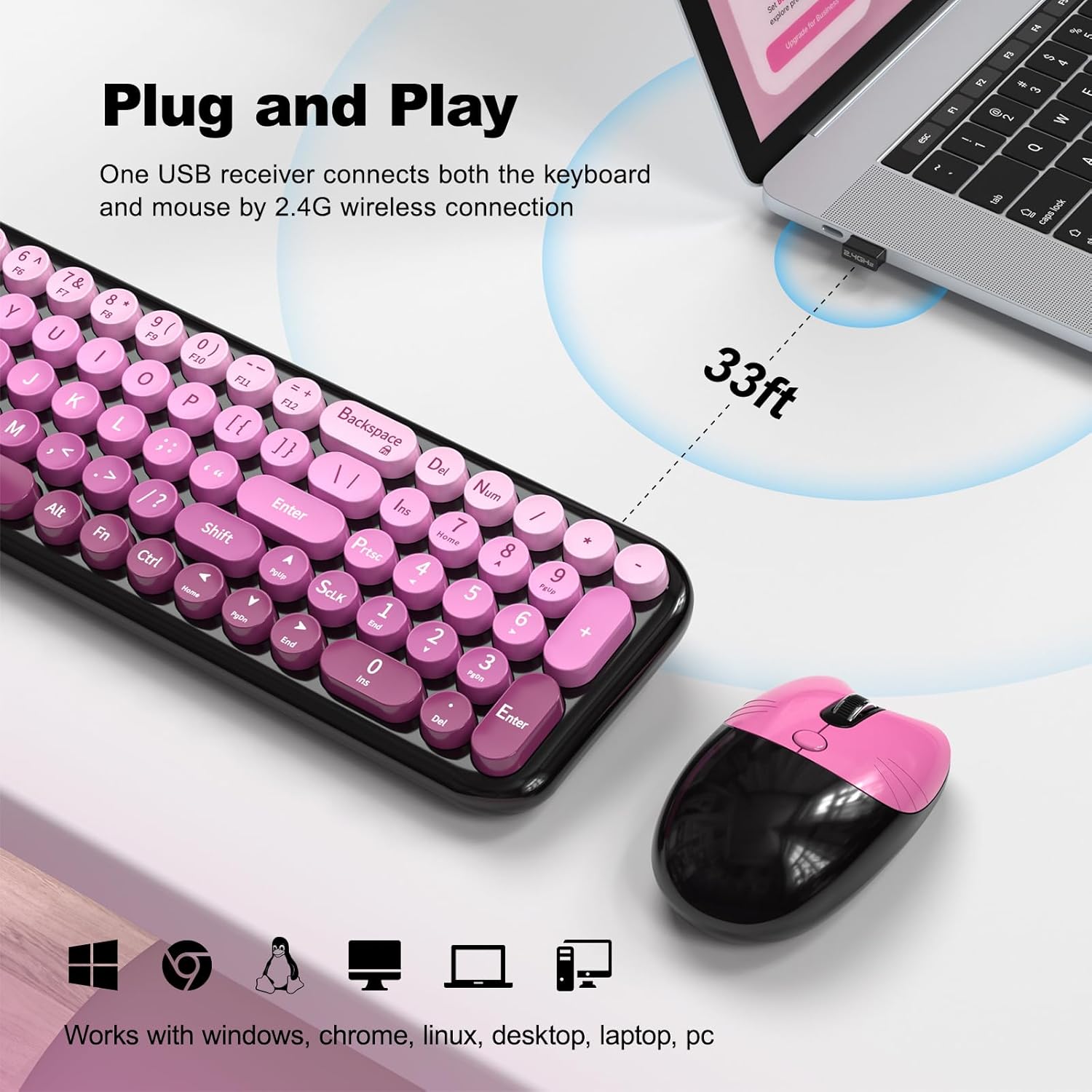
Image 2.2: The USB receiver enables 2.4G wireless connection for both devices.
The wireless connection range is up to 10 meters (33 feet).
3. Operating Instructions
3.1. Basic Keyboard Usage
The keyboard features a standard QWERTY layout with a numeric keypad. The round keycaps are designed for comfortable typing. Indicator lights for Low Battery/2.4G connection, Caps Lock, and Num Lock are located on the top right of the keyboard.
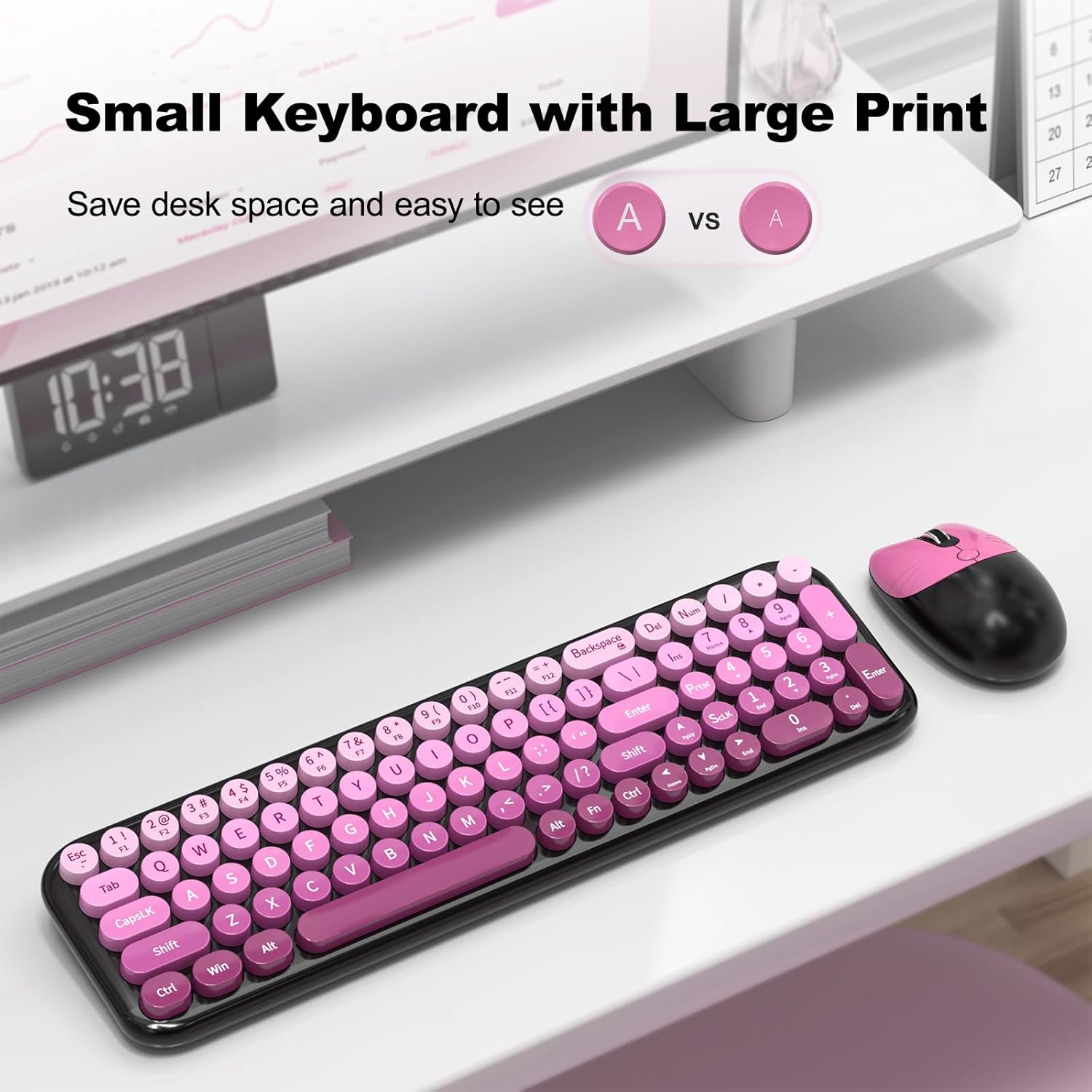
Image 3.1: The keyboard features large print keys for enhanced visibility.
3.2. Function Key Combinations (FN Keys)
The keyboard includes function keys (F1-F12) that can be accessed by pressing the Fn key in combination with the desired F-key. Some common combinations are listed below:
| Combination | Function |
|---|---|
| Fn + 1 | F1 |
| Fn + 2 | F2 |
| Fn + 3 | F3 |
| Fn + 4 | F4 |
| Fn + 5 | F5 |
| Fn + 6 | F6 |
| Fn + 7 | F7 |
| Fn + 8 | F8 |
| Fn + 9 | F9 |
| Fn + 0 | F10 |
| Fn + - | F11 |
| Fn + = | F12 |
| Fn + Esc | ` (tilde) |
| Shift + 1 | ! |
| Shift + 2 | @ |
| Shift + 3 | # |
| Shift + 4 | $ |
| Shift + 5 | % |
| Shift + 6 | ^ |
| Shift + 7 | & |
| Shift + 8 | * |
| Shift + 9 | ( |
| Shift + 0 | ) |
| Shift + - | _ |
| Shift + = | + |
| Fn + Shift + Esc | ~ (tilde) |
| Fn + Backspace | Line function to flip the top |

Image 3.2: Detailed list of function key combinations for the keyboard.
3.3. Mouse Usage and DPI Adjustment
The wireless mouse features a silent click design for quiet operation. It offers adjustable DPI (Dots Per Inch) settings to control cursor sensitivity. To adjust the DPI, press the DPI button located on the top of the mouse. The available DPI settings are 800, 1200, and 1600.
4. Maintenance
4.1. Cleaning the Keyboard and Mouse
To clean the keyboard, you can remove the keycaps for thorough cleaning. Use a soft, damp cloth to wipe down the surfaces of both the keyboard and mouse. Avoid using harsh chemicals or abrasive materials.
4.2. Battery Management
The keyboard and mouse are equipped with an auto-sleep feature to extend battery life. After 8-10 minutes of inactivity, the devices will enter sleep mode. Press any key on the keyboard or click the mouse to wake them up. Replace batteries when the low battery indicator light illuminates or when performance degrades. Expected battery life is up to 18 months, but this can vary based on usage.
5. Troubleshooting
If you encounter issues with your MOFII Wireless Keyboard and Mouse Combo, please refer to the following common solutions:
- No Connection / Unresponsive Devices:
- Ensure the USB receiver is securely plugged into a working USB port on your computer.
- Check if the batteries in both the keyboard and mouse are correctly installed and have sufficient charge. Replace them if necessary.
- Move the keyboard and mouse closer to the USB receiver to rule out range issues.
- Try plugging the USB receiver into a different USB port on your computer.
- Restart your computer.
- Keys Not Registering / Delayed Input:
- Check battery levels and replace if low.
- Ensure there are no obstructions between the devices and the USB receiver.
- Avoid using the devices on metallic surfaces, which can interfere with wireless signals.
- Clean under the keycaps if specific keys are consistently unresponsive (refer to Maintenance section).
- Mouse Cursor Jumps or is Erratic:
- Ensure the mouse sensor is clean and free from dust or debris.
- Use the mouse on a suitable surface (e.g., a mouse pad).
- Adjust the DPI setting to a lower sensitivity if the cursor is too fast or erratic.
- Check battery levels.
- Auto-Sleep Feature Not Working:
- The auto-sleep feature is automatic. If devices are not sleeping, ensure they are not being inadvertently activated (e.g., by vibrations).
6. Product Specifications
| Feature | Detail |
|---|---|
| Brand | MOFII |
| Model | B0G3THVX35 |
| Connectivity Technology | 2.4G Wireless (USB Receiver) |
| Compatible Devices | PC, Desktop, Laptop (Windows, Chrome OS, Linux) |
| Keyboard Description | Multimedia, 85-key compact with numeric pad, Round Keycaps |
| Mouse DPI Settings | 800 / 1200 / 1600 |
| Keyboard Battery | 2 x AAA (not included) |
| Mouse Battery | 1 x AA (not included) |
| Wireless Range | Up to 10 meters (33 feet) |
| Color | Black Pink Gradient |
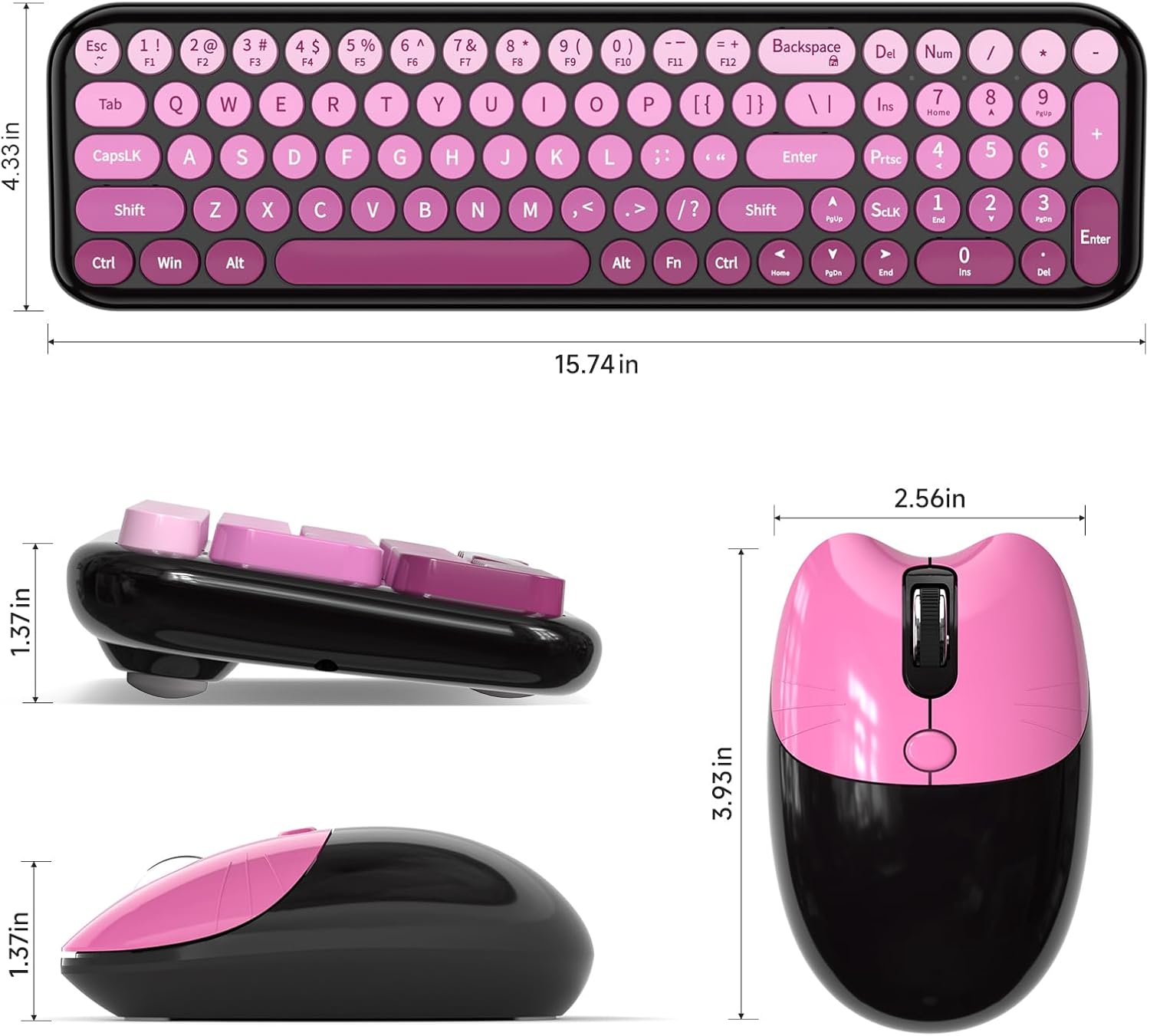
Image 6.1: Keyboard dimensions (approximately 15.74 inches wide, 4.33 inches deep).
7. Warranty and Support
MOFII provides a 1-year manufacturer warranty for this product. Additionally, a 30-day money-back guarantee is offered. For any product inquiries, technical support, or warranty claims, please contact MOFII customer service through the retailer where the product was purchased or visit the official MOFII website for contact information.
For more information, you may visit the MOFII Store on Amazon.


