
1. Introduction
Welcome to the user manual for your new Motorola G57 Power 5G smartphone. This guide provides essential information to help you set up, operate, maintain, and troubleshoot your device. Please read this manual thoroughly to ensure optimal performance and longevity of your smartphone.
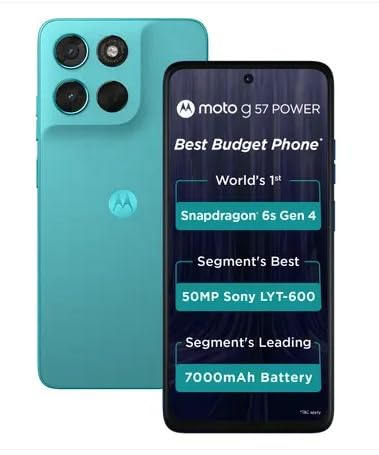
Image 1.1: Front and back view of the Motorola G57 Power 5G.
2. Setup
2.1 Unboxing
Upon opening the package, ensure all components are present:
- Motorola G57 Power 5G Smartphone
- Charger (may vary by region)
- USB Cable
- SIM Tray Ejector Tool
- Quick Start Guide
2.2 SIM Card Installation
- Locate the SIM tray on the side of your device.
- Insert the SIM tray ejector tool into the small hole next to the tray and press gently until the tray pops out.
- Place your Nano-SIM card(s) and/or microSD card (if supported) into the tray with the gold contacts facing down. Ensure they are correctly seated.
- Carefully reinsert the tray into the phone until it clicks into place.
2.3 Initial Power On and Setup
- Press and hold the Power button until the Motorola logo appears.
- Follow the on-screen prompts to select your language, connect to a Wi-Fi network, and sign in with your Google account.
- You will be guided through setting up security features like fingerprint unlock or face unlock, and data transfer from an old device.
3. Operating Your Device
3.1 Display and Navigation
The Motorola G57 Power 5G features a 6.72-inch FHD+ display with a 120Hz refresh rate for smooth visuals and up to 1050 nits peak brightness for clear outdoor visibility. Navigation is primarily through Android's intuitive gesture system or traditional on-screen buttons, configurable in settings.
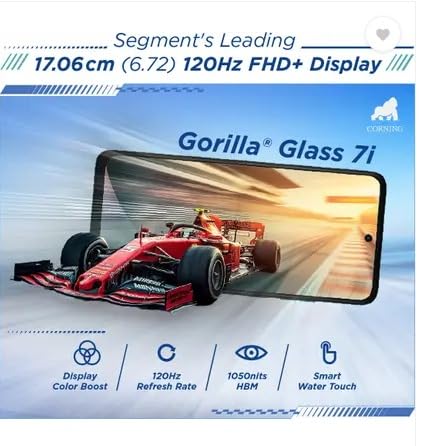
Image 3.1: The Motorola G57 Power 5G's 120Hz FHD+ display.
3.2 Camera Usage
Your device is equipped with a versatile camera system:
- Main Camera: 50MP LYT-600 sensor for high-resolution photos.
- Ultrawide Camera: 8MP for capturing broader scenes.
- Front Camera: 8MP for selfies and video calls.
Utilize the camera app to switch between modes (Photo, Portrait, Video, Pro, etc.), adjust settings, and apply filters. The integrated moto ai features enhance image processing for improved results.

Image 3.2: Rear camera module of the Motorola G57 Power 5G.
3.3 Battery Management
The Motorola G57 Power 5G features a large 7000mAh silicon carbon battery, designed for extended usage. It supports 33W TurboPower fast charging. To optimize battery life:
- Adjust screen brightness.
- Disable unused connectivity features (Wi-Fi, Bluetooth, GPS).
- Close background applications.
- Utilize battery saver modes.
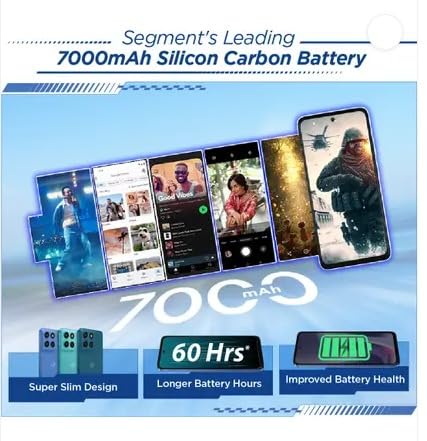
Image 3.3: Visual representation of the 7000mAh battery.
3.4 Connectivity
Your device supports 5G cellular networks for high-speed data. It also includes Bluetooth for connecting to accessories and Wi-Fi for internet access. Manage these connections through the Quick Settings panel or the Settings app.
3.5 Software and Updates
The Motorola G57 Power 5G runs on Android 16, with a promised upgrade to Android 17 and three years of security updates. Regularly check for and install software updates to ensure your device has the latest features and security patches. Navigate to Settings > System > System updates.
4. Maintenance
4.1 Cleaning Your Device
To clean your phone, use a soft, lint-free cloth. Avoid abrasive materials or harsh chemicals. For the screen, a screen cleaner specifically designed for electronics can be used. Ensure no liquids enter ports.
4.2 Software Maintenance
- Regularly update your operating system and applications.
- Clear cache and data for apps that consume excessive storage.
- Perform periodic backups of your important data.
4.3 Storage Management
The device comes with 128GB of internal storage. To manage storage effectively:
- Delete unnecessary files and apps.
- Move photos and videos to cloud storage or an external device.
- Utilize the 'Files' app or 'Storage' section in settings to identify and manage large files.
5. Troubleshooting
5.1 Common Issues and Solutions
- Device not powering on: Ensure the battery is charged. Connect to the charger for at least 15 minutes, then try powering on.
- Apps crashing or freezing: Close the app and reopen it. If the issue persists, clear the app's cache and data (Settings > Apps > [App Name] > Storage > Clear cache/Clear data).
- Poor network connectivity: Check if airplane mode is off. Restart your device. Verify your SIM card is properly inserted.
- Slow performance: Close background apps, clear storage, and restart your device.
5.2 Factory Reset
A factory reset will erase all data from your phone and restore it to its original factory settings. This can resolve persistent software issues but should be used as a last resort after backing up all important data.
- Go to Settings > System > Reset options.
- Select Erase all data (factory reset).
- Confirm your decision and enter your PIN/password if prompted.
6. Specifications
| Feature | Specification |
|---|---|
| Model | Motorola G57 Power 5G |
| Operating System | Android 16 (upgradeable to Android 17) |
| Processor | Snapdragon 6s Gen 4 |
| RAM | 8 GB LPDDR4X |
| Internal Storage | 128 GB UFS 2.2 |
| Display | 6.72-inch FHD+ LCD, 120Hz refresh rate, up to 1050 nits brightness |
| Rear Camera | 50MP LYT-600 (Main) + 8MP (Ultrawide) |
| Front Camera | 8MP |
| Battery | 7000mAh Silicon Carbon, 33W TurboPower charging |
| Connectivity | 5G, Bluetooth, Wi-Fi |
| Dimensions (L x W x H) | 16.62 x 7.65 x 0.86 cm |
| Weight | 210.6 g |
| Durability | IP64 dust and splash resistance, MIL-STD 810H tested |
7. Safety and Regulatory Information
Please refer to the separate safety and regulatory guide included with your device for important information regarding safe usage, disposal, and compliance with local regulations. Always use approved accessories to prevent damage or injury.
8. Warranty and Support
Your Motorola G57 Power 5G comes with a limited warranty. For detailed warranty terms, conditions, and to register your product, please visit the official Motorola support website. For technical assistance or service, contact Motorola customer support.
You can find more information and support resources on the Motorola Store on Amazon.


