
Introduction
The FiiO DM15 R2R is a portable HiFi-grade CD player designed for high-fidelity audio playback. It features FiiO’s self-developed fully differential 24-bit R2R resistor array DAC, delivering authentic analog sound. The DM15 R2R offers substantial power output, aptX Adaptive Bluetooth transmission, and functions as a high-resolution USB sound card. With customizable sound presets and USB ripping capabilities, it provides a versatile listening experience.
Key Features
- Fully Differential 24-Bit R2R DAC: Utilizes 192 high-precision resistors for warm, natural, and detailed analog sound.
- High-Power Output: Delivers up to 1150mW + 1150mW per channel balanced output, capable of driving demanding headphones.
- Qualcomm QCC3095 Bluetooth: Supports aptX, aptX HD, aptX Adaptive, and SBC for high-quality wireless audio transmission from CD or USB input.
- HiFi-Grade USB DAC: Functions as a USB sound card supporting up to 384kHz/32bit PCM and DSD256, offering rich analog musicality.
- 24 Sound Presets with Global BASS + EQ: Features 3-stage BASS boost and 8 built-in EQ presets, including a RETRO mode, for tailored sound.
- USB Ripping Functionality: Supports 31-band high-precision PEQ for fine-tuned sound customization and direct ripping of CDs.
Setup
1. Charging the Device
The FiiO DM15 includes a nonstandard battery. Connect the device to a power source using the provided USB cable. A green light indicates charging, and the light will change when fully charged.
2. Inserting a CD
Gently open the CD compartment. Place the CD onto the spindle with the label side facing up. Close the compartment securely.
3. Connecting Audio Output
- Headphones: Connect 3.5mm or 4.4mm headphones to the respective jacks on the device.
- Bluetooth: Pair with Bluetooth headphones or speakers via the device's Bluetooth settings.
- External DAC/Amplifier: Use the Optical/Coaxial digital output or RCA output to connect to an external audio system.
- USB DAC Mode: Connect the DM15 to a computer or compatible phone/tablet via USB to use it as an external DAC. Ensure proper recognition by connecting the device first, then plugging in USB power.

Image: FiiO DM15 connectivity diagram illustrating various input and output options, including USB, analog, Bluetooth, and digital connections.
Operating Instructions
1. Power On/Off and Status Check
- Power On/Off: Long press the Power button to turn the device on or off.
- Check Status: Short press the Power button while the device is on to check battery level and operational status.
2. Playback Controls
- Play/Pause: Press the Play/Pause button to start or pause playback.
- Skip Tracks: During playback, use the Rewind and Fast-Forward buttons to skip backward or forward through tracks.
- Volume Adjustment: Use the Volume Up (+) and Volume Down (-) buttons for step-by-step volume changes. Long press for quick volume adjustment.
3. Switching Output Modes
Short press the Power button repeatedly to cycle through output modes:
- USB OUT: For CD ripping or PC recording.
- SPDIF OUT: For Optical or Coaxial digital output.
- BLUE OUT: For Bluetooth output.
- PRE OUT: For Analog output.
4. Bluetooth Pairing
In Bluetooth mode, long press the Rewind or Fast-Forward buttons to force pairing or clear existing pairings. Ensure the receiving device's Bluetooth codec is set correctly.
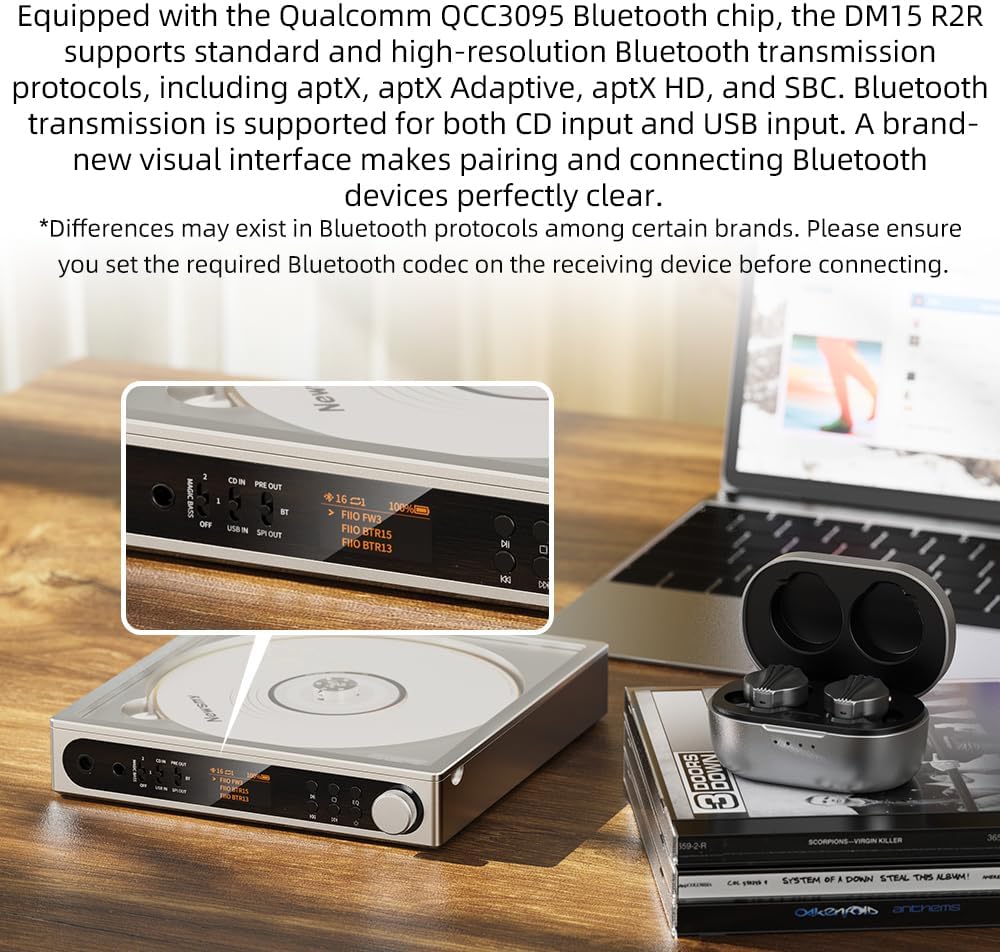
Image: FiiO DM15 showing Bluetooth connectivity on its display, ready to pair with wireless earbuds.
5. Sound Customization
Use the Multifunction button to select playback modes (e.g., repeat, random). Short press to cycle through options. Long press to add the current track to 'My Favorites'.

Image: FiiO DM15's display showing various EQ presets and BASS boost options for personalized audio.
6. USB Ripping
Connect a USB drive to the device. In USB OUT mode, the DM15 supports CD ripping, allowing you to transfer audio from CDs to the connected USB storage.
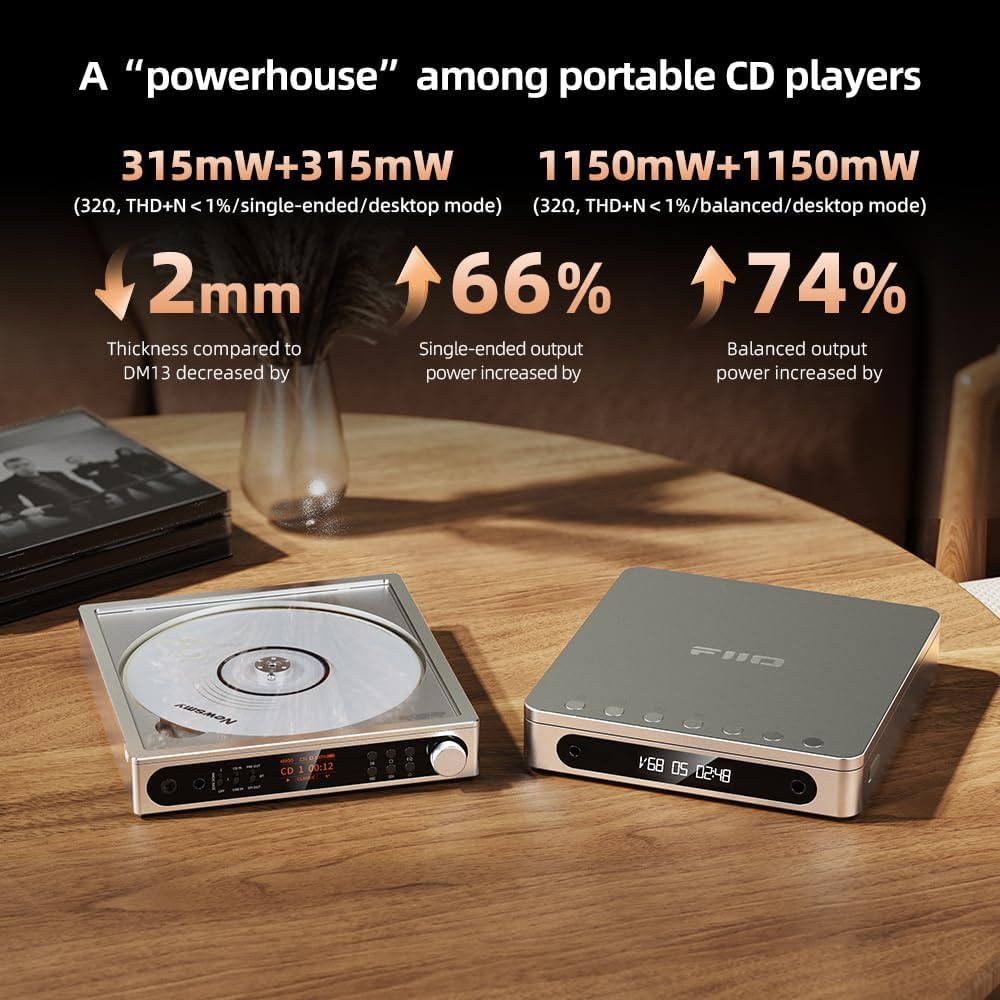
Image: FiiO DM15 demonstrating USB ripping, connected to an external USB hub for data transfer.
Maintenance
- Keep the device clean by wiping it with a soft, dry cloth.
- Avoid exposing the device to extreme temperatures, humidity, or direct sunlight.
- Handle CDs by the edges to prevent scratches and smudges.
- Store the device in a safe place when not in use to prevent damage.
Troubleshooting
- Device not powering on: Ensure the battery is charged or the device is connected to a stable power source.
- No sound: Check headphone connections, volume levels, and selected output mode. Verify Bluetooth pairing if applicable.
- CD not playing: Ensure the CD is clean, free of scratches, and correctly inserted.
- Bluetooth connection issues: Try clearing previous pairings and re-pairing the device. Ensure the Bluetooth device is within range.
Specifications
| Feature | Detail |
|---|---|
| Product Dimensions | 5.39 x 5.67 x 1 inches |
| Item Weight | 1.04 pounds |
| Item Model Number | DM15-R2R-Black |
| Batteries | 1 Nonstandard Battery (included) |
| Connectivity Technology | Bluetooth, USB |
| Included Components | Cable |
| Number Of Discs | 1 |

Image: FiiO DM15 highlighting its high-voltage lithium battery power for portable use.
Warranty and Support
For warranty information, technical support, or service inquiries, please refer to the documentation included with your product or visit the official FiiO website. Keep your purchase receipt for warranty claims.


