
1. Introduction
This manual provides detailed instructions for the installation, operation, and maintenance of your PHEZEN 7-Inch Double Din Car Stereo Radio. This unit is specifically designed for Ford Freestyle models from 2005 to 2007, offering an upgraded infotainment experience with features like Android 14, Wireless CarPlay, Android Auto, GPS navigation, Bluetooth, Wi-Fi, FM/RDS radio, DSP, Steering Wheel Control (SWC), and an included backup camera. Please read this manual thoroughly before installation and use to ensure proper function and safety.
2. Safety Information
- Always operate the device responsibly. Distracted driving can lead to accidents.
- Ensure all wiring is correctly connected to prevent short circuits or damage. If unsure, consult a professional installer.
- Do not disassemble or modify the unit. This may cause damage and void the warranty.
- Keep the screen clean and free from obstructions.
- Adjust volume to a safe level to maintain awareness of road conditions.
3. Package Contents
Verify that all items listed below are included in your package:
- 1 x PHEZEN 7-Inch Car Stereo Radio Unit
- 1 x Power Cable
- 1 x RCA Input/Output Cable Set
- 2 x USB Cables
- 1 x Camera Input Cable
- 1 x USB Adapter Cable
- 1 x GPS Antenna
- 1 x Instruction Manual (this document)
- 1 x Protocol Box
- 1 x Radio Adapter
- 1 x HD Backup Camera

Figure 3.1: Product dimensions and included accessories.
4. Installation Guide
This car stereo is designed for a plug-and-play installation in Ford Freestyle models from 2005 to 2007. However, professional installation is recommended.
4.1 Compatibility Check
Ensure your vehicle's dashboard matches the compatible design. This unit is specifically molded for the Ford Freestyle 2005-2007 dashboard. An incompatible dashboard may prevent proper fitment.
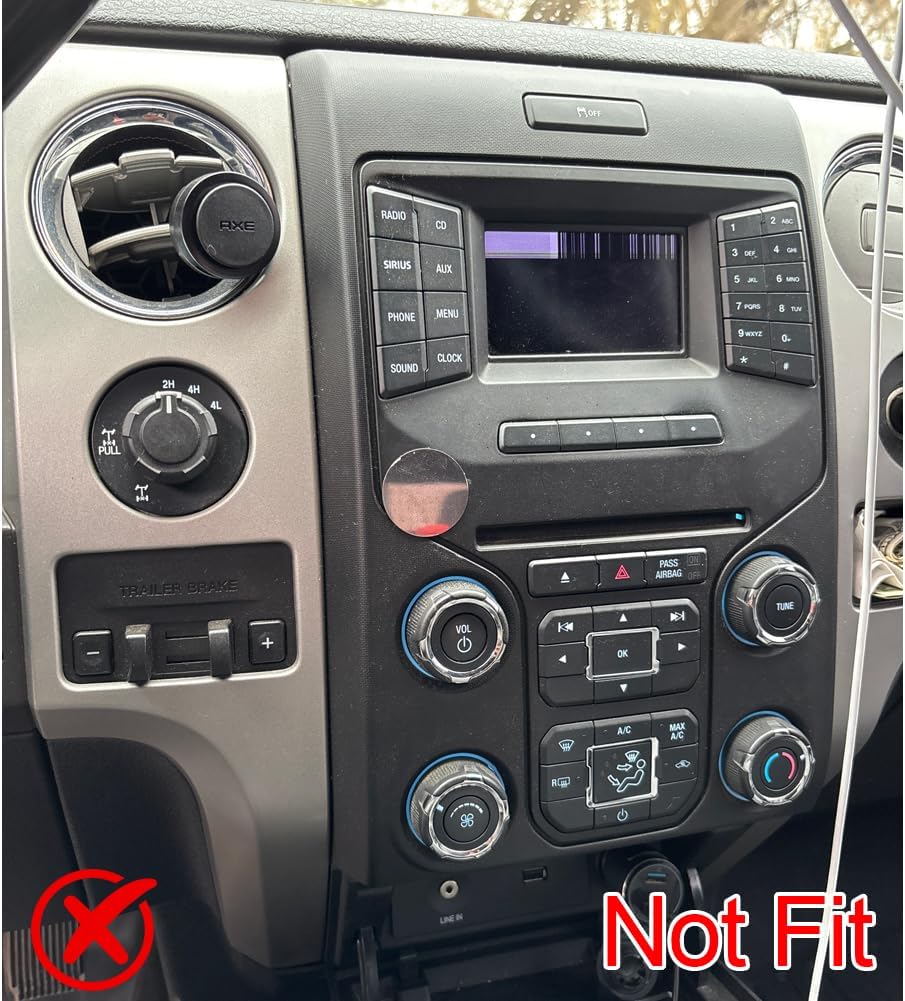
Figure 4.1: Example of an incompatible dashboard. Ensure your Ford Freestyle dashboard matches the compatible design.
4.2 Wiring Connections
Carefully connect the provided wiring harness to your vehicle's existing wiring. The unit includes a dedicated power cable, RCA input/output cables, USB cables, camera input, and a GPS antenna. Refer to the wiring diagram below for correct connections.

Figure 4.2: Wiring harness connections for the car stereo.
4.3 Backup Camera Installation
The included HD backup camera connects to the dedicated camera input cable. Mount the camera at the rear of your vehicle, ensuring a clear view. Route the cable carefully to avoid interference or damage.
4.4 Steering Wheel Control (SWC) Integration
The unit is fully compatible with your Ford Freestyle's original steering wheel controls. After installation, you may need to configure the SWC settings in the unit's menu to map the buttons correctly.
5. Operating Instructions
5.1 Basic Operation
- Power On/Off: Press and hold the power button (usually a physical button or on-screen icon) to turn the unit on or off.
- Volume Control: Adjust volume using the physical knob or on-screen controls.
- Touchscreen: The 7-inch capacitive touchscreen responds to touch gestures for navigation and control.

Figure 5.1: High definition 1080P display for clear visuals.
5.2 Wireless CarPlay & Android Auto
Connect your iPhone or Android smartphone wirelessly to access apps, navigation, music, and calls directly on the car stereo screen.
- Ensure Bluetooth and Wi-Fi are enabled on your smartphone.
- On the car stereo, select the CarPlay or Android Auto icon.
- Follow the on-screen prompts to pair your device.

Figure 5.2: Wireless CarPlay and Android Auto interface.
5.3 GPS Navigation & WiFi Function
The unit features built-in GPS and Wi-Fi. Connect to a Wi-Fi hotspot (e.g., from your phone) to download and use online navigation maps and other internet-dependent applications.
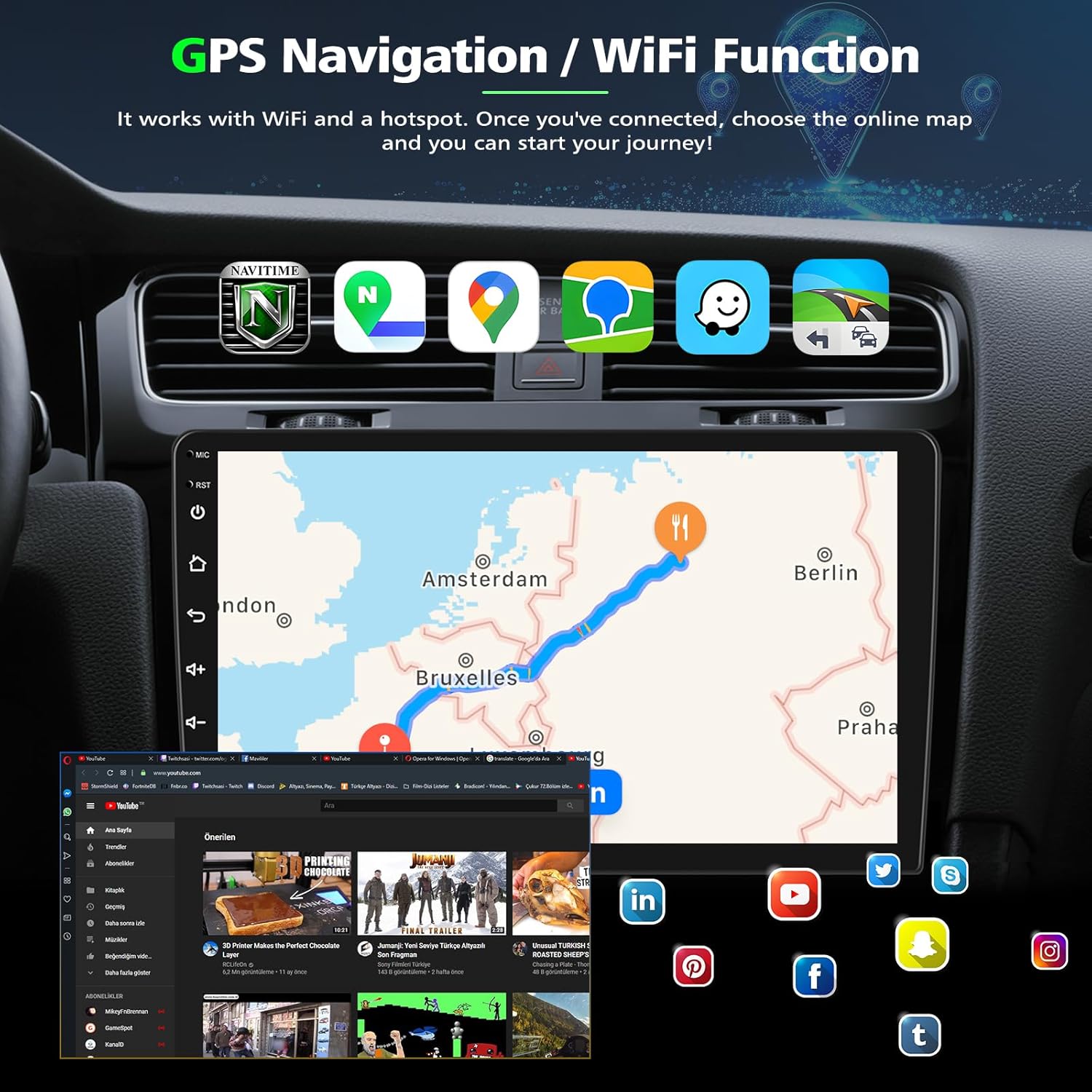
Figure 5.3: GPS Navigation and Wi-Fi functionality.
5.4 Bluetooth 5.2
Pair your phone via Bluetooth for hands-free calling and audio streaming.
- Go to the Bluetooth settings on the car stereo.
- Enable Bluetooth on your phone and search for available devices.
- Select the car stereo from the list and confirm pairing.

Figure 5.4: Bluetooth 5.2 for hands-free communication.
5.5 FM/RDS Radio
Tune into your favorite radio stations. The RDS (Radio Data System) feature displays station information where available.
5.6 Reverse Display & Backup Camera
When the vehicle is shifted into reverse, the screen will automatically display the view from the connected backup camera, providing enhanced visibility for parking and maneuvering.

Figure 5.5: Reverse display with backup camera view and steering wheel control options.
5.7 Split Screen Function
The split-screen feature allows you to run two applications simultaneously, such as navigation on one side and music playback on the other.
5.8 Voice Control
Utilize voice commands for various functions, including navigation, calls, and music playback, for a safer, hands-free experience.
6. Maintenance
- Screen Cleaning: Use a soft, lint-free cloth to clean the touchscreen. Avoid abrasive cleaners or solvents.
- Software Updates: Periodically check for software updates from the manufacturer to ensure optimal performance and access to new features.
- General Care: Keep the unit free from excessive dust and moisture.
7. Troubleshooting
- No Power: Check all power connections and fuses. Ensure the vehicle's ignition is on.
- No Sound: Verify speaker connections. Check volume levels and ensure the mute function is not active.
- GPS Signal Loss: Ensure the GPS antenna is properly installed and has a clear view of the sky.
- CarPlay/Android Auto Not Connecting: Ensure Bluetooth and Wi-Fi are enabled on your phone. Try restarting both the phone and the car stereo.
- Steering Wheel Controls Not Working: Check the SWC wiring and ensure the controls are configured correctly in the unit's settings.
8. Specifications
| Feature | Description |
|---|---|
| Brand | PHEZEN |
| Operating System | Android 14 |
| Screen Size | 7-Inch |
| Display Type | Full Capacitive Touchscreen, 1080P HD |
| Connectivity | Bluetooth 5.2, USB, Wi-Fi |
| Special Features | Built-in Bluetooth, Touchscreen, Wireless CarPlay, Android Auto, GPS, FM/RDS, DSP, SWC, Backup Camera Support |
| Memory/Storage | 4GB RAM + 64GB ROM (as per product title) |
| Manufacturer | PHEZEN |
9. Warranty and Support
9.1 Warranty Information
This product is covered by a standard manufacturer's warranty. Please retain your proof of purchase for any warranty claims. Specific warranty duration and terms may vary; refer to the seller's policy at the time of purchase.
9.2 Customer Support
For technical assistance, troubleshooting, or warranty inquiries, please contact the seller, UZZO-PHEZEN, directly through the Amazon platform. They are committed to providing high standards of customer service.
To contact the seller:
- Go to the product page on Amazon.
- Locate the seller information (usually under the 'Add to Cart' button). The seller name is "UZZO-PHEZEN".
- Click on the seller's name to visit their storefront or find a "Ask a question" button to send a message.
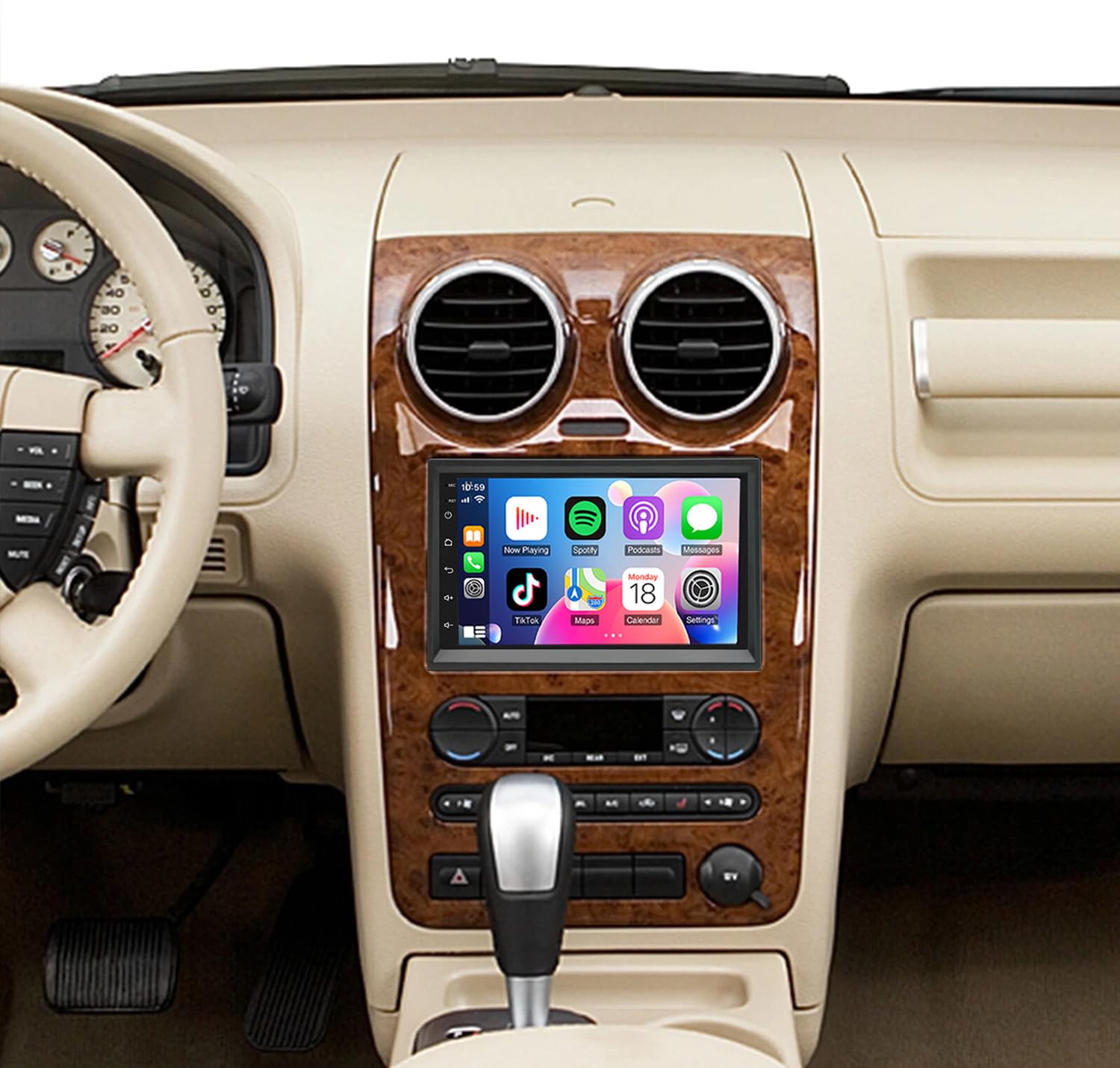
Figure 9.1: How to contact the seller for support.
The product also offers optional protection plans (2-Year or 3-Year) available for purchase separately, providing extended coverage.
A 30-day return policy is typically available for this product, allowing for returns or replacements within that period.