
Nulea B0G3PCSK8B
Nulea Ergonomic Split Keyboard User Manual
Model: B0G3PCSK8B
Introduction
Thank you for choosing the Nulea Ergonomic Split Keyboard. This wireless keyboard features a split design, cushioned wrist rest, and rechargeable battery, designed for comfortable and efficient typing. This manual provides instructions for setup, operation, maintenance, and troubleshooting to ensure optimal use of your device.
Package Contents
- Nulea Ergonomic Split Keyboard
- USB Receiver (2.4G)
- USB-C Charging Cable
- User Manual
Setup
1. Charging the Keyboard
Before first use, fully charge the keyboard using the provided USB-C cable. Connect the cable to the keyboard's charging port and a USB power source. The charging indicator light will show charging status.

Image: The Nulea keyboard connected to a charger, highlighting its rechargeable feature and battery life.
2. Connecting the Keyboard
The Nulea Ergonomic Split Keyboard supports dual-mode connectivity: 2.4G wireless via USB receiver and Bluetooth. You can connect up to three devices and switch between them.
2.1. 2.4G Wireless Connection
- Locate the USB receiver, usually stored in a compartment on the underside of the keyboard.
- Plug the USB receiver into an available USB port on your computer.
- Turn on the keyboard. It should automatically connect to the receiver.
- Press Fn + W to select the 2.4G connection mode. The indicator light will confirm the connection.

Image: Visual guide for wireless connectivity, showing 2.4G and Bluetooth pairing.
2.2. Bluetooth Connection
- Turn on the keyboard.
- Press and hold Fn + Q or Fn + E for 3-5 seconds to enter Bluetooth pairing mode. The indicator light will flash rapidly.
- On your device (computer, tablet, phone), go to Bluetooth settings and search for "Nulea Keyboard" (or similar).
- Select the keyboard to pair. The indicator light will stop flashing once connected.

Image: The keyboard demonstrating seamless dual connection capabilities with multiple devices.
3. Adjusting Tilt Legs
The keyboard features adjustable tilt legs to customize your typing angle for optimal comfort. There are three different angles available. Extend the legs on the underside of the keyboard to find your preferred ergonomic position.
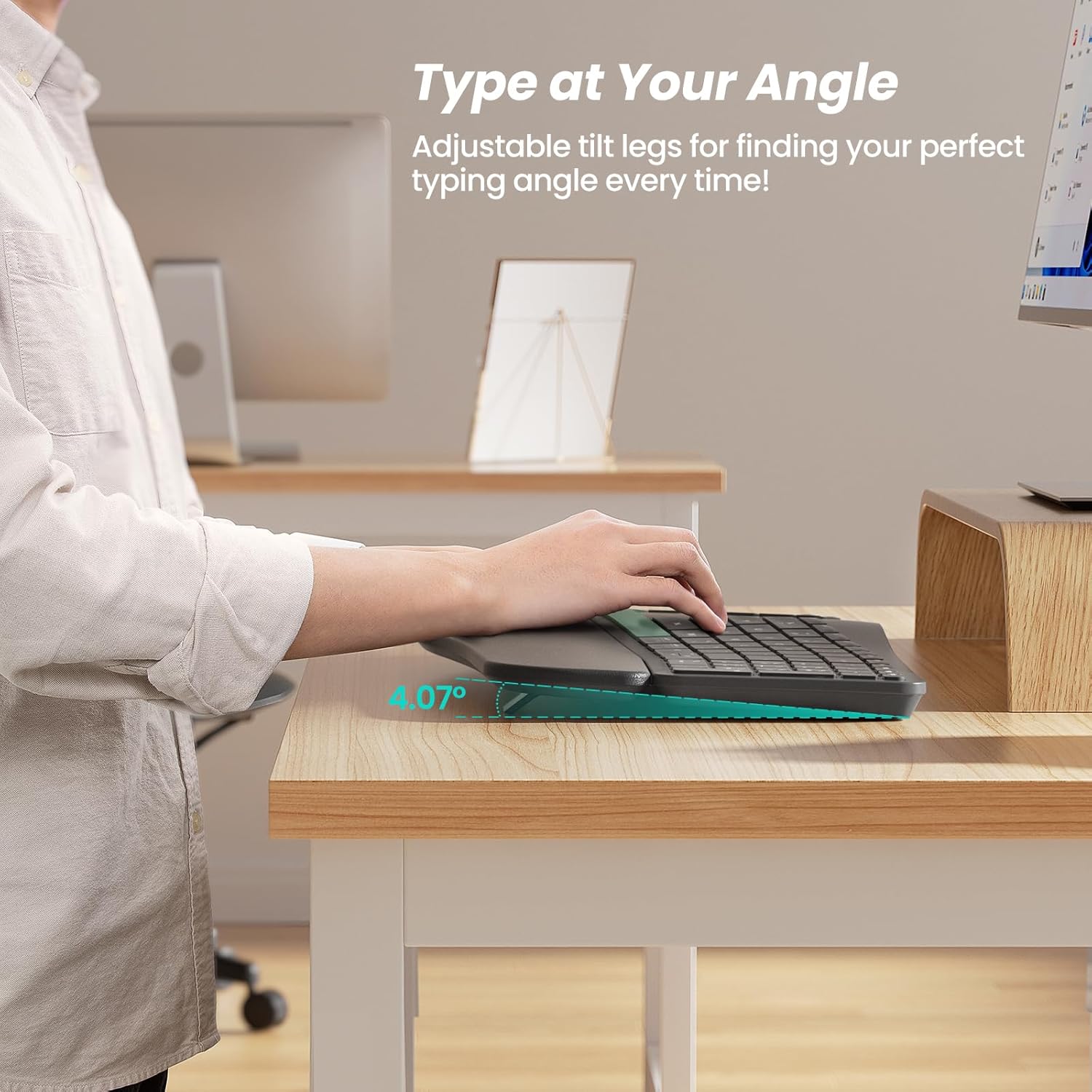
Image: The keyboard with its adjustable tilt legs extended, illustrating the customizable typing angle.
Operating Instructions
1. Ergonomic Design and Wrist Rest
The split keyset design promotes a natural hand and wrist posture, reducing strain during extended typing sessions. The integrated cushioned wrist rest provides additional support and comfort.

Image: A user demonstrating the ergonomic typing posture with the Nulea keyboard.

Image: Detailed view of the cushioned wrist rest construction.
2. Switching Between Devices
Once paired with multiple devices, you can switch between them by pressing the corresponding function key:
- Fn + Q: Switch to Bluetooth Device 1
- Fn + W: Switch to 2.4G Wireless Device
- Fn + E: Switch to Bluetooth Device 2
3. Windows/Mac Layout Switching
The keyboard supports both Windows and Mac operating system layouts. Use the following key combinations to switch between modes:
- Fn + A: Switch to Windows layout
- Fn + S: Switch to Mac layout
4. Multimedia and Function Keys
The top row of keys (F1-F12) can function as standard F-keys or multimedia keys. Press the Fn key in combination with the desired F-key to access its secondary function (e.g., volume control, play/pause).
For example, to control speaker volume, use the keys with speaker icons. These typically correspond to F8, F9, or F10. Pressing Fn simultaneously with these keys will activate their multimedia function.
Maintenance
- Cleaning: Use a soft, dry cloth to clean the keyboard surface. For deeper cleaning, a slightly damp cloth can be used, ensuring no liquid enters the keycaps or internal components.
- Battery Care: To prolong battery life, avoid fully discharging the keyboard frequently. Recharge when the low battery indicator appears.
- Storage: Store the keyboard in a cool, dry place away from direct sunlight and extreme temperatures.
Troubleshooting
1. Keyboard Not Connecting
- Check Power: Ensure the keyboard is turned on and sufficiently charged.
- Re-pair: For Bluetooth, try unpairing and re-pairing the keyboard with your device. For 2.4G, unplug and re-plug the USB receiver.
- Correct Mode: Verify you are in the correct connection mode (Fn + Q for Bluetooth 1, Fn + W for 2.4G, Fn + E for Bluetooth 2).
- Interference: Move the keyboard closer to your device and away from other wireless devices that might cause interference.
2. Fn Key Behavior on Mac
Some Mac users may find that the Fn key does not behave identically to a native Mac keyboard's Fn key for certain system-level shortcuts (e.g., double-tapping for dictation). The Fn key on this keyboard primarily functions to activate the secondary functions of the F1-F12 keys. This is a design characteristic and not a defect.
3. Num Lock LED Not Working
If the Num Lock LED indicator is not functioning, but the number pad itself works, this may indicate a minor LED issue. The core functionality of the number pad should remain unaffected.
Specifications
| Feature | Detail |
|---|---|
| Brand | Nulea |
| Model | B0G3PCSK8B |
| Connectivity Technology | 2.4G, Bluetooth |
| Compatible Devices | Laptop, PC, Tablet |
| Keyboard Description | Membrane |
| Special Features | Ergonomic, Rechargeable, Split Keyset Design, Wrist Rest |
| Color | A-Grey Green |
| Wrist Rest Material | Leatherette |
| Power Source | Battery Powered (Rechargeable) |
| Switch Type | Scissor-Switch |
| Keyboard Layout | QWERTY (Standard) |
| Hand Orientation | Ambidextrous |
| Minimum OS Required | Mac OS 10.12 Sierra, Windows 10 |
| Compatible OS Family | MacOS, Windows, iOS, iPadOS |
| Battery Life | Up to 206 hours (standby) |
Warranty and Support
The Nulea Ergonomic Split Keyboard comes with a 1-year warranty from the date of purchase.
For technical support, troubleshooting assistance, or warranty claims, please contact Nulea customer service through the retailer's platform or visit the official Nulea website for contact information.
Product Videos
Nulea RT05B Wireless Ergonomic Keyboard Overview
Video: An official overview of the Nulea RT05B Wireless Ergonomic Keyboard, showcasing its split design, anti-slip features, and ergonomic palm positioning. (Duration: 0:39)
Related documentsB0G3PCSK8B


Ask a question about this manual
Ask about setup, troubleshooting, compatibility, parts, safety, or missing instructions. Manuals+ will review the question and use this page’s manual context to help answer it.