
1. Introduction
Thank you for choosing the kuayvan 11.5-inch Wireless CarPlay & Android Auto Screen. This manual provides essential information for the proper installation, operation, and maintenance of your device. Please read it thoroughly before use to ensure optimal performance and safety.
2. Important Safety Guidelines
- Do not operate the device or adjust settings while driving. Always pull over to a safe location before making any adjustments.
- Ensure all cables are securely connected and routed to avoid obstructing the driver's view or vehicle controls.
- Avoid exposing the device to extreme temperatures, direct sunlight for prolonged periods, or excessive moisture.
- Use only the provided power adapter and cables to prevent damage to the device or vehicle.
- Keep the screen clean using a soft, dry cloth. Do not use abrasive cleaners or solvents.
3. Package Contents
Verify that all items listed below are included in your package:
- 11.5-inch CarPlay Screen with Dash Cam
- Car Charger Adapter
- User Manual
- Suction Cup Bracket
- Vertical Bracket with Strong Adhesive
- Rear 1080P Camera
- AUX Cable
- 64GB TF Card

Image: All components included in the kuayvan 11.5-inch CarPlay screen package.
4. Product Overview
The kuayvan 11.5-inch Wireless CarPlay & Android Auto Screen is designed to enhance your driving experience with modern infotainment features. It integrates seamlessly with your smartphone and provides advanced functionalities for navigation, communication, and safety.
Key Features:
- Large 11.5-inch HD Touchscreen: Provides a clear and expansive display for all functions.
- Wireless Apple CarPlay & Android Auto: Seamless smartphone integration for apps, music, and messages.
- 4K Dash Cam & 1080P Rear Camera: Records high-resolution video for front and rear views, supporting simultaneous and loop recording.
- Mobile App Control: Free app for Android/iOS to preview, download, and share dash cam videos via built-in 5GHz WiFi.
- Mirror Link: Cast videos from your phone to the screen for a cinematic experience.
- Voice Control: Supports Siri and Google Assistant for hands-free operation.
- Multiple Audio Output Options: Built-in speakers, AUX, FM transmission, and Bluetooth.
- 64GB Storage: Includes a 64GB TF card for ample recording storage.
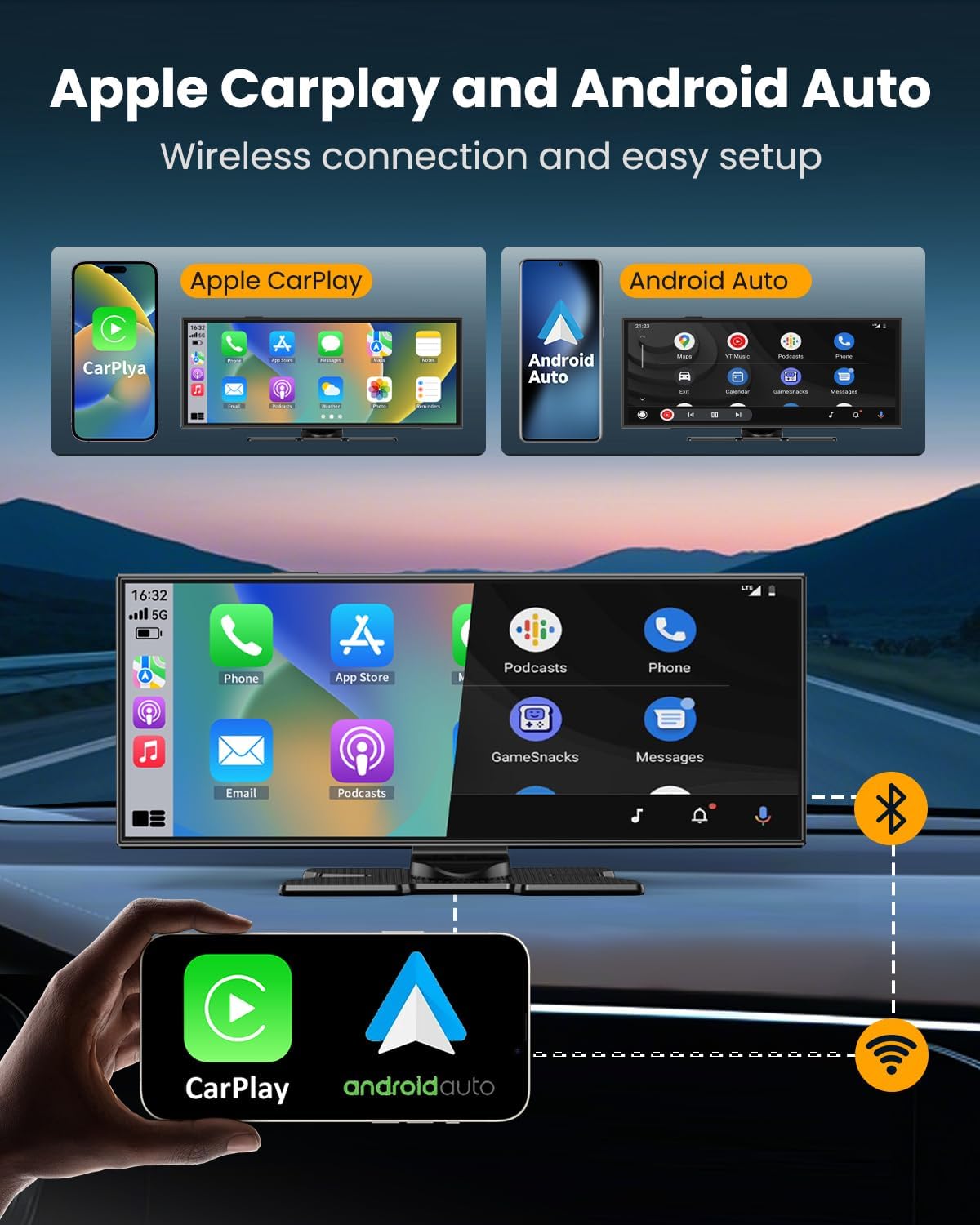
Image: Wireless Apple CarPlay and Android Auto interfaces on the 11.5-inch screen.

Image: Overview of 4K Dash Cam and 1080P Rear Camera features.
Video: A review of the Wireless CarPlay screen, demonstrating its features and functionality.
Video: An informational video highlighting key aspects to consider before purchasing this Wireless CarPlay device.
5. Setup and Installation
5.1 Mounting the Device
The kuayvan CarPlay screen offers flexible mounting options to suit your vehicle's dashboard or windshield.
- Choose Your Mount: Select either the Suction Cup Bracket for windshield mounting or the Vertical Bracket with Strong Adhesive for dashboard mounting.
- Prepare the Surface: Clean the chosen mounting area thoroughly to ensure a strong adhesion.
- Attach the Bracket:
- For Suction Cup: Press the suction cup firmly onto the windshield and engage the locking lever.
- For Adhesive Bracket: Peel off the protective film from the adhesive pad and firmly press the bracket onto the dashboard for at least 30 seconds.
- Secure the Screen: Attach the 11.5-inch CarPlay screen to the chosen bracket. Adjust the angle for optimal viewing without obstructing your driving view.

Image: Different installation methods for the CarPlay screen.
5.2 Connecting the Rear Camera
The 1080P Rear Camera provides a clear view for reversing and can record simultaneously with the front dash cam.
- Mount the Camera: Install the rear camera at the back of your vehicle, typically near the license plate light, ensuring a clear view.
- Route the Cable: Carefully route the rear camera cable from the back of the vehicle to the main CarPlay unit, tucking it neatly along the vehicle's interior trim.
- Connect to Main Unit: Plug the rear camera cable into the designated input port on the CarPlay screen.
- Power Connection (Optional): For automatic display when reversing, connect the red wire of the rear camera cable to your vehicle's reverse light power supply.
Video: Detailed instructions on how to install the CarPlay screen in your car.
6. Operating Instructions
6.1 Initial Power On
After installation, connect the car charger adapter to your vehicle's 12V/24V power outlet and the CarPlay unit. The device will power on automatically with your vehicle's ignition.
6.2 Wireless CarPlay & Android Auto Connection
Seamlessly integrate your smartphone for navigation, music, and calls.
- Enable Bluetooth: On your smartphone, turn on Bluetooth.
- Pair Device: On the CarPlay screen, navigate to the CarPlay or Android Auto icon and select it. The screen will prompt you to pair a new device. Select your phone from the list of available Bluetooth devices.
- Confirm Pairing: Confirm the pairing request on both your phone and the CarPlay screen.
- Automatic Connection: Once paired, CarPlay or Android Auto will launch automatically.

Image: Instructions for connecting your smartphone via Wireless CarPlay or Android Auto.
6.3 Mirror Link Functionality
Mirror your smartphone screen to the CarPlay unit for a larger display of your phone's content.
- Select Mirror Link: On the CarPlay screen, tap the 'Mirror Link' or 'Airplay' / 'Super Link' icon.
- Connect to WiFi: On your smartphone, connect to the WiFi network broadcast by the CarPlay unit (SSID and password will be displayed on the screen).
- Activate Mirroring: For iOS, use AirPlay/Screen Mirroring. For Android, use the recommended app (e.g., 'Evelink' or 'SmartScreen') to initiate mirroring.

Image: Demonstrating the Wireless Mirror Link feature.
6.4 Audio Output Options
The device offers multiple ways to output audio to your vehicle's sound system:
- Built-in Speaker: For direct audio output from the unit.
- AUX Cable: Connect the provided AUX cable from the CarPlay unit to your vehicle's AUX input for high-quality audio.
- FM Transmission: Tune your vehicle's FM radio to a clear frequency and set the CarPlay unit to transmit audio on the same frequency.
- Bluetooth 5.0 Stereo: Connect the CarPlay unit to your vehicle's Bluetooth system for wireless audio streaming.

Image: Overview of available audio output methods.
6.5 Voice Control
Utilize Siri or Google Assistant for hands-free control of navigation, calls, messages, and music.
- Activate Voice Assistant: Tap the voice control icon on the screen or use your phone's voice assistant activation command.
- Issue Commands: Speak clearly to navigate, make calls, send messages, or play music.
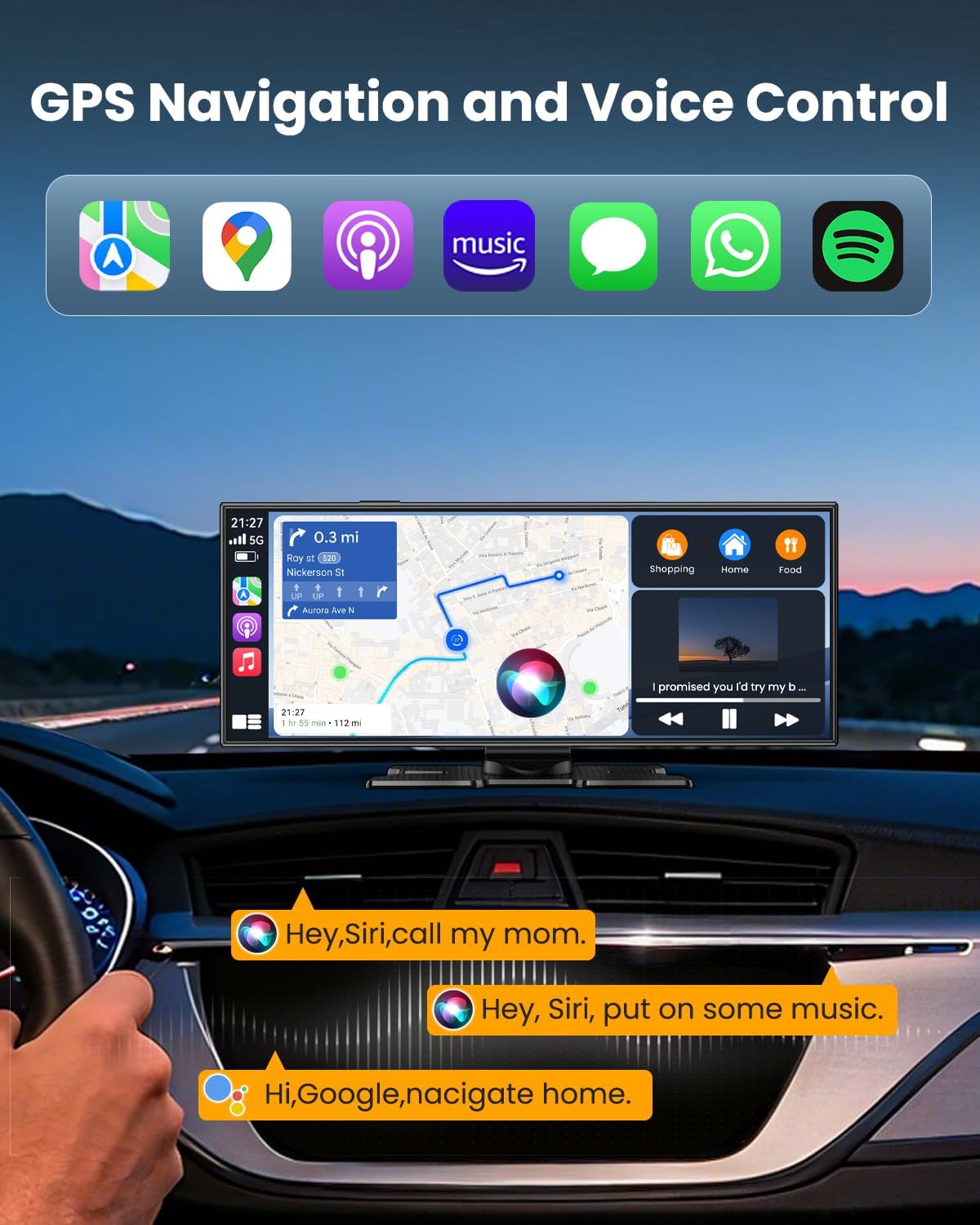
Image: GPS Navigation and Voice Control features in action.
6.6 Dash Cam & Loop Recording
The integrated 4K front camera and 1080P rear camera provide continuous recording for safety and evidence.
- Automatic Recording: The system automatically begins recording when powered on.
- Loop Recording: When the 64GB TF card is full, the system automatically overwrites the oldest files to ensure continuous recording.
- Emergency Lock: In case of sudden impact or collision, the device will automatically lock the current recording to prevent it from being overwritten.
6.7 Mobile App Control
Manage your dash cam recordings conveniently with the dedicated mobile application.
- Download the App: Scan the QR code on the device or in the manual, or search for "Viidure" on Google Play or the App Store.
- Connect via WiFi: Connect your smartphone to the CarPlay unit's 5GHz WiFi network.
- Access Recordings: Use the app to preview, download, and share your dash cam videos directly from your phone.

Image: Mobile app control for dash cam video management.
7. Maintenance
7.1 Care and Cleaning
- Screen Cleaning: Use a soft, lint-free cloth to gently wipe the screen. For stubborn smudges, slightly dampen the cloth with water or a screen-safe cleaner.
- Device Exterior: Wipe the exterior with a soft, dry cloth. Avoid harsh chemicals.
- Cable Management: Periodically check all cables for wear and tear. Ensure they are not pinched or damaged.
7.2 Software Updates
Check the manufacturer's website or the mobile app periodically for available software updates to ensure optimal performance and access to new features.
8. Troubleshooting
If you encounter any issues with your device, please refer to the following table for common problems and solutions.
| Problem | Possible Cause | Solution |
|---|---|---|
| Device does not power on. | No power supply or loose connection. | Ensure the car charger is securely plugged into both the device and the vehicle's power outlet. Check vehicle's power outlet for functionality. |
| CarPlay/Android Auto fails to connect wirelessly. | Bluetooth/WiFi not enabled on phone, or pairing issue. | Ensure Bluetooth and WiFi are enabled on your phone. Delete previous pairings and try connecting again. Restart both devices. |
| No audio output. | Incorrect audio output setting or volume too low. | Check the audio output settings on the CarPlay unit (Built-in Speaker, AUX, FM, Bluetooth). Adjust volume on both the unit and your car stereo. |
| Dash cam not recording. | TF card issue or recording function disabled. | Ensure the 64GB TF card is properly inserted. Check dash cam settings to confirm recording is enabled. Format the TF card if necessary (backup important files first). |
| Rear camera not displaying. | Loose cable connection or camera malfunction. | Check the rear camera cable connection to the main unit. Ensure the camera is powered correctly if wired to reverse lights. |
9. Specifications
Detailed technical specifications for the kuayvan 11.5-inch Wireless CarPlay & Android Auto Screen (Model CP-115W):
| Feature | Detail |
|---|---|
| Product Dimensions | 1 x 9.4 x 3.9 inches |
| Item Weight | 2.77 pounds |
| Manufacturer | Kuayvan |
| Model Name | CP-115W |
| Connectivity Technology | Auxiliary, Bluetooth, USB, Wi-Fi (5GHz) |
| Special Features | App Control, Bluetooth, Reverse Assist, Touch Screen, Voice Control, GPS |
| Video Capture Resolution | Front: 4K, Rear: 1080p |
| Included Storage | 64GB TF Card |
| Mounting Type | Dashboard Mount, Windshield Mount |
| Field Of View | 180 Degrees |
| Vehicle Service Type | Car, Minivan, RV (12V-24V compatible) |
10. Warranty and Support
kuayvan products are designed for reliability and performance. This product comes with a standard manufacturer's warranty against defects in materials and workmanship. For specific warranty details, please refer to the warranty card included in your package or contact kuayvan customer support.
For technical assistance, troubleshooting, or warranty claims, please contact kuayvan customer service through the contact information provided on the product packaging or the official kuayvan website. Please have your model number (CP-115W) and purchase date ready when contacting support.