
1. Introduction and Overview
This manual provides instructions for the setup, operation, and maintenance of your Acer SA272U G0 27-inch WQHD IPS Monitor. This monitor features a WQHD (2560x1440) resolution, a 120Hz refresh rate, and a 1ms Visual Response Boost (VRB) for clear visuals. Its ultra-thin, ZeroFrame design offers an immersive viewing experience with a 178-degree wide viewing angle. The monitor supports HDR10 and includes Acer VisionCare technologies like Bluelight Shield PRO, Flickerless, Low Dimming, and Comfyview to reduce eye strain.
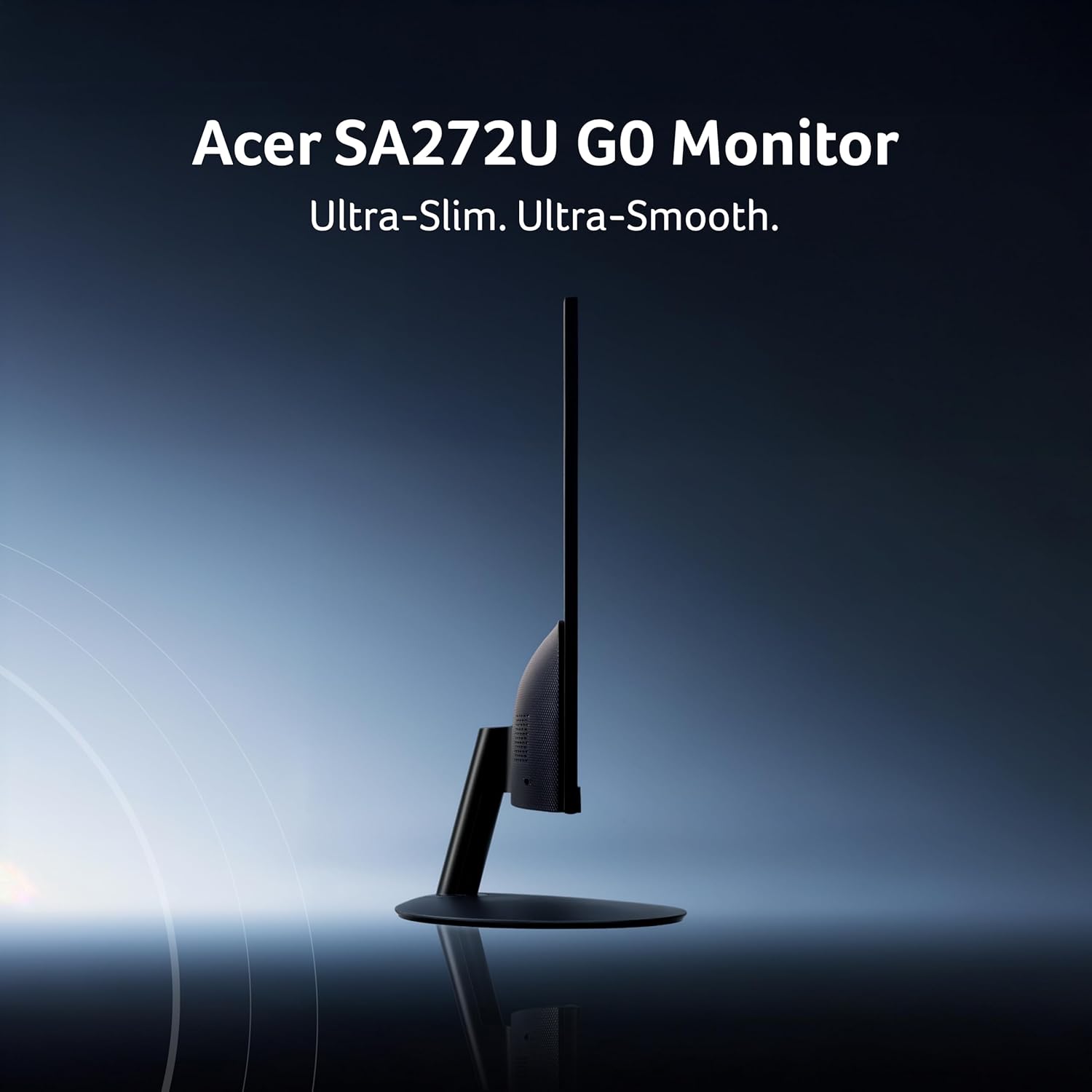
Figure 1.1: Acer SA272U G0 Monitor showcasing its ultra-slim profile.
2. Package Contents
Verify that all items listed below are present in your product package:
- Monitor
- Stand
- Power Cord
- Manual (this document)
- HDMI Cable
3. Setup Instructions
3.1 Assembling the Monitor Stand
- Carefully remove the monitor and stand components from the packaging.
- Attach the stand base to the stand neck, securing it with the provided screw.
- Align the assembled stand with the mounting points on the back of the monitor.
- Gently push the stand into place until it clicks or secure it with screws if applicable.
3.2 Connecting Cables
Connect the necessary cables to the monitor and your computer or other devices.

Figure 3.1: Monitor rear panel with labeled DisplayPort and HDMI inputs.
- Power Cable: Connect one end of the power cord to the monitor's power input and the other end to a power outlet.
- HDMI Cable: Use the provided HDMI cable to connect your computer's HDMI output to one of the monitor's HDMI 2.0 ports.
- DisplayPort Cable (Optional): If your device supports DisplayPort, connect a DisplayPort cable from your device to the monitor's DisplayPort 1.2 input.
- Audio Out (Optional): Connect external speakers or headphones to the audio output port if desired.
3.3 Initial Power-On
- Ensure all cables are securely connected.
- Press the power button on the monitor.
- Turn on your connected computer or device. The monitor should automatically detect the input signal.
4. Operating Instructions
4.1 Power On/Off
Press the power button located on the monitor to turn it on or off. The power indicator light will illuminate when the monitor is on.
4.2 On-Screen Display (OSD) Menu
The OSD menu allows you to adjust various monitor settings. Use the control buttons (usually located on the back or bottom right of the monitor) to navigate the menu.
- Brightness/Contrast: Adjust the display's luminance and contrast levels.
- Color Settings: Modify color temperature, gamma, and individual RGB levels.
- Input Selection: Manually switch between HDMI 1, HDMI 2, and DisplayPort inputs.
- Refresh Rate: Confirm or set the desired refresh rate (up to 120Hz).
- VRB (Visual Response Boost): Enable or disable VRB for reduced motion blur.
- AMD FreeSync: Enable this feature for compatible AMD graphics cards to synchronize the monitor's refresh rate with the GPU's frame rate, reducing screen tearing and stuttering.
- Acer VisionCare: Access settings for Bluelight Shield PRO, Flickerless, Low Dimming, and Comfyview to optimize eye comfort.

Figure 4.1: Acer VisionCare technologies for eye comfort.
4.3 Built-in Speakers
The monitor includes integrated 1W x 2 stereo speakers. Audio output can be controlled via the OSD menu or your connected device's volume settings.
5. Maintenance
5.1 Cleaning the Monitor
- Always power off the monitor and unplug the power cord before cleaning.
- Use a soft, lint-free cloth lightly dampened with water or a non-abrasive screen cleaner to wipe the screen.
- For the monitor casing, use a soft, dry cloth. Avoid using harsh chemicals or abrasive materials.
- Do not spray cleaner directly onto the screen.
5.2 Safety Precautions
- Do not block ventilation openings.
- Do not place the monitor near heat sources or in direct sunlight.
- Avoid exposing the monitor to rain or moisture.
- Use only the power adapter supplied with the monitor.
6. Troubleshooting
If you encounter issues with your monitor, refer to the following common problems and solutions:
| Problem | Possible Solution |
|---|---|
| No image on screen |
|
| Image flickering or unstable |
|
| No sound from speakers |
|
| Colors appear incorrect |
|
7. Specifications
| Brand | Acer |
| Model Number | UM.HS2SI.003 |
| Series | SA272U G |
| Screen Size | 27 Inches |
| Panel Type | IPS |
| Resolution | WQHD (2560 x 1440 Pixels) |
| Refresh Rate | 120Hz |
| Response Time | 1ms VRB (Visual Response Boost) |
| Aspect Ratio | 16:9 |
| Brightness | 250 nits |
| Contrast Ratio | 100M:1 (Dynamic) |
| Viewing Angle | 178 degrees (Wide) |
| HDR Support | HDR10 |
| Connectivity | 2 x HDMI (2.0), 1 x DisplayPort (1.2), Audio Out |
| Speakers | Integrated 1W x 2 Stereo Speakers |
| Special Features | AMD FreeSync, BlueLightShield PRO, Flickerless, Low Dimming, Comfyview, ZeroFrame Design, VESA Wall Mount (75x75mm) |
| Color | Black |
| Product Dimensions (LxWxH) | 22.4 x 61.4 x 45.2 cm |
| Item Weight | 3.92 kg |
| Included Components | Monitor, stand, power cord, manual, HDMI Cable |
8. Warranty and Support
Acer provides customer support for its products. For service-related queries or technical assistance, please use the contact information below:

Figure 8.1: Acer Customer Support details.
- Toll-Free Numbers: 1800-11-4100, 6366800400
- Email Support: acersupport@in.startek.com
- Online Support: Visit acer1.in/swdlo for drivers, manuals, and further assistance.
- Operating Hours: Live agent support available from Monday to Saturday, 9 AM to 6 PM (Public Holidays excluded).
Please retain your proof of purchase for warranty claims.