
1. Introduction
The ScanSnap iX1300 Deluxe is a compact and efficient document scanner designed to streamline your document management. It offers both wireless (Wi-Fi) and USB connectivity, making it versatile for various environments. This manual provides essential information for setting up, operating, maintaining, and troubleshooting your scanner to ensure optimal performance.
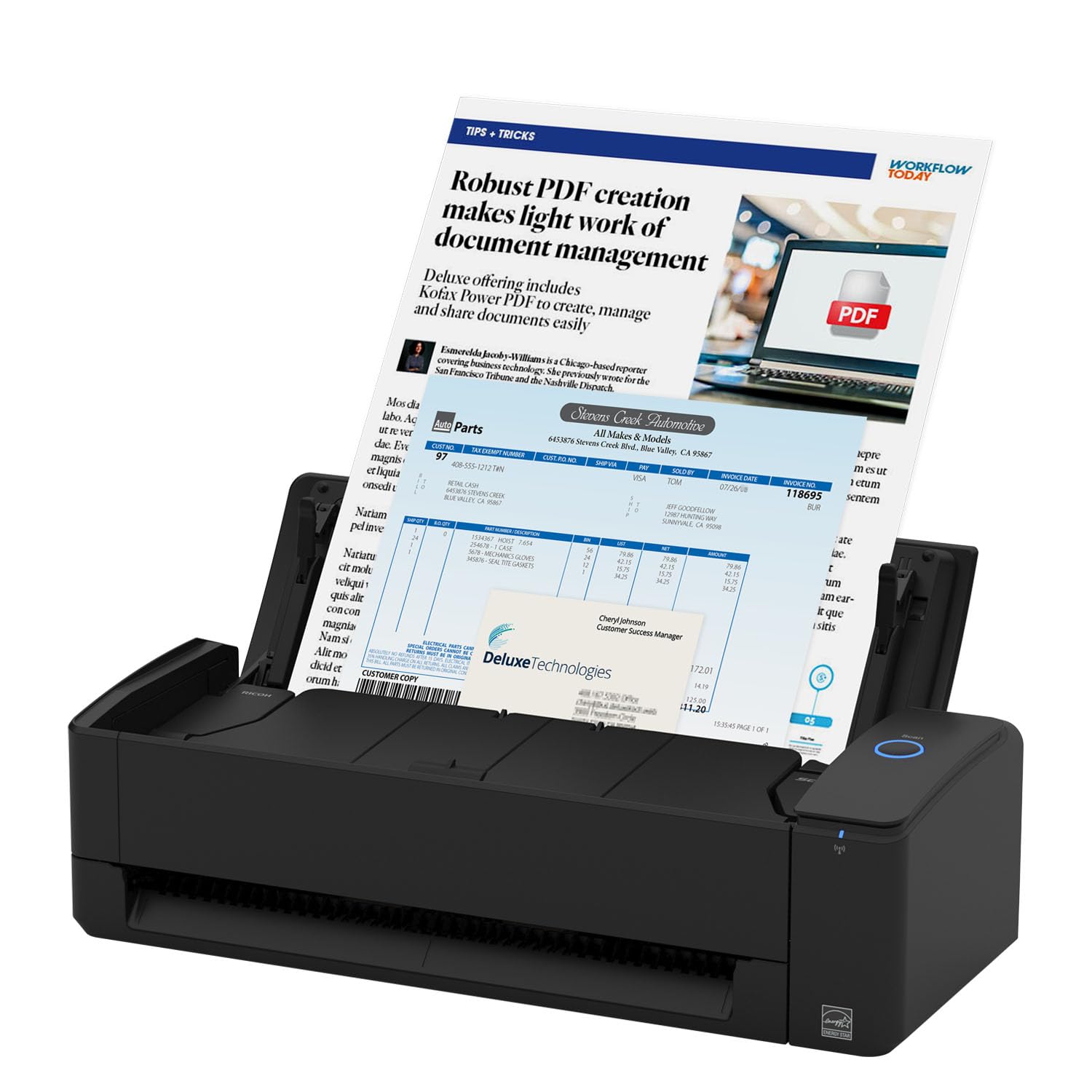
Figure 1: ScanSnap iX1300 Deluxe Scanner in its compact, closed state.
2. Key Features
- Compact Design: Space-saving design fits easily into home offices and small workspaces.
- High-Speed Scanning: Scans up to 30 pages per minute (ppm) in duplex mode.
- Automatic Document Feeder (ADF): Features a 20-sheet ADF for batch scanning.
- Versatile Document Handling: Supports both U-Turn Scan (for regular paper documents) and Return Scan (for rigid or thicker items like IDs, passports, and photos).
- Connectivity: Offers both Wi-Fi and USB connectivity for flexible integration with your devices.
- One-Touch Operation: Simple 'Scan' button for quick and easy document digitization.
- Intelligent Image Processing: Automatic de-skew, color optimization, blank page removal, and document type identification ensure clear and accurate scans without manual adjustments.
- ScanSnap Home Software: Includes software for organizing, creating searchable PDFs, and managing your scanned documents.
- Deluxe PDF Solution: The Deluxe bundle includes advanced PDF editing capabilities for creating, converting, and securely sharing documents.
- Cloud Integration: Scan directly to cloud services, mobile devices, PC, or Mac.

Figure 2: Overview of ScanSnap iX1300 key features including speed and connectivity.
3. Setup
Follow these steps to set up your ScanSnap iX1300 Deluxe scanner:
- Unboxing: Carefully remove the scanner and all accessories from the packaging. Verify all components are present: scanner unit, AC adapter, power cable, and USB cable.
- Power Connection: Connect the AC adapter to the scanner's power input and then plug the power cable into a wall outlet.
- Software Installation: Install the ScanSnap Home software on your computer (Windows or macOS). The software is essential for scanner functionality and document management.
- Connectivity Options:
- USB Connection: For initial setup or a wired connection, connect the scanner to your computer using the provided USB cable. This method is often recommended for a smoother initial setup experience.
- Wi-Fi Connection: After installing the software, follow the on-screen instructions within ScanSnap Home to configure the Wi-Fi connection. This allows for wireless scanning to your computer or mobile devices.
- Prepare the Scanner: Open the scanner's cover to reveal the document feeder. Extend the document support as needed for your scanning task.

Figure 3: Contents of the ScanSnap iX1300 package, including cables and guides.
4. Operating Instructions
The ScanSnap iX1300 is designed for simple, one-touch operation.
4.1 Loading Documents
- U-Turn Scan (ADF): For standard paper documents, open the top cover and extend the document support. Place up to 20 sheets into the feeder. The scanner will automatically feed and eject documents from the top.
- Return Scan (Manual Feed): For thicker items like business cards, plastic cards, or photos, use the front manual feed slot. Insert one item at a time, and it will be ejected from the front.

Figure 4: Illustration of the two scanning paths: U-Turn for multi-page documents and Return Scan for single, thicker items.
4.2 Initiating a Scan
- Ensure the scanner is powered on and connected (Wi-Fi or USB).
- Load your documents according to the type of scan path required.
- Press the 'Scan' button on the scanner. The ScanSnap Home software will launch and begin processing the documents.
- The scanner automatically detects document size, color, and orientation, and removes blank pages for optimized results.

Figure 5: The ScanSnap iX1300 features a single, easy-to-use scan button.
4.3 ScanSnap Home Software
The ScanSnap Home software provides a centralized platform for managing your scanned data. It automatically organizes files, creates searchable PDFs, and allows you to send documents to various destinations:
- Save to local folders on your computer.
- Send to cloud services (e.g., Dropbox, Google Drive, OneDrive).
- Scan directly to mobile devices using the ScanSnap Connect Application.
- Utilize the Quick Menu feature to drag-and-drop scanned documents to your favorite applications.

Figure 6: User interacting with the ScanSnap iX1300 and ScanSnap Home software on a laptop.
5. Maintenance
Regular maintenance ensures the longevity and optimal performance of your ScanSnap iX1300.
5.1 Cleaning
Periodically clean the scanner's rollers and glass surfaces to prevent dust and debris from affecting scan quality. Refer to the ScanSnap Home software's help section for detailed cleaning instructions and recommended cleaning kits.
5.2 Power Management
The scanner features an automatic power-off function to conserve energy. If the paper support is not in the upright position for normal use, the scanner may enter a low-power state or shut down after approximately 30 seconds. Ensure the document support is properly deployed when you intend to use the scanner to prevent unexpected shutdowns.
6. Troubleshooting
If you encounter issues with your ScanSnap iX1300, refer to the following common solutions:
- Connectivity Issues: If the scanner is not connecting via Wi-Fi, try connecting it via USB first to ensure the software is properly configured and updated. Re-attempt Wi-Fi setup through the ScanSnap Home application. Ensure your Wi-Fi network is stable and the scanner is within range.
- Poor Scan Quality: If scans appear skewed, blurry, or have lines, clean the scanner's rollers and glass surfaces. Ensure documents are loaded correctly and are not wrinkled or damaged.
- Paper Jams: If a paper jam occurs, carefully open the scanner covers and gently remove the jammed paper. Avoid pulling forcefully to prevent damage to the rollers.
- Scanner Not Responding: Restart the scanner and your computer. Ensure all cables are securely connected. Check the ScanSnap Home software for any error messages or updates.
For more detailed troubleshooting, consult the comprehensive help guide within the ScanSnap Home software or visit the official ScanSnap support website.
7. Specifications
| Feature | Detail |
|---|---|
| Scanner Type | Business Card, Document |
| Brand | ScanSnap |
| Model Name | ScanSnap iX1300 Deluxe |
| Connectivity Technology | USB, Wi-Fi |
| Product Dimensions | 3.3"D x 11.7"W x 4.5"H |
| Resolution | 600 dpi |
| Item Weight | 4.4 Pounds |
| Wattage | 17 watts |
| Standard Sheet Capacity | 20 |
| Optical Sensor Technology | CIS |
| Minimum System Requirements | Windows 11 / Windows 10 (32bit/64bit), ARM, Intel, or Intel-compatible processors; macOS Monterey 12 or later, iOS 16.0 or later, iPadOS 16.0 or later; Android 10.0 or later, ChromeOS 138.0.7204.178 or later |
8. Warranty and Support
8.1 Warranty Information
The ScanSnap iX1300 Deluxe scanner comes with a 1 Year Manufacturer Warranty. Please retain your proof of purchase for warranty claims.
8.2 Customer Support
For technical assistance, troubleshooting, or warranty inquiries, please visit the official ScanSnap support website or contact their customer service. Detailed contact information can typically be found in the 'Getting Started' guide included with your product or on the manufacturer's website.


